Showing posts with label Windows Live Essentials 2011. Show all posts

Tuesday, December 14, 2010

Windows Live Plug-ins site launched !

The plug-ins are one of the most useful additions to various Windows Live products. These enhances the usefulness immensely. Now a new , neat , clean  site has been created featuring these plug-ins.

http://plugins.live.com/ 


Wlplug-inssite

For various Windows Live App , it provides many plug-ins arranged category wise, tag cloud and languages which can be arranged in various ways making it very easy.Wlplug-inssite1


Check out the various plug-ins  from http://plugins.live.com/


It also provides information for Plug-in Submission Process, so that if you are a developer , you can submit your plug-ins.

Thursday, December 02, 2010

New build of Windows Live Essentials 2011 released

WLE2011z

A new build (Build 15.4.3508.1109 ) of Windows Live Essentials 2011 has been released today. It’s a QFE (Quick Fix Engineering) update, that is to say, this build is for bug fixes and not UI changes.

This release updates all Essentials 2011 apps from Build 15.4.3502.0922 to Build 15.4.3508.1109 except Windows Live Mesh and Windows Live Family Safety

WLEss2011afterupgrd

You can get this build from http://explore.live.com/windows-live-essentials?os=other  as web installer .

And you can get the Offline Installer from  http://g.live.com/1rewlive4-all/en/wlsetup-all.exe   Its size is 209 MB (English language ).


Though the web installer and offline installer version shows 15.4.3502.0922 but when you run this, it’ll prompt you for the upgrade to new build. Here, I can confirm as of now only for English ver.

For other language offline installer please check here.  PLEASE NOTE that I have tried only the English offline installer and other language installer may not be updated yet as there’s no official announcement from Microsoft.

As said this build being QFE, fixes bugs but the complete changelog has not been made available yet. I’ll be posting as I come across any changes in various Live Apps.

One of the bug this QFE fixes is in Live Writer. It fixes the AltGr shortcut issue for European Keyboards in Windows Live Writer


Here are details of this fix sourced from Aaron’s Blog -

“A new build (15.4.3508.1109) of Windows Live Writer 2011 was released today for the primary reason to fix an issue with using the AltGr key on many keyboards used worldwide.  Just about five weeks ago we started to receive reports that AltGr+1 or any number 1-6 or AltGr+V was not having the desired effect.  Here is what should have happened for a few different keyboards:

Keyboard AltGr+1 AltGr+2 AltGr+3 AltGr+4 AltGr+5
Spanish | @ # ~
Swedish   @ £ $
French   ~ # { [
Swiss German ¦ @ # ° §

Instead of the expected character this would get mapped to the ribbon shortcuts since AltGr really is the equivalent to Alt+Ctrl.  For 1-6 it would map to changing your HTML style and for “V” it would do a paste special.  If you were trying to type an email address with the “@” symbol or type a currency symbol it would be very frustrating.  Overall this affected 103 different keyboards used in over 400 locations worldwide.

The built in virtual keyboards that come with the operating system do not generally show this issue and you needed to have a real keyboard with an AltGr key.”

Wednesday, December 01, 2010

Windows Live Writer 2011 Keyboard Shortcuts

sprite_logos_writer

Here’s the complete list of Keyboard Shortcuts for the final ver of Windows Live Writer 2011 -


Command Keystroke New for 2011
Text Center Alignment Ctrl+E

X

Text Left Alignment Ctrl+L

X

Text Right Alignment Ctrl+R

X

Set text direction of paragraph Left to Right Ctrl+Left Shift

X

Set text direction of paragraph Right to Left Ctrl+Right Shift

X

Bold text Ctrl+B  
Italic Ctrl+I  
Strikethrough Ctrl+H  
Underline Ctrl+U  
Superscript Ctrl+Shift+=

X

Subscript Ctrl+=

X

Bulleted List Ctrl+Shift+L

X

Check Spelling F7  
Clear Del  
Copy Ctrl+C  
Cut Ctrl+X  
Delete Del  
Select All Ctrl+A  
Paste Ctrl+V  
Paste Special Ctrl+Left Alt+V  
Paste without formatting Ctrl+Shift+V  
Remove Links and Clear Formatting Ctrl+Space  
Find Ctrl+F  
Redo Ctrl+Y  
Undo Ctrl+Z  
Apply Paragraph style Ctrl+Shift+N

X

Apply Heading 1 style Ctrl+Left Alt+1

X

Apply Heading 2 style Ctrl+Left Alt+2

X

Apply Heading 3 style Ctrl+Left Alt+3

X

Apply Heading 4 style Ctrl+Left Alt+4

X

Apply Heading 5 style Ctrl+Left Alt+5

X

Apply Heading 6 style Ctrl+Left Alt+6

X

Insert Hyperlink Ctrl+K  
New Page Ctrl+G  
New Post Ctrl+N  
Open Post Ctrl+O  
Post and Publish Ctrl+Shift+P  
Post Draft to blog Ctrl+Shift+D  
Save Ctrl+S  
Print Ctrl+P  
Insert Picture from File Ctrl+J

X

Insert Picture from Web Ctrl+Shift+J

X

Switch to Source View Shift+F11  
Switch to Preview view F12  
Switch to Edit View F11  
Edit using Theme Ctrl+F11  
Post Properties Dialog F2  
Set focus in Post Properties field or Previous property field Shift+F6  
Set focus in Next Field of Post Properties F6  
Show Properties Pane dialog for selected field Ctrl+Shift+C  
Toggle sidebar for plug-ins F9  
Help F1  
Toggle ribbon visible state Ctrl+F1

X

(Source:Aaron's Live Writer Blog)

Friday, November 05, 2010

Video chat from TV with your Messenger friend on PC or Mac with Video Kinect

After playing games on your recently released Kinect you should check out this cool feature also. It’s the Video Kinect .

Video Kinect allows people to video chat with their friends, using the Kinect camera, on their TV. Of course you can chat with your friends on Xbox Live who also have a Kinect, but the really interesting part is that you can also chat with anyone who has a computer with a webcam, using Windows Live Messenger2011.

“All you have to do is link your Xbox Live Gamertag to the Windows Live ID that you use for Messenger, sign in on the console and you’re good to go. Video Kinect is accessible through the Kinect Hub in the Xbox Dashboard, so just wave your hand and swipe through to find it and launch, then hover over any of your friends to start a video chat. When looking through your contacts on Kinect, your Messenger friends show up just like your Xbox Live friends do. When you start the chat with one of them, they will see a Messenger notification on their PC, asking if they want to start a video chat with you.”

Video chatting from your PC or Mac with someone who’s using Video Kinect on Xbox LIVE gives you the same full-screen experience as when you chat with someone on a PC.

To see how Video Kinect and Windows Live Messenger work together, check out this video

Video Kinect and Windows Live Messenger Demo


For more detail please check the Source:

Video Kinect brings Messenger video chat to the Xbox 360

Stay in touch with Video Kinect on Xbox and Windows Live Messenger

Sunday, October 31, 2010

A new site, new demo videos for Windows Live Messenger 2011

WLM2011

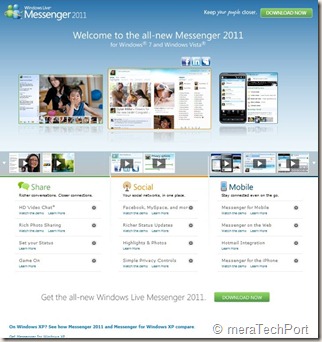
A new cool site design , nice looks and lots of demo videos for Windows Live Messenger 2011 for Windows 7 and Windows Vista.


WLM2011site1

Check the site -  http://www.microsoft.com/windows/windowslive/see-it-in-action/messenger2011demo/ 


WLM2011site


Also check the comparison chart  -

See how Messenger 2011 and Messenger for Windows XP compare.

XPWin7cmpremsngr

Friday, October 29, 2010

Harrison Hoffman- Product Manager,Windows Live in conversation with A&M at Microsoft Talk

scaled500


Check Episode 16 of Microsoft Talk, it’s a  Windows Live Essentials 2011 Launch Special with Harrison Hoffman in conversation with Abhishek Baxi and Manan at Microsoft Talk


Harrison Hoffman, Product Manager in the Windows Live group at Microsoft, was also the co-founder of the popular Windows Live blog – LiveSide.net . He talks about recently released Windows Live Essentials 2011 final ver. Check out the Podcast and you may walk away with cool goodies.

Wednesday, October 06, 2010

Now Hotmail also gets IE9 jumplist

One of the coolest feature of IE9 is the pinned sites. That is, you can launch your favorite web pages from your task bar with a single click, so the web sites are like any other app with jumplist  on your taskbar. Now web sites are taking advantage of this feature and designing their sites to provide links and even player controls.

When IE9 beta was released ,they had demo examples of Hotmail being pinned to taskbar. But at that time Hotmail jumplist  was not available to users. Now it has been updated and Hotmail also has jumplist. As you can see it includes Inbox, Calendars, Contacts, Send email.

HM pinning to IE9-2z


To pin the Hotmail to your taskbar, Sign-in to  Hotmail, click the Hotmail favicon (icon to the left of the web address in the address bar) and drag it to the taskbar.  Do this while in Inbox, sometimes if you are in Hotmail Home Page, it may not work correctly. Once the icon is dragged to taskbar, Right click on it to get the jumplist. Remember if you have saved the password and when you click the icon later, the Hotmail will open . So its upto you to make Hotmail ‘Remember password ‘ or not.

The same thing when I tried with Gmail, got this - 

GM pinning to IE9z

Gmail not yet taking advantage of this cool feature. May be in future it may also provide it.

Also note that once you pin any site/Hotmail to the taskbar and when you open it, the website icon appears at the top of the browser, so you have easy access to the website home page. The Back and forward buttons also gets the color to match the color of the icon. Very cool !

HM pinning to IE9-1z


GM pinning to IE9-1z

If you haven’t yet installed Internet Explorer 9 Beta yet , get it from Internet Explorer 9 Home

EDIT: As at LiveSide , my friend Kip points out that not all are seeing this yet as the feature is rolling out.

EDIT 16/10/10 : The Hotmail updates have been rolled out now, so you can try out this and many other cool features.