Showing posts with label Apps. Show all posts

Friday, November 29, 2019

Dark mode in Outlook mobile app

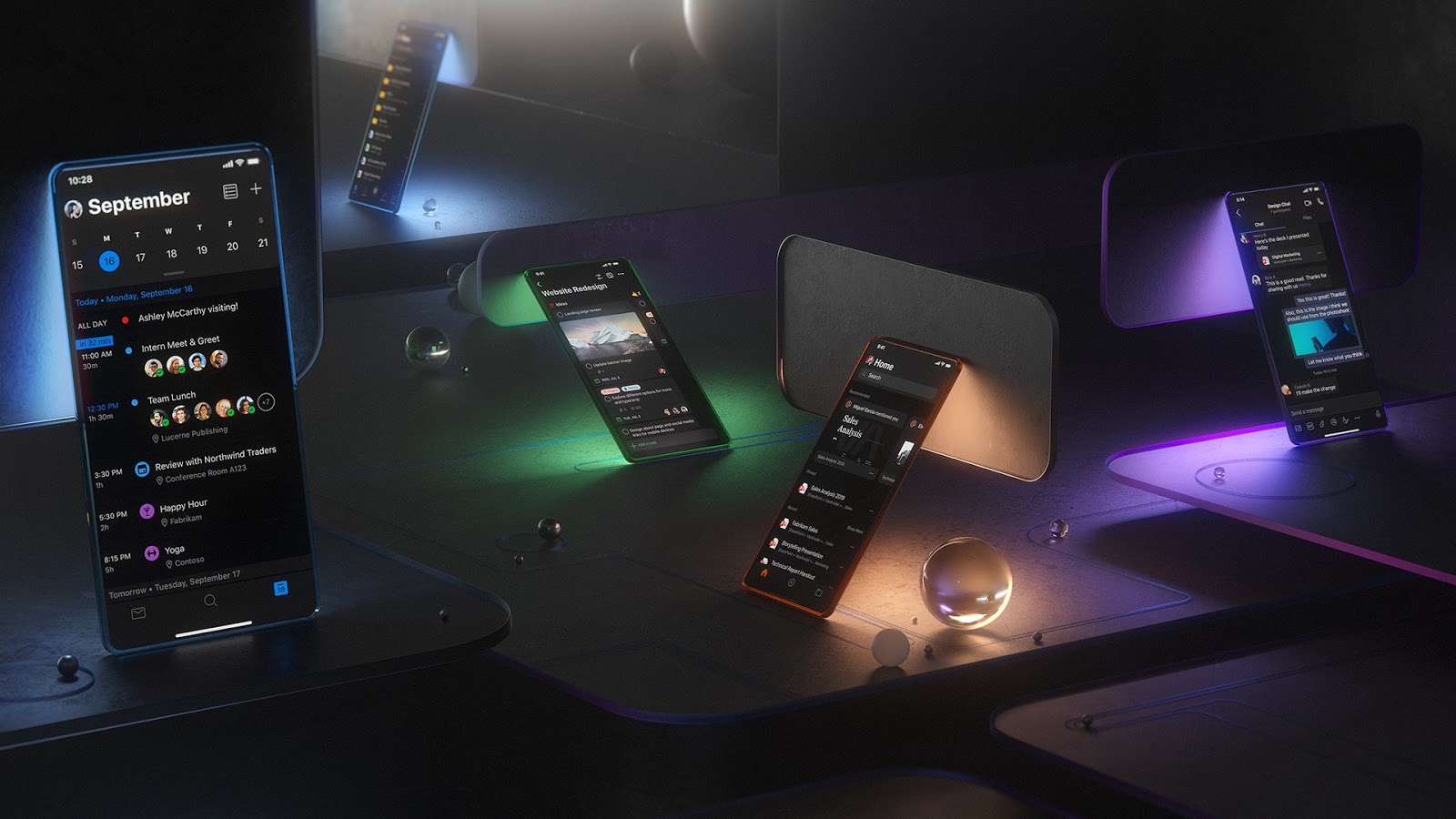
App users' favorite demand of dark mode has been made available in Outlook mobile app for Android and iOS. Dark mode has started rolling out since Aug. in Outlook for iOS and Android.
Dark mode provides added comfort when a bright screen may not be appropriate. It provides the users the choice and flexibility.

Adapting to work life flow, Outlook focuses its design on the context of where people want to use Dark Mode. When asked, people found the experience comfortable and aesthetically pleasing while keeping their email and calendar content crisp and clear. This way, Outlook helps you stay connected and organized so you can get things done wherever you are such as dimly lit living rooms, home offices or airplanes.
 (Dark Mode experiences on iOS : pic courtesy Microsoft Design)
This experience is in keeping with other modern apps that aim to ease viewing and reduce eye strain and to help optimize battery life. Once iOS and Android devices support dark themes, Outlook plans to automatically switch to Dark Mode based on their device settings in addition to Outlook in-app options. One can switch to dark mode from Apps settings.

Saturday, September 08, 2018

Send SMS from your PC, stay connected with Your Phone app

Now you don’t need to search your phone to send SMS / text messages. Let it be in your pocket, in bag, on your desk or in your purse. Your Phone app gives you instant access to your most recent photos and texts from your Android phone. Your Phone app now allows to text your friends, group message and all this using your PC keyboard.
Your Phone app allows you to view, send, and receive the SMS from your Android, on your computer.

As mentioned earlier, one can type with a keyboard for sending messages. And on pen-capable devices, one can use digital pen to ink a message and see your ink gets converted to text and send. Or one can try using just your voice to dictate a message (US English only at this time) . Press Winkey + H to start dictation. On a touch keyboard, select the microphone button.
You must link your Android phone to your computer through Your Phone app. You will receive an app from Microsoft, which you must download to your mobile phone and follow the setup prompts. Android 7.0+ are compatible with Your Phone app. For iPhone users, Your Phone app helps you to link your phone to your PC.
Requirement:
  • A mobile phone running Android 7.0 (Nougat) or later
  • A PC running Windows 10 April 2018 Update (Version 1803) or later
Check this for all the FAQs on Your Phone.

Monday, August 29, 2016

How to use Windows Maps to measure distance

Many a times you want to find distance between locations on the Maps as per route of your liking. Suppose you wanted to plan a run, a marathon or want take a bike ride or something like that. You can plan this using Windows Maps before you actually head out.

Measure Distance tool:

Windows Maps now provides ‘Measure Distance’ tool. Using it one can measure distance.

  • Open Maps app
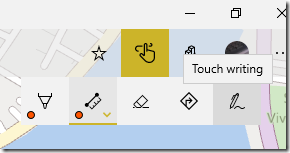
  • Click on the Windows Ink Toolbar on top right corner of the Map

MapsDistance01

  • Click on the ‘Measure Distance’ option.

MapsDistance02

  • If you are not using the Pen and want to use your Mouse then click on the ‘Touch Writing’ option

MapsDistance03

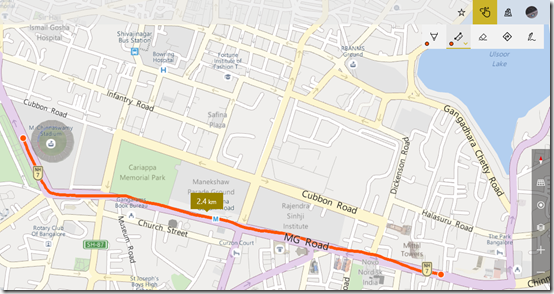
  • Once done, just draw the line following the path you want starting from the point from where you want to measure and ending at the destination point.

MapsDistance04

  • And the measuring tool will show the distance between these two points.

One can also search for a location you want to route and trace the path using the Measure distance tool. One can use Eraser to erase or make changes to path drawn. One can also change the units of distance from Settings.

MapsDistance05

This feature is very useful and can be used in various events.

( Using Windows 10 Build 14905, Windows Maps 5.1608.2311.0 )

Saturday, October 24, 2015

Troubleshooting Windows 10 Photos app crash

Since some time now, there have been many users who are complaining of Windows 10 Photos app crashing or closing after editing a photo. Some users are also complaining of the app getting closed as soon they open the app or the app freezing after opening and then it closes. One can try these methods to troubleshoot any Windows 10 Store app problems in general:

  • First of all ensure the latest version of the app is installed. Go to Store and check if any updates are available for the app if you have set to check the updates manually.
  • If you have problems with an app from the Windows store, try this app troubleshooter : Run Troubleshooter  one can download and run this or
  • From the Control panel , run the troubleshooting > Hardware & Sound > Windows Store apps
    StoreAppTroubleshoot
  • Next is one can uninstall the app and reinstall. Photos app being installed along with Windows OS doesn’t have right click ‘Uninstall’ option in the context menu like other user installed Windows Store apps. So will have to issue this PowerShell command. (This is specific for Photos app)
    • Search for Windows PowerShell in Search box and on search results, right click on Windows PowerShell and Run as administrator.
    • On the Powershell prompt,  Type

          get-appxpackage *Microsoft.Windows.Photos* | remove-appxpackage

    and press enter. After its removed, reinstall the app from- https://www.microsoft.com/store/apps/9WZDNCRFJBH4 

  • One can try resetting Windows store.
    • Right click on start and click on Run.
    • In the Run window, type WSReset.exe and click OK
  • If its confirmed that the issue is with photos app only then one can try resetting the Photos app database.
    • Open Run Window
    • Type:
      • %appdata%\..\Local\Packages\Microsoft.Windows.Photos_8wekyb3d8bbwe\LocalState
      • One can copy paste this into Run window and click OK to open this location in Windows Explorer.
      • Delete all the contents of that folder

So these were some of the methods to tackle Windows Store app issues in general and Photos app issue in particular. Hope it solves your Photos app issue.

Tuesday, October 06, 2015

Add a Hindu Saka Calendar in Mail and Calendar app

With the latest update to Windows 10 Mail and Calendar app, apart from other new features, the app also added support for additional calendar types.

Alternate Calendars:

Open the Calendar app, From Settings > Calendar Settings > scroll down to Alternate Calendars.   It includes support for English, Japanese, Chinese (Simplified), Chinese (Traditional), Arabic, Persian, Thai, Korean, Hebrew and Hindi. And selecting any of these languages will provide options supporting these alternate calendars: Gregorian, Hijri, Umm al-Qura, Hebrew Lunar, Saka Era.

SakaCal01

So to enable Hindu Saka Calendar in Hindi, first check the Alternate Calendars box. Then select Hindi and this will enable Saka Era. The month and the dates will be displayed along with the English month name and the dates. The month name will be displayed in Hindi.

SakaCal02

SakaCal03a

Similarly one can choose other Alternate Calendar types too.

SakaCal03

This Mail and Calendar app ver is17.6303.42251.0 running on Windows 10 Build 10547. So if you are running the Windows 10 RTM , please check if its available or not.

Monday, August 31, 2015

How to reinstall Store app or other preinstalled apps in Windows 10

Some users were having issues when on upgrading or installing Windows 10, the Store app itself was missing. The Store app was not available as a part of standard pre-installed apps. Or such situation arise on Windows 10 devices, when preinstalled Windows apps may have somehow uninstalled. This is possible using PowerShell command-lets. Most of these preinstalled apps can be re-downloaded from the Windows Store. But what if the Store app itself is uninstalled, then what to do. In such situation, here are the steps documented in MSDN to be followed.

Reinstall preinstalled apps:

  • Download the Reinstall-preinstalledApps.zip PowerShell Script to your PC and unzip ,copy it to some folder (here I have copied to a folder named Tryscript in C drive)
  • Now open an elevated PowerShell window, for this
    • Click on Start
    • type ‘Windows PowerShell’ in search
    • From the Search’s result, right click on Windows PowerShell and Run As Administrator
    • Click Yes when prompted for UAC dialog.
  • Now from the PS prompt, navigate to where you have downloaded the script.
  • Now temporarily allow unsigned PowerShell scripts to execute

PS C:\tryscript> Set-ExecutionPolicy Unrestricted

  • Execute the script. You can install a specific app like the Windows Store which we want in this case or all preinstalled apps. We will see both the cases

Reinstall a specific app like the Windows Store app:

    • One has to add a string argument to the PowerShell command that represents the string containing the name of the app. Here we want the Windows Store. The string is *Microsoft.WindowsStore*  (including asterisks). So the command will be

PS C:\tryscript> .\reinstall-preinstalledApp.ps1 *Microsoft.WindowsStore*

Typing Y will allow the script to continue when you will be prompted for approval to execute the script.

PSscriptStoreInstall

I already had Windows Store installed and was just trying the script. Please note that if you try to install an app that is already installed, it will be skipped without an error.

Reinstall all preinstalled apps

    • Execute this script without any arguments to install all pre-installed apps.

PS C:\tryscript> .\reinstall-preinstalledApp.ps1

  • After running the script, re-enable enforcement for signed PowerShell scripts. by issuing the following command

PS C:\tryscript> Set-ExecutionPolicy AllSigned

If everything is fine then you must be seeing the Store app or all the apps whichever script you had run and is available to launch in the all apps list.

NOTE: If you have deleted the app packages using Remove-AppxPackage command then the above steps will not bring back store. Microsoft is still working on it, to bring back Store in such cases.

Sunday, August 30, 2015

How to change weather settings in Mail & Calendar app in Windows 10

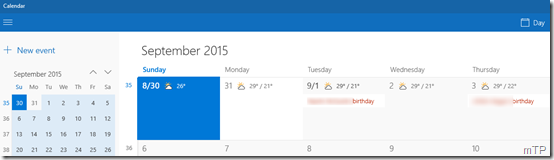
Here is a small tip. Mail and Calendar app users always looked for some easy way to change weather settings in Calendar app. The Calendar app shows the 5 days weather. One wanted to change the Temperature units that were shown for them. Indeed clicking on the weather on Calendar would take you to MSN weather site to make changes but user wanted an easier way.

CalendarWeather

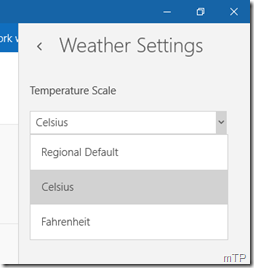
With the latest update to the Mail and Calendar app, Microsoft has added this option. From Calendar > Settings, one can get to the Weather Settings.

CalendarWeather1

And the Weather settings provides options to choose the units Celsius, Fahrenheit or Regional Default. It also shows from where the Weather data is being provided by.

CalendarWeather2

So if you wanted to change the weather units in Calendar, now you can do it easily.

Tuesday, June 30, 2015

How to reinstall Insider Hub app in Windows 10 Build 10158

Microsoft has released Windows 10 Insider Preview Build 10158 for PCs today. If you are Insider and have upgraded to build 10158 then you’ll find that the Insider Hub is no longer available. This is because the Insider Hub is no longer pre-installed starting with this build. If you want to re-install it, please follow the following steps:

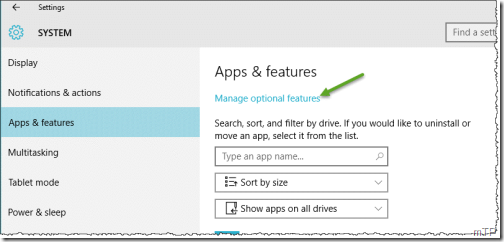
Go to Settings > System > Apps & Features ,

Click on Manage optional features (as shown in the pic) and then Add a feature

InsiderHubInstall

You’ll get a list which is in Alphabetical order, select the Insider Hub entry and click Install.

InsiderHubInstall1

And the app will be installed.

But when I installed it, it was no where got listed either in All apps as New or the Insider Hub app tile shown on Start. So I clicked on ‘Search the web and Windows’ (besides Start Window flag) and just entered Insider Hub and it was listed as Trusted Windows Store app. So I right clicked and pin to taskbar as well as Pinned to Start. And its now working. InsiderHubTile

Tuesday, May 06, 2014

OneDrive app for Windows Phone 8.1 updated

OneDrive (formerly SkyDrive) app for Windows Phone 8.1 just got updated to version 4.1.2.0 . No new features added but bug fixes and performance improvements.

New in version 4.1.2:
• Bug fixes and performance improvements

Works with:
Windows Phone 8.1
Windows Phone 8
Windows Phone 7.5

wp81OneDrive

wp81OneDrive1

Update your app from Windows Phone Store or check more details here.

Wednesday, October 09, 2013

Windows 8.1 allows to setup Mail App without using Microsoft Account

Earlier when you were signed into Windows 8 with Local account, you’re required to sign-in to Mail App using Microsoft Account (that is Live ID). When you first launch Mail App while not using Microsoft Account, it’ll prompt you to Switch to Microsoft Account on this PC.

MailApp01

But with Windows 8.1, you are no longer required to do so. Enterprise customers who use domain accounts and do not use Microsoft Accounts,will be able to use Mail App with Windows 8.1. And this applies not only to Mail App but to other Windows Store Apps that support the feature and requires a Microsoft Account.

Let us see how to do it, for this you’ll need to Enable the following Group Policy. (You should have admin rights to run Group Policy Editor). From Start Screen, just start typing Group… & you’ll be provided with Search results.. Click on ‘Edit Group Policy’

And from Group Policy Editor go to

Computer Configuration > Administrative Templates > Windows Components > App runtime > Allow Microsoft accounts to be optional

MailApp02

And Enable Allow Microsoft Account to be optional.

MailApp03

Once you do that and if you run the Mail App now, you’ll be prompted to use an Enterprise Account instead -

MailApp04

Click on ‘Show more details’ if you want to enter Server Address, Domain and Username .

Friday, January 25, 2013

SkyDrive app gets Live Tiles feature

Yes, we have been seeing that SkyDrive is getting continuously improved as new features being added regularly. SkyDrive team listens to user’s feedback and implements them too. And the latest addition in this list is SkyDrive app getting Live Tiles feature. So your SkyDrive app on Windows 8 Start Screen will keep you up-to-date displaying the recent additions to your SkyDrive with its Live Tile. SkyDrive Team announced about this today.

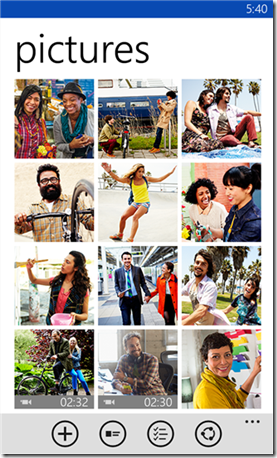
From today the SkyDrive app from Windows Store will start showing the notifications thus updating its Live Tile whenever you add new files to SkyDrive, whether the files are added directly to it or via other apps. So the SkyDrive Live Tile, not only be used to launch it but from now on will show you what’s going on with its at-a-glance view dynamically. It’ll show you relevant details of the new files added.

SkyDriveLiveTile01

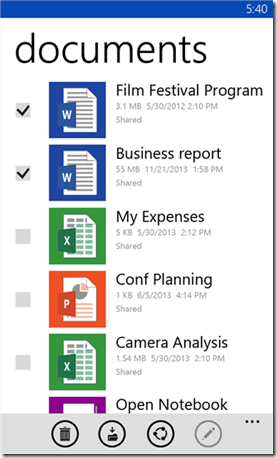
For example, if you have added a document, you’ll see the document’s name, when it was added, and what folder it’s in.

SkyDriveLiveTile02

If you have added photos, it’ll provide a nice view of these photos as can be seen above. And like other Live Tiles, now the SkyDrive tile too comes alive being dynamic and enhances your Windows 8 Start Screen. So you make the SkyDrive Tile larger if its set to show ‘smaller’ view.

And if by any chance, you do not want it to be a Live Tile, there’s always the option to ‘Turn Live Tile Off’ . Just right click on the Tile to get this option and click on 'Turn Live Tile off' from the app bar.

SkyDriveLiveTile03

This new feature has already started rolling out and will be rolling out throughout the day and if you don’t see this on your SkyDrive tile yet, you’ll get it soon. I checked my SkyDrive and it already got this feature.

Monday, July 02, 2012

Windows Store support for Windows 8 CP ends today–2nd July 2012

Windows Store support for Windows 8 Consumer Preview ends on July 2nd, 2012.

Starting on July 2, if you are using Windows 8 Consumer Preview and open Windows Store, you will receive the message:

This version of Windows is no longer supported by Windows Store.  Get the newest version of Windows.

So what it means if you are a Windows 8 Consumer Preview User ?

“Users of Windows 8 Consumer Preview can keep and continue to use the apps they’ve acquired from Store – there is no expiration date on the apps.  However, you cannot reinstall those apps on Consumer Preview nor can you obtain new apps for Consumer Preview through Windows Store on or after July 2.

In order to continue to use Windows Store to install or update apps, install the newest version of Windows 8 at the link provided.

Please note that when you install Windows 8 Release Preview, you will lose any apps you may have acquired during Consumer Preview.  After installing the Release Preview, you can reinstall your apps from Windows Store, provided the app is available for Release Preview.”

(Source:Microsoft Answers)

You can get the Windows 8 Release Preview from http://windows.microsoft.com/en-US/windows-8/download

Wednesday, June 27, 2012

MetroTwit comes to Windows 8 Store

Popular twitter client MetroTwit has now been made available for Windows 8 RP. Its available in Windows 8 Store.

To install this, Open Windows 8 Store and if MetroTwit not shown in New apps, just search by choosing ‘Store’ and it’ll be listed.

Screenshot (63)z

Click on it to open its Install page and click on Install

Screenshot (64)

It’ll start the Install process & you can see at top right the message of Installing… and then Installed message.

Screenshot (65)z

Screenshot (66)z

And you can run it from its tile on the StartScreen

Screenshot (67)

Screenshot (70)

Its still a Preview, so might find some glitches. You can send reviews, feedback from the Windows 8 Store.

Tuesday, December 20, 2011

Skydrive for iPhone and Windows Phone

Recently there were lots of updates to SkyDrive which now uses the latest HTML5 technology making it very fast and very much improved file management. Now Microsoft has come up with SkyDrive app for Windows Phone and iPhone. Since sometime, Microsoft has been providing very good apps for iOS and Android based devices also apart from for Windows Phone.

SkyDrive for iPhone: SkyDrive from Microsoft is the place to store your files so you can access them from virtually any device. With SkyDrive for the iPhone, you can now easily access, manage and share files on the go. You can also upload photos or videos from your iPhone to SkyDrive.

Features:

  • Access all of your SkyDrive content including files shared with you
  • View recently used documents
  • Upload photos or videos from your phone
  • Share a link to any file using email
  • Create folders. Delete files or folders

Available now in the App Store: http://bit.ly/v1JLYR

SkyDriveip3

SkyDriveip2

SkyDrive for Windows Phone

SkyDriveWP

SkyDrive for Windows Phone is available in the Marketplace now: http://bit.ly/w2xMQW

The SkyDrive app for Windows Phone allows you to browse and manage your SkyDrive on the go.

(Source : Inside Windows Live )

Thursday, December 15, 2011

Gmail App for iOS updated

Gmail has updated its controversial Gmail App for iOS. These are the updates -

gmailapp1 

You can set a custom signature for your mobile messages and a vacation responder, both available through the gear icon at the top of the menu view.

gmailapp2

gmailapp3

Also you can now open up a canvas and scribble a message that will be attached to your email. iPad users can give it a try.

scribbles

Another update is about change of the notification sound that it’s easier to distinguish when you've received an email.BUT I haven’t heard any Sound Notifications when a new mail arrives. Checked in General Settings also still the problem persists. Gmail Please look into it.

UPDATE 16/12/11 : Since morning I can hear the ‘Ding’ when a new Mail arrives. Seems it has been corrected.

Monday, December 12, 2011

Microsoft OneNote for iPad now available

Today morning I noticed the Update available on iOS device and it was Microsoft OneNote. But the one thing struck me was it said – Microsoft OneNote for iPad is now available. (Pl check the Update below )

onenoteios 

Since I’m not an iPad user I haven’t checked it on iPad and didn’t knew it was not available for iPad earlier. So just head over to iTunes App Store & get OneNote for iPhone. Its FREE!**

In the iTunes stores requirement description also include to support iPad -

onenoteipadz

UPDATE : Just now I received a tweet from an iPad user Tim P  which said-

“I can't find the iPad version despite all the updates on the iPod version. They may have jumped the gun. Chances are apple approved the iPod version before the iPad. Microsoft tried to time it, but it can't be timed.”

So as of now, its not yet available on iPad. But keep checking , it might soon be updated.

Also I just added a ? to the Post Heading

UPDATE : After a bit of confusion, OneNote for iPad is available Now ! iPad users, please confirm !

3113.on_onenote_13_ipad2

4403.onip_logo_appstore

OneNote 1.3 works on the following iOS devices:
Apple iPhone 3GS
Apple iPhone 4
Apple iPhone 4S
Apple iPad
Apple iPad 2

What’s new in this version-  OneNote for iOS builds on previous releases with the following new features in version 1.3:

Support for iPad and iPad 2
Localization into several new languages and markets
Tabbed user interface
Quick note creation in the Unfiled Notes section
Table rendering
Improved Windows Live sign-in experience
Option to sync notebooks only over a Wi-Fi connection
Integrated upgrade option

** OneNote 1.3 is free to download and use for up to 500 notes (the total of newly or previously created notes). To track your usage, tap the Settings button in the app and then tap the Upgrade button.

When you've reached the limit, you can upgrade OneNote 1.3 as follows:
$4.99 for unlimited use on your iPhone
$14.99 for unlimited use on your iPad
If you choose not to upgrade to the unlimited version, you can still view, sync, and delete any of your existing notes even after you've reached the 500 notes limit. However, you will no longer be able to edit your notes or create new ones on your iPhone or iPad. For pricing outside of the United States, please visit the iTunes App Store in your region

Starting today, OneNote for iOS available worldwide in the following markets:

Argentina, Australia, Austria, Belgium, Bolivia, Brazil, Canada, Chile, China, Colombia, Costa Rica, Cyprus, Czech Republic, Denmark, Dominican Republic, Ecuador, El Salvador, Finland, France, Germany, Greece, Guatemala, Honduras, Hong Kong, Hungary, India, Indonesia, Ireland, Italy, Jamaica, Japan, Korea, Luxembourg, Malaysia, Mexico, Netherlands, New Zealand, Nicaragua, Niger, Norway, Panama, Paraguay, Peru, Philippines, Poland, Portugal, Puerto Rico, Russia, Singapore, South Africa, Spain, Sweden, Switzerland, Trinidad and Tobago, Turkey, United Kingdom, United States, Uruguay, and Venezuela.

More details at (Source)

Saturday, December 10, 2011

Publish your blog as a magazine in Google Currents

As you know Google Currents was recently introduced– A Flipboard Style Reader for  Android and iOS devices.

“Gather your RSS and media feeds, YouTube channel, social stream, and more into a mobile magazine edition beautifully presented on tablets and smartphones.“

So how about publishing your blog in magazine format which can be read using Google Currents. And this can be read offline also. If you have signed into Google Currents, you can check in Google Reader under Library listing.If its showing your Blog there or you can subscribe to your Blogs RSS feed in Google Reader and then add to Google Currents.

GCurrent1

GCurrent2

Once added,it’ll create the magazine edition and it’ll be in Library, ready for reading.

GCurrent3

GCurrent4

If you want to add any site but don’t know the feed URL, just search and when listed add them. Like here I have searched for TheWindowsClub Blog feed

GCurrent5

GCurrent6

One can configure to enhance the magazine by going to https://www.google.com/producer/  (works only in Chrome Browser ) where one can add a splash screen, icons,add sections,change the layouts for Android, iPhone, Tablets, iPads etc to customize accordingly.

GCurrent7