Showing posts with label Microsoft Research. Show all posts

Saturday, March 02, 2013

[video] This is what the future will look like, Microsoft Envisioning Center opened

Technology could transform our life at work, on the go, and at home based on extensive research. This is a snapshot of what the future will look like five to ten years from now. In the years ahead, technology will amplify our senses; help us stay connected to the people we care about and transform the way we live, work and play.

Microsoft has opened Microsoft Envisioning Center. The Envisioning Center is located in the Redmond campus and it's been rebuilt from the ground up to incorporate the newest ideas and latest technologies.

The facility encompasses scenarios at home, at work and places in between, and is inspired by  product teams, Microsoft Research and by the trends across the industry.

“As part of today’s opening, we put together a short video that gives a sense of what’s inside – and while none of these ideas are meant to be predictive about our products, they do highlight some of the key trends we’re investing in, such as machine learning and NUI. They also give you a sense of where these technologies could lead us over the next five to ten years.”

(Source)

Thursday, July 12, 2012

Microsoft Translator Hub – Customize Translation, teach Machines new languages !

Microsoft today announced the launch of its latest translation tool, the Microsoft Translator Hub. The Hub allows people to customize translation and in some cases teach machines new languages.

07-11HubPage_Web

Automatic language translation has been dominated by a few major providers, resulting in coverage that is limited to fewer than 100 languages—even though there are more than 7,000 languages in the world. Speakers of these other languages must adopt non-indigenous languages to be able to access the global knowledge base—or they risk being excluded from the vast wealth of information it offers.

Microsoft Translator Hub empowers users to build translation models that help preserve indigenous languages. It also allows the creation of translations within a given language that are scoped to the specific interests of a community or organization—ranging from transportation and agriculture to healthcare and technology.

  • Translation between any two languages via a web-accessible system in a private workspace.
  • Create, improve, and deploy custom translation systems.

  • Develop automated language translation between virtually any pair of languages via cloud and web services.

  • Cultural and language preservation—the ability to translate lesser-known languages helps keep native languages alive and helps preserve native cultures.

  • Crowdsourcing—designated members of the public can participate to help improve the translation system.

  • Domain-specific models—users can build highly customized systems that are scoped to specific domains of interest.

  • Powered by Microsoft Translator technology—systems benefit from powerful technology and big translation models.

Powered by Windows Azure, Microsoft Translator Hub is an extension to the Microsoft Translator platform and service.

mthub_diagram

Visit Microsoft Translator Hub

For more details check Source : 

http://research.microsoft.com/en-us/projects/microsofttranslatorhub/

http://www.microsoft.com/en-us/news/features/2012/jul12/07-11Translator.aspx

Tuesday, June 19, 2012

A Surface Tablet from Microsoft !!

(Check the video here: http://www.microsoft.com/surface/en/us/default.aspx)

A tablet that’s a unique expression of entertainment and creativity. A tablet that works and plays the way you want.A new type of computing. Surface.Microsoft Surface® software and touch computing platform brings people together to connect, learn, and decide, changing the way people collaborate and connect with a 360-degree interface. And, with PixelSense, Microsoft Surface sees and responds

surface_01z

surface_05z

More details at : http://www.microsoft.com/surface/en/us/default.aspx

Sunday, September 25, 2011

Project Waterloo – Facebook game from Microsoft Research

MSRProWaterlooProject Waterloo is the first game project from Microsoft Research played on Facebook.

“The game is played by two players; each has 100 troops at their disposal and needs to allocate those troops among five battle fields. Once both players have allocated their troops, the winner is determined by finding which of the two players has won more battles. A battle is won by having allocated more troops to it than the opponent.

The game is complex from a game-theoretic perspective, involves randomized strategies, and can be approached by reasoning about the opponent's reasoning. We have also found it to be fun, engaging, and slightly addictive. It is thus a great test case for studying actual strategic behavior of people on Facebook.”

waterloo_img

The client side of the game is CSS and JavaScript and the server is running an ASP.NET MVC 3 application (hosted on Azure) with a SQL Azure database back end.

Check out this Facebook game app at http://apps.facebook.com/msrwaterloo

Thursday, May 19, 2011

Outlook Add-in: Prevent people from doing a reply-all or forwarding the mail

The main function of NoReplyAll Outlook Add-In from Microsoft Research is to prevent people from doing a reply-all to your message, or forwarding it. The add-in uses a facility built into Outlook and Exchange that is more lightweight than information-rights management but is not exposed in the existing UI. The add-in also includes a check for common email errors, such as omitting attachments or subject lines.

Installing it adds a couple of buttons to the Outlook ribbon.

noreplyall100

It works with Outlook 2007 and Outlook 2010.

Get the add-in from here. For more details check here.

Monday, October 18, 2010

Creating multilingual content on Wikipedia using WikiBhasha beta from Microsoft Research

Wikibhashabeta

What is the WikiBhasha beta?

The WikiBhasha beta is a tool that helps a community of users in creating multilingual content on Wikipedia. It enables a contributor to Wikipedia to search/source content from other Wikipedia articles, translate/correct the sourced content, and organize the sourced content and new information to either compose new articles or to enhance existing articles in multilingual Wikipedias. Content created by the contributors are submitted back to the appropriate Wikipedias. The WikiBhasha beta stays on Wikipedia through the entire content creation process, integrating discovery, linguistic and collaborative features transparently, in an intuitive user interface (UI). Contributors have the flexibility on the quantum of content to work on, and on whether to work on existing content or new content.

WikiBhasha beta is a powerful multilingual content creator. It has an easy to use, intuitive user interface, and enables easy and quick translation of articles from English to more than 30 other languages that are supported by Microsoft’s Machine Translation system and Microsoft’s Collaborative Translation Framework.

The WikiBhasha beta is a browser based application that is invoked on Wikipedia articles. It features an intuitive and simple UI layer that stays on the target language Wikipedia for the entire content creation process. This UI layer integrates content discovery, linguistic and collaborative services, focusing the user primarily on content creation in the target Wikipedia. A simple 3-step process guides the user in the content discovery and sourcing from English Wikipedia articles, composing target language Wikipedia article and, finally, publication in target Wikipedia. While a typical session may be to enhance a target language Wikipedia article, new articles may also be created following similar process.


WikiBhasha currently works on Internet Explorer 7.0 & 8.0 on Windows XP, Windows Vista & Windows 7 and Firefox: 3.5 or above on Windows or Linux Fedora 11/12.

Check the video for a quick introduction to WikiBhasha beta -

WikiBhasha Beta from Microsoft Research


Installing WikiBhasha beta as a Bookmarklet -

You can install WikiBhasha beta as a bookmarklet in your browser by following the instructions below:
(By adding WikiBhasha as a bookmarklet, you irrevocably agree to the "Privacy Statement" and "Terms of Use” whereby some startup code goes into the bookmarklet of your browser and Microsoft takes no responsibility for malicious behavior.)

In Internet Explorer
Make sure the Favorites Bar is visible in Internet Explorer. If it is not visible, on the View menu, point to Toolbars and then click Favorites Bar.
1. Right-click WikiBhasha (Beta) link* and click Add to Favorites. (* Please check http://www.wikibhasha.org/wikibhasha/install.htm  for the link)
2. On the Add to Favorites window, in the Create in list, select Favorites Bar.
3. Click Add. The Internet Explorer Favorites Bar now has a new WikiBhasha beta bookmarklet.wikibhashaIEFF

WikiBhasha beta bookmark as seen in Internet Explorer

In Firefox
Make sure the Bookmarks Toolbar is visible in Firefox. If it is not visible, on the View menu, point to Toolbars and then click Bookmarks Toolbar.
1. Right-click on WikiBhasha (Beta) link* and click Bookmark This Link. (* Please check http://www.wikibhasha.org/wikibhasha/install.htm  for the link)
2. On the New Bookmark window, in the Folder list, select Bookmarks Toolbar.
3. Click Save. The Firefox Bookmarks toolbar now has a new WikiBhasha beta bookmark.

wikibhashaIEFF

Installing WikiBhasha beta as a Wikipedia Gadget -

WikiBhasha beta is available as a user script if you already have Wikipedia login credentials. However, note that you need to install the user-gadget in each of the language Wikipedia’s that you may be interested in.

  1. Log in to Wikipedia. (You need to create an account on Wikipedia if you do not already have one.)
  2. In every language Wikipedia that you are interested in:
    • Visit my preferences, and click on the Appearance tab.
    • Edit your default skin file (such as, “Monobook.js” or “Vector.js” file) to add the following:
importScriptURI('http://en.wikipedia.org/w/index.php?title=User:WikiBhasha.MSR/WikiBhasha.js&action=raw&ctype=text/js');


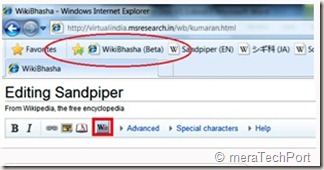
3. Please save your changes and reload your page to see the script added to your profile. You should see WikiBhasha in the left side as a menu item, and on Edit page as a button (as below):


wikibhashawidget1


wikibhashawidget2


Download the WikiBhasha beta User Guide from here.


Take WikiBhasha beta for a test drive by clicking on the install link below.


Install - Click here to install WikiBhasha beta


For FAQs, installation instruction details, user guide, discussion, feedback, suggestions etc please check -


http://www.wikibhasha.org/index.htm


(H/T to Hardik )


EDIT: Also check Enhancing Multilingual Content in Wikipedia


“Wikipedia has become one of the world’s largest and perhaps most powerful information repositories. But it is heavily English-centric.


Making Wikipedia more multilingual inspired a Microsoft Research India team to develop a tool called WikiBhasha, which was launched Oct. 18. WikiBhasha—“Wiki,” signifying its community-oriented approach; “Bhasha,” a Sanskrit word meaning “language”—features a content-creation platform that combines linguistic services, such as machine translation, with a Wikipedia-friendly content editor. Everyday users in countries around the world, as well as language enthusiasts, can use WikiBhasha to adapt English-language Wikipedia articles for local languages. Along the way, they can create new local content to expand the article they have translated.


WikiBhasha users also can create new articles from scratch. And in time, the tool could help convert articles in languages other than English into local languages.”

Friday, August 20, 2010

Microsoft Research Street Slide View

Street Slide is a novel browsing interface for street-level imagery that combines the best aspects of the immersive nature of "bubbles" with the overview provided by multi-perspective strip panoramas, figures to attract significant interest, in large part because of the ingenious way in which Microsoft Researchers tackle problems with current street-side imagery on the web.


Street Slide View


Monday, July 19, 2010

Calculate Carbon Footprint of your Computer with Joulemeter

Joulemeter from Microsoft Research is a software to estimate the power consumption of your computer. It measure the energy usage of virtual machines (VMs), servers, desktops, laptops, and even individual softwares running on a computer.

“Joulemeter estimates the energy usage of a VM, computer, or software by measuring the hardware resources (CPU, disk, memory, screen etc) being used and converting the resource usage to actual power usage based on automatically learned realistic power models.”


Joulemeter


It provides *** cubic ft of CO2 which is the carbon emission of your computer under the ‘Estimated Consumption’ stats. The software is still in alpha version.

You can download it from here.


It displays data providing information on-

Power Consumption:
BASE: The minimum power drawn by this computer when powered on.


CPU: Additional power drawn depending on CPU utilization (changes with processor workload and frequency).


Disk: Additional power drawn due to disk activity (changes with IO workload)


Monitor: Additional power drawn by the monitor (changes when monitor turned on and on laptops with LCD brightness).


Total: Total current power drawn.


Average: Average of the total power drawn over time, since installation of Joulemeter.


Power Consumption (from default model) implies that power data is estimated using generic power usage assumptions, based on typical usage for type of machine (laptop, desktop).


Power Consumption (from learned model) implies that power data is estimated using a model specific to your machine and is more accurate.

Statistics (since …) measures accumulated usage since the specified time.


Time Slept includes time when the machine was in Sleep, Hibernate, or Shutdown modes. Power usage in these modes is negligible for most machines.


Time Awake indicates the total duration for which the machine was on.


Estimated Consumption indicates the total energy used by the machine. The error in the estimate depends on the power model used. The error is low when the Power Consumption section shows “from learned model.”

Calibration- Do calibration to get more accurate power data.


Saturday, April 24, 2010

Engkoo – Learn English with dictionary vertical Search from Bing and Microsoft Research

Engkoo is a search engine for exploring and learning language. It is built primarily by mining translation knowledge from billions of web pages - using the Internet to catch language in motion. Currently Engkoo is built for Chinese users who are learning English; however the technology itself is language independent and can be extended in the future.


engkoo_120x120

engkoobing


engkoobingEN

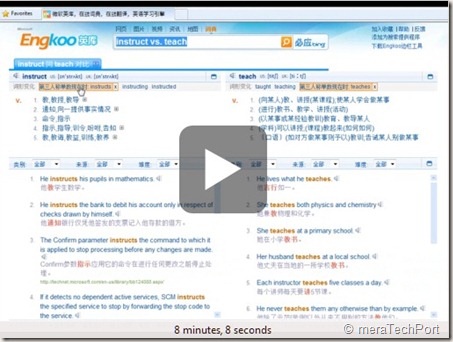
Matt Scott of Microsoft Research walks us through Engkoo: the new “dictionary” vertical search of Bing in China. What makes this English-Chinese assistance tool unique is that it unifies human translation mined from the web, machine translation, and a language learning experience, into one easy to use search and explore interface. By continuously discovering and processing high quality translation knowledge on the Internet, this technology can be used to close the ever expanding translation gap between English and Chinese.


EngkooCh9

Engkoo is a collaboration between Bing, MSN, and Microsoft Research – leveraging years of research in Natural Language Computing, Speech, Human Computer Interaction and Web Search & Mining. Because the technology is language independent, next steps include building on it for other language pairs in the future.


Watch the demo - Engkoo: English Learning Vertical Search from Bing and MS Research in China

Try it yourself:

www.engkoo.com 


See it on Bing and MSN China:

http://cn.bing.com and http://cn.msn.com


(Source : Channel9 and Microsoft Research )


Thursday, March 11, 2010

New Image Composite Editor (ICE) from Microsoft Research does amazing things

For the TechFest 2010, Microsoft Research  is releasing a new version of ICE (please note it links to the MSR ICE site , which at present is having the older ver. of ICE) . The new ver is not yet made public, but soon it will be.

EDIT (190310) :The new ver of ICE is now available, Please check - http://research.microsoft.com/en-us/um/redmond/groups/ivm/ice/

Also check - ICE Is Now Synthy

Pl.note some features described in this post are because of plug-ins which may not be yet available.

ICEStructuredPanos 


newice1

“Image Composite Editor (ICE) with Multi-Image Fusion.  In the current version of ICE, it provides advanced features for panoramic stitching such as choosing the stitch’s orientation, custom projection, and selecting a 360 stitch’s mid-point, and this tool also integrates nicely as a plug-in into Windows Live Photo Gallery. Here we’ll show you some of the upcoming new features in ICE such as:

  • Structured Panoramas
  • Stitching Panoramas from Video
  • Sharp Panoramas from Blurry Videos
  • Creating Photographs from Videos
  • Multi-Image Denoising and Sharpening using Lucky Imaging ”

In the demo as we see the new ver. of Image Composite Editor (ICE) does amazing things. You’ll have to see the demo video to understand.

Thursday, March 04, 2010

Microsoft OneAlbum - Find your photos in other Social Networks

abouttechfest2010 Microsoft Research, Israel working on OneAlbum Project is another technology being demoed at TechFest2010. Its a new face-recognition algorithm which allows you to find photos you want across other Social networks.

The Project says :

Today, my album refers to a collection of photos I have taken. But many photos relevant to me—such as photos of me or my children—are in my friends' albums. OneAlbum automatically finds relevant photos in my friends' albums on social networks or in shared albums, brings them to my album, and shows them side-by-side with the photos I've taken. For example, if I was at a party, I'll see all photos from that party—those I've taken and those my friends took. The technology behind OneAlbum is a novel, unsupervised face-recognition algorithm. It analyzes the photos in my album to find automatically the faces of people I most care about, based on frequency of their appearance; no tagging is required. Then, using the social-network graph and other information, OneAlbum crawls my friend's albums looking for photos of people that interest me. The algorithm was tested on real large-scale albums including tens of thousands of photos and achieved accuracy rates as high as 90 percent.

Watch the demo video of OneAlbum -


Mobile Natural User Interfaces – Using your arm as keyboard

abouttechfest2010 Check out one more amazing technology that Microsoft Research has come up with. The Mobile Natural User Interfaces (NUI). A muscle computer interface, a system that senses finger gestures based on muscle activity on forearm.


ch9TF2010NUI

Controlling mobile phone scenario just by tapping on an arm, just like on a keyboard or a mouse click. So this input device (arm) goes everywhere with you unlike Keyboard and mouse.

“….We take advantage of sensing technologies that enable us to decode the signals generated by the body. We will demo muscle-computer interfaces, electromyography-based armbands that sense muscular activation directly to infer finger gestures on surfaces and in free space, and bio-acoustic interfaces, mechanical sensors on the body that enable us to turn the entire body into a tap-based input device.”

This will be featured at TechFest2010.

Check out the demo video showing – playing guitar in just thin air using your arm and fingers. Another demo shows using your arm as keyboard and mouse controlling various menu options.


The Translating Telephone – Live translation of telephone calls

abouttechfest2010 Microsoft Research is demoing some of the coolest technologies at TechFest 2010 . One of them is the Translating Telephone,  which does the live speech-to-text and speech-to-speech translation of telephone calls. 

“Soon the language barrier will no longer be an issue. This piece of technology allows two users, speaking different languages, to communicate instantly. The speakers audio is turned into text, then that text is translated into another language and spoken aloud to the other party in the conversation. This could truly change the world.”

Check out the demo video -


Wednesday, March 03, 2010

Transfer any surface to Mobile Surface

Microsoft Research will be bringing the Microsoft Surface experience to mobile scenarios. Microsoft will demo it in TechFest 2010

What is Mobile Surface ?

“Mobile Surface is a novel interaction system for mobile computing. Our goal is to bring the Microsoft Surface experience to mobile scenarios and, more importantly, to enable 3-D interaction with mobile devices. We will demonstrate how to transform any surface, such as a coffee table or a piece of paper, into a Mobile Surface by using a mobile device and a camera-projector system. Besides the Surface, we will show 3-D object imaging, augmented reality, and multiple-layer 3-D information visualization. In particular, we have developed a system with the camera-projector component to scan 3-D objects in real time while doing normal projection. To visualize, 3-D data can be projected onto a surface formed by a piece of paper while maintaining the original scale as if it were printed on that paper, and a user can interact with the projected content with a hand. Mobile Surface enables you to interact with digital contents and information around you from anywhere.”

surface


Tuesday, March 02, 2010

Peppermill- Hand Powered Remote Control from Microsoft Research

Microsoft Research Cambridge, UK has developed a wireless input device called the Peppermill. Nicolas Villar and Steve Hodges have presented a paper describes this as a human-powered user interface device sourcing its power from the physical effort required to operate it. It describes a technique by which a geared DC motor and a simple circuit used to enable interaction-powered rotary input devices. Here is the paper in PDF format - The peppermill: a human-powered user interface device (download size : 2.66 MB) (source : Todd Bishop’s Microsoft Blog)

peppermilltwo


Tuesday, September 09, 2008

TBot’s Space and other Windows Live Translator Offerings

TBotAs in my earlier post Translation powered by....Microsoft Translator! , I posted about MSR-MT Team successfully transitioning all of translation services to technology developed by Microsoft Research. Here are some more Windows Live Translator Offerings.

TBot gets a new Space http://wltbot.spaces.live.com/ 

Various other Offerings links are :

Translator Homepage: http://translator.live.com

Windows Live Translator Toolbar Button: http://gallery.live.com/default.aspx?pl=3

Add our Web Page Translator to *your* Site: http://translator.live.com/addin.aspx

Need affordable professional Translation? Get an instant quote from our partner at LiveTranslation https://livetranslation.com/microsoft.default.aspx


MSRESLasst English as a Second Language – Assistant

, this is also provided as an add-in for Outlook 2007 which will allow you to send the contents of the email message you're writing directly to ESL Assistant. This text will then be immediately checked for errors.

Look up a word in the Encarta Translation Dictionary

Thursday, September 04, 2008

AutoCollage 2008 from Microsoft Research

AutocollagelogoAutoCollage is an advanced computer vision and image processing program which automatically create collages of your images. Face detection, saliency filters, and other techniques are used to identify interesting parts of images. Advanced object selection and blending technologies seamlessly combine these pieces into a beautiful new AutoCollage. Pick a folder, press a button and within moments AutoCollage presents you with a unique memento to print or email. If you don’t like this, Press the ‘Create’ button to get a new Collage.

You can get more info at http://research.microsoft.com/autocollage/Default.aspx

You can download a trial version from here. It’s a 30 days trial version and also it watermarks the collage with ‘Microsoft Research 2008’ . You can buy it to get regular version.

I used to do collage with Picasa but AutoCollage does a better job.As it has Face recognition also, so the images with faces will not be hidden in final collage picture. I hope this facility will be included with Windows Live Photo Gallery in future.

autocollage

autocollage1

(via:Bink.nu)

Thursday, August 07, 2008

Integrate Windows Live Translator into Microsoft Office

Many users wanted translation feature in Microsoft Office for translating their documents. Now this feature is available, thanks to MS Research Machine Translation Team. The team has given the code to the Microsoft Office team for the integration of the translation tool directly in the Research Task Pane. Once the office team finish their own testing , this feature will auto-update in existing versions of Office.

But if you want it now, you can set it up manually following these steps. These steps applicable for Office 2007 only.

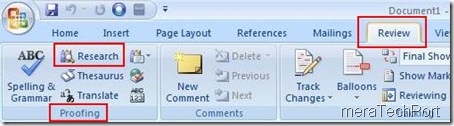
1) Click on the Review Tab

2a) Open the "Proofing" ribbon (if not already open)

2b) Select Research to open the research pane
MToffice1

3) In the research pane, go to the Research Options dialog

After you've chosen the "Research" task pane, there should be a "Research options" hyperlink at the bottom of the pane. Click on this hyperlink to bring up the task pane.
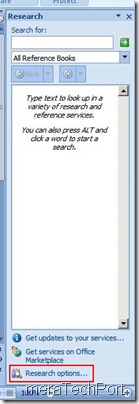
MToffice2

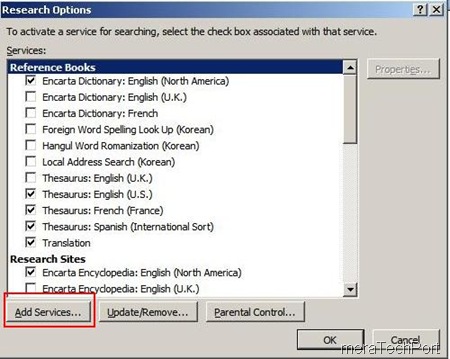
4) Select the "Add Services" button

MToffice3


5) Enter the URL of the Microsoft Translator Web Service

Here you'll need to type in the address of the Microsoft Translator Web Service:
http://www.windowslivetranslator.com/officetrans/register.asmx

Then click the "Add" button to continue.
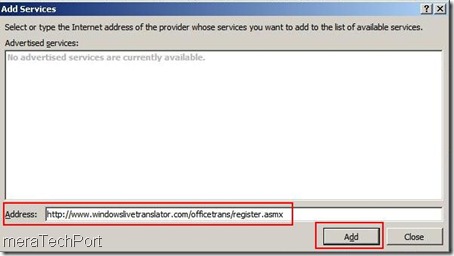
MToffice4

After pressing Add button, you will get these
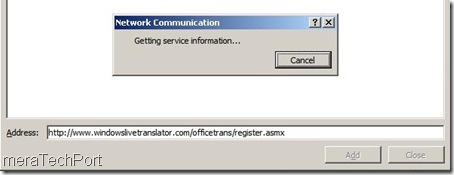
MToffice5

You will get Windows Live Translator Welcome, Press Continue.
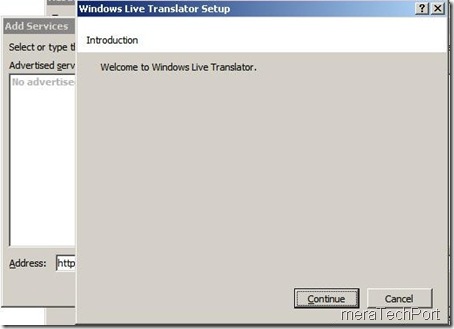
MToffice6

6) Install the Microsoft Translator services

Just click the "Install" button in this dialog.

Note that you can't check any of the boxes; this is expected behavior. Translation systems, unlike other Research Pane plug-ins, are enabled in a different dialog. The next steps will cover this.
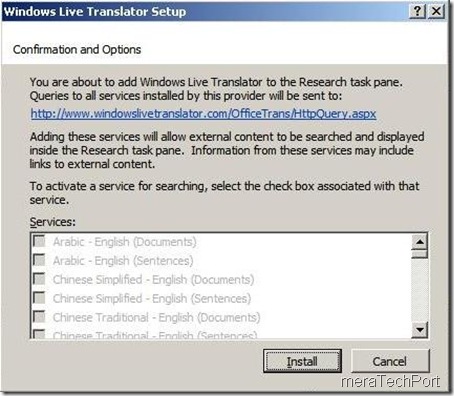
MToffice7

Now click "OK" to close the research options dialog.
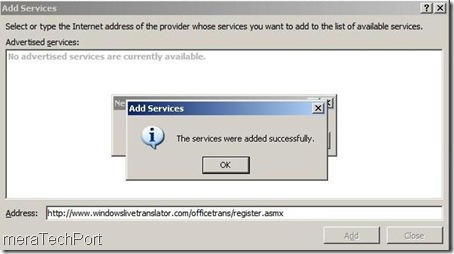
MToffice8


7) From the drop down box on the Research Pane, select the Translation subpane
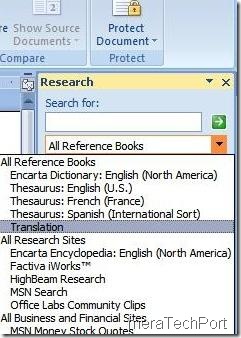
MToffice9

At this point, Word may bring up a dialog saying, "Microsoft Word can't open the translation feature. This feature is not currently installed. Would you like to install it now?" Click "Yes" to install the feature.

I didn’t get this so went to Translate option dialog.

8) Bring up the Translation options dialog
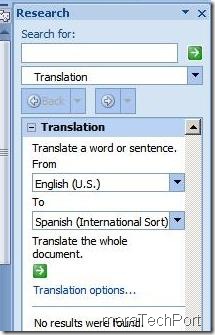
MToffice10

Just below the combo boxes that allow you to select the source and target language, there should be a hyperlink labeled "Translation options..". Click on it to open the translation options dialog. (Depending on what text you have highlighted and which translation features are installed and enabled on your machine, the Research task pane may look slightly different. That's OK; just find the "Translation options..." hyperlink.)

9) Pick Windows Live Translator as your translation engine
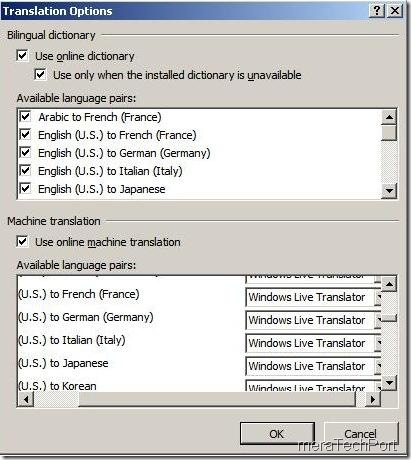
MToffice11b

This is where you specify which translation engines you'd like to use for each language pair. By default Word uses WorldLingo for all language pairs; this is where you can choose Windows Live Translator instead. (Certain Word installations don't seem to come with WorldLingo pre-installed, so you may not have to change anything here.)

The language pairs currently available from Windows Live Translator are as follows:

English ↔ Chinese (Simplified)

English ↔ French

English ↔ German

English ↔ Italian

English ↔ Arabic

English ↔ Chinese (Traditional)

English ↔ Dutch

English ↔ Japanese

English ↔ Korean

English ↔ Portuguese (Brazil)

English ↔ Spanish

You may have slightly different settings for Bilingual Dictionaries (on the top half of the dialog); that's OK. You only need to look at and change the Machine Translation settings (on the bottom of the dialog). Again, if Windows Live Translator is already selected, you don't have to do anything.

Click OK to close the dialog. You are now ready to translate!


Using the Translation Feature

Now find or create a document that has some content you'd like to translate.
1) Select text and click Translate

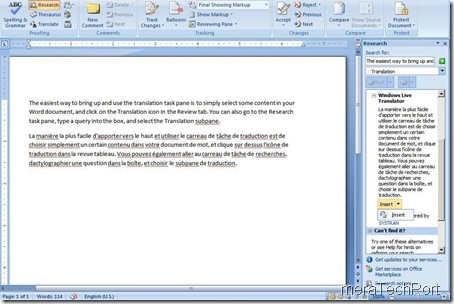
The easiest way to bring up and use the translation task pane is to simply select some content in your Word document, and click on the Translation icon in the Review tab. You can also go to the Research task pane, type a query into the box, and select the Translation subpane.

2) Select an installed language pair

By default, Word will list a variety of language pairs, even if you haven't installed a machine translation system for those pairs. In the "From" and "To" boxes, select a source and target language that correspond to one of the language pairs you installed above.

3) Inspect your translated output

After a brief delay (during which the web service is invoked and the selected text is translated), the translated text should appear in the research pane.

4) Optionally insert the output into your document

At the bottom of the MT output, there's a button that allows you to easily insert the translated output into your document.
MToffice13

(Source:Office document translation)

UPDATE : Check out the instructions for setting it up in Office 2003.

Monday, January 28, 2008

31 Microsoft Technologies demos in 40 minutes

Check out this cool compilation of 31 Microsoft Technologies in 40 minutes by Nigel Parker where he demonstrates these Technologies explaining them in simple words. Its presented in an interactive interface where you can jump from one demo to other.

Also there's a download link to download the video, if you want to (can also download it from here. ) (227 MB)

These are the technologies covered in the demo, put here with their links and timeline:

1. Microsoft Research Group Shot (00:20)
2. Sea Dragon (TED Video) (01:31)
3. Photosynth (02:45)
4. Microsoft Research HD View (Auckland, Wellington) (04:04)
5. Virtual Earth (Live Labs on the Map) (05:35)
6. Bill Buxton's Presentation from Expression around the Clock (07:27)
7. Microsoft Surface (09:40)
8. Silverlight 1.1 Alpha Surface Demonstration (Video Support) (10:17)
9. French Silverlight 1.0 Application (Script#) (10:48)
10. Tablet Features in WPF - Inking Over Video Sample, Ink Support Silverlight 1.0, Silverlight Ink SDK Sample (11:17)
11. Silverlight 1.0 Inking Search Sample (11:45)
12. Live Image Search (filters) (12:20)
13. Tafiti Search Visualization (13:05)
14. GPS location based interactive community (Where is Frank?) (14:09)
15. Silverlight 1.1 Alpha Invaders - Code (14:48)
16. Contoso Bicycle Club - Windows Live Quick Applications (16:03)
17. Live Messenger Integration Demo - Details (17:07)
18. http://backgroundmotion.com - Code/ Source Code (20:00)
19. Microsoft Popfly (22:21)
20. Windows Live Photo Gallery (26:16)
21. Windows Home Server (26:55)
22. LCI Intégrale (28:30)
23. Livestation (29:28)
24. WebGuide (30:03)
25. hsn.tv (31:25)
26. thirteen23 :: denounce (32:04)
27. How About It? (32:47)
28. the-hub.tv (33:53)
29. Glenn Conner Interview - Amazon Demo Silverlight 1.1 Alpha (34:30)
30. Building a 3D WPF Gesture Application - Code (35:24)
31. Building a Video Player in 8 mins with Silverlight 1.0 (36:42)

Sit back and enjoy the video.

UPDATE: As I found out and Nigel has also posted about it now, that when you go to the Microsoft Research Group Shot site and tries to download it, you'll get 'specified file not found ' message. This is because as Nigel points out "The Group Shot Beta period has expired. We are currently considering several options to bring Group Shot back. Please stay tuned to this site for information on future releases." (link).

Wednesday, August 15, 2007

HD View Beta 2 Released

The major new features in HD View Beta 2 are:
Support for FireFox. Now, if you use FireFox to browse a HD View site , then you'll be prompted to install the HD View plugin.

Auto Tone Adjust
.You will now see one of these icons in the top right corner. Details of this feature is available at http://research.microsoft.com/ivm/HDView/HDhelp.htm
The basic idea is that HD View now acts a bit like the auto-gain of your camera. So as you zoom into dark regions you should see additional shadow details. It actually is more sophisticated than auto-gain and generally produces better looking images.

beta2 is smaller in size than beta1.

Check out this for sites using HD View.

HD View plugin for IE is available here.
HD View plugin for FireFox is available here.

Please check http://research.microsoft.com/ivm/HDView/HDabout.htm for more info on HD View.