Showing posts with label tools. Show all posts

Saturday, August 01, 2020

Recover lost files with Windows File Recovery

Microsoft has released a command line app called Windows File Recovery which can be used to recover lost files. These lost files could have been deleted from your local storage device (including internal drives, external drives, and USB devices) and can’t be restored from the Recycle Bin. This app requires Windows 10 build 2004 and later. 

For photos, documents, videos and more, Windows File Recovery supports many file types to help ensure that your data is not permanently lost.It also has various options such signature mode which can be used for recovering from a camera or SD card where one has to see beyond NTFS recovery and caters to your storage device needs. 

One should note that if one wants to increase chances of recovering a file, minimize or avoid using that computer. In the Windows file system, the space used by a deleted file is marked as free space, which means the file data can still exist and be recovered. But any use of your computer can create files, which may over-write this free space at any time. 


Let us check various options this app provides. After running the app, it'll provide with a command prompt window, one has to enter the command in the given format:

winfr source-drive: destination-drive: [/switches] 

 The source and destination drives must be different. When recovering from the operating system drive (often C: ), use the /n <filter> and /y:<type<(s)> switches to specify the user files or folder.

Microsoft automatically creates a recovery folder for you called, Recovery_<date and time> on the destination drive.


There are three modes you can use to recover files: Default, Segment, and Signature. 


Default mode examples

  • Recover a specific file from your C: drive to the recovery folder on an E: drive.


            winfr C: E: /n \Users\<username>\Documents\QuarterlyStatement.docx

  • Recover jpeg and png photos from your Pictures folder to the recovery folder on an E: drive.


            winfr C: E: /n \Users\<username>\Pictures\*.JPEG /n \Users\<username>\Pictures\*.PNG

  • Recover your Documents folder from your C: drive to the recovery folder on an E: drive.


            winfr C: E: /n \Users\<username>\Documents\

Don’t forget the backslash (\) at the end of the folder.

Segment mode examples (/r)

  • Recover PDF and Word files from your C: drive to the recovery folder on an E: drive.


            winfr C: E: /r /n *.pdf /n *.docx

  • Recover any file with the string "invoice" in the filename by using wildcard characters.


            winfr C: E: /r /n *invoice*

Signature mode examples (/x)

   When using signature mode, it's helpful to first see the supported extension groups and                     corresponding file types.

            winfr /#

  • Recover JPEG (jpg, jpeg, jpe, jif, jfif, jfi) and PNG photos from your C: drive to the recovery folder on an E: drive.


            winfr C: E: /x /y:JPEG,PNG

  • Recover ZIP files (zip, docx, xlsx, ptpx, and so on) from your C: drive to the recovery folder on an E: drive.


            winfr C: E:\RecoveryTest /x /y:ZIP
 

When you are prompted for confirmation to continue, enter Y to start the recovery operation.

Depending on the size of your source drive, this may take a while.

To stop the recovery process, press Ctrl+C.

For more such examples and the details, please check the user guide.

  • In short, we can summarize its features as: 
  • Recovers JPEG, PDF, PNG, MPEG, Office files, MP3 & MP4, ZIP files and more 
  • Recovers from HDD, SSD, USB, and memory cards
  • Supports NTFS, FAT, exFAT and ReFS file systems
One can get the Windows File Recovery from the Microsoft Store.

Thursday, October 17, 2013

New update for Windows 7 SP1 adds option in Disk Cleanup to clean WinSxS Directory

It’s been long time since I have written Windows 7 specific article. But this cleaning up of WinSxS directory has been a long requested feature and users were trying out various methods and now that Microsoft is providing it officially, so this article. If you are one of those who are still running Windows 7 and haven’t yet moved to Windows 8, this might be useful. Last week along with many updates for Windows 7 SP1, there was one very cool update.

That update was listed as KB2852386 . This update enables you to delete outdated Windows updates by using a new option in the Disk Cleanup wizard in Windows 7 SP1.

updtlstAs many of the Windows 7 & earlier users know about the size of the WinSxS directory and always want to some how free up disk space from that directory. The WinSxS directory steadily increases in size, mainly because of the Windows Update. All previously installed versions of Windows Updates are kept in WinSxS directory even when newer version of update gets available. These are kept to allow to uninstall an update.

When a Service Pack is released, Microsoft provides with it cleanup that removes previous versions of update that gets updated by SP. But with Windows 7 SP1 which was released well over 2 years back, there hasn’t been any Service Pack, & there might not be any, Windows update files have been growing in WinSxS directory.

But this update adds a new plugin to the Disk Cleanup wizard. After you install this update, you can use the Windows Update Cleanup option to delete Windows updates that you no longer need and reduces the WinSxS directory.  This update provides some of the same functionality built into Windows 8.

NOTE:

  • The Windows Update Cleanup option is available only when the Disk Cleanup wizard detects Windows updates that you do not need on the computer.
  • To enable you to roll back to previous updates, updates are stored in the WinSxS store even after they are superseded by later updates. Therefore, after you run the Disk Cleanup wizard, you may be unable to roll back to a superseded update. If you want to roll back to a superseded update that the Disk Cleanup wizard deletes, you can manually install the update.

Please check that this update is listed as important update & may not automatically installed as its not listed as Critical Security update. You can get it from KB2852386

After installing this update run the Disk Cleanup tool

Start >All Programs > Accessories > System tools >Disk Clean Up Right click on it and Run it as Administrator

& run it selecting the operating System Drive

Just scroll through the option and you’ll see the new option

diskclnupnew

The amount of disk space you gain will differ by machine. So install this cool update and gain some disk space.

UPDATE 18 Oct 2013: After the PC restart I could see this screen… doing the clean up

dskclnuprestart

and could gain ~ 4GB from WinSxS directory.

Tuesday, March 13, 2012

Convert, create, modify and protect PDF docs with ABBYY PDF Transformer™ 3.0

ABBYY transformer

ABBYY is a leading provider of document recognition, data capture and linguistic software. ABBYY specializes in optical character recognition (OCR), You must have known about ABBYY’s specialization in optical character recognition (OCR). It’s OCR products are well known.

ABBYY PDF Transformer 3.0 is an easy-to-use PDF tool for quickly converting, creating, editing and saving any type of PDF document. With accurate conversion that retains document layout and structure, PDF Transformer 3.0 virtually eliminates the need for reformatting. Based on award-winning ABBYY OCR technology, this sophisticated PDF conversion solution can easily convert PDFs to Microsoft Office formats or create PDFs from within Office applications — with one click!

Let us check some Key features of ABBYY PDF Transformer 3.0 -

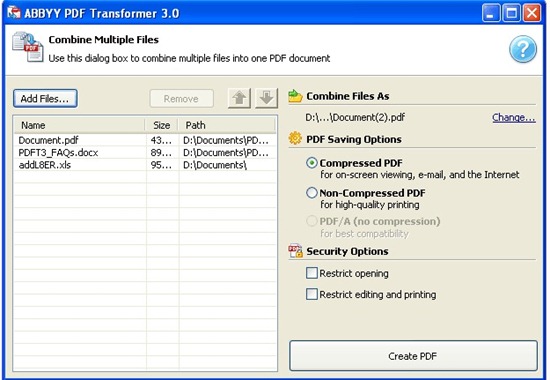
Combining Multiple Files into Single PDF - PDF Transformer 3.0 enables users to automatically combine several files of different format (such as Word documents, Excel spreadsheets, other PDF files and more) into one PDF document. Each file will start with a new page in the resulting PDF document.

ABBYY1

Appending New Files to Existing PDF- Users can quickly update existing PDF documents by appending new files to them (including Microsoft Word, Excel, Visio, PowerPoint, HTML and TXT files)

clip_image001

Stamping- Users can easily mark and identify documents with copyrights or status by applying customized stamps with any text, position and color. A new bates stamping feature also provides identification, protection and auto-increment numbering of valuable documents.

clip_image002

Latest Formats Support- The new version of ABBYY PDF Transformer supports the latest Microsoft Office formats such as DOCX, XLSX, VSDX and PPTX. It also supports PDF 1.7 and PDF/A. Searchable PDF/A format is a standard format for long-term archiving.

ABBYY PDF Transformer 3.0 allows conversion of PDF files into: DOC, DOCX, XLS, XLSX, RTF, TXT, HTML,PDF/A etc

ABBYY PDF Transformer 3.0 supports creation of PDF files from: DOC, DOCX, XLS, XLSX, PPT, PPTX, VSD, VSDX, HTML, TXT, RTF etc

For PDF/A, it allows:

  • PDF/A creation from Microsoft Office formats
  • Conversion of image-only PDF/A into searchable PDF/A

Retention of Links, Hyperlinks and Metadata-When creating a PDF file from a Microsoft Office document, the application accurately retains hyperlinks, internal links and document metadata such as author, title, subject, keywords, etc.

Conversion of Scanned PDF Images to Searchable PDFs- ABBYY PDF Transformer 3.0 allows one-step conversion of scanned PDF images (or image-only PDFs) into searchable PDFs. By adding the text layer to image-only PDF files, ABBYY PDF Transformer makes these files available for keyword searching.

Vertical text recognition is provided. A user can manually choose text orientation in the text-area right-click menu.

Conversion of Selected Areas and Pages- The intuitive interface allows users to select only relevant pages or areas for conversion and easily change the settings, if necessary.

Redaction of Sensitive Information- All sensitive information can be easily redacted from both text and image layers in PDF document. Thus the confidential information, including metadata, will be safely hidden from viewing and searching.

ABBYY PDF Transformer 3.0 offers one-click PDF creation from Windows Explorer and Office applications.ABBYY PDF Transformer adds a “Create PDF” button to the Office applications’ tool bar.

ABBYY PDF Transformer 3.0 also provides a bonus utility -ABBYY Screenshot Reader. It is a smart and simple software tool for capturing images and texts from any part of the PC screen. It combines convenient functionality of taking screenshots with the benefits of ‘instant OCR”.

Multilingual Support with Automatic Language Detection- ABBYY PDF Transformer delivers the widest language support — it can process documents in 184 languages

These are only some of the cool features apart from many more. You can give it a try here: http://pdftransformer.abbyy.com/

Wednesday, February 08, 2012

Remove Start Button from Windows 7

There have been reports that in the soon to be released version of Windows 8 ‘Consumer Preview’, there will not be any Start button. Microsoft has removed it. Unless this ver is released one cant confirm this. And we have to wait & see what’s offered instead at that place.

Anyway, if you want to just remove Start button from your Windows 7, Vista or XP, there’s a small utility which removes it. Its called Start Killer from Tordex Software. Start Killer removes the Start button from your taskbar providing additional space on taskbar. Start Killer is free to use.

startkiller1

Once you run this tool, the Start button is gone and when you exit it, the Start button reappears.

Once the Start button is removed, you can open Start Menu from Ctrl+ESC or WinKey. Start Killer places its icon on System Tray, you can exit it from there. There’s an option to remove this icon also from System Tray. In that case you can access its settings from CTRL+ALT+SHIFT+F12

Start Killer works on Windows XP/Vista/Windows 7 and it supports both 32 and 64 bit systems.

You can download it from http://www.tordex.com/startkiller/index.html

Sunday, January 29, 2012

ABBYY FineReader 11- Fast and Accurate OCR, Now simplifies e-book creation too !

ABBYY11

“Optical Character Recognition (OCR) is a technology that enables conversion of images, received from scanner or digital camera, and PDFs to editable and searchable text documents ready for editing, quoting, search, and archiving.”

ABBYY FineReader 11 OCR software with lots of cool features creates editable, searchable files and e-books from scans, PDFs and digital photographs.This version takes the productivity to a new level with a significant enhancement in OCR performance, including a new black-and-white mode that increases document processing speed. This also supports creation of electronic books in the most popular formats. 

Some of the new features of ABBYY FineReader 11 are -

OCR Speed Boost and Powerful Productivity tools - ABBYY FineReader 11 delivers an overall increase of processing speed. FineReader 11 performance can be further boosted by its dedicated processing modes:

  • Black & White Processing Mode – Normally for documents as newspaper, books etc where color is not needed, this mode results upto 45 percent faster processing with high accuracy.
  • Enhanced Fast Processing Mode - Provides up to 70 percent faster recognition as compared to the default processing mode. This option is perfectly suited for projects where speed is critical, such as creating searchable PDF archives.

Creation of e-books made simpler-

One of the new features I liked was creation of e-books made simpler and support for popular formats like ePub. You even have an option to send the converted text directly to the user’s Amazon Kindle account.

ABBYY11-01

ABBYY11-03

More accurate – Speed is not the only criteria, even with speed enhancements, FineReader 11 provides more accurate reconstruction of the document’s original formatting, including table of contents, headers and footers and other attributes commonly found in multipage documents. The new version delivers significant improvements in the detection of vertical headers, as well as margin notes, diagrams, tables, and styles, minimizing the effort typically required for manual correction.

In addition to Microsoft Word documents, ABBYY FineReader 11 now accurately re-creates headers, footers, page numbering and table of contents across all pages in resulting OpenOffice.org Writer (ODT) files. When saving to PDF, the application intelligently identifies and reproduces the document’s content outline bookmarks with live links for better navigating and reading.

ABBYY11-02

ABBYY FineReader 11 offers an improved, flexible user interface that helps users achieve faster results when working with documents:

  • Document Splitting : When split, documents can be processed simultaneously in separate FineReader windows for better quality of the results
  • New Style Editor : Allows users to view, change or merge the text styles across an entire document
  • Enhanced Image Editor :
  • Intuitive PDF Conversion Options : Provides 3 pre-defined modes for PDF saving — Maximum Quality, Compact Size and Balanced

So these were the some of the highlights of the new features in ABBYY FineReader11 Professional Ed. I have been using it since some time and I’m happy with its speed and accuracy.

There’s also ABBYY FineReader 11 Corporate Edition which also has been enhanced and provides-

  •   Enhanced Hot Folder and Scheduling -

“Performing automated batch processing from “watched” folders (mailbox, local or network folders) the application can now flexibly schedule document conversion routines initiating the processes with pre-defined intervals (every minute, day, week or month).”

  • Removal of Sensitive Information -

Allows users to blackout and remove sensitive information in supported output documents. Confidential information can be removed and replaced with blackout bar

  • ABBYY Business Card Reader -

A time-saving application that allows users of ABBYY FineReader 11 Corporate Edition to quickly and accurately convert scanned business cards and save the extracted data in vCard format or directly to Microsoft Outlook contacts.

These are some of the well thought out enhancements to the Corporate Ed.

ABBYY Fine Reader also installs another very useful tool ABBYY Screenshot Reader. They had some promotional offer to get this Screenshot Reader for Free, about which I had posted earlier, the offer is still on there to grab.

For more information and to try ABBYY FineReader 11, Please check - http://finereader.abbyy.com/

Wednesday, December 21, 2011

Play a game & win ABBYY Screenshot Reader !

ABBYYscreaderAs a Christmas promotion, ABBYY is providing ABBYY Screenshot Reader – Nice, simple OCR utility. Just play a simple game and win this utility!

Apart from capturing screenshots, one of its uses is you can extract text from images using this utility. That is, you can turn your screenshots into editable texts. And its quite accurate .

Xmas game

You can click above or can go here : Christmas Game

Please note, it’s a Christmas promotion and may not be available later.

(Source:http://finereader.abbyy.com/)

Friday, October 28, 2011

Heat map to provide at-a-glance view for 64+ logical processors in Windows 8 Task Manager

Windows 8 Blog has been providing us regularly with an inside look about the Windows 8 straight from the Windows engineering team. in its latest post it talks about the Using Task Manager with 64+ logical processors

At present for a many processor system, task manager CPU charts in Windows 7 have a few limitations-

  • Its pretty hard to compare the moving line graphs for a system having lots of logical processors in a 60-second window of CPU utilization.
  • And when you have 64+ logical processors, the graphs get very small and are difficult to read.
  • There’s no easy way to find processor ID if you spot an anomalous graph.

Below is the Windows 7 Task Manager CPU performance tab on a system with 160 logical processors.Windows-7-CPU-Usage

As you can see the graphs are hard to read and comparing instantaneous CPU utilization is impossible because of the 60sec moving graph. So the Windows team thought that for the “many-core view” of the new performance dashboard, a heat map was a natural fit.

New-Task-Manager-with-160-logical-processors1

As the screenshot shows its now easy to see all the logical processors at a glance and know which are being utilized to high and low capacity. When the data set gets too big for the window, the heat map scales to best fit, and a scroll bar appears as needed.

You can also get the logical processor ID that maps to each entry via a tooltip, by hovering over the entry with the mouse

Tooltip-showing-the-Logical-Processor-ID

Please note the screenshots of Windows 8 are of the current build with the Windows team Its not yet available for the public.

Tuesday, June 21, 2011

Microsoft Download Manager

With Internet Explorer 9 , Microsoft introduced its built-in Download Manager . There’s also a separate Download Manager from Microsoft.

The Microsoft Download Manager enables you to download files simply and easily. It also makes downloading large files such as application and multimedia files quick and reliable. It was specifically designed to help users manage file downloads from supporting Microsoft Web sites. Once started, the Microsoft Download Manager’s easy-to-use interface displays the status of downloads and enables you to suspend active downloads or resume downloads that have failed.

MSdnmanager2


MSdnmanager1

For downloading Microsoft Download Manager and for more details please check here.

Thursday, May 26, 2011

Beta Mango tools in ISO format

mango

The new Windows Phone Developer Tools 7.1 Beta , Mango can be used to develop Applications for both 7.0 and 7.1 version of Windows Phone OS releases.

You can download this release in .iso format for offline installation.  (717 MB)

Else if you want web installer and for more details please check here.

The Windows Phone Developer Tools includes the following-

  • Microsoft Windows Phone Developer Tools 7.1 (Beta)
  • Windows Phone Emulator (Beta)
  • Silverlight 4 SDK and DRT
  • Microsoft XNA Game Studio 4.0 Referesh Windows Phone Extensions
  • Microsoft Expression Blend SDK Preview for Windows Phone 7.1
  • WCF Data Services Client for Window Phone 7.1
  • Wednesday, December 01, 2010

    Windows Phone 7 unlocker tool ChevronWP7 Locked !

    wp7unlock

    Just last week this Windows Phone 7 Unlocker tool was released. There were lots of talks were going on about it. Microsoft had also warned users from using it.

    “We anticipated that people would attempt to unlock the phones and explore the underlying operating system. We encourage people to use their Windows Phone as supplied by the manufacturer to ensure the best possible user experience. Attempting to unlock a could void the warranty, disable phone functionality, interrupt access to Windows Phone 7 services or render the phone permanently unusable.”

    And now the news comes this Unlocker tool has been discontinued. The developers of this tool Rafael Rivera, Chris Walsh and  Long Zheng were contacted by Microsoft. Brandon Watson, Director of Developer Experience for Windows Phone 7 discussed about the ChevronWP7 unlocking tool and established a mutual understanding to enable homebrew opportunities and to open the Windows Phone 7 platform for broader access to developers and users.

    “..To fast-track discussions, we are discontinuing the unlocking tool effective immediately…” said the developers.

    More details here: Pursuing the future of homebrew on Windows Phone 7

    (H/T: TheWindowsClub)

    Tuesday, November 30, 2010

    Why there’s no Network Activity Indicator in Windows 7 ?

    If you have moved from Windows XP to Windows 7 , you might be wondering why there’s no Network Activity Indicator in Windows 7. Here’s the answer – check this small ‘But Why’ video explaining the same.

    ButWhynwindicator

    No Network Activity Indicator in Windows 7: But Why?


    If you are missing this feature in Windows 7 and want it to see in Windows 7, there’s a utility for it, created by Igor Tolmachev.

    networkactind

    Network Activity Indicator for Windows 7 - displays the old 'two monitors' icon in Windows 7 that flashed blue to show network activity on the System Tray.

    Earlier when it was released as XP Style indicator, I had also blogged about it. XP style Network Activity Indicator for Windows 7

    Unlike the original Windows XP utility (that has individual indicators for each interface), this program indicates outgoing and incoming network packets on all available interfaces.

    network-activity-indicator

    You can get it from http://www.itsamples.com/network-activity-indicator.html   This utility is released as freeware.

    Saturday, August 14, 2010

    Microsoft Mathematics Add-In for Word and OneNote

    With the Microsoft Mathematics Add-in for Word and OneNote, you can perform mathematical calculations and plot graphs in your Word documents and OneNote notebooks.  It makes it easy to plot graphs in 2D and 3D, calculate numerical results, solve equations or inequalities, and simplify algebraic expressions. The add-in also provides an extensive collection of mathematical symbols and structures to display clearly formatted mathematical expressions. You can also quickly insert commonly used expressions and math structures by using the Equation gallery.


    mathematica1


    The Microsoft Mathematics Add-in can help you with the following tasks:


    • Compute standard mathematical functions, such as roots and logarithms

    • Compute trigonometric functions, such as sine and cosine

    • Find derivatives and integrals, limits, and sums and products of series

    • Perform matrix operations, such as inverses, addition, and multiplication

    • Perform operations on complex numbers

    • Plot 2-D graphs in Cartesian and polar coordinates

    • Plot 3-D graphs in Cartesian, cylindrical, and spherical coordinates

    • Solve equations and inequalities

    • Calculate statistical functions, such as mode and variance, on lists of numbers

    • Factor polynomials or integers

    • Simplify or expand algebraic expressions

    mathematica2


    Get Microsoft Silverlight


    This add-in works with Microsoft Word 2010, Microsoft OneNote 2010 and Microsoft Office Word 2007.

    EDIT: Added this video. (04Oct10)  With the free Microsoft Mathematics Add-In for Word and OneNote, you can calculate any mathematical expression or equation and then plot a graph. In this short video, Jennifer Bost shows you how using Microsoft Word 2010.

    Get Microsoft Silverlight

    For more details check the download link. You can download the add-in from here .

    Monday, July 19, 2010

    Calculate Carbon Footprint of your Computer with Joulemeter

    Joulemeter from Microsoft Research is a software to estimate the power consumption of your computer. It measure the energy usage of virtual machines (VMs), servers, desktops, laptops, and even individual softwares running on a computer.

    “Joulemeter estimates the energy usage of a VM, computer, or software by measuring the hardware resources (CPU, disk, memory, screen etc) being used and converting the resource usage to actual power usage based on automatically learned realistic power models.”


    Joulemeter


    It provides *** cubic ft of CO2 which is the carbon emission of your computer under the ‘Estimated Consumption’ stats. The software is still in alpha version.

    You can download it from here.


    It displays data providing information on-

    Power Consumption:
    BASE: The minimum power drawn by this computer when powered on.


    CPU: Additional power drawn depending on CPU utilization (changes with processor workload and frequency).


    Disk: Additional power drawn due to disk activity (changes with IO workload)


    Monitor: Additional power drawn by the monitor (changes when monitor turned on and on laptops with LCD brightness).


    Total: Total current power drawn.


    Average: Average of the total power drawn over time, since installation of Joulemeter.


    Power Consumption (from default model) implies that power data is estimated using generic power usage assumptions, based on typical usage for type of machine (laptop, desktop).


    Power Consumption (from learned model) implies that power data is estimated using a model specific to your machine and is more accurate.
    Statistics (since …) measures accumulated usage since the specified time.


    Time Slept includes time when the machine was in Sleep, Hibernate, or Shutdown modes. Power usage in these modes is negligible for most machines.


    Time Awake indicates the total duration for which the machine was on.


    Estimated Consumption indicates the total energy used by the machine. The error in the estimate depends on the power model used. The error is low when the Power Consumption section shows “from learned model.”

    Calibration- Do calibration to get more accurate power data.


    Friday, May 21, 2010

    Microsoft now offering Robotics Developer Studio 2008 R3 for FREE !!

    The Microsoft Robotics Developer Studio 2008 R3 (Microsoft RDS) is a Windows-based environment for academic, hobbyist, and commercial developers to easily create robotics applications across a wide variety of hardware. All previous editions of Microsoft RDS 2008 R2 (Express, Standard and Academic) have been combined into one new version, RDS 2008 R3 and can be downloaded at no charge.


    MSRobotics

    You can get from here.

    For more details please check - http://www.microsoft.com/robotics/


    Wednesday, May 19, 2010

    RAMMap – A new Sysinternals tool for advanced physical memory usage analysis

    Mark Russinovich has come up with a new Sysinternals tool, RAMMap v1.0 . RAMMap is an advanced physical memory usage analysis tool.

    Have you ever wondered exactly how Windows is assigning physical memory, how much file data is cached in RAM, or how much RAM is used by the kernel and device drivers? RAMMap makes answering those questions easy. RAMMap is an advanced physical memory usage analysis utility for Windows Vista and higher. It presents usage information in different ways on its several different tabs:

    • Use Counts: usage summary by type and paging list
    • Processes: process working set sizes
    • Priority Summary: prioritized standby list sizes
    • Physical Pages: per-page use for all physical memory
    • Physical Ranges: physical memory addresses
    • File Summary: file data in RAM by file
    • File Details: individual physical pages by file


    Use RAMMap to gain understanding of the way Windows manages memory, to analyze application memory usage, or to answer specific questions about how RAM is being allocated. RAMMap’s refresh feature enables you to update the display and it includes support for saving and loading memory snapshots.


    RamMap

    Download it from here.

    You can also run it Live from -

    Run RAMMap now from Live.Sysinternals.com

    Source : http://technet.microsoft.com/en-us/sysinternals/ff700229.aspx


    Monday, May 10, 2010

    Embed tweets in your blog with Blackbird Pie tool from twitter

    Many times you want to post the tweet in your blog or website and generally its the screenshot which is posted for that. But now twitter has released a tool called Blackbird Pie It provides static html tweets for the blog to embed.

    Just go to the Blackbird Pie  and paste the URL of the tweet you want to embed and hit the ‘Bake It’ button. This will show how the tweet will look like and also provide the Long HTML code which has to be copy / pasted into your blog.

    tweetbake

    If you are using Windows Live Writer, just click on ‘Source’ tab at the bottom and paste the code and go back to ‘Edit’ tab to preview. It automatically adapts to the look & feel of your blog template.

    Please note that this tool is still a work in progress , so it may work or may not on your blog. This generated code from Blackbird Pie , on some pages which accepts plain simple HTML tags may not work. I have tried it on Blogger based blog and WordPress.com and it works. Twitter is working on it to have many improvements such as lesser codes, provide real time stamp etc.

    Making it easier -

    Now if you think, generating the code, copy/pasting is a bit longish process then there are some methods which will make it bit easier for you -

    • Blackbird bookmarklet-

    Xavier has created a Blackbird bookmarklet which eases this process.  Just drag and drop the bookmarklet link to your bookmarks bar. Now go to URL of the tweet, click on the bookmarklet.Copy the code. That’s it.

    publitweet

    Using this method displays the absolute date and time of the tweet instead of “X minutes ago” shown by twitter’s method

    Here I’m inserting the code using this method-

    Finally the original SRT is on twitter n the first thing I'd like to do is wish my colleagues the best in the windies,Tue May 04 18:21:32 via Twitter for BlackBerry®


    • Blackbird Pie Twitter Plugin for Live Writer-

    Scott has come up with a plugin for Windows Live Writer. Blackbird Pie Twitter Plugin for Live Writer  Once the plugin is installed (check the above link, how to do it), Just click on Twitter Quote from the Insert menu,

    Blackbirdplugin

    which gives you this screen:

    image_thumb1

    Paste your link into the box shown, hit ‘Bake It’, then once the tweet has loaded, press insert . That’s all

    It’ll say “Your inserted tweet will appear here when you publish”

    So I’m just inserting  a tweet below using this plugin, and I can’t see the tweet while writing post in Windows Live Writer as its says “Your inserted tweet will appear here when you publish”


    Finally the original SRT is on twitter n the first thing I'd like to do is wish my colleagues the best in the windies,less than a minute ago via Twitter for BlackBerry®


    So this is about embedding a tweet into your blog, so next time instead of Screenshot try this method of embedding. ANd remember this is still work in progress , twitter is improving it so in some cases Blackbird Pie may not work.


    Saturday, April 24, 2010

    Engkoo – Learn English with dictionary vertical Search from Bing and Microsoft Research

    Engkoo is a search engine for exploring and learning language. It is built primarily by mining translation knowledge from billions of web pages - using the Internet to catch language in motion. Currently Engkoo is built for Chinese users who are learning English; however the technology itself is language independent and can be extended in the future.


    engkoo_120x120

    engkoobing


    engkoobingEN

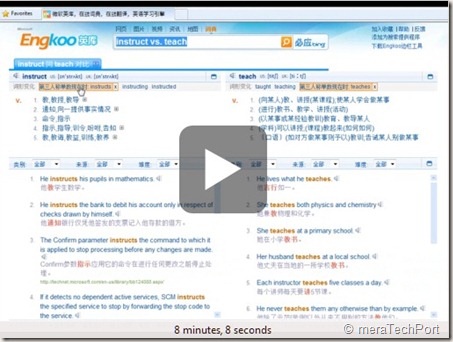
    Matt Scott of Microsoft Research walks us through Engkoo: the new “dictionary” vertical search of Bing in China. What makes this English-Chinese assistance tool unique is that it unifies human translation mined from the web, machine translation, and a language learning experience, into one easy to use search and explore interface. By continuously discovering and processing high quality translation knowledge on the Internet, this technology can be used to close the ever expanding translation gap between English and Chinese.


    EngkooCh9

    Engkoo is a collaboration between Bing, MSN, and Microsoft Research – leveraging years of research in Natural Language Computing, Speech, Human Computer Interaction and Web Search & Mining. Because the technology is language independent, next steps include building on it for other language pairs in the future.


    Watch the demo - Engkoo: English Learning Vertical Search from Bing and MS Research in China

    Try it yourself:

    www.engkoo.com 


    See it on Bing and MSN China:

    http://cn.bing.com and http://cn.msn.com


    (Source : Channel9 and Microsoft Research )


    Thursday, March 18, 2010

    Twikini- First officially announced twitter App for Windows Phone 7

    Twikini becomes the first officially announced Twitter app for Windows Phone 7 Series .

    Twikini is already one of the most popular Twitter apps in the world for Windows Mobile 6.x devices. The Windows Phone 7 version is being developed through a strategic partnership between Mist Labs and Trinket Software…”

    Mist Labs is the new company founded by ex-Microsoft Program Manager, Mel Sampat from the Windows Phone team. Trinket Software is a Seattle-based developer of several popular mobile apps, including Twikini and PowerSMS.

    TwikiniWP7_1 Twikini running on Windows Phone 7 Series – Portrait Mode


    TwikiniWP7_2 Twikini running on Windows Phone 7 Series – Landscape Mode


    For more details and screenshot, please check - Twikini for Windows Phone 7 – Preview

    (Source: @windowsphone)


    Friday, March 12, 2010

    FixWin featured on Fox8Live

    FixWin is a utility for Windows 7 and Windows Vista, that repairs or fixes 50 common Windows annoyances & issues. This was developed by my MVP colleague RameshKumar for TheWindowsClub

    Recently it was featured on Fox8Live.com . There is also mention of TheWindowsClub which is run by another of my MVP colleague Anand Khanse

    Check the video featured on Fox8Live discussing the same -

    Tuesday, March 02, 2010

    Windows Live Writer plug-in for Split posts in Blogger based blogs

     wlwbloglogo The option for split post on WordPress and couple of other blog engines have been provided in Windows Live Writer but not for Blogger based blog as this feature was not available in Blogger based bogs.

    But since some time Blogger has implemented this feature Creating 'After the jump' summaries and one could implement this feature while using the Blogger post Editor.

    “After the Jump is a feature which lets you create expandable post summaries in your blog posts, so longer posts appear as an intro with a link to Read More..”