Showing posts with label Insider Preview. Show all posts

Friday, December 14, 2018

Quick unpin for groups, Console updates, Notepad updates in Build 18298

With the release of Windows 10 Insider Preview Build 18298 (19H1), many new features have been added.
  • Sign-in options settings page has been simplified thus increasing visual clarity and improving ease of use. Also now from this settings page, one can now setup a security key. 
  • File Explorer icon has been updated to make it look better with the new light theme.
  • Ability to unpin groups and folders in Start via new context menu entry has been added.
  • With this build, when you open the properties page of any Console window, now one can notice an additional “Terminal” tab having many new settings.
Notepad improvements:
  • Significant improvements have been made in how the Notepad handles encoding. Now an option has been added to save files in UTF-8 without a Byte Order Mark. Additionally, a column is added to the status bar that displays the encoding of the document.
  • Notepad will now also show an asterisk (*) in the title bar before the title of a document to indicate that a document has unsaved changes.
  • Also “Send Feedback” option has been added within Notepad. Just Click Help > Send Feedback to open the Feedback Hub with the Notepad category selected and get your feedback directly to the product team.
  • support for some additional shortcuts added:
    • Ctrl+Shift+N will open a new Notepad window.
    • Ctrl+Shift+S will open the Save as… dialog.
    • Ctrl+W will close the current Notepad window.
  • Notepad can now open and save files with a path that is longer than 260 characters, also known as MAX_PATH.
  • a bug is fixed where Notepad would count lines incorrectly for documents with very long lines.
  • A bug is fixed where, when you select a placeholder file from OneDrive in the File Open dialog, you would download the file to determine its encoding.
  • fixed a recent regression where Notepad would no longer create a new file when launched with a file path that didn’t exist.
For many other improvements added in the Build  18298, please check the source.

Saturday, April 09, 2016

Active Hours: Prevent Windows restart for installing updates when you are using the device

There are lots of feedback from Windows10 users that Windows restarted automatically after updates were downloaded and they were cut off from what they were doing as Windows restarted. Or it restarted and installed a new version of Windows.

Active Hours:

But now Windows has provided a feature Active Hours that will prevent this. This will make Windows restart less annoying and the user will have his say when to restart. Although now also Windows provides an option when to restart or Restart Now option but with Active Hours, more control for users is provided.

By default updates are downloaded and installed automatically and Active Hours actually do not change that behavior but they add an additional option which ensures the user is not disturbed by reboot while using the system.

This option is provided in the latest Windows Insider Preview Build 14316 and will be part of Windows Anniversary updates for general user which will be available later this year.

To access Active Hours,

Settings  >  Update and Security > Windows Update > Change Active Hours

14316ActiveHours01

Clicking on it provides option to set the timings when you are working on the system and do not want Windows to reboot.

“Active Hours lets us know when you usually use this device. When a restart is necessary to finish installing an update, we won’t automatically restart your device during active hours.”

14316ActiveHours02 

So set the timings and Save.

Apart from that, in case you finished your work and now wants to Restart to finish the update process, there’s another option ‘Restart options’ just below Change Active Hours.

14316ActiveHours03

This option allows you to temporarily override active hours and schedule a custom time to finish installing this update. Make sure your device is plugged in at the scheduled time.

So with Active Hours, a user will have better control over Restarts for finishing the update process.

Saturday, October 31, 2015

Skype messages and contacts missing from Messaging app in Build 10576

Microsoft released Windows 10 Build 10576 for PCs few days back for Windows Insiders in fast ring. After upgrading to the Build 10576, all of the Skype messages and contacts are gone in the Messaging app. This is one of the issue faced by the users and Microsoft has provided workaround for this issue.

Workaround:

  • Open file explorer and navigate to this folder :
  • C:\Users\<USERNAME>\AppData\Local\Packages\
    Microsoft.Messaging_8wekyb3d8bbwe\LocalCache

  • Delete or rename the “PrivateTransportId” file. (If the ‘file name extension’ option is ticked, you’ll see this file as “PrivateTransportId.setting” )
  • Restart the Messaging app.

Hope this solve the issue.

Tuesday, September 22, 2015

Show more Tiles option to add 4th column on Start menu in Windows 10

Here’s a small tip about a new feature introduced in Windows 10 Build 10547. The default for tile groups on Start menu is 3 columns of medium sized tiles. But Windows 10 users wanted to have a 4th column as well, by doing so they could have 2 wide or large sized tiles or 4 medium sized tiles side by side in a group. Listening to the users feedback, Microsoft has added this option and has introduced in the Build 10547 released to Windows Insiders. This was one of the most requested feature.

At present one can have 3 columns of medium sized tiles side by side in a group

StartTiles01

The new option to add more tiles can be accessed from

Settings > Personalization > Start

and enable “Show more tiles” by switching it to On.

StartTiles02

Now you can see some more space added in Start menu.

StartTiles03

Now you can add that extra tile for the 4th column so that one can now have 2 wide or large sized tiles or 4 medium sized tiles side by side in a group as can be seen in the below pic.

StartTiles04

Also another feature added is now Windows supports up to 2048 tiles on Start. Earlier it was limited to 512 tiles. Hope this small tip helps.

Hoping Microsoft also brings this feature to all users, as at present only available to Insiders on build 10547

Tuesday, June 30, 2015

How to reinstall Insider Hub app in Windows 10 Build 10158

Microsoft has released Windows 10 Insider Preview Build 10158 for PCs today. If you are Insider and have upgraded to build 10158 then you’ll find that the Insider Hub is no longer available. This is because the Insider Hub is no longer pre-installed starting with this build. If you want to re-install it, please follow the following steps:

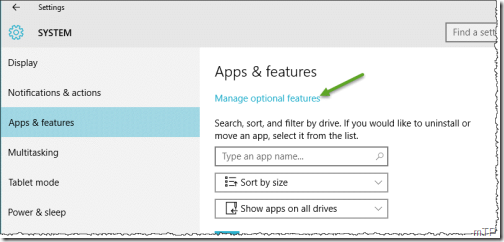
Go to Settings > System > Apps & Features ,

Click on Manage optional features (as shown in the pic) and then Add a feature

InsiderHubInstall

You’ll get a list which is in Alphabetical order, select the Insider Hub entry and click Install.

InsiderHubInstall1

And the app will be installed.

But when I installed it, it was no where got listed either in All apps as New or the Insider Hub app tile shown on Start. So I clicked on ‘Search the web and Windows’ (besides Start Window flag) and just entered Insider Hub and it was listed as Trusted Windows Store app. So I right clicked and pin to taskbar as well as Pinned to Start. And its now working. InsiderHubTile