Showing posts with label Windows Live Essentials. Show all posts

Sunday, October 31, 2010

A new site, new demo videos for Windows Live Messenger 2011

WLM2011

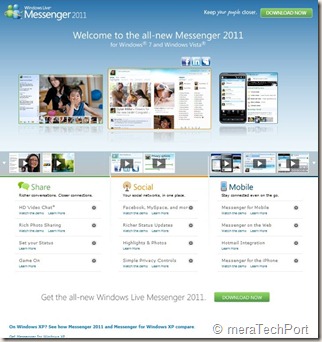
A new cool site design , nice looks and lots of demo videos for Windows Live Messenger 2011 for Windows 7 and Windows Vista.


WLM2011site1

Check the site -  http://www.microsoft.com/windows/windowslive/see-it-in-action/messenger2011demo/ 


WLM2011site


Also check the comparison chart  -

See how Messenger 2011 and Messenger for Windows XP compare.

XPWin7cmpremsngr

Friday, October 29, 2010

Harrison Hoffman- Product Manager,Windows Live in conversation with A&M at Microsoft Talk

scaled500


Check Episode 16 of Microsoft Talk, it’s a  Windows Live Essentials 2011 Launch Special with Harrison Hoffman in conversation with Abhishek Baxi and Manan at Microsoft Talk


Harrison Hoffman, Product Manager in the Windows Live group at Microsoft, was also the co-founder of the popular Windows Live blog – LiveSide.net . He talks about recently released Windows Live Essentials 2011 final ver. Check out the Podcast and you may walk away with cool goodies.

Wednesday, October 06, 2010

Now Hotmail also gets IE9 jumplist

One of the coolest feature of IE9 is the pinned sites. That is, you can launch your favorite web pages from your task bar with a single click, so the web sites are like any other app with jumplist  on your taskbar. Now web sites are taking advantage of this feature and designing their sites to provide links and even player controls.

When IE9 beta was released ,they had demo examples of Hotmail being pinned to taskbar. But at that time Hotmail jumplist  was not available to users. Now it has been updated and Hotmail also has jumplist. As you can see it includes Inbox, Calendars, Contacts, Send email.

HM pinning to IE9-2z


To pin the Hotmail to your taskbar, Sign-in to  Hotmail, click the Hotmail favicon (icon to the left of the web address in the address bar) and drag it to the taskbar.  Do this while in Inbox, sometimes if you are in Hotmail Home Page, it may not work correctly. Once the icon is dragged to taskbar, Right click on it to get the jumplist. Remember if you have saved the password and when you click the icon later, the Hotmail will open . So its upto you to make Hotmail ‘Remember password ‘ or not.

The same thing when I tried with Gmail, got this - 

GM pinning to IE9z

Gmail not yet taking advantage of this cool feature. May be in future it may also provide it.

Also note that once you pin any site/Hotmail to the taskbar and when you open it, the website icon appears at the top of the browser, so you have easy access to the website home page. The Back and forward buttons also gets the color to match the color of the icon. Very cool !

HM pinning to IE9-1z


GM pinning to IE9-1z

If you haven’t yet installed Internet Explorer 9 Beta yet , get it from Internet Explorer 9 Home

EDIT: As at LiveSide , my friend Kip points out that not all are seeing this yet as the feature is rolling out.

EDIT 16/10/10 : The Hotmail updates have been rolled out now, so you can try out this and many other cool features.

Friday, October 01, 2010

Offline Installer for Windows Live Essentials 2011 in different languages

WLEss2011

Download offline installers that can be used to install Windows Live Essentials 2011 without an internet connection. These are provided for different languages.

This includes links for Indian languages- Gujarati,Hindi,Kannada,Malayalam,Marathi,Tamil,Telugu and other country specific languages.

You can check the complete list and can get it from here - 

Windows Live Solution Center

(Source:WLSC)

Windows Live Essentials 2011 suite - A quick tour

Windows Live Essentials 2011 (formerly Wave 4) has RTW-ed (Released To the Web).

Windows Live Essentials 2011 for Windows 7 and Windows Vista is now available for download! (Releasing in 48 languages over the next few hours, so if your language is not yet available, it will be very soon.)

WLEss2011


The 2011 suite includes a tonne of new features including


Facebook Chat integration within Messenger
Bing Maps integration and improved geo-tagging support in Photo Gallery
Upload video direct to Flickr
Messenger video chat uses 30% fewer CPU resources by offloading work to the GPU
Higher bit-rate movies in Movie Maker
Better spell-checking and Office intergration with Writer
Improved Gmail support

In this video Bryan Saftler gives us a quick tour of the Essentials 2011 suite.

WLEss2011ch9


For more details Inside Windows Live

Look for more blog post here in future on individual apps from Windows Live Essentials 2011 Suite.

Wednesday, September 29, 2010

Thanks for the Windows Live Hotmail Goodies !!

Few days back I received this beautiful Hotmail Kit shaped in the form of Hotmail logo envelope box, full of Hotmail goodies from the Windows Live Hotmail team !


This was provided for the active participation in the Windows Live Meetings, being enthusiastic about Windows Live, blogging, tweeting and spreading the word in the community. A letter of appreciation from the Windows Live Team was also provided along with these Hotmail goodies that highlights the new features of Windows Live Hotmail.

A big Thanks to the Windows Live Team !!!!

If you haven’t yet tried the new features of Windows Live Hotmail, give it a try or if you don’t have an Hotmail account yet, Find out more  and create an account from http://explore.live.com/windows-live-hotmail    I’m sure you’ll like the New Windows Live Hotmail.

Saturday, September 25, 2010

"Evil Tina"– video from Windows Live Double Rainbow makers

Watch Evil Tina - The second video from Lanman Brothers – who brought the Windows Live Double Rainbow video.

Don't mess with Evil Tina. Automatically turn your videos, photos, and music into a great movie by using AutoMovie.

Evil Tina–Windows Live Movie Maker


“There’s more to Windows Live Movie Maker than meets the eye. Let’s take AutoMovie for example. AutoMovie is a feature that allows the user to make a polished movie in seconds. In 3 clicks or less, you add your pictures/movies, select a theme, add a song and you’re ready to share with family and friends. “

Read more about the video here: The Wedding Video…

Get Windows Live Movie Maker here:
http://explore.live.com/windows-live-movie-maker

btw if you haven’t watched the Windows Live Double Rainbow video, its here :

Double Rainbow

Messenger Mob

Microsofties are busy in the Microsoft campus, but  had a little fun in a recent employee video contest. Watch the winning video, "Messenger Mob," created by  Tony East..

Messenger Mob


Check out the new Messenger beta: http://beta.live.com

Tuesday, September 14, 2010

Microsoft’s New LifeCam Studio with 1080p HD widescreen sensor

09-13lifecamstudio_front_sm


Microsoft today set a new standard in webcams with LifeCam Studio, featuring sharp high-definition (HD) video with a true 1080p sensor. It’s the perfect complement to Windows Live Messenger 2011, which will offer HD video calling in a 16:9 widescreen format.

  • Superior sharpness and image quality in video calls.
  • great video in virtually any lighting condition
  • A 360-degree view range -no need to pick up an entire laptop and turn it around
  • tripod thread - perfect for recording long video captures from different angles
  • elongated hood to stop harsh light from hitting the sensor and washing out colors
  • TrueColor Technology
  • ClearFrame Technology

For more details please check  -

 LifeCam Studio – the closest to being there 

Microsoft Unveils New LifeCam With Stunning 1080p HD Sensor: Closest Thing to Being There in Person 


Also check the demo of the same  where Daniel from the hardware group walks us through some of the other new features.

First Look at Lifecam Studio

lifecamstch9


Also this Life style video to illustrate LifeCam Studio features.

Get Microsoft Silverlight

The LifeCam Studio will be available in October retailing for $99.95.

Thursday, August 19, 2010

[FIX] ‘No Internet Connection…’ Error during installation of Windows Live Essentials Beta Refresh

Yesterday an update to Windows Live Essentials 2011 beta was released. And while installing some faced problem where they were getting the error message “No Internet Connection…” and the installation failed even though they were connected to net. It was happening even using the Full offline installer.

Soon Windows Live Team swung into action and said -

“The problem you're running into is that the Windows Live Installer not only installs the language you selected, but also tries to install the Windows Live language resources that match your OS language (this avoids language switching problems later when using Windows Live client applications).  Unfortunately, the Windows Live Beta Refresh only ships in nine languages (much more coming for the final release) and when the installer tries to find these additional language resources, they are unavailable and hence the error you are seeing.  This error will occur in both the online web-version (wlsetup-web.exe) and the off-line version (wlsetup-all.exe). 

This will not be a problem in the final release as all languages will be available, but we're investigating workarounds such as temporarily changing your OS language settings and will post info here once a workaround has been confirmed to be effective.”

So one has to temporarily change their OS language to English and install.


Today they have fixed it and they have posted this -


“A fix for the "no internet connection" error you encountered has been released.  Please retry and reply if you continue to see errors in your installation experience.

Root cause is that we added functionality to the Windows Live Installer to also install language resources matching the Windows OS language and mistakenly included references to languages that are not available until the final Windows Live release.  Users installing on an OS language other than one of the nine languages released for Windows Live would have encountered this failure (English is just another language and not a unique cause of this error). 

We apologize for the negative experience and inconvenience and appreciate you using Windows Live and for providing feedback.  From this, we are updating our release tools to detect and avoid this problem in the future and investigating changing our error messages to be more helpful.”


Wednesday, August 18, 2010

What’s new in Windows Live Essentials 2011 beta refresh

Microsoft released an update to  Windows Live Essentials 2011 beta .  Its being called as Windows Live Essentials 2011 beta refresh, some are also calling it as Beta2. Acting on the beta feedback and usage of millions of users, the Live team has come up with many improvements across Messenger, Photo Gallery, Movie Maker, Writer, Mail, and Family Safety.

Let us check some of the many improvements -

Messenger -

A quicker Messenger - The time it takes to sign in, and to refresh contacts and social feeds, as well as animation speed, are all faster than in previous versions of Messenger.

More efficient video chat - Messenger video chat uses 30% fewer CPU resources by offloading work to the GPU.

Facebook chat in Messenger – Messenger now connects Messenger’s ~300 million customers (who are already connected to Yahoo! Messenger and Office Communicator) to Facebook’s ~500 million customers with Facebook chat . With the new Facebook chat integration, one can chat with all the Facebook friends.

msngrFB2z


WLMfb4z


WLMfb7z

Also check step by step article on enabling Facebook Chat feature– “How to chat with your Facebook friends from Windows Live Messenger


Movie Maker-

Flickr video publishing - You can now publish videos directly from Movie Maker or Photo Gallery to Flickr too. Also notice the new logo for the SkyDrive.

WLEnew

Larger movie uploads - Movie Maker will upload higher resolution movies to SkyDrive (480x640 vs. the previous 320x480).

WLEnew1

Higher bit-rate movies - Movie Maker now supports higher quality (bit-rate) content.

Snapshot - With the new Snapshot feature in Movie Maker, you can select a single frame from a video as it appears in the preview window and add it to your movie. This allows you to quickly grab an image that you want to keep or perhaps use for your movie’s intro or closing.

WLEnew2


Mail -

Better handling of Gmail – Mail now automatically handles Gmail’s spam and trash folders properly.

Photo Album improvements- Faster Photo albums uploads. Better indication as to where you can add additional photos to your album.  Live Mail also has some UI to set of a Photo Album expires after 90 days or not.

WLEnew11

WLEnew12


Family Safety -

Faster web filtering - Family Safety web filtering is 35% faster than in the previous version.

Photo Gallery -

Better facial recognition - Photo Gallery facial recognition is improved significantly and works more quickly.

Quick previews and improved tree view - Added preview capabilities to the “Find” tab in the ribbon. So before you apply a filter (date, rating, people tags), you can hover over one of those filters and see the results instantly.

 

WLEnew4


WLEnew5


WLEnew6


Writer -

Better spell-checking -

Writer has significantly improved the quality of its spell-checking.

Better integration with Office -

Writer is much better at retaining all formatting when you copy and paste from Word and other Microsoft Office programs. With Office there is a lot of CSS on the clipboard that will not be needed in the blog post.  If it was pasted it would really bloat the post.  Now Writer has a good compromise of pasting what you need to keep the formatting.  Bullets/numbering, heading styles, etc. all should paste better when copying from Office into Writer.

Jumplists -

Now Live Writer has jumplists on Windows 7.  Right click on the application icon in the task bar and you will see jump list entries for recent drafts and recent posts.

WLEnew7


Open Drafts and Open recent Posts on the application menu-

WLEnew8

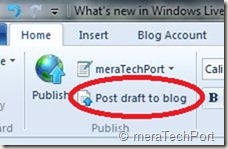
Post draft to blog button on the ribbon-

As many of the Writer users requested this feature, the Writer provides it. As the users said they post a draft to their blog and then directly go to the web to actually publish the post from there. So now they can do this easily.
WLEnew9


Much better theme detection -

As WordPress has changed over the years Writer has not kept up with the theme changes.  Live Writer is back on par and can accurately detect all current themes from WordPress including their new WP 3.0 theme Twenty Ten.  The theme detection changes are not exclusively for WordPress.  Writer will now work a lot better with the new custom Blogger themes also and should work better for really any blog server you use.  WYSIWYG is much better in Blogger now.Though Writer still cannot detect themes for blogs marked as private on servers such as WordPress.

Also has theme related options on ribbon.

WLEnew10


Updated spelling dictionaries-

It now have the same ones that are included with Office 2010.  Live Writer will have updates for all languages that it is released in.  It also has an updated autocorrect list that matches the English list in Office 2010.

Photo Album improvements- Faster uploads of Photo Albums.

More keyboard shortcuts-

There are more keyboard shortcuts which should soon appear as help topic on the web.


So, overall there’s an improvement in the quality of the software and over 75% of reported bugs have been fixed. As I have started using it, I can feel the improvements. One of them being the Face detection in Photo Gallery which has improved a lot, all of the products load faster, nice splash screen animation etc. And the improvements are an ongoing process and Essentials keeps improving, looking into users feedback.

And apart from English, Spanish, French, Dutch, Portuguese, Japanese, and Simplified Chinese, you can also now get the beta in Russian or German. So get the Windows Live Essentials 2011 beta refresh today and give it a try. Windows Live Essentials beta refresh requires Windows 7 or Windows Vista.

(Source: Inside Windows Live, Aaron's Live Writer Blog )


Friday, October 02, 2009

Creating Time-Lapse Videos with Windows Live Movie Maker

Do you want to make a time-lapse video that will show an event happening in a long time and you will time-lapse to show it in a short duration. For example the following video shows Jade building an airplane from Lego’s which will take long time but you want to time-lapse and show the complete process in a jiffy.


http://www.youtube.com/watch?v=mIzEKFjtwIg

Another example of such time-lapse video is posted here. There are lots of instances you can think of, for Time-Lapsing an event.

Now let us make such a video with Windows Live Movie Maker. First, fix the camera on a tripod. Making use of tripod will give you better uniform level photos of the event. Now keep on taking snaps after some interval of the event you want to time-lapse manually or with software that came with your camera. Take lots and lots of picture to get a better time-lapse effect. Here, a small tip- Try taking photos using laptop Web-Cam instead of regular camera and take pictures after regular interval automatically using some software like AvaCam or Microsoft Powertoy for XP- Webcam Timershot (this may work only with Windows XP). Such apps will help you to take photos automatically after a certain interval of time and save them.

Now after getting lots and lots of pictures, load them into Windows Live Movie Maker. After loading them select all pictures (by right clicking > Select All) and set the Duration to a low value such as 0.3 sec.

WLMMtimelapsez

That’s all and save them and run the movie to see the time-lapse effect.

Thanks to Windows Live Team Blog post for this tip -The “grown up” side of Windows Live Movie Maker where you can also read some more Movie maker related tips.

If you are not having Windows Live Movie Maker, you can get it from here . And its FREE !

Friday, August 28, 2009

Microsoft Answers- now for Windows Live

MSans1 If you have any queries related to Windows Live and needs help or just want to help others by solving Windows Live related queries, you now have recently launched Microsoft Answers for Windows Live  Here you can ask your doubts and also get involved in the community answering others queries. 

At present its having following categories -

Family Safety

Photo Gallery, Movie Maker, & FrameIt

Sync & Devices

Events & Toolbar

This forum is launched initially in English and later it will expand into other languages and also more Windows Live categories. Microsoft Answers will expand further in the days to come. http://answers.microsoft.com/en-us/windowslive/default.aspx


MSans2


It is a great place for Windows Live Essentials users to offer tips and advice, get their queries answered, collaborate together to improve the experience of Windows Live and be a part of the community. Here you will get your queries answered from other community members , MVPs and from Experts from Microsoft.


MSans3

BTW have you tried the Cool new Windows Live Movie Maker? If not check it out how easy it is to make your own Movies with all the transition effects, titles etc , Get Windows Live Essentials from here : http://download.live.com/

Monday, August 24, 2009

Tip: Using png format images in Windows Live Writer

This is a small tip related to use of transparent .png format images with Windows Live Writer. As PNG support transparency, a transparent PNG is background-independent. Suppose you have a transparent PNG image and want to put it on your blog using Windows Live Writer and you insert it and it looks as shown below. This has a black background with it.

WLWriter_logo

This black background is due to the ‘Borders’ option in Windows Live Writer which by default is ‘Drop Shadow’. So just choose any other option like ‘None’ (Select the picture >Picture tab in Taskpane > Borders > None) Or any other option other than ‘Drop Shadow’ . And see what you get as shown below.  The same image with transparent background which looks much better.

WLWriter_logo

Windows Live Mail Updates

WLMail_logo Recently a new ver of Windows Live Movie Maker was released and was out of beta.  And along with it updates to Windows Live Essentials thus updating all Windows Live Essentials Apps which also includes Windows Live Mail were released. Let us see what are the issues in Windows Live Mail that have been updated.

-- I had this problem in Windows Live Mail where one closes the app will appear to close but keeps on running in background and we could check it in Windows Task Manager (wlmail.exe keep running). And if we wanted to start it again , WL Mail will not start and another instance of it starts to show up in Task Manager. So as I knew this problem, I used to kill the running process from Task manager and then it used to Open again. A feedback about it was provided as many others were also facing this.

Now in this new update this issue has been corrected. Thanks To WL Mail Team ! Now ‘Recover Disk Space’ should also work properly.

Other updates are-


-- Windows Live Mail can now properly import Outlook Express mail account settings that were transferred from a Windows XP to a new Vista or Windows 7 system using the Windows Easy Transfer wizard.


-- On Vista and Windows 7, Windows Live Mail wouldn’t connect properly to POP email servers using SSL. In particular, this affected some users of Yahoo! Mail.

The update is version 2009 (Build 14.0.8089.0726), You can check it from Help > About Windows Live Mail

WLmail

So if you want to update all your Windows Live Essentials Apps and also get the new Windows Live Movie Maker (which has got very good response from its users) just go to  http://download.live.com 

(Source:Windows Live Mail Update Details)

Windows Live Tags: clubhouse, Mail, updates, Essentials

Friday, December 26, 2008

Instant photo border option in Windows Live Writer

An ‘Instant photo’ border option has been added in the recent version of Windows Live Writer. The 2009 RC ver. (Build 14.0.8050.1202) of Writer has been released with Windows Live Essentials beta.

Along with many new features, one of the new feature is ‘Instant photo’ border option.

WLWinstphoto

With the advent of Digital Cameras, the use of Polaroid films has been reducing and many of you might be aware that Polaroid will soon stop manufacturing these Instant Photo films. In earlier years these Polaroid films were a big part of the family photo and were very popular. To give the photo the appearance of a Polaroid picture we now have an option in Windows Live Writer.  So let us see how to make use of it.

Insert a picture in Windows Live Writer using Insert option, Now select the picture and from taskpane Picture tab > Borders, select Instant photo. Now you can see an Instant photo like Border has been provided to your picture. But some of you might be wondering, why the picture has been cropped. The picture has been cropped because that aspect ratio is what "instant photos" in real life look like. But you wanted to show some different portion of the picture in the Instant photo border.

For that, keeping the Instant borderd picture selected go to ‘Advanced’ tab and select ‘Crop…’ option and select/highlight  the portion which you want to be bordered in ‘Instant photo’ . You can also use the ‘Tilt…’ option to give your picture a tilt effect. Now you can see the portion you wanted with the Instant photo border.

Following is an example, let us put an ‘Instant photo’ border to it.

IMG_0269

Now the same photo with Instant photo border and showing the required portion using ‘Crop…’ option.

IMG_0269

Now you can get the same Instant photo effect for any photos with this option and not only for family photos :)

Enjoy !!

Friday, December 19, 2008

Polygamy – Run multiple instances of Windows Live Messenger

Many times you want to run multiple instances of Windows Live Messenger (Polygamy) , either just to test or to make use of your multiple Live IDs at the same time. Earlier you  might have done this using third party add-on or a patch. Now those are not needed, as a registry tweak will enable  you to run multiple instances. This nice tip has been provided by LiveSide’s Sunshine which was shared to her by Microsoft’s John Weisenfeld.

Let us see how this is done. As it involves Registry, take a back up of the same.

- Start Regedit.

- Navigate to HKEY_LOCAL_MACHINE\SOFTWARE\Microsoft\Windows Live\Messenger

- Right click Messenger and create a new DWORD called MultipleInstances.

poly1

- Right click on the newly added DWORD and choose Modify

poly2

- Set the Value data to 1, Press OK.

poly3


poly4

- Close Regedit.That’s all.

poly5

poly6 Now you can sign-in to Windows Live Messenger with different Live IDs at the same time thus running multiple instances. You can’t login with the same Live ID more than once else you will get an Error. If you haven’t yet installed the new Windows Live Messenger, get it from http://download.live.com/messenger