Showing posts with label tips. Show all posts

Sunday, November 15, 2020

How to record your screen in PowerPoint?

Few days back, a tweet from Jen Gentleman, community manager at Microsoft, asking "Do you know you can record your screen using PowerPoint?" evoked lots of responses. And all were eager to know how to do this? So I thought as so many PowerPoint users are interested, why not post about this feature.

How to record your computer screen in PowerPoint?

You can record your computer screen and related audio, and then embed it in your PowerPoint slide or you can save it as a separate file. Let us check the steps: 

  • Open the PPT slide that you want to put the screen recording.
  • On the Insert tab of the ribbon, select Screen Recording.
  • On the Control Dock, click Select Area (Windows logo key+Shift+A), or, if you want to select the entire screen for recording, press Windows logo key+Shift+F.

    The Windows logo key+Shift+F keyboard shortcut is only available if you have an Office 2016   Click-to-Run installation; MSI-based installations don't have the shortcut.
If you have opted to select an area, you see the cross-haired cursor Cross haired cursor . Click and drag to select the area of the screen you want to record. (If you have already done a screen recording during your current PowerPoint session, your prior area selection will appear on the screen. You can proceed with recording if that selection area suits you, or you can click Select Area to start over.) 

PowerPoint automatically records the audio and the mouse pointer, so by default those options are selected on the control dock. To turn them off, deselect Audio (Windows logo key+Shift+U) and Record Pointer (Windows logo key+Shift+O).

  •  Click Record (Windows logo key+Shift+R).Unless you pin the Control Dock to the screen, it will slide up into the margin while you record. To make the unpinned Control Dock reappear, point the mouse cursor at the top of the screen.
  • To control your recording:
    •  Click Pause to temporarily stop the recording (Windows logo key+Shift+R).
    •  Click Record to resume recording (Windows logo key+Shift+R).
    •  Click Stop to end your recording (Windows logo key+Shift+Q) (shown below).

  • When you are finished recording, save your presentation: File > Save. The recording is now embedded on the slide you selected. To save the recording itself as a separate file on your computer, right-click the picture on the slide that represents the recording, and select Save Media as. In the Save Media As dialog box, specify a file name and folder location, then click Save.

To set your video 'Start' settings, right-click the video frame, click Start, and pick how you want your video to start in your presentation; automatically when a slide appears, or when you click the mouse.

To Trim your video,Right-click the video frame, and click Trim.To determine where you want to trim your video footage, in the Trim Video box, click Play.When you reach the point where you want to make the cut, click Pause. Use the Next Frame and Previous Frame buttons to specify precise timing. To trim the beginning of the clip, click the start point, when you see the two-headed arrow, drag the arrow to the desired starting position for the video. Similarly, to trim the end of the clip, click the end point, when you see the two-headed arrow, drag the arrow to the desired ending position for the video. Click OK.

To apply a style to the video frame, right-click the video frame, click Style, and pick a style you like.

 If you are running older version of Office, like Office 2013, please check the source for the steps.

Tuesday, April 14, 2020

Test your Typing skills with Bing

Do you want to check your typing skills? Do you want to check, how fast you type or how accurate you are in typing, then just search for 'Typing test' in Bing. Or you can click here to open the required Bing page.  The Bing search result will provide the Typing Test page with a paragraph. Seeing this, one has to type within the set time limit. One can adjust the time limit too. On completion, Bing will provide your typing speed, accuracy and score.

One can try this fun and interactive typing challenge that provides your score, speed, and accuracy.
(Source:Windows Blog)

Friday, April 03, 2020

How to organize and find your photos in OneDrive

OneDrive users store tons of photos on OneDrive. So how to make most of it using it efficiently to organize and find your photos? OneDrive helps with features like photo search, tags and albums. Let us see some more details about it and some tips on how to use this:

When it is arranged by date, the date appears over the scroll bar as you scroll up and down your photos helping to find your photos.


Searching Photos:
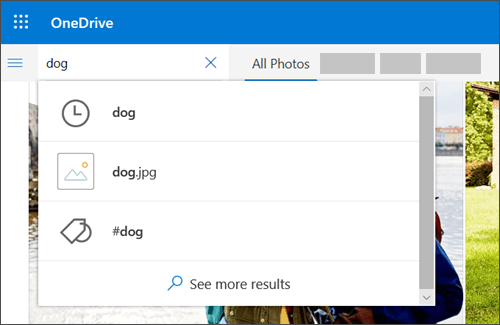
You can use the Search photos command to not only scan photo tags and metadata, but also extract and search text shown in photos. It now can also recognize objects in a photo, as another way to find the picture you want. To do this:
From the OneDrive on the web, select Photos.
Type in the search box such as - a name, a place, or a date you want to search
and OneDrive will give you the photo search result


OneDrive automatically create tags for the things it recognizes. But sometimes it makes mistakes, so you may want to correct it. You can remove or edit the tags for photos. To do this:
Select the photo
Select Edit tags
Type a new tag or click on the x next to tag to remove it.
OneDrive also groups together all the photos taken within a single date.You can see them from All Photos view. And all these photos have location tags, which you can make use to quickly view all photos from the same location. To do this:
Select the list of location tags next to a date.
Select your preferred location from the list.

Next let us check about Albums.
OneDrive can automatically create an album from any pictures or videos you take that day or weekend, and notify you when it's ready. Automatic albums are sent only with you, but contain a sharing link so anyone you send the email to will also have access to that album.
You can stop OneDrive automatically creating albums by turning off Create albums automatically when I upload photos setting from the Photos settings page in OneDrive web.

 You can also create Albums yourself. From the OneDrive web, select photos > Albums > New Album and type a name for it. Then you can select photos you want to add to the album and then click Add album. This can be done on mobile device too.
So these were some of the tips that will help you to organize and find your photos.
 (source)


Tuesday, March 24, 2020

[Tip]: Dark mode in Outlook on the web and Outlook


Tried various themes and getting bored seeing the same default white background in your Outlook on the web mail? You want to see some change? You can now have the dark mode.
Dark mode changes the default bright background color in Outlook.com and Outlook on the web to a darker color, which is easier on the eyes in low-light environments or if you prefer less bright interfaces.
For this ,
Go to Settings > Toggle the Dark mode option.
That's all. It looks good. Less strain on the eye.
Suppose you want to switch on the lights for a particular message, just click on the Sun to turn on the lights.

It has to be noted that some themes are not available in Dark mode.
Give it a try and turn on the Dark mode.

Dark mode in Outlook: 
Similarly in Outlook for Office 365, the black color theme includes dark mode, which provides a black background for the message window instead of the default white.
Dark mode is enabled by default when you use the black theme. To switch to the black theme in Outlook:
  1. Go to toolbar and select File, then select Office Account.
  2. Under Office Theme, select Black.
     
    When reading a message, you can turn dark mode on or off by using the icon at the top of the message window.
Select the sun icon to change the message window background to white.

 Select the moon icon to change the message window background to black.
When composing a message, you can turn dark mode on or off from the Message toolbar by selecting the dark mode icon to change the message window to white or black.

  Disable dark mode


If you prefer, you can disable dark mode so that the message window is always white when using the black theme. The icons to switch dark mode on or off are disabled when you disable dark mode.
  • In Outlook, go to File > Options.
  • On the General page, look for Personalize your copy of Microsoft Office.
  • Set the Office Theme to Black and select the check box next to Never change the message background color.
  • Select OK.

    (source:support.Office.com)

Sunday, February 16, 2020

[Tip]: Copy images and text from one PC to another with a cloud-based clipboard.

Its already been sometime since Clipboard history feature in Windows 10 was provided. I'm mentioning this feature tip again because many Windows 10 users didn't knew about this Clipboard history.
When you copy or cut in Windows 10, it's copied to the clipboard for you to paste. Now with the October 2018 Windows update, Windows 10 supports multiple items to be saved to the clipboard to use it later. And its a cloud based clipboard. So you can copy images and text from one PC to another with a cloud-based clipboard. Not only can you paste from your clipboard history, but you can also pin the items you find yourself using all the time.

1. To get to your clipboard history at any time, press Windows logo key  + V. You can also paste and pin frequently used items by choosing an individual item from your clipboard menu.
2. To share your clipboard items across your Windows 10 devices, select Start  > Settings  > System > Clipboard. Choose Automatically sync text that I copy under Sync across devices. The sync feature is tied to your Microsoft account, or your work account, so remember to use the same login information on all your devices. 


Your clipboard history is limited to 25 copied entries. Older itemsunless they're pinnedare removed automatically to make room for new clipboard items.

Here are some FAQs about the Clipboard:
How do I turn on my clipboard history for the first time?
To turn your clipboard on for the first time, select Windows logo key + V, and then select Turn on.
 
How do I sync my clipboard items to my PC?
To turn on the sync feature, select Start  > Settings  > System  > Clipboard . Choose On under Sync across devices.
 
How do I clear my clipboard history?
To clear everything—except pinned items—on your device and the cloud, select Start  > Settings  > System > Clipboard  > Clear clipboard data > Clear.
You can also clear your device clipboard history by selecting Windows logo key  + V  and then selecting the Clear all option at the top.
 
How do I clear an individual item I don't want to show up in the clipboard history anymore?
To clear an item on your clipboard, open your clipboard by selecting Windows logo key  + V, and then next to the item in question, select Delete.
 
How do I sync my clipboard to my phone?
You can't sync your clipboard history to your phone yet, but that feature is coming soon.

Monday, November 18, 2019

Tip: Color Filters for the color blind

Some people have difficulty in distinguishing colors or may be color blind. For those Windows 10 has an option which can help make the colors on your screen more distinct. its the Color Filters feature. 

If it's hard to see what's on the screen, apply a color filter. Color filters change the color palette on the screen and can help you distinguish between things that differ only by color.
It can be found under Settings > Ease of Access

To use a color filter:
  • Select Start  > Settings  > Ease of Access > Color filters.
  • Switch on the toggle under Turn on color filters.
  • Then, select a color filter from the menu. Try each filter to see which one suits you best 
    Note: To get to color filter settings in previous versions of Windows 10, select Start  > Settings  > Ease of Access > Color & high contrast.

    Thanks to Jen Gentleman for the twittertip & (source)


Sunday, July 14, 2019

Tips: Create Calendar events, reminders from Taskbar (Build 18936)

Windows 10 Insider Preview Build 18936 has been released recently. One of the nice new feature that has been added in the build is, it has been made much easier to create events and reminders.
Just click on the date in the Taskbar and you see this: 
So just start typing and create your event or reminders and you’ll now see inline options to set a time and location.

Saturday, March 30, 2019

[Tip]: Grammar tools in Microsoft Edge

Microsoft Edge is the only browser that comes with Microsoft Learning Tools built-in that helps in to to improve reading and focus. Grammar tool is part of that Learning tool. With Grammar tool, you can identify parts of speech with different colors.
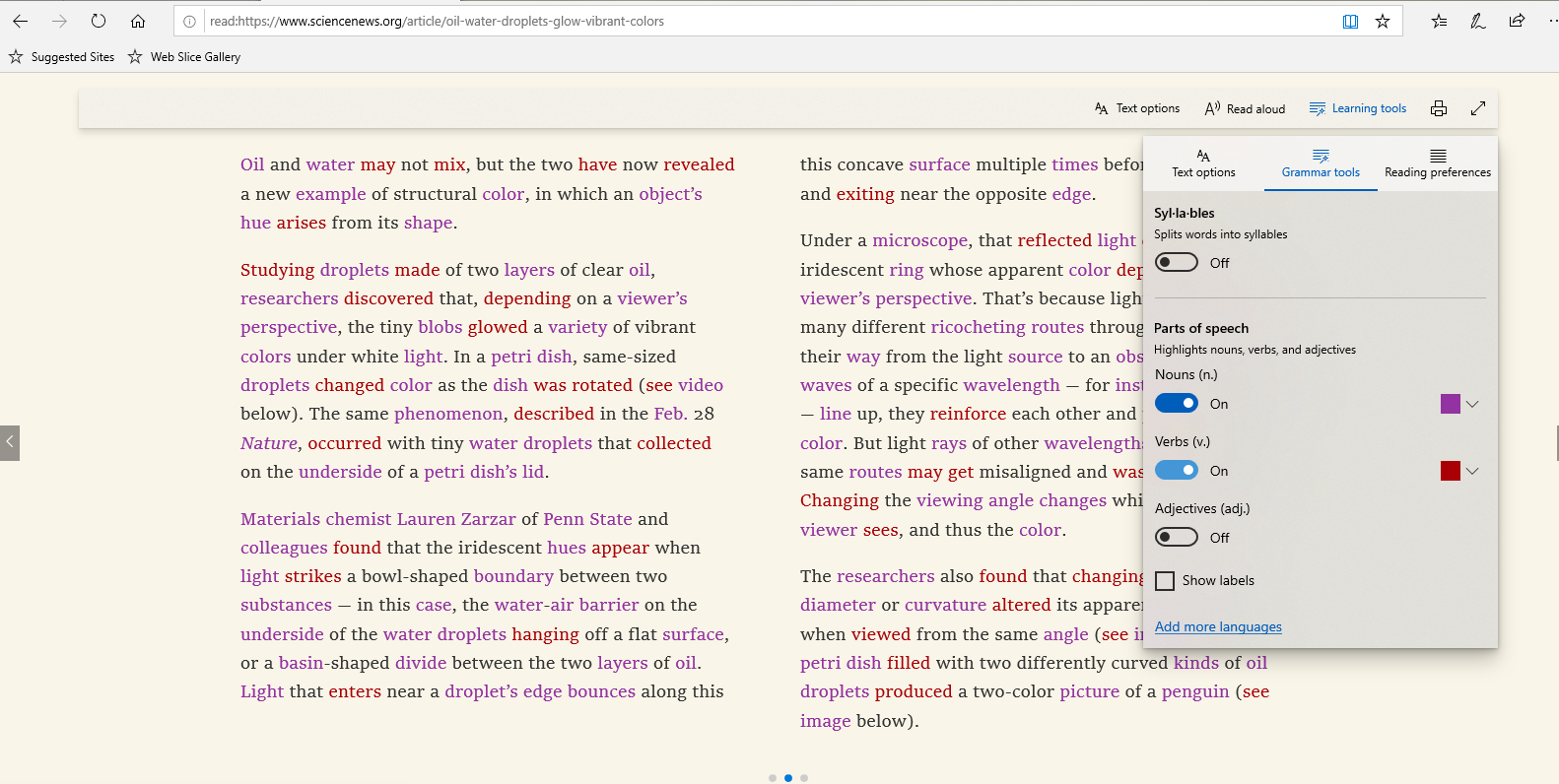
Grammar tools can separate words into syllables and highlight parts of speech, such as nouns, verbs and adjectives. Along with highlighting parts of speech, you can now also change the color as well as turn on an indicator right over what you’ve highlighted, making it much easier to identify the part of speech.
How to enable & use Grammar tools?
Microsoft Edge comes with a Reader mode which strips out unnecessary elements from the opened web page and turns it into cleaner looking page without any ads or scripts, which makes it easier to read and focus on the content.
  • Open the desired web page in Microsoft Edge.
  • Click on the Reading View icon or Ctrl+Shift+R is the keyboard shortcut.
  • This will enable the Reading View feature in the Microsoft Edge. (The opened page should support the Reading view feature. If the Reading View button is not available & is grayed out, it means that the current web page does not support reading view.)
  • Now to get Reading View’s options toolbar, click on the empty area of the page or press Ctrl+Shift+O. Now you can see a toolbar.
  • Click on Learning Tools. Then Click on Grammar tools. The Grammar tools is not installed by default. So if you are using it for 1st time, you’ll see Get button else if its already downloaded & installed , you’ll not see the Get button.
  • Clicking on installed Grammar tools, you’ll see various options.
  • You can enable or disable the grammar tools syllables and highlight parts of speech, such as nouns, verbs and adjectives according to your preferences.One can show the labels too.
As said earlier, Grammar tools separates words into syllables and highlight parts of speech, such as nouns, verbs and adjectives. Check it out in action:


Saturday, October 20, 2018

Build 18262 : More preinstalled apps gets ability to uninstall via context menu

In Windows 10 Insider Preview Build 18262 , ability to uninstall more pre-installed apps has been added. Following preinstalled Windows 10 inbox apps can be uninstalled via the context menu on the Start menu All Apps list:

  • 3D Viewer (previously called Mixed Reality Viewer)
  • Calculator
  • Calendar
  • Groove Music
  • Mail
  • Movies & TV
  • Paint 3D
  • Snip & Sketch
  • Sticky Notes
  • Voice Recorder

Earlier in the Windows 10 Oct. 2018 Update, only the following inbox apps could be uninstalled via the context menu on the Start menu All Apps list:

  • Microsoft Solitaire Collection
  • My Office
  • OneNote
  • Print 3D
  • Skype
  • Tips
  • Weather

Wednesday, June 20, 2018

[Tip]: Cortana can shut down, restart or sleep your PC

Apart from various voice activated features of Cortana, you can now ask Cortana to shut down, restart or sleep your PC.
Windows 10 Fall Creators Update has added this feature.
You can shut down, restart, or sleep your PC simply by saying any of these:
  • “Hey Cortana, lock my computer.”
  • “Hey Cortana, shut down my computer.”
  • “Hey Cortana, restart my computer.”

Saturday, June 02, 2018

[Tip]: How to choose a picture for your account to show on the sign-in screen

Here’s a small tip of how to choose a photo you want to show for your account on the sign-in screen, sign-in screen.
Just goto Settings > Accounts > Your info .
Under Create your picture, select Browse for one and choose the picture you want.

Bonus tips: Here are 5 keyboard shortcuts you may not know about
  • Winkey + comma to take a quick look at the desktop
  • Winkey + L to lock your PC or switch accounts.
  • Press Alt + Tab to switch between all your open apps
  • Winkey + M to minimize all your open windows at once and
  • Winkey + Shift + M to restore all minimized windows

Sunday, May 20, 2018

Windows gets built-in Clipboard Manager

With the Preview build 17666, Windows gets completely new Clipboard experience. With the new feature, Clipboard has been taken to a new level.
To get this brand-new clipboard experience , press WinKey +V

From Settings > System > Clipboard , one can get various Clipboard options,

When you copy or cut in Windows, it’s copied to Clipboard for you to paste. Now with Clipboard history, you can now save multiple items to the clipboard to use later. One can view clipboard history by pressing Winkey+V. Clipboard History must be set to ON in settings.
When Clipboard history is On, you can also pin the items you find yourself using all the time. Thus your favorite items will be saved even when you clear your clipboard history or restart your PC.

When Sync across device is ON, one can paste text on other devices.
This history is roamed using the same technology which powers Timeline and Sets, which means you can access your clipboard across any PC with this build of Windows or higher.
NOTE: As of now, Roamed text on the clipboard is only supported for clipboard content less than 100kb. Currently, the clipboard history supports plain text, HTML and image less than 1MB.

Thursday, May 17, 2018

[tip] How to name your Start tile folder

With the Windows 10 Insider Preview Build 17666, you get the option to name your Start tile folders.
To create a tile folder in Start, just drag one tile on top of another for a second then release. Continue dropping as many tiles into the folder as you’d like. When you are done with dropping all the tiles into the folder, expand the folder and you’ll get to see a new option to name it. So type whatever name you like. The name will be visible when the folder is medium, wide or large sized.

tip: You can also press Winkey+. to open Emojis panel and you can add emoji in the name.

Sunday, May 13, 2018

[Tip]: Hear all sounds in one channel

Its a small tip but can be utilized by many. Sometimes you want to use only one earpiece of your headphone listening to the songs while you want to keep your other ear free. But by default your sound option is set to Stereo. And stereo audio send some sounds to the right channel/speaker and some sounds to the left channel. So when you want to use only one earpiece, you won’t hear all the sounds and it’ll be irritating.
Mono Audio:  Windows supports mono audio and you can send all sounds to both channels. This allows users to hear all sounds from the PC in one ear and use the other ear for something else like listening to people around them with the other.
For this Go to Settings > Ease of Access > Audio > Turn on Mono Audio to ON.

This feature can also be useful for those who have partial hearing loss or deafness in one ear to hear all sounds from the PC so they don't miss anything.

Sunday, May 06, 2018

Focus Assist : Focus without distractions

With the Apr 2018 Update, Windows is introducing Focus Assist, a feature to stay focused without distractions. Today while in front of screens, we spend much of the time on social media.
In the workplace, the average amount of time people spend on any single event before being interrupted or switching tasks is about three minutes (outside of meetings). Since the average person needs about 23 minutes to regroup after being interrupted, we see our productivity and creativity diminished.
Focus Assist feature will help you stay in the zone. Turn on Focus Assist whenever you want to get things done without distractions, like social media or other notifications.Or it can be scheduled to turn on Automatically during certain times when you need focused time. Like, it can be customised for getting only the priority items like alarms when you want to focus on your work. After that one can get the summary of what had came through during that time, whether notifications, mails etc.


[Update 16 Mar 2019] : Some new options have been added now to Focus Assist. Like
a new option to automatically turn off notifications when you are using an app in full screen mode. For example you are watching a movie on your PC in full screen mode and do not want to be disturbed.

Saturday, May 05, 2018

Night light : Sleep well by lowering your PC’s blue light emission

Your PC’s screens emits blue light, which can keep you awake at night. By reducing this blue light emissions, you can sleep better. This can be done with the Night light feature. Night light displays warmer colors to help in sleep.
One can search for Night light features in Settings search, or open Settings (Winkey +I)
Settings > System > Display  > Click to turn Night light On or Off.
Check the below animation:

(Source:)
One can also customize the color temperature or schedule by clicking “Night light settings”.

Sunday, April 22, 2018

Windows 10 Tip: Annotate your e-books in Microsoft Edge

In Microsoft Edge, one can not only read e-books but can also annotate them. One can easily personalize e-books by adding highlights in four color options, underline, add notes.

To do this, simply highlight the word or sentence or a para and you’ll get the menu with various options.

EdgeHighlight4

or can get the same option after highlighting and right click.

EdgeHighlight2

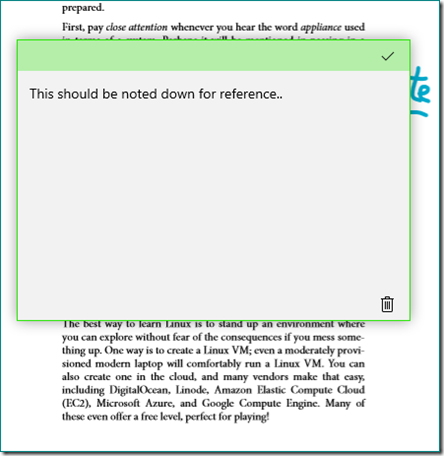
One can write small notes with Notes option. And Save the notes for retaining it for future reference. It can be deleted anytime.

EdgeHighlight3

One can also write directly on the book. This can also be saved & erased at any time.

EdgeHighlight1

One can also select the Cortana icon from the same menu to find more information about the content you are reading without leaving the reading experience.

Why not try these option by opening an e-book in Microsoft Edge. Ensure you are having Windows 10 Fall Creators Update or higher.

Tuesday, April 10, 2018

Tip: How vEthernet (Default Switch) gets created and how to delete them?

Somedays back one of my friend was asking me a query about Network adapters. He said, since last Windows 10 update, he was seeing vEthernet (Default Switch) getting created automatically. And when he tried to delete them, the ‘Delete’ option was greyed out.

vEthernet

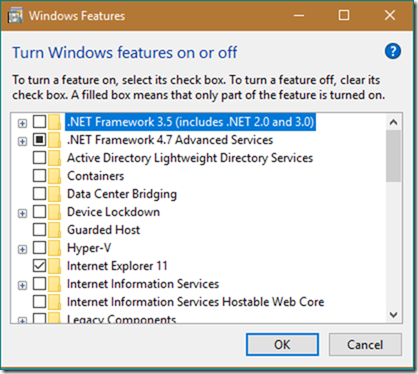
This default switch vEthernet is created by Hyper-V. If you are not using Hyper-V, you can remove it. You can remove it from Settings.

Settings > Apps > Apps & Features > Programs & Features (under Related Settings ) > Turn Windows Features On or Off

vEthernet1

From here Uncheck the Hyper-V and now the vEthernet won’t be created.

Similarly if you were using some VPN software and now you have uninstalled that VPN software from your system as you no longer using it, but the virtual network adapter created by the software didn’t get removed automatically. So its already created.

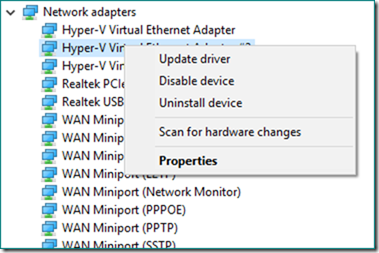
So if its already created,and you want to delete them but the delete option is greyed out. Here’s how they can be deleted. There are many methods to delete them, we will see the simplest method using Device Manager.

Open Device manager, expand Network Adapters, Right-click on the Network Adapter you want to remove and Uninstall device.

vEthernet2

Apart from this simplest method, there are other methods like deleting network profile using command line, deleting adapter settings via Registry. We will have a detailed look at these & some more methods in other separate post.

Wednesday, February 28, 2018

Windows 10 Tip: Ask Cortana to shut down, restart or sleep your PC

Here’s a small tip. A Cortana feature requested by many.

cortana

Did you know you can now ask Cortana to shut down, restart, or sleep your PC? With the Windows 10 Fall Creators Update, you can now shut down, restart, or sleep your PC simply by saying any of these:

  • “Hey Cortana, lock my computer.”
  • “Hey Cortana, shut down my computer.”
  • “Hey Cortana, restart my computer.”

Give it a try.

Friday, February 09, 2018

Delete Windows Diagnostic Data that Microsoft has collected from your device

Microsoft introduced new privacy tools ahead of Data Privacy Day (28th Jan).This included the Diagnostic Data Viewer which the Windows Insiders can have in build 17083 onwards. With Microsoft’s commitment to transparency and control, users can now delete the Windows Diagnostic Data that Microsoft has collected from your device.

To do this, Go to Settings > Privacy > Diagnostics & feedback, you will find a delete button that deletes the Windows diagnostic data associated with your device

deleteDiagData

Note: The backend cloud system is currently under development and will be available to complete the Delete requests prior to public release of RS4. 

(source)