Showing posts with label security. Show all posts

Sunday, September 20, 2020

Open untrusted websites in Microsoft Defender Application Guard

Designed for Windows 10 and Microsoft Edge, Application Guard helps to isolate enterprise-defined untrusted sites, protecting your company while your employees browse the Internet. 

If an employee goes to an untrusted site through either Microsoft Edge or Internet Explorer, Microsoft Edge opens the site in an isolated Hyper-V-enabled container, which is separate from the host operating system. This container isolation means that if the untrusted site turns out to be malicious, the host PC is protected, and the attacker can't get to your enterprise data. For example, this approach makes the isolated container anonymous, so an attacker can't get to your employee's enterprise credentials.


Prerequisites: This feature is available on Windows 10 Enterprise edition builds 20175.1001 or later. You will also need Internet Explorer 11 and the new Microsoft Edge , and you will need to have Application Guard enabled.  

To install Microsoft Defender Application Guard

  • Open the Control Panel, select Programmes, and then select Turn Windows features on or off. 
  • Select the tick box next to Hyper-V and Microsoft Defender Application Guard and then click OK. 
  • Restart your device.
  • Open Edge. In the upper-right select ... and then select New Application Guard Window. Once a Microsoft Edge Application Guard window opens—the first time takes several minutes—Application Guard setup is complete. 

 To set up the Network Isolation settings in Group Policy

  • In the search box, type Group Policy, and then select Edit Group Policy. 
  • Go to the Administrative Templates > Network > Network Isolation > Enterprise resource domains hosted in the cloud setting. 
  • Select Enabled.
  • For the purposes of this scenario, type .microsoft.com into the Enterprise cloud resources box. 
  • Go to the Administrative Templates > Network > Network Isolation > Domains categorised as both work and personal setting.
  • For the purposes of this scenario, type bing.com into the Neutral resources box. 

 To turn on Application Guard in Managed Mode

  • Go to the Computer Configuration > Administrative Templates > Windows Components > Microsoft Defender Application Guard > Turn on Microsoft Defender Application Guard in Managed Mode setting. 
  • Click Enabled, choose Option 1, and select OK.
     
    For more details on System requirements for Microsoft Defender Application Guard and other details , please check this. (Source: FeedbackHub Quests)

Sunday, December 23, 2018

What is Windows Sandbox?

With Windows 10 Insider Preview Build 18305, Windows Sandbox is introduced. Windows Sandbox is a new lightweight desktop environment meant for safely running applications in isolation.
Many a times we download an executable file but are unsure whether it’ll be safe to run it or not. For this Microsoft has developed Windows Sandbox. its an isolated, temporary, desktop environment where you can run untrusted software without the fear of lasting impact to your PC. Any software installed in Windows Sandbox stays only in the sandbox and cannot affect your host. Once Windows Sandbox is closed, all the software with all its files and state are permanently deleted.
Features of Windows Sandbox:
  • Part of Windows: Everything required for Windows Sandbox comes with Windows 10 Pro and Enterprise. Downloading VHD is not required.
  • Pristine: Every time Windows Sandbox runs, it’s as clean as a brand-new installation of Windows.
  • Disposable: Nothing persists on the device; everything is discarded after you close the application.
  • Secure: Uses hardware-based virtualization for kernel isolation, which relies on the Microsoft’s hypervisor to run a separate kernel which isolates Windows Sandbox from the host.
  • Efficient: uses integrated kernel scheduler, smart memory management, and virtual GPU.
Installing Sandbox:
  • Install Windows 10 Pro or Enterprise Insider Build 18305 or newer.
  • Enable Virtualization :
    • If you are using a physical machine, ensure virtualization capabilities are enabled in the BIOS.
    • If you are using a virtual machine, enable nested virtualization with this PowerShell cmdlet: Set-VMProcessor -VMName <VMName> -ExposeVirtualizationExtensions $true
  • Go to Settings > Apps > Apps & Features > Programs and Features > Turn Windows Features on or off, and then select Windows Sandbox. You might be asked to restart the computer.
  • Using the Start menu, find Windows Sandbox, run it and allow the elevation
  • Copy an executable file from the host
  • Paste the executable file in the window of Windows Sandbox (on the Windows desktop)
  • Run the executable in the Windows Sandbox; if it is an installer go ahead and install it
  • Run the application and use it as you normally do
  • When you’re done experimenting, you can simply close the Windows Sandbox application. All sandbox content will be discarded and permanently deleted.
Prerequisites for using Windows Sandbox:
  • Windows 10 Pro or Enterprise Insider build 18305 or later
  • AMD64 architecture
  • Virtualization capabilities enabled in BIOS
  • At least 4GB of RAM (8GB recommended)
  • At least 1 GB of free disk space (SSD recommended)
  • At least 2 CPU cores (4 cores with hyperthreading recommended)
Windows Sandbox internals:
Windows Sandbox is built on the technologies used within Windows Containers. Windows containers were designed to run in the cloud. So taking that technology, it was integrated with Windows 10 and built features that make it more suitable to run on devices and laptops without requiring the full power of Windows Server.
So if you are interested, install and try running applications in Windows Sandbox.
For some known issues, please check this.
For more details on Sandbox internals, please check source.

Tuesday, August 15, 2017

Add an extra layer of security to your Microsoft account!

You can create an extra layer of security to your Microsoft Account, just by adding contact information such as phone number or email address to your Microsoft Account. This information lets you prove your identity should you need to make changes to your account—for example, if you forget your password or think your account might have been hacked.

After you add this information, you'll need to verify that you have access to it before you can use it to prove your identity. You may also receive an error on your device when you try to download your account or sign in on your device if you have not verified your newly added security information.

How to verify your security information?

VerifySecurityInfotoMSA

Just follow these steps to verify your security information from your computer or other Internet-enabled device:

  1. Sign in using your Microsoft account email address and password.
  2. Select Security.
  3. Click Update info.
  4. Click Verify next to your security information.
  5. You'll receive a security code via text or email to verify that you're the account owner. Enter the code when you receive it, and then click Verify.

You can update your security information at any time by signing in to account.microsoft.com

Monday, August 03, 2015

Beware of hackers sending Windows 10 upgrade mail!

With Windows 10 free upgrade everywhere in the news and Windows users eager to upgrade their systems for free to Windows 10, hackers too are exploiting Microsoft’s offer and are sending bogus spam mails with malicious attachments as if its the Free upgrade offer.

Cisco’s security team has discovered some such emails and warned the users. The spam mail make it appears to have come from Microsoft and asks users to download a file to upgrade to Windows 10 for free. But the file is actually a ransomware.

“This threat actor is impersonating Microsoft in an attempt to exploit their user base for monetary gain. The fact that users have to virtually wait in line to receive this update, makes them even more likely to fall victim to this campaign.”

Windows10virusMail

The email message above is a sample of the type of messages that users are being presented with. (pic courtesy : Cisco blog)

The From address, the adversaries are spoofing the email to look like it is coming directly from Microsoft (update <at> microsoft.com). But a quick look at the email header reveals that the message actually originated from IP address from Thailand.

They are also using the same color scheme.

Please note that Microsoft is providing the users with screen notification and they have to upgrade via Windows update like any other updates and not via any emails.So users are warned not to click such mails and be extra cautious if such mails pass security scan in emails.

For full details please check Cisco blog.

Sunday, October 26, 2014

Make your Outlook.com account more secure with Two-step verification

This two-step verification has been there since quite some time now but recently someone queried about how to enhance security of their Mail, as they are coming across more and more reports of accounts being hacked. So this post talks a bit about one of the ways of keeping ones account as secure as possible.

Two-step verification is an optional extra layer of security for your Outlook.com account. Two-step verification protects your Outlook.com account by making it more difficult for a hacker to sign-in even if he somehow knows your password. When this is enabled, you’ll see an extra page every time you sign in on a new or unfamiliar device or a device that isn't trusted*. On this page you’ll be prompted for entering a security code which will be sent to your phone or to the alternate email ID which you had provided earlier. This can also be obtained through an authenticator app on your smartphone (the official Microsoft authenticator can be found on Windows Phone and Android).

How to set up two-step verification in Outlook.com:

  • Sign-in to your Outlook.com account. Click on the settings icon(Gear icon) > options

2step01

  • Click ‘Account details (password, addresses, time zone)’ > Security & privacy

you might be asked to sign-in again as you are accessing sensitive info

2step02

  • Click on ‘Set up two-step verification’ and just follow the instructions.That’s all.

2step03

*Just below that you can also see option for Trusted device.

“When you try to view or edit sensitive info related to your Microsoft account—like your credit card details—we might ask you for a security code first, to make sure that only you can get in to your account. But you can designate a PC as a trusted device. On trusted devices, you don't need to enter a security code each time you try to access sensitive info.”

Now coming back to two-step verification, some apps, like mail apps on some smartphones or devices like Xbox 360 can't prompt you to enter a security code when you try to sign in.

If you get an incorrect password error with an app or device, you'll need to create a unique app password to sign in. Once you've signed in with your app password, you're all set to use that app or device. You'll need to create and sign in with an app password once for each app or device that can't prompt you for a security code.

To get a unique app password, you have the ‘Create a new app password’ option under App password under ‘Security & privacy ‘ along with the Set up two-step verification. & this App password can then be entered into app or device that can’t send security codes.

So ensure an extra security layer with two-step verification for your Outlook.com account.

Sunday, September 07, 2014

[TIP] Secure OneDrive with PIN on your Android Phone

Many OneDrive users had suggested that they want some kind of password protection for their OneDrive on Smartphones. These users wanted to prevent other people who might also be using their device to have access to the files on OneDrive who may accidentally delete or change file on OneDrive.

Now with the latest OneDrive update, this security feature has been provided. Now OneDrive users can set up a 4 digit code which has to be entered when OneDrive app is opened on phones. This setting up a PIN is a good feature addition.

But as of now this Security PIN feature has been provided only for OneDrive Android app. OneDrive team has hinted that this feature will be made available on Windows Phone and iOS platform too.

How to set up security PIN on Android:

  • After updating your OneDrive app. Open OneDrive app .
  • Go to Settings on the app bar by tapping on those 3 dots at bottom right,
  • tap on Settings to open Settings page
  • Switch ON ‘Required code to use app’
  • Enter 4 digit code , so this PIN code will be required whenever you open OneDrive app.

OneDriveAndroidPIN

So if you are an OneDrive Android user, secure OneDrive by enabling this feature.

UPDATE: As it was mentioned above, OneDrive team has now added this security feature to iOS too. Hoping it to soon see on Windows Phone too.

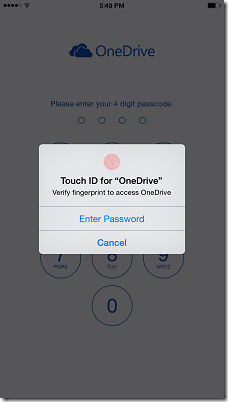
The latest OneDrive update, provides PIN code , Touch ID and sorting features for OneDrive for iOS app. Using fingerprint to sign-in feature has been added after including the brand new Touch ID API in iOS 8. So these features only available on iPhones, iPods  having iOS 8.

PINiOSOneDrive

Now waiting for OneDrive team to provided this PIN code feature on Windows Phone..

Monday, July 02, 2012

Join Microsoft Essentials Prerelease program

As a Microsoft Security Essentials Prerelease user, you will have the opportunity to explore and test new builds of Microsoft Security Essentials before they are publically available and provide feedback to Microsoft. Your feedback helps Microsoft to make its software and services the best that they can be. As a Microsoft Security Essentials Prerelease user, Microsoft Security Essentials updates will automatically be installed on your computer through Microsoft Updates.

MSEPR

To help improve the software, you will be enrolled in the Microsoft Error Reporting, Customer Experience Improvement Program, and Microsoft Active Protection Service. To learn more about these programs, see the Microsoft Security Essentials privacy statement at http://go.microsoft.com/fwlink/?linkid=195299 .
Leaving the program: If you wish to leave the prerelease program at any point in time, you can do so by uninstalling the program from your computer.

If you wish to be able to submit feedback to Microsoft about this program you have to register to the Security Essentials Prerelease program on Microsoft Connect: http://go.microsoft.com/fwlink/?LinkId=254220.

Important: If you are running any version of Security Essentials, you have to uninstall first before installing the Pre-release version of Security Essentials.

You must be running a Genuine Windows to install Microsoft Security Essentials. Supports Windows XP Service Pack 3 (SP3), Windows Vista (Service Pack 1, or Service Pack 2), Windows 7

I have been running & testing this Prerelease since couple of months and now its been made available publically too.

You can download it from here: http://www.microsoft.com/en-us/download/details.aspx?id=29942 

Download the files appropriate for you depending on your running a x86 or x64 version of Windows

Monday, November 28, 2011

New antimalware engine planned for release today !

Microsoft Malware Protection Center (MMPC) is planning to release a new antimalware engine on 28 Nov 2011. Engine Version will be in the range of 1.1.790x.0.

Affected products: Microsoft Security Essentials, Forefront Client Security, Forefront Endpoint Protection, Windows Intune Endpoint Protection.

MSEabt2811

So I think, the new Beta of Microsoft Security Essentials will be made available only after this is released. Register for New Beta of MSE.

UPDATE:01/12/2011 The new Public Beta of Microsoft Essentials is available and also the New Antimalware Engine updated to v1.1.7903.0

Saturday, November 19, 2011

Registration opens for Next ver of Microsoft Security Essentials Beta

The Registration for the Next version of Microsoft Security Essentials Beta is now Open. If you want to try the latest in Security from Microsoft and want to help improve Security Essentials, you can register.

mse beta

The number of users who can participate in the Beta is limited, so register now! The availability will be notified once you sign up. Microsoft Security Essentials beta is expected to be made available to the general public by the end of the year.

New features in the Beta of Microsoft Security Essentials include:

  • Enhanced protection through automatic malware remediation - The Beta will clean high-impact malware infections automatically, with no required user interaction.
  • Enhanced performance - The Beta includes many performance improvements to make sure your PC performance isn’t negatively impacted.
  • Simplified UI - Simplified UI makes Microsoft Security Essentials Beta easier to use.
  • New and improved protection engine - The updated engine offers enhanced detection and cleanup capabilities.

Register at : http://go.microsoft.com/fwlink/?LinkID=233172

(Source:Microsoft Malware Protection Center)

UPDATE (30/11/11) : The Microsoft Security Essentials Beta is ready for download on the public Beta program page. if you had registered earlier, please check the link & download for beta testing.

Thursday, June 02, 2011

Bootable Free malware cleaner from Microsoft - Standalone System Sweeper Beta1

Microsoft has released a beta version of Microsoft Standalone System Sweeper Beta, a recovery tool that can help you start an infected PC and perform an offline scan to help identify and remove rootkits and other advanced malware.

This tool will help you create Standalone System Sweeper on a bootable device (on a CD, DVD, or USB drive) that will provide a safe environment from which you can start your computer and attempt to remove threats. It can be used if you cannot install or start an antivirus solution on your PC, or if the installed solution can’t detect or remove malware on your PC.

“Microsoft Standalone System Sweeper Beta is not a replacement for a full antivirus solution providing ongoing protection; it is meant to be used in situations where you cannot start your PC due to a virus or other malware infection. For no-cost, real-time protection that helps guard your home or small business PCs against viruses, spyware, and other malicious software, download Microsoft Security Essentials*. (* Your PC must run genuine Windows to install Microsoft Security Essentials.)”

To get started, please make sure that you have a blank CD, DVD, or USB drive with at least 250 MB of space. Next, download and run the tool – the tool will help you to create the bootable media required to run the software on your PC.

Get it from https://connect.microsoft.com/systemsweeper

(Thanks for the HT: ZDNet )


EDIT : Few screenshots  -

Download & creating ISO file screenshots -

MSsweeperbeta1z

MSsweeperbeta3az

MSsweeperbeta6z

MSsweeperbeta7z


Running Bootable CD screenshots -

So after creating a Bootable CD from ISO, when booted from this CD we get -

IMG_2282z

IMG_2283z

IMG_2284z

Tuesday, October 26, 2010

Beware! Fake Microsoft Security Essentials software on the loose

A new trojan that is disguising itself as Microsoft’s Antimalware program Microsoft Security Essentials is on the prowl. This imposter is known in the technical world of antimalware combat as “Win32/FakePAV” .


FakePAV is a rogue that displays messages that imitate Microsoft Security Essentials threat reports in order to entice the user into downloading and paying for a rogue security scanner. The rogue persistently terminates numerous processes such as Windows Registry Editor, Internet Explorer, Windows Restore and other utilities and applications.


This fake software is distributed by a tactic commonly described as a “drive-by download” and shows up as a hotfix.exe or as an mstsc.exe file. Additionally, after the fake Microsoft Security Essentials software reports it cannot clean the claimed malware infection, it offers to install additional antimalware rogues (with names such as AntiSpySafeguard, Major Defense Kit, Peak Protection, Pest Detector and Red Cross). Lastly, this fake program will try to scare you into purchasing a product.


Here’s a detailed look at FakePAV. While different FakePAV distributions have different payloads, here is how the current one imitating Microsoft Security Essentials works:

1. It modifies the system so that it runs when Windows starts

2. When you go to execute something it’s watching for, it opens the alert window claiming the program is infected and blocks it from running.

MSEfake1

3. You can expand it out for “additional details”

MSEfake2

4. If you click “Clean computer” or “Apply actions”, it simulates an attempt to clean the claimed infection

5. You’ll then get an ‘unable to clean’ alert and be instructed to click ‘Scan Online’


MSEfake3

6. Clicking this, a list of antimalware programs appears, including several fake removal tools, and you’d need to click Start Scan

7. Once the simulated scan completes, it will claim a solution was found and list products that can ‘clean’ the system (the listed products are fake removal tools).


MSEfake4

8. Clicking ‘Free install’ on one of those downloads will download its installer and start installing

MSEfake5

This software is a fake. Do not be fooled by this scam. If you have not already updated your security software please do so. Making sure your security software is up-to-date and has the latest definitions is the best way to prevent infections. 

If you believe your machine has become infected, we encourage you to use Microsoft Security Essentials to check your PC for malware and to help remove them from your system. You can also find out how to get virus-related assistance at no charge from Microsoft here: http://www.microsoft.com/protect/support/default.mspx.

For more information on this FakePAV please visit the encyclopedia entry at http://www.microsoft.com/security/portal/Threat/Encyclopedia/Entry.aspx?Name=Rogue%3aWin32%2fFakePAV. It contains a lot of information that may help answer questions about this rogue.

And remember: Microsoft does not charge for Microsoft Security Essentials. You can find the legitimate version of Microsoft Security Essentials at http://www.microsoft.com/security_essentials. Microsoft Security Essentials can be downloaded and used at no cost by users running genuine Windows.

(Source: Windows Security Blog )

Thursday, September 30, 2010

Microsoft Security Essentials celebrates First Birthday across 74 countries with 30 million customers

MSEcake


It has been One Year since Microsoft Security Essentials has been made available to general public. And now it has over 30 million customers in 74 different countries around the world enjoying the trusted security and quiet protection that Microsoft Security Essentials provides.

Happy Birthday Microsoft Security Essentials!  And thanks for working quietly behind the scenes protecting my PC. Microsoft Security Essentials runs quietly and efficiently in the background and its Free! You can get it from http://www.microsoft.com/security_essentials/ 

For more details on the highlights from the past year and about the impact Microsoft Security Essentials is having on the Windows ecosystem , please check Windows Security Blog.

Friday, May 21, 2010

Innovative spam fighting technologies in the New Hotmail wave4

Hotmail's fight against spam has certainly come a long way in the last five years.

SmartScreen is the collective name we use for a cloud-based set of technologies and algorithms that leverage machine learning and artificial intelligence to assign a “spam probability” score to each incoming message. This enables us to filter out over 98% of the spam sent to Hotmail inboxes, blocking 5.5 billion spam messages per day.  Microsoft utilizes SmartScreen across Hotmail, Microsoft Exchange, and Microsoft Forefront, bringing consumers the benefit of business-grade spam protection on Hotmail.”

In the soon to be released Hotmail Wave 4, a number of innovative new spam fighting technologies that will further reduce the amount of spam in Hotmail inbox have been added. Check out this video showing how Hotmail's latest innovations help brings the best spam fighting on the web.


“New spam-fighting innovations include:

  • More advanced IP and content filtering – Hotmail receives over 8 billion messages per day, giving us 8 billion input variables to work with and learn from. Each message we receive further informs SmartScreen’s IP filtering algorithms, making SmartScreen even “smarter.” Because Hotmail is the largest webmail service in the world, it also receives more telemetry on bad IPs than most any other service – either directly or through third parties. This gives our spam filters more opportunity to inform their artificial intelligence than pretty much any other service.
  • Spammer infrastructure detection and destruction – SmartScreen not only blocks spam, it uses “x-ray vision” to see behind the URLs contained in malicious email to the source URLs, which we can then block along with their IPs. This means spammers have to abandon their current infrastructure and pay for new places to hide out. By making it more expensive to continue their business, we are taking away their economic incentive.
  • Time-traveling filters – We can't always identify a new spammer the moment they start sending spam. But once we identify one, we can go back and clean out spam that they’ve already sent to your inbox before you ever see it. We call this a time-traveling filter, because in some sense we are able to go back in time and get rid of the spam even after it's been delivered!
  • Personalized spam filtering – One person’s junk mail is another’s desired piece of mail.  Using artificial intelligence, Hotmail personalizes spam filtering according to the individual preferences of each of the 360+ million customers who use Hotmail, reducing false positives while improving effectiveness at the same time.
  • Tagging – Hotmail tags each message you receive, whether in your inbox or in the Junk folder, to help you understand little bit more about why the message was categorized as it was. For example, if you previously marked messages from a sender as junk, we'll tell you that, or if you use a client email program with Hotmail, we'll tell you when that program has rules that result in moving a particular message to another folder. This gives you more direct control of spam management in your inbox unlike any other service.”

(Source: Inside Windows Live)


Sunday, May 16, 2010

IE8 Star Wars Campaign from Microsoft Spain and Browse with Confidence from Microsoft Canada

Internet Explorer 8 has started its campaign in different countries highlighting its great features like Security, SmartScreen Filter  which helps block malicious downloads and websites. 

Microsoft Spain has come with ‘Yoda’ campaign.

“Using the character from Star Wars, they have launched an online campaign designed to highlight staying safe online with Internet Explorer 8. Yoda represents the “bright side” – or the Force - of the Internet that embodies Internet Explorer 8. Yoda (IE8) helps users stay away from the “Dark Side” of the Internet by keeping them protected against identity theft, cross-site scripting attacks, phishing attempts, and malware.”

YodaIE8-2

If you visit the campaign site and are not using Internet Explorer 8 get alerted by Yoda that they are at risk and should download Internet Explorer 8 to stay safe against the “Dark Side”.


YodaIE8-3z

The campaign website also has a ton of information on Internet Explorer 8 including how it keeps people protected, Internet Explorer browser add-ons, contests, social media downloads, and more!

(Source: Blogging Windows )


Similarly Microsoft Canada has also started a campaign Browse with Confidence 

IE8canada 


IE8canadaz

So check out and find out great features of IE8 and if you are not using it , give it a try. Though I also use other browsers like  Firefox, Opera but I always use Internet Explorer for any Online Transactions.


Thursday, February 18, 2010

MSE (1959) now available on Microsoft download center

MSE Microsoft has released the Microsoft Security Essentials (MSE) current build 1959 on the Microsoft download center today.

“…this makes it a bit easier for those who need to go through
re-installs...no longer needing to start from scratch with the beta (1676)
build listed on Connect, and then waiting for it to upgrade.”

You can download it from here -

http://www.microsoft.com/downloads/details.aspx?displaylang=en&FamilyID=e1605e70-9649-4a87-8532-33d813687a7f


Btw for those who are new to MSE -

Microsoft Security Essentials provides real-time protection for your home PC that guards against viruses, spyware, and other malicious software.

I would highly recommend this as its very light, one of the best in catching viruses, spyware and it provides high quality anti-virus protection and its FREE.

Watch videos to help you get the most from Microsoft Security Essentials -

http://www.microsoft.com/security_essentials/support.aspx


Tuesday, September 29, 2009

Microsoft Security Essentials available now

Microsoft Security Essentials (MSE) is out of beta and have been released now. Get it from here :

http://www.microsoft.com/security_essentials/

MSE

I am upgrading my beta version of MSE, a detailed post will be soon followed.

Tuesday, April 29, 2008

Windows Vista One Year Vulnerability Report

This paper analyzes the vulnerability disclosures and security updates for the first year of Windows Vista and looks at it in the context of its predecessor, Windows XP, along with other modern workstation operating systems Red Hat, Ubuntu and Apple products. The author is Jeff Jones, Security Security Director at Microsoft.

Here are some of the highlights:

Side-by-Side Patch Event Histogram for Windows Vista and Windows XP

image

Summary Table for Windows Vista and Windows XP

image

That was comparison with Windows XP, now comes Windows Vista Vs Other Operating Systems

Side-by-Side Comparison of First Year Vulnerabilities for Windows Vista and Other OS Products

image

Patch Event Histogram for Windows Vista and Other Industry OSes

image

Summary Table for All Products Analyzed

image

To get the complete report , to see how the analysis was done, methodology and to check out the FAQ sections with questions like , "You work for Microsoft, so why should we believe anything you say? " and many more , check this download link.

Sunday, October 07, 2007

10 Microsoft Security Links to Blow Your Mind

I came to know about the following security news from the Weekend Security Reading Round up Links - 10/5/07,

10 Microsoft Security Links to Blow Your Mind
The following content covers some of the most usual windows security problems and their solution. You don't have to be an uber geeks ecurity guru in order to master Windows Security . We mean it! Check out the following links to see The best (and really funny :) Windows security stuff
10. Secret Windows command line tools can boost security. That's right. Believe it.

9. Hacking for Dummies free book excerpts. But in your case, of course, the title would be Hacking for the Most Beautiful, Smartest Person in the World. I mean that. Check it out.

8. Sopranos trivia: When the screen went black in the last episode, what really happened? I heard it was the awesomeness of the Rootkit and Malware Learning Guide taking over.

7. Managing Microsoft's Windows Firewall. Now, bow down to General Zod.

6. How to bypass BIOS passwords, and the women who love them.(This asks for registration) (http://labmice.techtarget.com/articles/BIOS_hack.htm), Use this link to Bypass "TO READ MORE, REGISTER OR LOGIN BELOW" :)

5. When to use remote desktop over VPN. Yup, that's all I got.

4. Imagine an Oreo. Mmmmm. Now read in-depth reviews of Vista security features. Same feeling.

3. Crack the admin password in Windows XP...and don't forget to say please and thank you.

2. Honestly, which would you rather read about : How to hunt down a hacker or what Britney Spears was up to this weekend? Oops -- I mentioned Britney….my bad.

And the number-one piece of amazing Microsoft Windows security content?

1. How to crack a password. But try not to get yourself in trouble,will ya?

Sunday, September 23, 2007

Password Checker-Test the strength of your passwords

You create passwords for using it with your online accounts, personal files etc. But do you know how strong or how weak is your password? Want to check the strength of your password, then go to this Microsoft Security site, Password checker


Goto the above given link, enter a password in the text box provided on the site there to have Password Checker help determine its strength as you type, it changes color according to your
password strength to show you whether your password is weak or strong.

Please note that the Password Checker is for personal reference only. Password Checker does not guarantee the security of the password itself.

Password Checker does not collect, store, or transmit information beyond the computer that you use to access Password Checker. The image works on your computer desktop until you navigate away from the page.


The security of the passwords entered into Password Checker is similar to the security of the password you enter when you log into Windows. The password is checked and validated on your computer, but is not sent over the Internet.A strong password should appear to be a random string of characters to an attacker. It should be 14 characters or longer, (eight characters or longer at a minimum). It should include a combination of uppercase and lowercase letters, numbers, and symbols.

For tips on how to create passwords and pass phrases that are easy for you to remember but difficult for others to guess. a strong password checklist, and more, read Strong passwords: How to create and use them.

Saturday, September 01, 2007

Adding Information Card in Windows Live ID

Now there’s a new way to sign-in to your Windows Live ID.

Windows Live ID has added Beta support for Information Cards with Windows CardSpace. It’s a new way to sign in more securely and conveniently into websites. Now you don’t need passwords to sign-in, thus reducing the risk of phishing attacks and keyloggers. You just have to send your Information Card to Live ID to identify you and get signed into Hotmail, Windows Live Spaces or any other site that accepts Windows Live ID. This is what was announced at the Windows Live ID team blog.

If you are using Vista, you are ready to use CardSpace. If you want to use it in Windows XP or Windows 2003, then you’ll need IE7.0 and .NET3.0 else you will see this errors:

or this error

Now let us see how to add an Information Card to your Live ID account step by step:

Just follow this link to get started.

As said earlier this reduces phishing attacks by using certificates to verify the identity of websites and which you can see this here as address bar in IE7 turns green.

Sign in with your password.

After that, it’ll again ask for password to verify it to add Information Card to your account. So again type your password.

Now Windows CardSpace will open and you can review the site information as its Owned and operated by Microsoft and verified by VeriSign.

Click on “Choose a card to send” which will open up this

Now click on “Add a card” and Send to get the type of card as per its use as Personal card or Managed card with its description as shown

I have chosen Personal card as Windows Live ID currently supports it. You have to enter whatever details you want to provide and a photograph to associate with it, if you want to.

You can preview the card before sending it and it also shows Recent card History to know where it has been used.

And after sending it you’ll get this informing us that you have successfully updated Information card for your account.

Click on finish to complete the sign in process.

Now you have associated an Information card to your account. Now close the browser and let us try to use this. So let us check our Windows Live Hotmail which requires a Windows Live ID.

So when you go to its login page you will have an option to sign in using password or Information Card.

Choose Information card and sign in.

You’ll get a Windows CardSpace window to choose the card,

you select the card which you had created earlier and there you are Successfully logged in checking your mail.

There’s a Windows Live ID Web Authentication SDK for Developers also, which allows sites which wants to integrate with the Windows Live services and platform.