Showing posts with label Microsoft Office. Show all posts

Sunday, August 06, 2017

Add pictures in headers & footers – Excel for Mac

You can now insert and format pictures in headers and footers in Excel for Mac. This was one of the most requested features and has been made available in the latest Office Insider. Just update to ver 15.36 (170702) or later and you’ll have this feature.

  • Just go to Print > Page Setup to set custom headers/footers, or go to View > Page Layout View and click in a header or footer field.
  • check for Header & Footer tab on the ribbon.
  • There’s a Picture button that lets you insert any picture from your computer or you can format a picture that's already been added to your header or footer.

ExcelMac-header-footer

This is at present just for the Office Insiders Slow and will be made available to everyone soon.

Friday, June 10, 2011

Query Twitter directly in Excel 2010 with Microsoft Analytics for Twitter

Microsoft Analytics for Twitter allows users to search Twitter and get dashboard views on Tweet statistics inside Microsoft® Office Excel 2010.

With this FREE add-in, you can:

  • Perform up to 5 parallel Twitter Searches (limited to 1500 results per query per day).
  • Drive ad-hoc analysis of tweets by day, by hour, by tweeters, by #hashtags and @mentions.
  • Customize your views (using slicers, DAX formulas or reference tables).

exceltwitter3z

Microsoft Analytics for Twitter allows users to query Twitter directly in Microsoft® Office Excel 2010. Utilizing the free PowerPivot Excel Add-in users can perform their own analysis such as who are the top Tweeters, what #hashtags are they using and do they have a positive or negative tweet tone. Sample code, used to create this application, is included as a sample and how-to.

Works only with the latest versions of Microsoft Excel 2010 and requires Microsoft PowerPivot for Excel 2010.


Download Microsoft Analytics for Twitter

Saturday, October 09, 2010

Make better PowerPoint presentations

Here’s another video from the Office Casual series- Make better PowerPoint presentations -

Doug Thomas shows you how to give great presentations with some expert advice from Seth Godin, Guy Kawasaki, and Garr Reynolds, along with a tour of PowerPoint's underutilized Presenter's View feature in this video.

Get Microsoft Silverlight

Monday, September 27, 2010

A Few Perspectives on OpenOffice.org

Several customers share their experiences with OpenOffice.org and why they came back to Microsoft Office -


Get Microsoft Silverlight

Saturday, August 14, 2010

Microsoft Mathematics Add-In for Word and OneNote

With the Microsoft Mathematics Add-in for Word and OneNote, you can perform mathematical calculations and plot graphs in your Word documents and OneNote notebooks.  It makes it easy to plot graphs in 2D and 3D, calculate numerical results, solve equations or inequalities, and simplify algebraic expressions. The add-in also provides an extensive collection of mathematical symbols and structures to display clearly formatted mathematical expressions. You can also quickly insert commonly used expressions and math structures by using the Equation gallery.


mathematica1


The Microsoft Mathematics Add-in can help you with the following tasks:


• Compute standard mathematical functions, such as roots and logarithms

• Compute trigonometric functions, such as sine and cosine

• Find derivatives and integrals, limits, and sums and products of series

• Perform matrix operations, such as inverses, addition, and multiplication

• Perform operations on complex numbers

• Plot 2-D graphs in Cartesian and polar coordinates

• Plot 3-D graphs in Cartesian, cylindrical, and spherical coordinates

• Solve equations and inequalities

• Calculate statistical functions, such as mode and variance, on lists of numbers

• Factor polynomials or integers

• Simplify or expand algebraic expressions

mathematica2


Get Microsoft Silverlight


This add-in works with Microsoft Word 2010, Microsoft OneNote 2010 and Microsoft Office Word 2007.

EDIT: Added this video. (04Oct10)  With the free Microsoft Mathematics Add-In for Word and OneNote, you can calculate any mathematical expression or equation and then plot a graph. In this short video, Jennifer Bost shows you how using Microsoft Word 2010.

Get Microsoft Silverlight

For more details check the download link. You can download the add-in from here .

Monday, May 24, 2010

Contest- Win a License of Microsoft Office 2010 Home and Student Edition

office2010logoBlk

Its my pleasure to announce that Microsoft India is providing to us a Copy of Microsoft Office 2007 Home and Student Edition as a Contest Giveaway prize and this will be upgraded to Microsoft Office 2010 for FREE when it gets released in June commercially. So all my blog readers, get ready for the contest.


off2k7freeoffzCONTEST -

To Win the Office 2010 license, you need to follow these simple steps :

1. Subscribe to meraTechPort Newsletter by entering your mailID and click on ‘Subscribe’ button in the ‘Subscribe’ section of the Sidebar . A verification mail will be delivered to your Inbox, follow the mail to verify the subscription to complete the request.

2. You can also follow me on twitter to RT about this Contest.

3. And share your thoughts in couple of lines on one of your favorite features in Microsoft Office 2010  and reason. Also if you want any new feature to be added, please tell us in short. You can send this by clicking on ‘Contact Me’ in the sidebar of my blog. (Please use the same mailID, which you had used to Subscribe)

A random lucky winner will be chosen and the prize will be sent to him.Please Note –

  • The prize can only be shipped within India. 
  • The winners will be sent emails and they will redeem their awards via microsoftstore.co.in

If you haven’t been using office 2010 or its beta ver, you can download the beta ver from here.

(Thanks to Microsoft India for the Microsoft Office License )


DEEP DIVE INTO OFFICE 2010 -

So that was about the contest,but that’s not all, You are Invited for a Deep Dive into the new Microsoft Office 2010 -

The Office community is hosting a Virtual Launch Event for Office 2010 on May 25 and 26th.This event is FREE to attend. You can choose to come to the training centre closest to you or experience it virtually from your PC using Live Meeting. It’s a training workshop featuring demos and interactions with MVPs – over 2 days. Come discover what you can create with the familiar building blocks of the new Office.

For agenda and to register please visit: http://www.meraoffice.com 

Don’t miss this golden opportunity to learn about the new office 2010 and also win some goodies.

In June, limited cities will be hosting Community Launch Events for Office 2010. At the launch events, attendees will get to see Office 2010 in action and learn how to do their work better with Office 2010. The details are available on http://office.merawindows.com


UPDATE  16/06/10

****CONTEST IS CLOSED NOW, WINNER TO BE ANNOUNCED SOON****


UPDATE 17/06/10

Winner Announced -

The wait is over and the winner of Microsoft Office 2007 Home and Student Edition is Shaan ul Majid.

Congrats to Shaan !! Thanks to all the participants , Keep checking for more of such Contests, giveaways in the future.


================================================


I’ll be updating the Post with the Blog Reader’s Comments as and when received -

  • Sender Name: Shaan ul Majid
    Sender Email Address: Removed for privacy

My favorite feature is the screen capture tool. It does not allow me to use any other tool to capture the screenshot or to press PrtSc and edit it using MSPaint.
I love it


  • Sender Name: Sujay
    Sender Email Address: Removed for privacy

Thanks for this giveaway. I am using the beta version of MS Office for long. I like a number of features mainly paste preview, Backstage view, new image editor and ribbon interface.


  • Sender Name: princeaniket
    Sender Email Address: Removed for privacy

i want to add 1 addition tool as " add or merge " two ppt's or word documents together..


  • Sender Name: srikapardhi
    Sender Email Address: Removed for privacy

My most favorite feature in office 2010 is its appearance only and its UI.
it is designed with beautiful colours and also the powerpoint is having lot more features than the ppt 2007.
i love office 2010.


  • Sender Name: Sairam Dinakar inguva
    Sender Email Address: Removed for privacy

Thanks for this giveaway. I am using the beta version of MS Office for long. I like a number of features mainly paste preview, Backstage view, new image editor and ribbon interface.


  • Sender Name: chelluchanakyaraja
    Sender Email Address: Removed for privacy

I've been using Office 2010 Beta for a couple of months and haven't found any problems. The programs launch really fast - the biggest improvement I've seen over 2007 or any previous version. I feel like I save lots of time when Word docs open fast and save fast...not sure if it adds up to much time but it is a noticeable difference!
All the best for ur launch....


  • Sender Name: pranay nigotiya
    Sender Email Address: Removed for privacy

hello
i love Ms office because it helps me 100% in my business and personal usage right from word, excel, to ppt , outlook, etc.. its a complete package and nothing can better than this.. cheers..


  • Sender Name: Dhiraj Sinha
    Sender Email Address: Removed for privacy 

Hi there,
The feature that impresses me most is that one can now seamlessly collaborate on a project with one's coworkers using webapps over SkyDrive or Facebook.Besides,the "paste preview tool",which lets one assess how a copied content would look like while keeping the source formatting intact or stripped or merged without actually pasting it!!,is also very enticing.The more widespread usage of the ribbon interface now across all components of the office is also a welcome move.So keeping in mind the things I have said above,do count me in the giveaway please.Thanking You... Dhiraj
P.S I have subscribed to the email feeds and following you on twitter.My twitter handle is d4dhiraj.Additionally I have tweeted this post at: http://twitter.com/d4dhiraj/status/14745349934


  • Sender Name: vipul
    Sender Email Address: Removed for privacy 

Hi!
A unique feature of its type should be added to MS-Word.
That is an image editor should be added to word so that any one could make image more pleasant in his document.
Thanks for the promo!


  • Sender Name: Shaan ul Majid
    Sender Email Address: Removed for privacy 


Hi,
Let me take the liberty to thank you for selecting me as a winner for MS Office 2007 Home Student Edition.
I would like to know how it is going to be shipped to me as I have not received any confirmation related to it.


Sunday, May 02, 2010

The Office Hub in Windows Phone 7

Few days back I had posted videos Windows Phone 7 – Office Hub and Emails, Events, Schedule Integration videos 

Now its been posted officially on Windows Phone 7 You tube channel showing the Microsoft Office in the Office hub on Windows Phone 7.

Augusto Valdez, Microsoft Sr. Product Manager, demonstrates how the Windows Phone 7 Office hub gives quick access to docs on SharePoint for dynamic document sharing, editing, and uploading.


In this video Augusto Valdez, Microsoft Sr. Product Manager, demonstrates how e-mail, events, and schedules should always be together. Check out this video to see how Windows Phone 7 keeps life in order.


Tuesday, April 27, 2010

Why Windows is called Windows ?

ButWhy

We use Windows and Word everyday but do you know why they are named so ? Word and Windows were named in 1983. Word was scheduled to be named Multitool Word.

Windows was codenamed ‘Interface Manager’ and other suggestion was Microsoft Desktop .

To know about this interesting story of how the name Word and Windows were reached, check out this latest episode of ‘But Why'?’ Its a small video -

WhyWindows

Video link - Windows is named Windows : But Why?


Sunday, April 25, 2010

Windows Phone 7 – Office Hub and Emails, Events, Schedule Integration videos


WinPhone7

Check out these 2 videos of Windows Phone 7 demoing how Office Hub gives quick access to docs on SharePoint for dynamic document sharing, editing, and uploading.


And this video shows Windows Phone 7 features -  E-mail, events, and schedules Integration.


(Source : MobilityDigest )


Friday, April 02, 2010

Buy Office 2007 today and get Office 2010 FREE

off2k7freeoff


Check out this offer at Microsoft India store where you buy Office 2007 now, and you’ll get Office 2010 FREE* when released.

* This offer is valid till 30th Sept 2010, Terms and conditions apply .

*Office 2010 downloads will be accessible at general availability. Discs can be ordered for a fee. Eligible Office 2007 software must be purchased from Microsoft or an authorized reseller and activated between March 5, 2010 and September 30, 2010. Request your Office 2010 product by October 31, 2010 using your activated Office 2007 Product Key and dated sales receipt. You will receive an e-mail message from us letting you know when your Office 2010 product is available. One Office 2010 product per qualifying Office 2007 suite or stand-alone product purchase, limit 25 per person. See www.office.com/techg for complete details.

Check http://www.microsoftstore.co.in/

Check for availability of this offer in your country too.


Tuesday, March 23, 2010

Office Talk – twitter like micro-blogging for workplace from Microsoft

OTLogo

The Microsoft Office Labs team has just launched a new experimental tool that brings Twitter-like microblogging to the workplace. Called OfficeTalk, this concept test application lets employees post their thoughts, activities and other info which is shared with anyone and everyone in their company.


Ever wish you could share information broadly within your organization without emailing everyone? Ever wish you could keep the pulse of what people in your organization think is interesting? Microblogging has that potential. OfficeTalk is a concept test to explore the value of microblogging in the enterprise. OfficeTalk is deployed internally at Microsoft and has seen over 10,000 visitors and hundreds of messages posted daily. We're now making OfficeTalk available to a few customers in a small pilot test. Because this is an early-stage concept, the OfficeTalk microblogging experience itself looks very similar to other well-known services. The key difference is that the enterprise owns the data since the OfficeTalk server is hosted in the customer’s organization.


officetalk2


officetalk3

OfficeTalk is in a limited private pilot for research purposes for now. If you'd like your firm to be involved in the pilot and are willing to participate in the user research, let us know. Since this is a research project, only a very small number of pilots will be considered.

Also check - Exploring the Impact of Social Networking in the Enterprise

(Source - OfficeTalk: Microblogging for Business)


Friday, February 26, 2010

Why there is no Office 13 ?

Microsoft is full of oddities and little known answers to mysterious questions. Office 2007 was the 12 the version, that is office 12 and the next is Office 2010, its version is Office 14. There’s no office 13 , But Why ? Find out the answer in this ‘But Why’ video -


butwhyoff14 

Channel 9 - There is no Office 13 - But Why?


Friday, December 11, 2009

First Look: Microsoft Office 2010 – Free e-book

9780735693876f[1]_2 For a limited period Microsoft is offering this Free e-book - First Look: Microsoft Office 2010, by Katherine Murray. As you know Office 2010 is in beta at present, the book offers offers 14 chapters of early content.

Part I, “Envision the Possibilities,” introduces you to the changes in Office 2010 and shows you how you can make the most of the new features to fit the way you work today. Chapter 1, “Welcome to Office 2010,” gives you a play-by-play introduction to new features; Chapter 2, “Express Yourself Effectively and Efficiently,” details the great feature enhancements and visual effects throughout the applications; and Chapter 3, “Work Anywhere with Office 2010,” explores the flexibility factor by presenting a set of scenarios that enable users to complete their work no matter where their path takes them.

Part II, “Hit the Ground Running,” focuses on each of the Office 2010 applications in turn, spotlighting the key new features and showing how they relate to the whole. These chapters provide a how-to guide for many of the top features you’re likely to use right off the bat, and they offer inspiring ideas on how to get the most from your favorite applications.

Part III, “Next Steps with Office 2010,” zooms up to the big picture and provides examples to help you think through interoperability. How often do you use the various Office applications together? Customer research shows that people often don’t realize how well the applications work together as a complete system—which means they might be laboring over items they could easily incorporate from somewhere else. This part of the book provides examples for integrating the applications and explores Office 2010 security and training opportunities, as well.

You can download the e-book here (its in pdf format , size: ~10.5 MB)

Click on the above download link to open the SkyDrive page , from there click on ‘Download’.

Since this download is offered for limited period without registration, so hurry up before the offer gets over.

Source: Microsoft Press Blog.

Tuesday, May 12, 2009

Microsoft Office 2010 Technical Preview registration

Off2010Logo TechEd USA attendees will get the first chance to participate in limited Technical Preview program of Microsoft Office 2010 that will begin in July.

“The Microsoft Office 2010 Technical Preview is a limited, invitation only program which will provide you with the opportunity to experience early, pre-release versions of Office 2010 which will include the following applications:  Word 2010, Excel 2010, Outlook 2010, PowerPoint 2010, OneNote 2010, Communicator 2010, Access 2010, InfoPath 2010 and Publisher 2010.”

If you are interested and want to make your request to be waitlisted for the Technical Preview, check out www.office2010themovie.com 

off2010TP

For more detail on Office 2010, start following - The Microsoft Office 2010 IT BLOG   (The official blog of the Microsoft Office product group)

UPDATE: Office 2010 will include Twitter, Facebook, and other social networks integrated right into Word. That's just a hint of what's to come!”

This is according to http://twitter.com/officethemovie the official  twitter account of Office2010theMovie.

UPDATE 2: (11:55PM , 12th May ‘09) Today the www.office2010themovie.com  is providing http://twitter.com/office2010movie as the official twitter account. Also ReedShaff from MSFT at Office 2010 forum confirms this as he says “The official one is Office2010Movie for now.”

So unfollow the fake twitter account @officethemovie and follow the official @office2010movie

It was a big mixup as the www.office2010themovie.com accidentally provided this fake twitter account link yesterday and is now corrected.

Tuesday, August 19, 2008

PicLens (Cooliris) Plugin for PowerPoint

Few days back I had posted about pptPlex, a cool add-in from Office labs for PowerPoint2007 using which you can present your PowerPoint Slides as a Tour. Now here’s one more of such add-in PicLens from Cooliris. Using PicLens, one can have 3D Wall effect and can navigate back and forth among large number of slides. (direct download link)

After installing, it adds a button ‘Create PicLens Gallery’ in the Add-ins tab

picleansppt1

After clicking that button it will create a folder of all the files needed for your PicLens slideshow of the Presentation opened.

picleansppt2

And when you open the file ‘index.html’ in the browser (works with FireFox only), click on the Piclens wall Button on top right of browser to launch Piclens with Your Presentation Wall.

picleansppt3a

picleansppt6

The plugin works only on Firefox with files created on PowerPoint 2003 – 2007. And its a work in progress so there are some limitations.

(The Presentation shown is of Financial Analyst Meeting 2008 by Craig Mundie) (Source:Cooliris Plugin For PowerPoint)

Thursday, August 07, 2008

Integrate Windows Live Translator into Microsoft Office

Many users wanted translation feature in Microsoft Office for translating their documents. Now this feature is available, thanks to MS Research Machine Translation Team. The team has given the code to the Microsoft Office team for the integration of the translation tool directly in the Research Task Pane. Once the office team finish their own testing , this feature will auto-update in existing versions of Office.

But if you want it now, you can set it up manually following these steps. These steps applicable for Office 2007 only.

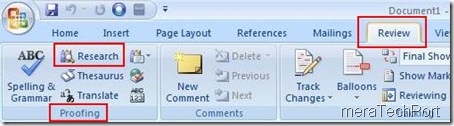
1) Click on the Review Tab

2a) Open the "Proofing" ribbon (if not already open)

2b) Select Research to open the research pane
MToffice1

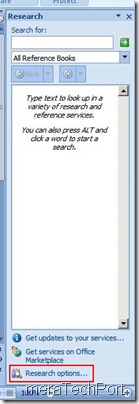
3) In the research pane, go to the Research Options dialog

After you've chosen the "Research" task pane, there should be a "Research options" hyperlink at the bottom of the pane. Click on this hyperlink to bring up the task pane.
MToffice2

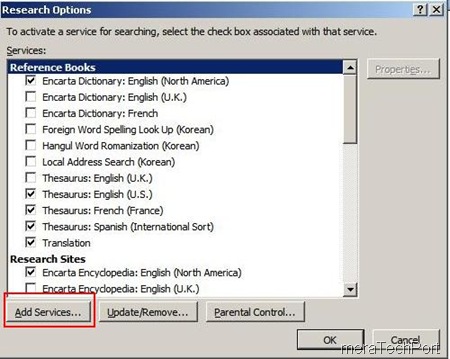
4) Select the "Add Services" button

MToffice3


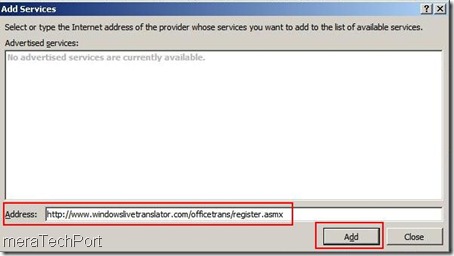
5) Enter the URL of the Microsoft Translator Web Service

Here you'll need to type in the address of the Microsoft Translator Web Service:
http://www.windowslivetranslator.com/officetrans/register.asmx

Then click the "Add" button to continue.
MToffice4

After pressing Add button, you will get these
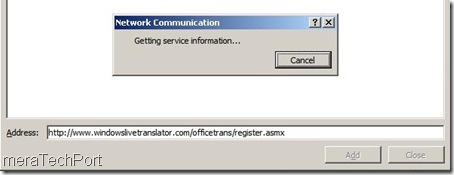
MToffice5

You will get Windows Live Translator Welcome, Press Continue.
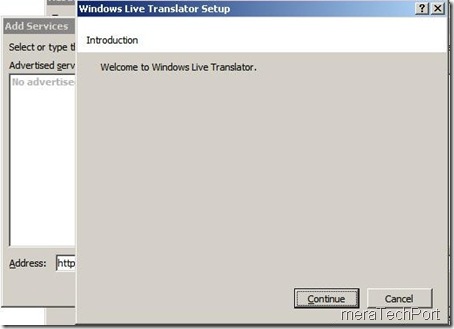
MToffice6

6) Install the Microsoft Translator services

Just click the "Install" button in this dialog.

Note that you can't check any of the boxes; this is expected behavior. Translation systems, unlike other Research Pane plug-ins, are enabled in a different dialog. The next steps will cover this.
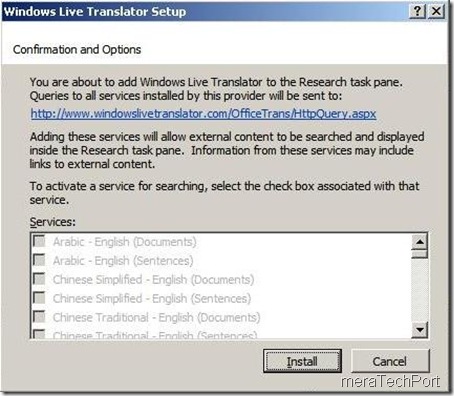
MToffice7

Now click "OK" to close the research options dialog.
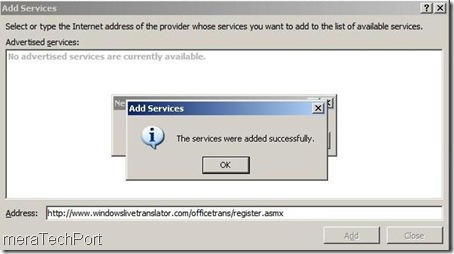
MToffice8


7) From the drop down box on the Research Pane, select the Translation subpane
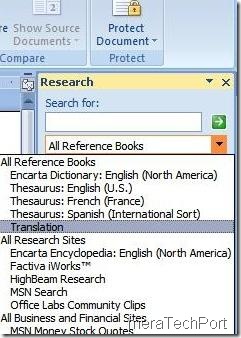
MToffice9

At this point, Word may bring up a dialog saying, "Microsoft Word can't open the translation feature. This feature is not currently installed. Would you like to install it now?" Click "Yes" to install the feature.

I didn’t get this so went to Translate option dialog.

8) Bring up the Translation options dialog
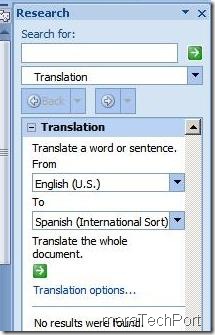
MToffice10

Just below the combo boxes that allow you to select the source and target language, there should be a hyperlink labeled "Translation options..". Click on it to open the translation options dialog. (Depending on what text you have highlighted and which translation features are installed and enabled on your machine, the Research task pane may look slightly different. That's OK; just find the "Translation options..." hyperlink.)

9) Pick Windows Live Translator as your translation engine
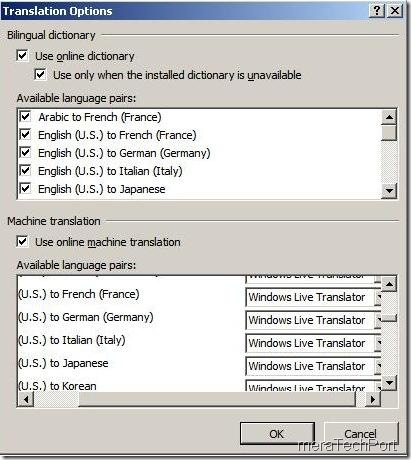
MToffice11b

This is where you specify which translation engines you'd like to use for each language pair. By default Word uses WorldLingo for all language pairs; this is where you can choose Windows Live Translator instead. (Certain Word installations don't seem to come with WorldLingo pre-installed, so you may not have to change anything here.)

The language pairs currently available from Windows Live Translator are as follows:

English ↔ Chinese (Simplified)

English ↔ French

English ↔ German

English ↔ Italian

English ↔ Arabic

English ↔ Chinese (Traditional)

English ↔ Dutch

English ↔ Japanese

English ↔ Korean

English ↔ Portuguese (Brazil)

English ↔ Spanish

You may have slightly different settings for Bilingual Dictionaries (on the top half of the dialog); that's OK. You only need to look at and change the Machine Translation settings (on the bottom of the dialog). Again, if Windows Live Translator is already selected, you don't have to do anything.

Click OK to close the dialog. You are now ready to translate!


Using the Translation Feature

Now find or create a document that has some content you'd like to translate.
1) Select text and click Translate

The easiest way to bring up and use the translation task pane is to simply select some content in your Word document, and click on the Translation icon in the Review tab. You can also go to the Research task pane, type a query into the box, and select the Translation subpane.

2) Select an installed language pair

By default, Word will list a variety of language pairs, even if you haven't installed a machine translation system for those pairs. In the "From" and "To" boxes, select a source and target language that correspond to one of the language pairs you installed above.

3) Inspect your translated output

After a brief delay (during which the web service is invoked and the selected text is translated), the translated text should appear in the research pane.

4) Optionally insert the output into your document

At the bottom of the MT output, there's a button that allows you to easily insert the translated output into your document.
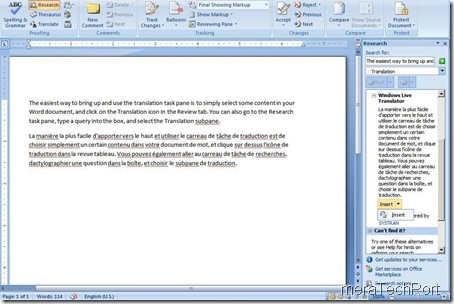
MToffice13

(Source:Office document translation)

UPDATE : Check out the instructions for setting it up in Office 2003.

Tuesday, June 24, 2008

ODF Plugin for Microsoft Office

MSoffice2k7Logo Last month Microsoft had announced about expanding its list of Formats supported in Microsoft Office with the release of Microsoft Office 2007 Service Pack 2 (SP2). With the install of SP2, customers will be able to open, edit and save documents using ODF and save documents into the XPS and PDF fixed formats from directly within the application without having to install any other code.It will also allow customers to set ODF as the default file format for Office 2007.

At present Microsoft Office 2007 provides support for 20 different document formats within Microsoft Office Word, Office Excel and Office PowerPoint. SP2 is scheduled for release in the first half of 2009.

But if you want to have ODF support now, you can get the ODF Plugin from the Sun’s site. This plugin is also compatible with older versions of MS Office as Office XP, 2000 and 2003 apart from Microsoft Office 2007 (SP1 or higher)

SUNODFplugin1

With its installation you will get Save as option in Microsoft Word.

SUNODFplugin2

The installation of this plugin adds a new toolbar in Microsoft Office Excel and Microsoft Office PowerPoint to import and export ODF documents.

SUNODFExcel

(Source:Channel10)

Wednesday, April 23, 2008

New templates for out of office messages

Check out these new templates for out of office messages for Outlook2007.

To use, simply download and save the templates to your Drafts folder in Outlook 2007, and then copy the contents to your Out of Office message whenever you go away. Don't forget to add your own details, and feel free to change the colors and fonts.

Out of office reply (formal)

ooorepl1


Ouf of office reply (informal) - add your own picture, if you like!

ooorepl2


If you are new to this , wants some assistance then see how to use the Out of Office Assistant in Outlook 2007.