Showing posts with label Outlook. Show all posts

Tuesday, March 24, 2020

[Tip]: Dark mode in Outlook on the web and Outlook


Tried various themes and getting bored seeing the same default white background in your Outlook on the web mail? You want to see some change? You can now have the dark mode.
Dark mode changes the default bright background color in Outlook.com and Outlook on the web to a darker color, which is easier on the eyes in low-light environments or if you prefer less bright interfaces.
For this ,
Go to Settings > Toggle the Dark mode option.
That's all. It looks good. Less strain on the eye.
Suppose you want to switch on the lights for a particular message, just click on the Sun to turn on the lights.

It has to be noted that some themes are not available in Dark mode.
Give it a try and turn on the Dark mode.

Dark mode in Outlook: 
Similarly in Outlook for Office 365, the black color theme includes dark mode, which provides a black background for the message window instead of the default white.
Dark mode is enabled by default when you use the black theme. To switch to the black theme in Outlook:
  1. Go to toolbar and select File, then select Office Account.
  2. Under Office Theme, select Black.
     
    When reading a message, you can turn dark mode on or off by using the icon at the top of the message window.
Select the sun icon to change the message window background to white.

 Select the moon icon to change the message window background to black.
When composing a message, you can turn dark mode on or off from the Message toolbar by selecting the dark mode icon to change the message window to white or black.

  Disable dark mode


If you prefer, you can disable dark mode so that the message window is always white when using the black theme. The icons to switch dark mode on or off are disabled when you disable dark mode.
  • In Outlook, go to File > Options.
  • On the General page, look for Personalize your copy of Microsoft Office.
  • Set the Office Theme to Black and select the check box next to Never change the message background color.
  • Select OK.

    (source:support.Office.com)

Friday, November 29, 2019

Dark mode in Outlook mobile app

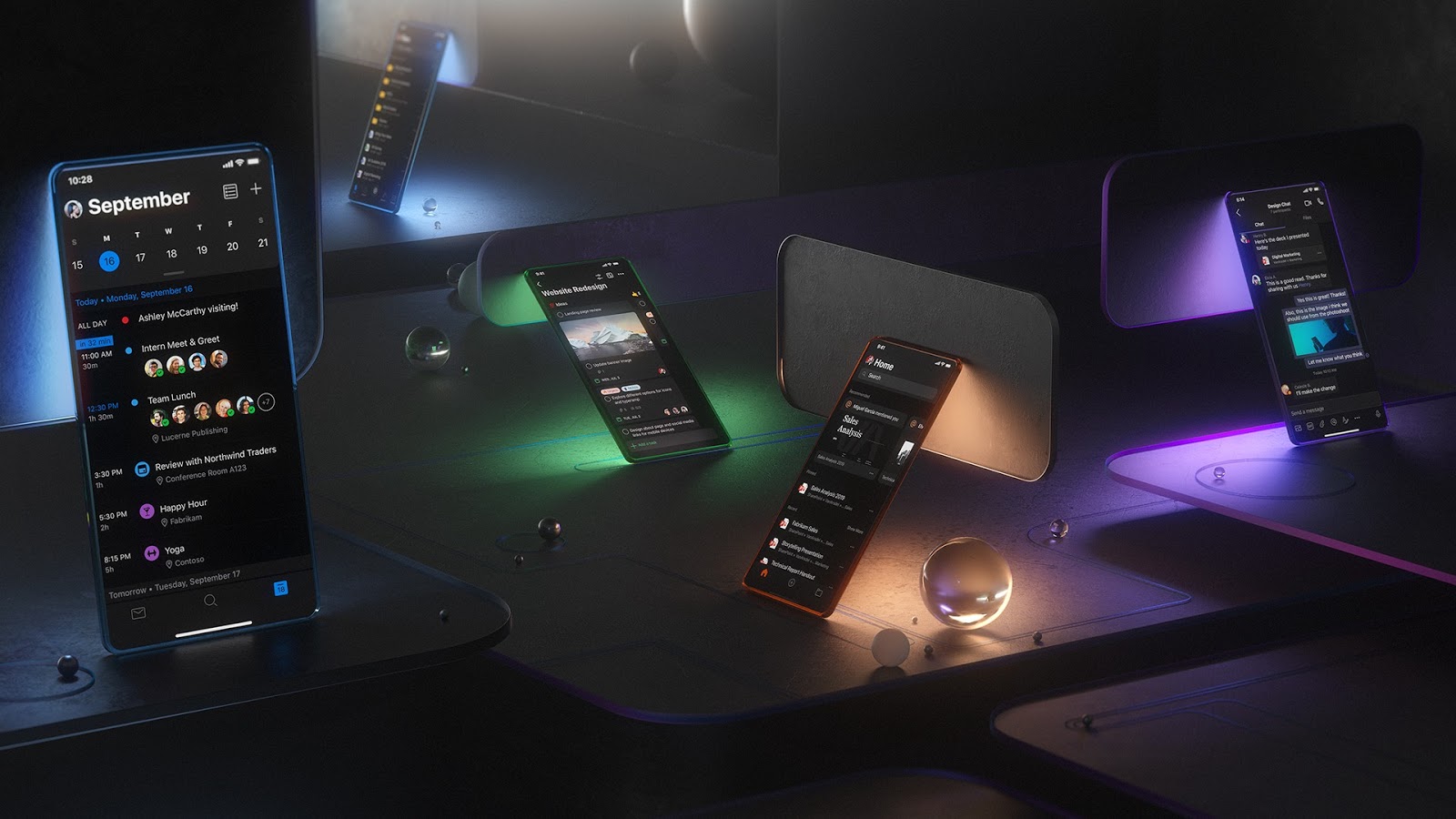
App users' favorite demand of dark mode has been made available in Outlook mobile app for Android and iOS. Dark mode has started rolling out since Aug. in Outlook for iOS and Android.
Dark mode provides added comfort when a bright screen may not be appropriate. It provides the users the choice and flexibility.

Adapting to work life flow, Outlook focuses its design on the context of where people want to use Dark Mode. When asked, people found the experience comfortable and aesthetically pleasing while keeping their email and calendar content crisp and clear. This way, Outlook helps you stay connected and organized so you can get things done wherever you are such as dimly lit living rooms, home offices or airplanes.
 (Dark Mode experiences on iOS : pic courtesy Microsoft Design)
This experience is in keeping with other modern apps that aim to ease viewing and reduce eye strain and to help optimize battery life. Once iOS and Android devices support dark themes, Outlook plans to automatically switch to Dark Mode based on their device settings in addition to Outlook in-app options. One can switch to dark mode from Apps settings.

Thursday, May 19, 2011

Outlook Add-in: Prevent people from doing a reply-all or forwarding the mail

The main function of NoReplyAll Outlook Add-In from Microsoft Research is to prevent people from doing a reply-all to your message, or forwarding it. The add-in uses a facility built into Outlook and Exchange that is more lightweight than information-rights management but is not exposed in the existing UI. The add-in also includes a check for common email errors, such as omitting attachments or subject lines.

Installing it adds a couple of buttons to the Outlook ribbon.

noreplyall100

It works with Outlook 2007 and Outlook 2010.

Get the add-in from here. For more details check here.

Wednesday, March 09, 2011

FAQs: Migrating Live@edu domains from Hotmail to Outlook Live

liveatedu-logo

This document provides answers to frequently asked questions about migrating Live@edu domains from Hotmail to Outlook Live and its benefits.

The contents are -

  • Benefits of migrating a Live@edu domain from Hotmail to Outlook Live
  • What’s migrated from Hotmail to Outlook Live
  • IT administrator experience
  • Student experience
  • Ensuring a successful migration
  • Additional resources and support
  • Walkthrough of the Hotmail to Outlook Live migration process


You can download the document from here .  (.docx format ,size:1.2MB)

You can find more info on Live@edu at  http://www.microsoft.com/liveatedu/free-email-accounts.aspx

Friday, February 12, 2010

Fix for Message Size Issue in Outlook 2010 Beta

If you are using Outlook 2010 Beta, you probably need this fix because all of your emails are huge. It is fixed in the recent RC, but most people don’t have access (it’s not a public RC).  The Office team has just posted a fix for this issue for folks using the Beta.

Fix for Message Size Issue in Outlook 2010 Beta

Recently, we posted information on the Outlook blog about a bug in the Microsoft Office 2010 Beta that increases the message size of some e-mails messages sent from the Microsoft Outlook 2010 Beta. The Office team has been hard at work building a fix for this issue, which is available immediately.

Download Outlook 2010 Beta fix for 32-bit Office 2010

Download Outlook 2010 Beta fix for 64-bit Office 2010

This fix prevents future messages from consuming unnecessary space, but doesn’t resize existing messages. If you reply or forward an existing message that is affected by this bug, it remains enlarged. To help reduce the impact of large messages on your Inbox and mailbox storage quota, you can also run Conversation Cleanup (new feature in Outlook 2010) on large folders. On the Home tab, in the Delete group, click Clean Up. Also, consider starting new message conversations or threads when possible.

(Source: MSDN blogs)


Friday, July 11, 2008

Defrost Microsoft Outlook

Some of the Users of Outlook have experienced freezing or hanging of Outlook 2007 SP1 some times. Danielissimo has released Defrost Outlook on CodePlex to help such cases. Try this out until formal fix is released from Microsoft.

You can also send what makes your outlook hang (messages,ical,vcal,vcard etc) to defrostoutlook at gmail dot com

Download Defrost Outlook from here

(Source:Office Development Projects from CodePlex)

Tuesday, July 01, 2008

Windows Desktop Search: Add-ins for Outlook saved mail, Internet Explorer History and Files on Microsoft Networks

Check out these Add-ins for Windows Desktop Search :

Easily find all Microsoft Outlook MSG (.MSG) files and the contents within. This Add-in allows you to perform a search on all elements of your MSG (.MSG) files including Message Body; Subject; From; From Name; From Address; To Name; To Address; CC Name; CC Address; Doc Title Prefix; Sent Date; Received Date; Primary Date; Conversation ID; Attachment Names and will indicate if an attachment is present within the .MSG. Additionally, content within attachments are indexed and searched.
By downloading this iFilter, Outlook .MSG files will be indexed by Windows Desktop Search when your PC is idle, or when you select to ‘Index Now’. Once the index is updated you can immediately search your .MSG files.

Also check http://support.microsoft.com/?kbid=917402

Easily find your Internet Explorer History files and their contents.This Add-in indexes the history of the web pages you have browsed using Internet Explorer.

Easily search your shared network directories and FAT drive(s) via Windows Desktop Search.Using this Add-in you will have the ability to search your shared network directories and FAT drive(s) via selection in your Windows Desktop Search Advanced Options.

Tuesday, May 06, 2008

Xobni beta for Outlook Now Available to All

As a follow up to my earlier blog post Xobni - Great Plugin for Outlook , after seven months of invite-only beta of Xobni, it is now publicly available for anyone to download. I was also out of invites after sending them all earlier. Now any body can try it as it does not require invite.

If you are currently running Xobni, it will automatically update
to the latest version.  If you need to re-download Xobni, download it from :
http://www.xobni.com/download

Thursday, May 01, 2008

Xobni - Great Plugin for Outlook

I have been using Xobni - Outlook Add-in for more than a month now and I find it very useful. Even the name Xobni, 'Inbox' spelt backwards that itself is very interesting. Those who are interested in analytics on their email will surely like it. It gives all kinds of statistics of people interacted via email. It helps you organize, search, and navigate your email.
Xobni improves your Outlook productivity with ultra fast email search, threaded conversations and contact profiles. It's all organized in a convenient Outlook sidebar.
After the install, you will get the Xobni menu option and the Xobni Sidebar in the Outlook which can be collapsed like the 'To-Do bar'. Once you start using Xobni, information will become much easier to find.

Some of its features are:
The best feature I like is its blazing fast email search tool.If one is familiar with the Vista's search, its similar. The email or person appears as you type.

Rankings, graphs, and statistics detailing how you and your contacts use email is shown in Email analytics.

You can navigate your inbox by people. Discover email's social network - quickly identify a contact's manager, business partner, or assistant.

Schedule appointments with a click of a button - Xobni automagically finds open slots in your busy schedule.

Historical attachments available instantly without searching.

Contact details pop into the sidebar, Phone numbers extracted from emails.

Even Bill Gates appreciated Xobni when he demoed Xobni as part of his opening keynote at the Office Developers Conference earlier this year. Bill Gates called Xobni “the next generation of social networking.” He credited Xobni as leveraging the data in email to help users better manage their relationships.

And there's lot more. You must try it out. At present Xobni is in beta and is invite only for now. I have very few invites left, if one is interested to have, you can put your mail ID in the comments or contact me from the 'Contact me' section on the sidebar of the blog.

UPDATE : All my xobni invites are over now, thanks for the the great response.

UPDATE(5th May 08) : From today Xobni is available for download directly from their site and does not require invites. So those who want to try can download it directly.

Saturday, March 29, 2008

Outlook on Desktop

Check out this cool software outlook on the desktop, Very useful for those who use calendars to organize their daily lives and want it visible in plain sight nearly all the time. So how about placing your Outlook right on the desktop? This program will put the Microsoft Outlook Calendaring system right on your desktop and it stays there all the time in plain sight so you can always see what's upcoming. And it's not just your calendar's view but your actual calendar, that is you get all it's functionality, as direct editing, drag and drop of files etc.

OEondesk1Nrz


OEondesk3rz


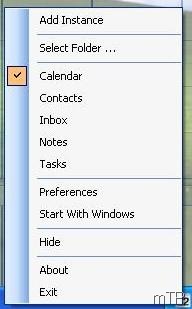
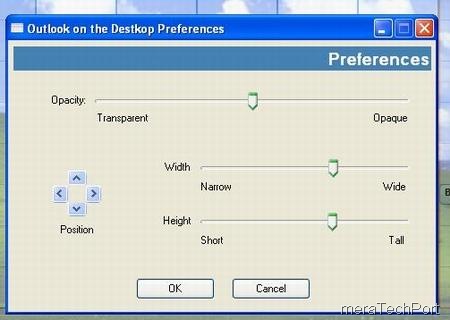
And it has options to adjust its size, opacity and position on the desktop. And also you can switch between calendar, inbox, contacts, tasks and notes views. And you can have multiple instances pinned to desktop. You get a tray Icon showing the day of the month which can be used to configure it.OEondesk2rz

Requirements:

Windows 2000 or higher
Microsoft Outlook 2000 SR-1 or higher
Microsoft .NET Framework 2.0
(The setup program will download and install it for you if you don't have it)


Download it for free from here.