Showing posts with label Windows Live Writer. Show all posts

Tuesday, December 14, 2010

Windows Live Plug-ins site launched !

The plug-ins are one of the most useful additions to various Windows Live products. These enhances the usefulness immensely. Now a new , neat , clean  site has been created featuring these plug-ins.

http://plugins.live.com/ 


Wlplug-inssite

For various Windows Live App , it provides many plug-ins arranged category wise, tag cloud and languages which can be arranged in various ways making it very easy.Wlplug-inssite1


Check out the various plug-ins  from http://plugins.live.com/


It also provides information for Plug-in Submission Process, so that if you are a developer , you can submit your plug-ins.

Wednesday, December 01, 2010

Windows Live Writer 2011 Keyboard Shortcuts

sprite_logos_writer

Here’s the complete list of Keyboard Shortcuts for the final ver of Windows Live Writer 2011 -


Command Keystroke New for 2011
Text Center Alignment Ctrl+E

X

Text Left Alignment Ctrl+L

X

Text Right Alignment Ctrl+R

X

Set text direction of paragraph Left to Right Ctrl+Left Shift

X

Set text direction of paragraph Right to Left Ctrl+Right Shift

X

Bold text Ctrl+B  
Italic Ctrl+I  
Strikethrough Ctrl+H  
Underline Ctrl+U  
Superscript Ctrl+Shift+=

X

Subscript Ctrl+=

X

Bulleted List Ctrl+Shift+L

X

Check Spelling F7  
Clear Del  
Copy Ctrl+C  
Cut Ctrl+X  
Delete Del  
Select All Ctrl+A  
Paste Ctrl+V  
Paste Special Ctrl+Left Alt+V  
Paste without formatting Ctrl+Shift+V  
Remove Links and Clear Formatting Ctrl+Space  
Find Ctrl+F  
Redo Ctrl+Y  
Undo Ctrl+Z  
Apply Paragraph style Ctrl+Shift+N

X

Apply Heading 1 style Ctrl+Left Alt+1

X

Apply Heading 2 style Ctrl+Left Alt+2

X

Apply Heading 3 style Ctrl+Left Alt+3

X

Apply Heading 4 style Ctrl+Left Alt+4

X

Apply Heading 5 style Ctrl+Left Alt+5

X

Apply Heading 6 style Ctrl+Left Alt+6

X

Insert Hyperlink Ctrl+K  
New Page Ctrl+G  
New Post Ctrl+N  
Open Post Ctrl+O  
Post and Publish Ctrl+Shift+P  
Post Draft to blog Ctrl+Shift+D  
Save Ctrl+S  
Print Ctrl+P  
Insert Picture from File Ctrl+J

X

Insert Picture from Web Ctrl+Shift+J

X

Switch to Source View Shift+F11  
Switch to Preview view F12  
Switch to Edit View F11  
Edit using Theme Ctrl+F11  
Post Properties Dialog F2  
Set focus in Post Properties field or Previous property field Shift+F6  
Set focus in Next Field of Post Properties F6  
Show Properties Pane dialog for selected field Ctrl+Shift+C  
Toggle sidebar for plug-ins F9  
Help F1  
Toggle ribbon visible state Ctrl+F1

X

(Source:Aaron's Live Writer Blog)

Tuesday, September 28, 2010

Windows Live partners with WordPress.com to migrate 30 million Windows Live Spaces users to WordPress

Looking at the Blogging needs and what different companies were providing Windows Live announced an exciting partnership with WordPress.com. So a migration path for 30 million Windows Live Spaces users will be provided to upgrade their Spaces blog to WordPress.com.

WordPress.com was chosen as a partner because of its host of impressive capabilities – from a scalable platform and leading spam protection, to great personalization and customization. WordPress powers over 8.5% of the web, is used on over 26 million sites, and WordPress.com is seen by over 250 million people every month. So rather than having Windows Live invest in a competing blogging service, it was decided the best thing to do for customers was to give them a great blogging solution through WordPress.com.


WLSWP


As part of this project, WordPress has added support for Messenger Connect as a Publicize option, which enables you to automatically share updates to your WordPress.com blog with your friends who use Windows Live Messenger.

This migration of Spaces users to WordPress.com will be an easy upgrade path via Automated content migration with easy account set up .WordPress has created a brand new importer for Windows Live Spaces to WordPress.com.

One also will be provided with the download option to download the Spaces content in human readable, well structured HTML  before upgrading to WordPress.com.

If a user already has WordPress blog , he can merge a spaces blog with a current wordpress blog .

Visitors will continue to have great experience as blog articles will be redirected.

Spaces Users can take with them/download blogs, inserted photos, videos. Comments without spam to WordPress.com. Option for Comments as is can be downloaded.

Gadgets, theme/skins can not be moved to WordPress. com. Similarly  draft posts, guestbook, notes, lists  won’t be available to move and are recommended to be manually  backed up if required.

With the announcement, the option will be available to users and they can still continue to use Spaces. You have time until March 2011 but you should upgrade to WordPress.com today!

  • For now, you can still make posts to your Spaces blog, and you can decide when to upgrade.
  • Starting January 2011, if you haven't upgraded yet, Spaces will be read-only and you will no longer be able to add content to your Spaces blog, but your existing content will still be visible. The same options to upgrade, download or delete your blog will still be available.
  • March 2011 will be the last chance for you to get your stuff. Why not upgrade today?

“And when Windows Live Essentials 2011 releases later this fall, Windows Live Writer will also use WordPress.com as its default blogging solution.”

For step-by-step migration Path of Spaces to WordPress Screenshots , please check

How to upgrade and migrate your Windows Live Spaces blog to WordPress – Screenshots


Source : WordPress.com and Windows Live partnering together and providing an upgrade for 30 million Windows Live Spaces customers

Welcome Windows Live Spaces Bloggers

Wednesday, September 01, 2010

Update your Twitter Notify plug-in for Windows Live Writer

If you use Windows Live Writer, most probably you also have twitter Notify plug-in installed. Don’t get surprised, as twitter notify plugin starts requesting for sign-in credentials from today and it doesn’t work even if you provide with username and password. That’s because twitter today has changed the way you sign-in to twitter. And it doesn’t notify that you needed to update.

Twitter Notify has been updated to work with Twitter's latest authentication changes by Live Writer team today . You have to just install it from Windows Live Gallery and it’ll start working again. You can get it from here.


twitterNotifyplugin


Thanks to the tweets from Windows Live Writer and ABomb88 for letting us know.


Thursday, August 19, 2010

[FIX] ‘No Internet Connection…’ Error during installation of Windows Live Essentials Beta Refresh

Yesterday an update to Windows Live Essentials 2011 beta was released. And while installing some faced problem where they were getting the error message “No Internet Connection…” and the installation failed even though they were connected to net. It was happening even using the Full offline installer.

Soon Windows Live Team swung into action and said -

“The problem you're running into is that the Windows Live Installer not only installs the language you selected, but also tries to install the Windows Live language resources that match your OS language (this avoids language switching problems later when using Windows Live client applications).  Unfortunately, the Windows Live Beta Refresh only ships in nine languages (much more coming for the final release) and when the installer tries to find these additional language resources, they are unavailable and hence the error you are seeing.  This error will occur in both the online web-version (wlsetup-web.exe) and the off-line version (wlsetup-all.exe). 

This will not be a problem in the final release as all languages will be available, but we're investigating workarounds such as temporarily changing your OS language settings and will post info here once a workaround has been confirmed to be effective.”

So one has to temporarily change their OS language to English and install.


Today they have fixed it and they have posted this -


“A fix for the "no internet connection" error you encountered has been released.  Please retry and reply if you continue to see errors in your installation experience.

Root cause is that we added functionality to the Windows Live Installer to also install language resources matching the Windows OS language and mistakenly included references to languages that are not available until the final Windows Live release.  Users installing on an OS language other than one of the nine languages released for Windows Live would have encountered this failure (English is just another language and not a unique cause of this error). 

We apologize for the negative experience and inconvenience and appreciate you using Windows Live and for providing feedback.  From this, we are updating our release tools to detect and avoid this problem in the future and investigating changing our error messages to be more helpful.”


Wednesday, August 18, 2010

What’s new in Windows Live Essentials 2011 beta refresh

Microsoft released an update to  Windows Live Essentials 2011 beta .  Its being called as Windows Live Essentials 2011 beta refresh, some are also calling it as Beta2. Acting on the beta feedback and usage of millions of users, the Live team has come up with many improvements across Messenger, Photo Gallery, Movie Maker, Writer, Mail, and Family Safety.

Let us check some of the many improvements -

Messenger -

A quicker Messenger - The time it takes to sign in, and to refresh contacts and social feeds, as well as animation speed, are all faster than in previous versions of Messenger.

More efficient video chat - Messenger video chat uses 30% fewer CPU resources by offloading work to the GPU.

Facebook chat in Messenger – Messenger now connects Messenger’s ~300 million customers (who are already connected to Yahoo! Messenger and Office Communicator) to Facebook’s ~500 million customers with Facebook chat . With the new Facebook chat integration, one can chat with all the Facebook friends.

msngrFB2z


WLMfb4z


WLMfb7z

Also check step by step article on enabling Facebook Chat feature– “How to chat with your Facebook friends from Windows Live Messenger


Movie Maker-

Flickr video publishing - You can now publish videos directly from Movie Maker or Photo Gallery to Flickr too. Also notice the new logo for the SkyDrive.

WLEnew

Larger movie uploads - Movie Maker will upload higher resolution movies to SkyDrive (480x640 vs. the previous 320x480).

WLEnew1

Higher bit-rate movies - Movie Maker now supports higher quality (bit-rate) content.

Snapshot - With the new Snapshot feature in Movie Maker, you can select a single frame from a video as it appears in the preview window and add it to your movie. This allows you to quickly grab an image that you want to keep or perhaps use for your movie’s intro or closing.

WLEnew2


Mail -

Better handling of Gmail – Mail now automatically handles Gmail’s spam and trash folders properly.

Photo Album improvements- Faster Photo albums uploads. Better indication as to where you can add additional photos to your album.  Live Mail also has some UI to set of a Photo Album expires after 90 days or not.

WLEnew11

WLEnew12


Family Safety -

Faster web filtering - Family Safety web filtering is 35% faster than in the previous version.

Photo Gallery -

Better facial recognition - Photo Gallery facial recognition is improved significantly and works more quickly.

Quick previews and improved tree view - Added preview capabilities to the “Find” tab in the ribbon. So before you apply a filter (date, rating, people tags), you can hover over one of those filters and see the results instantly.

 

WLEnew4


WLEnew5


WLEnew6


Writer -

Better spell-checking -

Writer has significantly improved the quality of its spell-checking.

Better integration with Office -

Writer is much better at retaining all formatting when you copy and paste from Word and other Microsoft Office programs. With Office there is a lot of CSS on the clipboard that will not be needed in the blog post.  If it was pasted it would really bloat the post.  Now Writer has a good compromise of pasting what you need to keep the formatting.  Bullets/numbering, heading styles, etc. all should paste better when copying from Office into Writer.

Jumplists -

Now Live Writer has jumplists on Windows 7.  Right click on the application icon in the task bar and you will see jump list entries for recent drafts and recent posts.

WLEnew7


Open Drafts and Open recent Posts on the application menu-

WLEnew8

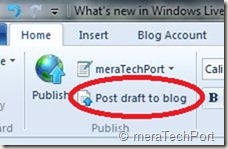
Post draft to blog button on the ribbon-

As many of the Writer users requested this feature, the Writer provides it. As the users said they post a draft to their blog and then directly go to the web to actually publish the post from there. So now they can do this easily.
WLEnew9


Much better theme detection -

As WordPress has changed over the years Writer has not kept up with the theme changes.  Live Writer is back on par and can accurately detect all current themes from WordPress including their new WP 3.0 theme Twenty Ten.  The theme detection changes are not exclusively for WordPress.  Writer will now work a lot better with the new custom Blogger themes also and should work better for really any blog server you use.  WYSIWYG is much better in Blogger now.Though Writer still cannot detect themes for blogs marked as private on servers such as WordPress.

Also has theme related options on ribbon.

WLEnew10


Updated spelling dictionaries-

It now have the same ones that are included with Office 2010.  Live Writer will have updates for all languages that it is released in.  It also has an updated autocorrect list that matches the English list in Office 2010.

Photo Album improvements- Faster uploads of Photo Albums.

More keyboard shortcuts-

There are more keyboard shortcuts which should soon appear as help topic on the web.


So, overall there’s an improvement in the quality of the software and over 75% of reported bugs have been fixed. As I have started using it, I can feel the improvements. One of them being the Face detection in Photo Gallery which has improved a lot, all of the products load faster, nice splash screen animation etc. And the improvements are an ongoing process and Essentials keeps improving, looking into users feedback.

And apart from English, Spanish, French, Dutch, Portuguese, Japanese, and Simplified Chinese, you can also now get the beta in Russian or German. So get the Windows Live Essentials 2011 beta refresh today and give it a try. Windows Live Essentials beta refresh requires Windows 7 or Windows Vista.

(Source: Inside Windows Live, Aaron's Live Writer Blog )


Thursday, May 13, 2010

New Version of Windows Live Wave 3 available – Minor updates

Yesterday I got this tweet from Windows Live Writer Team -

New version of Wave 3 Windows Live Writer. No new features but higher quality. Upgrade today!Wed May 12 07:30:54 via web

Windows Live Writer
WLWriter


And so decided to upgrade it, but when I tried from within Windows Live Writer, Help > Check for updates , It said ‘You are running the latest ver…”

So I went to http://download.live.com/  and from there upgraded Windows Live Wave 3 . It not only upgraded the Writer but all Windows Live Apps - Messenger, Movie Maker, Mail , Photo Gallery, Writer.

Before the upgrade I had this version -

WLWriterWwave3Befupdt


And after upgrading -

WLWriterWwave3AFTupdt


So the Windows Live Writer, Messenger, Mail, Movie Maker, Photo Gallery all upgraded to Build 14.0.8117.416 And as the tweet said – No new features but higher quality.

I think this is for all the Apps and not only for Writer as I haven’t noticed any new features in other apps also.

UPDATE: (13May2010, 6:50AM) : And here’s the official word about this update- Minor update to Essentials released today

Today we released an optional update for Wave 3 of the Windows Live Essentials suite in all 48 languages. This is a minor release that updates Windows Live Messenger, Mail, Family Safety, and Sync. You can install it from http://download.live.com, or through Microsoft Update as an optional update. While this is our last planned update for Wave 3, we will continue to support this release for the foreseeable future as it will be the last version that supports Windows XP.

This is a minor release with a small set of targeted bug fixes and minor changes. Even though most users will not run into the issues we addressed, we felt they were important to fix. This update also contains a small set of changes to ensure that Essentials supports new advances coming in Wave 4.

Rest assured, we’re continuing to work hard on Wave 4 and are in the final stretches. This update is a first and important step in that direction.


Monday, May 10, 2010

Embed tweets in your blog with Blackbird Pie tool from twitter

Many times you want to post the tweet in your blog or website and generally its the screenshot which is posted for that. But now twitter has released a tool called Blackbird Pie It provides static html tweets for the blog to embed.

Just go to the Blackbird Pie  and paste the URL of the tweet you want to embed and hit the ‘Bake It’ button. This will show how the tweet will look like and also provide the Long HTML code which has to be copy / pasted into your blog.

tweetbake

If you are using Windows Live Writer, just click on ‘Source’ tab at the bottom and paste the code and go back to ‘Edit’ tab to preview. It automatically adapts to the look & feel of your blog template.

Please note that this tool is still a work in progress , so it may work or may not on your blog. This generated code from Blackbird Pie , on some pages which accepts plain simple HTML tags may not work. I have tried it on Blogger based blog and WordPress.com and it works. Twitter is working on it to have many improvements such as lesser codes, provide real time stamp etc.

Making it easier -

Now if you think, generating the code, copy/pasting is a bit longish process then there are some methods which will make it bit easier for you -

  • Blackbird bookmarklet-

Xavier has created a Blackbird bookmarklet which eases this process.  Just drag and drop the bookmarklet link to your bookmarks bar. Now go to URL of the tweet, click on the bookmarklet.Copy the code. That’s it.

publitweet

Using this method displays the absolute date and time of the tweet instead of “X minutes ago” shown by twitter’s method

Here I’m inserting the code using this method-

Finally the original SRT is on twitter n the first thing I'd like to do is wish my colleagues the best in the windies,Tue May 04 18:21:32 via Twitter for BlackBerry®


  • Blackbird Pie Twitter Plugin for Live Writer-

Scott has come up with a plugin for Windows Live Writer. Blackbird Pie Twitter Plugin for Live Writer  Once the plugin is installed (check the above link, how to do it), Just click on Twitter Quote from the Insert menu,

Blackbirdplugin

which gives you this screen:

image_thumb1

Paste your link into the box shown, hit ‘Bake It’, then once the tweet has loaded, press insert . That’s all

It’ll say “Your inserted tweet will appear here when you publish”

So I’m just inserting  a tweet below using this plugin, and I can’t see the tweet while writing post in Windows Live Writer as its says “Your inserted tweet will appear here when you publish”


Finally the original SRT is on twitter n the first thing I'd like to do is wish my colleagues the best in the windies,less than a minute ago via Twitter for BlackBerry®


So this is about embedding a tweet into your blog, so next time instead of Screenshot try this method of embedding. ANd remember this is still work in progress , twitter is improving it so in some cases Blackbird Pie may not work.


Tuesday, March 09, 2010

Writerous: Plug-in to publish to Posterous from Windows Live Writer

wlwlogo Scott has come up with another useful Windows Live Writer plug-in. This time its for Posterous users. Now you can publish to Posterous from Writer itself using Writerous plug-in. This has been made available on CodePlex.

How to use -

Adding Posterous to Live Writer
Because Live Writer doesn't natively support Posterous, there's a little bit of trickery involved. The whole basis of this plug-in relies on you having at least one other blog configured within Live Writer. All you do is add that blog to Live Writer again (in essence, copying it), and just call it Posterous.

Configuring Writerous

First of all, you need to set your username and password, and the Posterous site you will be publishing to.
To access these, go to Tools > Options > Plug-ins > Writerous > Options from within Live Writer.


Settings


Tuesday, March 02, 2010

Windows Live Writer plug-in for Split posts in Blogger based blogs

 wlwbloglogo The option for split post on WordPress and couple of other blog engines have been provided in Windows Live Writer but not for Blogger based blog as this feature was not available in Blogger based bogs.

But since some time Blogger has implemented this feature Creating 'After the jump' summaries and one could implement this feature while using the Blogger post Editor.

“After the Jump is a feature which lets you create expandable post summaries in your blog posts, so longer posts appear as an intro with a link to Read More..”

Monday, August 24, 2009

Tip: Using png format images in Windows Live Writer

This is a small tip related to use of transparent .png format images with Windows Live Writer. As PNG support transparency, a transparent PNG is background-independent. Suppose you have a transparent PNG image and want to put it on your blog using Windows Live Writer and you insert it and it looks as shown below. This has a black background with it.

WLWriter_logo

This black background is due to the ‘Borders’ option in Windows Live Writer which by default is ‘Drop Shadow’. So just choose any other option like ‘None’ (Select the picture >Picture tab in Taskpane > Borders > None) Or any other option other than ‘Drop Shadow’ . And see what you get as shown below.  The same image with transparent background which looks much better.

WLWriter_logo

Wednesday, January 14, 2009

Copyright Symbol as Watermark in Windows Live Writer

This post is just a small tip. As someone asked me- how do I put the Copyright Symbol, that ‘c’ in a circle – ©, on the photos I publish in my blog posts. Like the one shown below - 

IMG_0736cr

Here’s how its done -

Insert a picture and while selecting it, go to ‘Advanced’ tab in the Taskpane on right of your Windows Live Writer. (If its not visible, Press F9 or ‘View’ menu > Select ‘Taskpane’).In the ‘Advanced’ tab, you have ‘© Watermark…’ option under Actions. Click on it to get this window -

wm2

Enter whatever text you want and for © symbol, Press Alt+0169, that is keeping the Alt key pressed, type 0169 from the numeric keypad. You will get the copyright symbol.

And select what ever Font, size and the Watermark position on the picture. Just to emphasize, I have put the watermark symbol in the center of the picture shown at top.

And one more thing, you don’t have to do this for every picture. Just save these settings in taskpane, picture tab > save settings as default. And next time when you insert the picture, watermark will be put automatically.

Friday, December 26, 2008

Instant photo border option in Windows Live Writer

An ‘Instant photo’ border option has been added in the recent version of Windows Live Writer. The 2009 RC ver. (Build 14.0.8050.1202) of Writer has been released with Windows Live Essentials beta.

Along with many new features, one of the new feature is ‘Instant photo’ border option.

WLWinstphoto

With the advent of Digital Cameras, the use of Polaroid films has been reducing and many of you might be aware that Polaroid will soon stop manufacturing these Instant Photo films. In earlier years these Polaroid films were a big part of the family photo and were very popular. To give the photo the appearance of a Polaroid picture we now have an option in Windows Live Writer.  So let us see how to make use of it.

Insert a picture in Windows Live Writer using Insert option, Now select the picture and from taskpane Picture tab > Borders, select Instant photo. Now you can see an Instant photo like Border has been provided to your picture. But some of you might be wondering, why the picture has been cropped. The picture has been cropped because that aspect ratio is what "instant photos" in real life look like. But you wanted to show some different portion of the picture in the Instant photo border.

For that, keeping the Instant borderd picture selected go to ‘Advanced’ tab and select ‘Crop…’ option and select/highlight  the portion which you want to be bordered in ‘Instant photo’ . You can also use the ‘Tilt…’ option to give your picture a tilt effect. Now you can see the portion you wanted with the Instant photo border.

Following is an example, let us put an ‘Instant photo’ border to it.

IMG_0269

Now the same photo with Instant photo border and showing the required portion using ‘Crop…’ option.

IMG_0269

Now you can get the same Instant photo effect for any photos with this option and not only for family photos :)

Enjoy !!

Tuesday, September 23, 2008

Have you tried the Windows Live Wave3 beta?

Couple of days back the new Windows Live Beta was released. I installed it as soon as they were released. The new Windows Live Beta Suite has:

  • Windows Live Messenger beta
  • Windows Live Mail beta
  • Windows Live Photo Gallery beta
  • Windows Live Movie Maker beta (Only for Vista)
  • Windows Live Writer beta
  • Windows Live Family Safety

Windows Live Movie Maker Beta is a new addition.You can install all or choose the Live product whichever you want.

The new Windows Live Wave 3 Beta includes significant updates with lots of great new features. I have installed it and exploring various new features. Being the Windows Live Beta Tester, I am also submitting feedbacks and bugs. Till now I haven’t come across any major issues and all are working fine. I had  no problem installing them. I tried the installation by upgrading the Live products which I already had on my Windows XP. I also installed them by removing my earlier version of Live products on my Windows Vista. And the installation was smooth in both the cases without any problem.

If you haven’t yet installed them, then just get it now from http://download.live.com


2z

I will posting about various new features of different Live products in my subsequent posts.

Monday, September 01, 2008

New version of Windows Live Writer coming soon?

Today as I just clicked the shortcut to open Windows Live Writer, surprisingly I got an Expiration Window,

WLWexpireR

The Window said, 30 days remaining and this version of Windows Live Writer ( I am using WLW Technical Preview,Build 14.0.3913.522) will expire on 1/10/2008. Please download and install a newer version. I just pressed ‘ Ask Me Later’ and proceeded. But had I clicked ‘Download Now’, would have got a newer version? Anyway I tried again but was not getting the window again.

So we will be getting the newer version of WLW (wave 3) soon? Looking forward to the newer version of the cool  Windows Live Writer.

Tuesday, August 26, 2008

Live Blogging using Dynamic Template plug-in for Windows Live Writer

If you are one of those who likes to do Live Blogging of various events, keynotes then you know time is premium in Live Blogging. Every second counts as to push out your minute by minute description of the event happening to the world through your blog post. And you have to live blog what you see or hear in the quickest manner with TimeStamp as the events or the keynote progresses. Each important announcement being done at the event has to be blogged with Time Stamp. So for inserting timestamp each time, you are wasting precious time.

So to make this faster we will make use of a plug-in for Windows Live Writer.It’s called Dynamic Template plug-in by Joe Chang. Its a special plug-in unlike other plug-ins. Dynamic Template is a plug-in that makes it easier to insert oft-used snippets of HTML or text into your Windows Live Writer posts.  It can do lot of things and one of them is inserting timestamp. Dynamic template can contain snippets of C# code, like an ASP page. So it all depends on you, what kind of code you write for what purpose. So its possibilities are endless and limited only by your imagination and your code writing skills.

Download Dynamic Template plug-in and run the installer. It will install and you can see the entry ‘Insert Template…’. Now we have to add code for TimeStamp plugin. Click on the ‘Insert Template…’, click on ‘Edit Templates’it will open the following window, click on ‘New…’ Button.

liveblgDT2a

And give some name such as ‘Timestamp’ and press OK.

liveblgDT3a

And now in the next window, enter the following code in the Template Body:

<b><%= DateTime.Now.ToString("hh:mmtt") %> - </b>


liveblgDT3b1


And Press OK

liveblgDT4a


Now you have created a template called ‘timestamp’ which will be used for putting timestamps.

liveblgDT5a


So now if you are live blogging and wants to add TimeStamp provided for each event as you Live Blog through the event, Just click on ‘Insert Template….’ and choose the ‘Timestamp’ and Press ‘Continue’ Button and it will Stamp the Time on your Blog Post, So you don’t have to worry about putting the correct time, ‘Timestamp’ will take care of that.


liveblgDT6


For more examples of using Dynamic Templates and demo videos , Please check http://www.joecheng.com/code/DynamicTemplate/

Tuesday, July 01, 2008

Build Live Writer Plug-ins:Charles Teague Interview

Check out this interview with Charles Teague from Microsoft who is a part of those building Windows Live Writer. Charles discusses the Windows Live Writer SDK for extending Live Writer. He demonstrates the Polaroid Picture Plug-in and also shows how to build a "Hello World" plug-in in Visual Studio.

Twitter, Digg Button and other Social Bookmarking Plug-ins for Windows Live Writer Technical Preview

Here are some plug-ins for Windows Live Writer. These Plug-ins will only work with the June2008 release-Technical Preview of Windows Live Writer. If you haven’t yet tried it, install it now. In this post we check these plug-ins:

  • DiggThis Plug-in
  • Twitter Notify Plug-in
  • DotNetKicks Plug-in
  • DZone Plug-in
  • Social Bookmarking Tool which supports 20 bookmarking websites (Old plug-in written before the Technical Preview Edition of Live Writer)

First download the recently released Technical Preview Live Writer SDK from here. Also remember that this release is still experimental and these APIs are not stable and are not final.Changes can be made based on feedback that may break plug-ins that use these new methods. At present DiggThis and DotNetKicks seems to be not working for me, which were working few days back.Its working again, before publishing I did a preview and then published and now they are showing.(Thanks to Joe Chang for the tip). It has 2 sample plug-ins: DiggThis and Twitter notify. Extract the following files from the Zip file, 

Twitter.WriterPlugin.dll
and DiggThis.WriterPlugin.dll

and copy them to this directory  C:\Program Files\Windows Live\Writer\Plugins\  

Once you copy them, you can access them from Tools > Options… > Plug-ins

 WLWDigg


WLWDiggOpt DiggThis plug-in has various options so that you can choose the Style and alignment where you want to place it on your Post. Also note that Some Styles which uses JavaScript will work with blogs that allow JavaScript. For blogs that don’t, like Windows Live Spaces and WordPress, will use the Button Style. You can also enable/ disable it according to your weblog account.You can see the Digg Button placed in this Blog Post.Note that this is not visible during the design mode, but is in preview mode or once posted.

WLWtwitterOpt Now coming to Twitter Plug-in, it gives you the option to notify Twitter as soon as you publish a blog post.Go to Tools > Options.. >Plug-ins >Twitter Notify and fill it with your Twitter Username and Password.You can format the message and you will be always prompted  before you post an update.

Next plug-in we will check is DotNetKicks plug-in written by Papa John is available on CodePlex. As said earlier this will work only with June

WLWDNKO 2008 Technical Preview of Windows Live Writer. After downloading from CodePlex, Unrar to get the DNKPlugIn.dll and put it in the same directory as shown for above plug-ins. And then you will be able to access it from Tools >Options .. >Plug-ins. For more details about DNK Plug-in please check this.

John Papa has come with another plug-in for DZone - DZone is another one of the aggregating sites (they state on their site “fresh links for developers”). You can get DZone plugin dll. Unrar the file to get the dll and put that in the same directory as posted for other plug-ins (C:\Program Files\Windows Live\Writer\Plugins\) After that you can access it from Tools >Options .. >Plug-ins. At present there’s just an option for style of the link. The style can either be tall or wide.Also for this you need the June 2008 Technical Preview of Windows Live Writer

WLWDZone


Also point to note is with two different plugins adding content to the footer you end up with one below the other. As you can't have the different plugins' content line up next to each other. Each plugins' code goes in its own <div> element and so they end up one on top of the other.(Thanks Scott for explaining). You can put them in same line unless they are both in the same plugin.

And the next plugin, Social Bookmarking Tool 2.0 which I am going to post about does the same. In fact it supports 20 Bookmarking sites. Its developed before the June 2008 version of Windows Live Writer and may have some problem with it.  Its written by  Rahul Soni, he says, he’ll come with the new version using the Technical Preview SDK. Also some may encounter issues with it while running it on Vista, to resolve this issue run WLW as administrator. Check this Update Post.

One more drawback of this plug-in is, one has to publish it first then obtain the URL of that published post and then put that URL in this plug-in and again publish to put all those Social Bookmarking Icons or Text. After installing this plug-in , you can access it from Insert > Bookmarking Tags!…

WLWRahul

With the release of new Live Writer Technical Preview SDK, this problem of republishing will be solved.

You can see all these plug-ins displayed in this post. With the release of this new SDK, expect lot more cool plug-ins in the days to come.

Share this post :
Digg This
