Showing posts with label Windows Live Wave3. Show all posts

Friday, December 26, 2008

Instant photo border option in Windows Live Writer

An ‘Instant photo’ border option has been added in the recent version of Windows Live Writer. The 2009 RC ver. (Build 14.0.8050.1202) of Writer has been released with Windows Live Essentials beta.

Along with many new features, one of the new feature is ‘Instant photo’ border option.

WLWinstphoto

With the advent of Digital Cameras, the use of Polaroid films has been reducing and many of you might be aware that Polaroid will soon stop manufacturing these Instant Photo films. In earlier years these Polaroid films were a big part of the family photo and were very popular. To give the photo the appearance of a Polaroid picture we now have an option in Windows Live Writer.  So let us see how to make use of it.

Insert a picture in Windows Live Writer using Insert option, Now select the picture and from taskpane Picture tab > Borders, select Instant photo. Now you can see an Instant photo like Border has been provided to your picture. But some of you might be wondering, why the picture has been cropped. The picture has been cropped because that aspect ratio is what "instant photos" in real life look like. But you wanted to show some different portion of the picture in the Instant photo border.

For that, keeping the Instant borderd picture selected go to ‘Advanced’ tab and select ‘Crop…’ option and select/highlight  the portion which you want to be bordered in ‘Instant photo’ . You can also use the ‘Tilt…’ option to give your picture a tilt effect. Now you can see the portion you wanted with the Instant photo border.

Following is an example, let us put an ‘Instant photo’ border to it.

IMG_0269

Now the same photo with Instant photo border and showing the required portion using ‘Crop…’ option.

IMG_0269

Now you can get the same Instant photo effect for any photos with this option and not only for family photos :)

Enjoy !!

Thursday, December 18, 2008

Explore the New Windows Live at Windowslive.com

The new Windows Live is here and better than ever !Explore about the updated versions of both online services and applications for the PC, and keep your digital life in Sync.

Check it out now at http://www.windowslive.com/Explore

WLiveNew1

EDIT: Thanks to Marcus, New Windows Live Site, I am adding this:

For all of you that are members of the Windows Live Community, you’ll see there are new product and service areas on the site, including:

  • Profile
  • Photos
  • Groups
  • Calendar beta
  • Movie maker beta

WLiveNew2z

Sign-in to see various users contribution in the clubhouse.

Tuesday, December 09, 2008

Enjoy Windows Live Wave3 on Mobile

Now you can experience the Windows Live Wave3 on your Mobile too, mobile.live.com  is your new mobile home designed for your phone.

To check it on your PC, just go to mobile.live.com  where it has an emulator to show how it looks exactly on your phone.

mobilelivew3

Click on the Emulator options like People, Mail, Photos etc to experience it.

Some of the featured mobile services are:

moblive1

moblive2

Check mobile.live.com  for many more Mobile services. Many more services to come on SMS function enhancements soon.

Monday, December 01, 2008

Exciting updates to Windows Live coming very soon

Microsoft had announced about the next generation of Windows Live couple of weeks back, these new exciting updates will be coming soon and will start rolling out in the first week of December. The new generation of Windows Live includes updated experiences for photo sharing, e-mail, instant messaging, as well as integration with multiple third-party sites. The release also includes Windows Live Essentials which includes Messenger, Mail, Photo Gallery, Family Safety, Toolbar and recently introduced Movie Maker. These are all free downloadable software.

Microsoft is collaborating with leading companies including Flickr, LinkedIn Corp., Pandora Media Inc., Photobucket Inc., Twitter, WordPress and Yelp Inc. to integrate activities on third-party sites into Windows Live through a new profile and What’s New feed. The new Windows Live also gives consumers the added convenience of having a central place to organize and manage information.

For more information about windows live go to http://www.windowslive.com 

COming soonz 

I will be posting more about these exciting features in my subsequent posts.

For more information please check : Microsoft Introduces Updated Windows Live Services

Saturday, November 01, 2008

Windows Live Calendar gets more themes

Four new themes have been added to Windows Live Calendar (Beta), but they are not been shown in Windows Live Hotmail. Also in Calendar ‘More Themes’ link option at present is not working.

WLCalNT1z

WLCalNTW

The new themes are: The new themes are:

Carbon: WLCalCarb

Graffiti:WLCalgraf

Wildflowers:WLCalwild

Moonlight:WLCalmoon

Friday, October 10, 2008

Get photographed with your clone using Windows Live Photo Gallery

You all must have used ‘Create Panoramic photo…’ option in Windows Live Photo Gallery for creating stunning panoramas of sceneries or city’s skyline etc. People normally use this option to create a landscape prepared by stitching 2 or more photos. This option has been one of my favorite features and have been using since the start of Photo Gallery.

Today I will tell you to make use of this option in a different way, for something different.

How about using this option for creating a clone? Yes, you can do it. You can get photographed with your clone. Or you can take your friend’s photo with his/ her clone. Let us see how it can be done.

Take a normal photo featuring a person , as shown below.  It’s a normal photo, btw he’s my cousin Akhilesh sitting on the ground playing veena, a musical instrument.

1Akhil

Now take another photo of the same person in a different position as if he’s talking or looking at his earlier photographed position. make sure he is standing in a somewhat farther place in line with the earlier position and portion of this photograph is overlapped with the earlier taken photograph. Please check the next photo to understand this.

2Akhil

As you can see in both the above photographs the door portion is getting overlapped. This is necessary for working of ‘ Creating Panoramic photo..’ option as it stitches the photographs together. Also note in the second photograph the person is gesturing as if he is talking to person in first photo. This makes it more natural.

Now open these photographs in Windows Live Photo Gallery and select these 2 photographs. You can drag the mouse around these 2 photographs keeping pressed the left mouse button to select these together. Or you can select one by clicking the mouse over one and keeping the ctrl key select the other one , so that both gets selected.

Now keeping these photograph selected click on Make > Create panoramic photo….

panclone 

Rest will be taken care by the software and you will see both the photographs getting stitched together into single one as shown below. You  can use the crop option to trim the photograph from above and below, if needed.

1and2st

As you can see Windows Live Photo Gallery has done a perfect job stitching the 2 photographs. And the person seems to be talking with his clone. So how was the trick ? Hope you liked it. I thoroughly enjoyed it and my cousin Akhilesh too.

You can make use of more than 2 photographs but remember to overlap each photograph and you will get a perfect photograph with your clone. May be, it may require a little bit of practice and imagination. Also you can wear different dresses for different photographs making it more authentic. Its total Fun, try it out now!! 

So what are you waiting for, get the latest ver. of Windows Live Photo Gallery beta from download.live.com  and try other new features also.

Tuesday, October 07, 2008

People tagging and other new features in Photo Gallery Beta

Windows Live Photo Gallery Wave3 Beta was released  few days back along with other Windows Live apps. Let us see what are the new features in this new version of Photo Gallery.

New user interface : If you have been using Windows Live Photo Gallery earlier, the first change you’ll notice is the User Interface. Toolbar is more cleaner and some buttons like rotate, delete are at bottom right. Overall now it gets a Simpler look. You can adjust the Navigation Pane (located on left side) or completely close it by dragging the  separator near the vertical scroll bar. If all folders etc. in the Navigation Pane are collapsed then you’ll not get the vertical scroll bar, So just move the mouse around the navigation pane to view the separator which can be adjusted to alter size of Navigation pane or double clicked to completely close the Navigation pane.
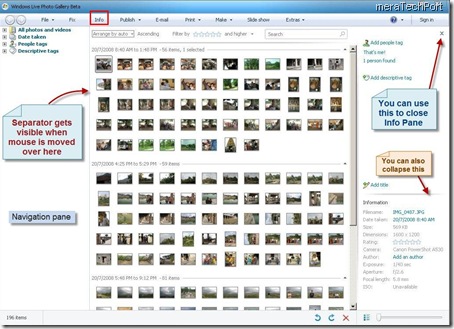
WLPGUI3z Also you can close the Info pane (situated on top right) by clicking the ‘Close button’  or the ‘Info’ button situated on the toolbar. Now to get back the Info pane, you can click the ‘Info’ button again. I have seen many people confused in getting back the Info pane when closed using ‘Close’ button.

And in the Info Pane you can adjust the Information section (situated on bottom right) by adjusting the separator or you can collapse it completely by clicking on the blue arrow which gets visible when mouse is moved over that separator.

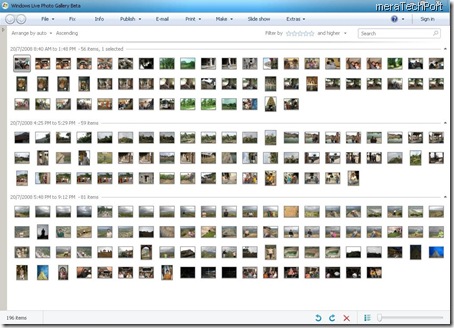
So what I am trying to say is, you can get the complete area occupied by display area of your photos by closing these panes. WLPGUI5
People tagging : This is the feature, I like most. Whenever in a photo , people’s faces are there , Photo Gallery detects the face and puts a square around it so that you can tag that person by entering the name of that person or if you are signed in to Photo Gallery then you will also be provided with your WL Messenger and WL Mail Contact list in the form of drop down appearing next to person’s face.
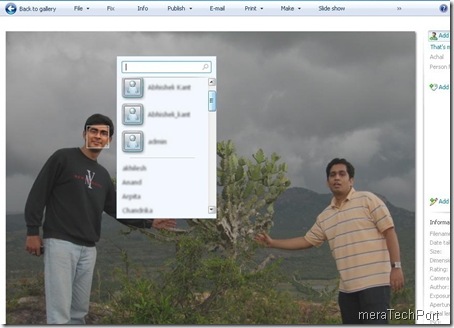
wlpgwave3b4zFor me this is the best feature, as once you have people tagged all  your photos, you can get pictures listed according to person. And while viewing the photo, when you pass mouse over a face, it will display the name of the person.

Best thing is, these people tags are saved into the photo. So if you copy these photos to another Computer , these tags remain with the photos.

I hope to see this feature improve more as it recognizes  the faces every time when its facing straight, but it misses when the faces are looking sideways. In such cases you have to manually recognize and tag them by clicking on ‘Add People tag’.

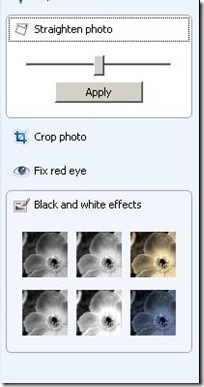
More options for Fixing your photos : Already there were great fixing options provided in the earlier version. Now some more options have been added. Sometimes your photos are not straight and are tilted because of wrongly holding the camera. So for such photos there’s a ‘Straighten photo’ option provided. This is also very useful addition.
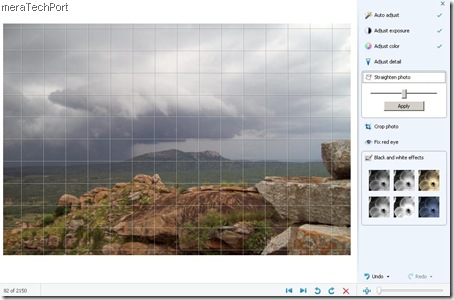
WLPGw3bStrgt Also there’s a new option of giving your Photos ‘Black and White effects’ so that you can give an antique look to your photos.
WLPGw3bStrgtZ

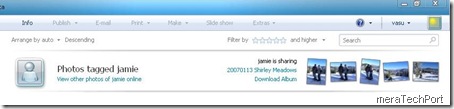
Check the Photos shared by your friends : As I said, when you are signed in to Photo Gallery, it also lists  persons from your contact list. So when you click on these persons, you can view the photos shared by them right in the Photo Gallery.
WLPGw3-2az

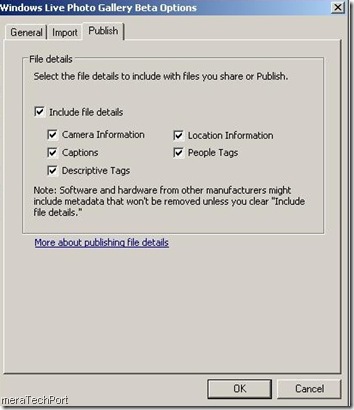
Share metadata you want to share : When you share your photos, you can restrict what metadata you want to show by using the File > Options > Publish.
wlpgw3Pub  

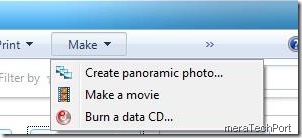
Make a Movie : Now you also have the option of making a movie of your photos and clips. (This option available only in Windows Vista, not in Windows XP). As you know Windows Live has released WL Movie Maker (only for Vista)  also as a part of Windows Live Wave3 Beta Suite.
wlpgw3bmmz

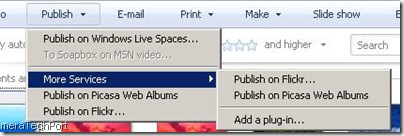
New SDK for Publishing plug-ins :  Developers now have a framework to develop publishing plug-ins for Windows Live Photo Gallery. This will allow Community to build plug-ins for any sharing service. The new SDK will let developers create plug-ins for users, which when installed, will appear right on the Publish menu. You can check for the plug-ins available and new ones added by clicking on ‘Add a plug-in…’ option.
wlpgw3bplgin 

As you can see I have installed ‘Publish on Picasa Web Albums’ plug-in which is available in the Publish option.

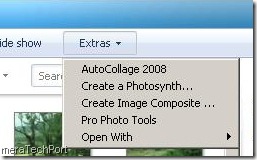
Integration with Photosynth, AutoCollage, Pro Photo Tools and other software : The new Photo Gallery provides integration with PhotoSynth, AutoCollage 2008, Pro Photo Tools, Image Composite Editor (ICE) and other Photo related software. You’ll get these programs in the Extras Menu after you install them . So the Extras menu provides the entry point for these programs. Though this may not be the best integration , I am sure it will improve.
wlpgw3b2x

(btw if you haven’t tried these tools , you must try them.All are Free tools from Microsoft)

These are the new features in the Windows Live Photo Gallery Wave 3 Beta. I am enjoying these new features. I am sure Windows Live Photo Gallery will continue to improve and you can see more new features being added and much improved in the future version.  If you haven’t yet tried it , do it now . Get it from download.live.com. And if you want any other feature or you don’t like a particular feature , you can send feedback, this option is also built into the Photo gallery ‘Help’ menu.

Wednesday, October 01, 2008

Picasa Web Publisher plug-in for Windows Live Photo Gallery Wave3

Windows Live Photo Gallery Wave3 Beta has support for adding publishing support for 3rd party sharing services. So one can install available plug-ins and start publishing from Photo Gallery. So now such a plug-in to publish your photos to your Picasa Web account is available for Photo Gallery. This is created by  Mark Steeves.

Get it from http://picasapublisher.nfshost.com/ . Read all the instruction for this plug-in here.

So this will add an option in the Photo Gallery

WLPGW3pins Add a plug-in option will also take you to List of available plug-ins.

As said these plug-ins only work with the new wave3 beta versions of Photo Gallery and Movie Maker, available here .

Tuesday, September 23, 2008

Have you tried the Windows Live Wave3 beta?

Couple of days back the new Windows Live Beta was released. I installed it as soon as they were released. The new Windows Live Beta Suite has:

  • Windows Live Messenger beta
  • Windows Live Mail beta
  • Windows Live Photo Gallery beta
  • Windows Live Movie Maker beta (Only for Vista)
  • Windows Live Writer beta
  • Windows Live Family Safety

Windows Live Movie Maker Beta is a new addition.You can install all or choose the Live product whichever you want.

The new Windows Live Wave 3 Beta includes significant updates with lots of great new features. I have installed it and exploring various new features. Being the Windows Live Beta Tester, I am also submitting feedbacks and bugs. Till now I haven’t come across any major issues and all are working fine. I had  no problem installing them. I tried the installation by upgrading the Live products which I already had on my Windows XP. I also installed them by removing my earlier version of Live products on my Windows Vista. And the installation was smooth in both the cases without any problem.

If you haven’t yet installed them, then just get it now from http://download.live.com


2z

I will posting about various new features of different Live products in my subsequent posts.