Showing posts with label Fix. Show all posts

Wednesday, December 23, 2015

Reinstall KB3093594 to fix stability issues in Windows Live Mail 2012

There are many users who still use Windows Live Mail 2012 as their Mail client. Windows Live Mail 2012 was the last Mail client, its part of the Windows Essentials 2012 suite released by Microsoft. After this version, Microsoft has stopped releasing the updates and wants users to shift to the newer Mail app that comes with Windows 8.1 and Windows 10. 

WLM2012Starting

The KB3093594 re-released:

In the second week of this month, Microsoft had alerted Windows Live Mail 2012 users that some chnages are coming to users of Microsoft accounts like Outlook, Live, Hotmail, MSN accounts that may prevent mails being delivered to Windows Live Mail 2012. And it said, in order to continue using this Mail client, you need to install this update.(Update for Windows Live Essentials Mail 2012 (KB3093594) )

But after installing this KB30393594, some Windows Live Mail 2012 users started reporting about facing stability issues. The Windows Live Mail would crash on launching it. Reacting to this, Microsoft said “We have identified the root cause and are currently working on a fix that addresses the issue for impacted users on applicable platforms.”

And then Microsoft re-released Update for Windows Live Essentials Mail 2012 (KB3093594). So users who had previously installed this update and were facing cash on launch of Windows Live Mail 2012 should download and re-install KB3093594 and the issue wil be resolved. Download it from here. So the issues listed below will be fixed by installing this re-released update.

Known issue and solution about this update
  • Issue 1: After you install this update (that was released before December 17, 2015), you may find that the program crashes soon after start.
    Solution: If you installed this update before December 17, 2015, you may have experienced a crash in the Windows Live Mail app soon after start. To fix this issue, download and reinstall the same update that's described in this article.
  • Issue 2: After you install this update that's released on December 17, 2015, you may experience mail sync issues.
    This issue occurs because of a server-side problem. Microsoft is researching this issue and will post more information in this article when the information becomes available.

Monday, December 21, 2015

[FIX] Improve disk space requirement on small hard drives for installing Windows 10 November update

Systems with small hard drives (16 or 32 GB) or systems having low disk space had some issues while installing Windows 10 November update. Microsoft now has addressed that issue.

Error and the Fix:

Earlier on such systems, on having low disk space even after connecting external storage , one was not able to free up disk space. And Windows would report an error on trying to install November update:FixLowdisk-Space1
“We found some issues. Select this message to fix and finish updating.” When clicking the “Fix issues” button, a message would appear that said “Windows needs more space”, and one option provided is to “Choose another drive or attach an external drive...” If you selected this option and attached the external drive, Windows was not making good use of that external storage, and you may have seen a message saying that you still needed a similar amount of free space to install the update.
FixLowdisk-Space
Microsoft has released a fix for this KB3124260 . With this fix, Windows will make better use of external storage making it much more likely that the install will continue after you select the external drive and Refreshing. The fix reduces the amount of space required on the C: drive by over 2 GB. This is great news with those using smaller devices like tablets with smaller hard disks.
Please note that this issue and fix only apply to Windows 10 devices upgrading to the November update. It does not apply to Windows 8.1 devices.
If one had experienced this issue earlier, then first one has to remove the temporary Windows installation files and then download them again, with the fix included. To do this, Run Disk Cleanup, Select the C drive, Click Clean up system files if asked. Select Temporary Windows installation files and click OK.
Then check for Windows updates to get the November update and this time update will include the fix that will make it easier to use the external drive in low disk space cases. This update replaces a previously released update 3120678.

Saturday, November 14, 2015

[Workaround] Windows 10 November update / Build 10565 installation hangs at 44%

Though builds newer than Windows 10 build 10565 build for Windows Insiders have been made available, this issue of Windows 10 build 10565 hanging at 44% is interesting and many were having this issue so I’m posting about this workaround.

EDIT: Similar issue have been reported by users installing the recently released Windows 10 November update for regular Windows 10 users. So I have updated the title too.

Microsoft has posted about this issue and a kind of workaround for it. Still the issue is being observed and feedback is being collected from Insiders.

What’s the Issue?

While installing Windows 10 Build 10565, some devices having SD card inserted will stop responding at 44%. That is, the device hangs at 44%.

Workaround:

If the install is freezing at 44% and you have SD card inserted, just remove the SD card and the install will continue with the update beyond the 44%. If anyone was using SD card for additional disk space, check if you have a free USB or min-USB port available and that can be used instead for the upgrade. Hope this resolves the issue.

Those facing this issue, Microsoft has asked to provide the make and model of the device and also if the workaround provided resolves the issue or not.

Saturday, October 31, 2015

Skype messages and contacts missing from Messaging app in Build 10576

Microsoft released Windows 10 Build 10576 for PCs few days back for Windows Insiders in fast ring. After upgrading to the Build 10576, all of the Skype messages and contacts are gone in the Messaging app. This is one of the issue faced by the users and Microsoft has provided workaround for this issue.

Workaround:

  • Open file explorer and navigate to this folder :
  • C:\Users\<USERNAME>\AppData\Local\Packages\
    Microsoft.Messaging_8wekyb3d8bbwe\LocalCache

  • Delete or rename the “PrivateTransportId” file. (If the ‘file name extension’ option is ticked, you’ll see this file as “PrivateTransportId.setting” )
  • Restart the Messaging app.

Hope this solve the issue.

Monday, October 05, 2015

Windows 10 Build 10547 right click on desktop disabled

Some of the Windows insiders who have installed the latest Windows 10 for PC build 10547 are facing this issue of right click on desktop being disabled.

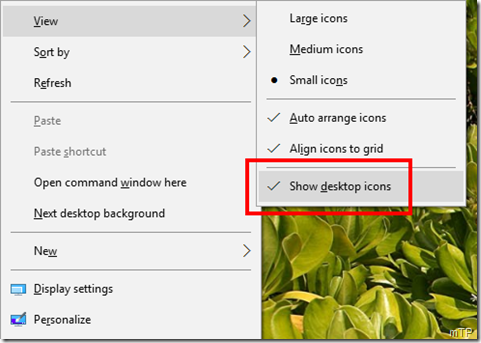
The Issue in Build 10547: Some users of Build 10547 are facing the issue of right click on desktop not working or disabled. So when they right click on desktop nothing happens and the context menu doesn’t appear.

10547ShiftF10

This issue is now a known bug. But till Microsoft issues a fix or corrects it in next build, here’s the workaround.

Workaround: Those users who hide their desktop icons by unchecking the option ‘Show desktop icons’ are facing this issue. Once they hide the desktop icons, this issue is seen and the right click on desktop gets disabled. Actually before upgrading to build 10547, if on the previous build  ‘Show desktop icons’ was unchecked, after the upgrade to 10547, the bug kicks in automatically.

So as a workaround access the desktop context menu with keyboard shortcut instead of right click. For this, press Shift F10 . Once you get the menu , Check ‘Show desktop icons’ and the right click gets enabled. If even after Shift F10, context menu doesn’t appear or if any other menu appears like if the media player is playing , the focus may be on media player. But if even after closing the media player, nothing happens then restart the system and try the Shift F10 again and it should work now.

I was having this issue and could restore right click with this workaround. Once you do this, do not hide the desktop icons , else again the issue appears. Hope Microsoft will correct this issue in the next build.

Thursday, September 03, 2015

Repairs for Cortana not working in Windows 10 Build 10532

Some Windows Insiders who upgraded to Windows 10 Build 10532 are having issues with Cortana. Cortana was working fine in previous build 10525 but after upgrade to 10532, it has stopped responding. Cortana just sits in ‘Listening...’ mode. I too was facing the same issue but after trying the following method as suggested by Microsoft Support Engineer in Answers, Cortana has started working and is responding now.

So those facing similar issue in build 10532, can try the following methods and see if it helps:

Run DISM command:

  • Press Winkey +X or right click on Start
  • Select Command Prompt (Admin) to open Admin command prompt
  • type the following commands and press enter to execute
    • dism.exe /online /cleanup-image /scanhealth
    • dism.exe /online /cleanup-image /restorehealth
      • these commands may take some time to finish executing,

Deployment Image Servicing and Management (DISM) is a new command line tool that you can use to service a Windows image or prepare a Windows PE image. The DISM tool replaces the Package Manager (pkgmgr.exe), PEimg, and Intlcfg tools. DISM consolidates the functionality found in those three tools, as well as delivers new functionality to improve the experience of offline servicing.

After these commands finish executing, now try Cortana and see if it starts responding. If issue is still present then try the following Power shell Commands.

Using PowerShell commands:

  • Type Windows PowerShell in the search bar
  • From the search results, right click on the Windows PowerShell and select Run as administrator.
  • Now type the following Commands and execute

Get-AppXPackage -AllUsers |Where-Object {$_.InstallLocation -like "*SystemApps*"} | Foreach {Add-AppxPackage -DisableDevelopmentMode -Register "$($_.InstallLocation)\AppXManifest.xml"}

Now check if Cortana is working or not, if required restart the system and check. For me the Cortana started responding after the 1st method itself. Hope these methods will solve this Cortana issue for you too.

In other related news, if you are from Japan, Australia, Canada or India, check your region settings and change accordingly if you have set it to US. As Cortana will be made available to these region starting from Build 10532. But for India, at the moment Cortana not yet available and responds to ‘Hey Cortana’ as “I Can’t connect at the moment, try again in a little bit’ . Hoping to see it soon updated for India.

Friday, August 21, 2015

FIX: Windows 10 desktop screen flickers, Explorer crashes after upgrading Norton product

Some of the Windows 10 users have experienced flickering, flashing of their desktop screen and accompanied by Explorer.exe crashing repeatedly.

Microsoft has received reports of this happening with some third-party software products causing Explorer.exe to crash repeatedly. The products listed includes:

  • Norton Antivirus, or other antivirus solutions

  • iCloud

  • IDT Audio

For Symantec Norton Users:

Symantec has even provided a tool to fix this issue caused by their latest version of Norton product. Here is the detail of the fix as posted by Symantec.

STEP 1

Start the computer in Safe mode with Networking

  1. Exit all programs.

  2. Press the Ctrl + Shift + Esc keys to open the Task Manager.

  3. On the File menu, click New Task (Run...).

  4. Type in the following text, and then press Enter.

    msconfig

    If the User Account Control window appears, click Yes or Continue.

  5. In the System Configuration window, on the boot tab, check Safe boot and select Network.

    On Windows XP: In the System Configuration Utility window, on the BOOT.INI tab, check /SAFEBOOT.

  6. Click OK.

  7. When you are asked to restart the computer, click Restart.

    The computer restarts in safe mode with networking.

STEP 2

Download and run the fix tool

  1. Download the fix tool.

    Save the file to the Windows desktop.

  2. On your desktop, right-click the Screen_Fix.exe file, and click Run as administrator.

  3. If the User Account Control window appears, click Yes or Continue.

    The tool runs in the background and you may notice a screen appearing for a split second.

  4. Restart your computer in normal mode.

STEP 3

Restart the computer in Normal mode

  1. Exit all programs.

  2. Press the Windows + R keys to open the Run dialog box.

  3. Type in the following text, and then press Enter.

    msconfig

    If the User Account Control window appears, click Yes or Continue.

  4. In the System Configuration window, on the Boot tab, uncheck Safe boot.

    On Windows XP: In the System Configuration Utility window, on the BOOT.INI tab, uncheck /SAFEBOOT.

  5. Click OK.

  6. When you are asked to restart the computer, click Restart.

    If you still see the Windows screen flickering, uninstall and reinstall your Norton product. Go to Step 4.

STEP 4

Reinstall your Norton product

This has been posted as it is provided by Symantec.


Other users:

If you are not using Symantec’s Norton Antivirus, then can try the following:

  • Boot into Safe Mode. For advanced startup settings, see this page. (Change startup settings in Windows 10 )
  • Uninstall the other products iCloud, IDT Audio which were listed in the beginning of the post
  • Change the startup settings to boot normally, and reboot the device.

Hope this helps in fixing the flickering issue and Explorer.exe crashing repeatedly. Also ensure that your Windows 10 is up to date with latest updates. (Source:Answers)

Saturday, August 08, 2015

How to block problematic Windows or driver updates from reinstalling in Windows 10

In Windows 10, updates and drivers gets installed automatically without having to select which updates are needed or not needed. This has been done so that the device is always kept up to date with the latest updates that may also include important fixes and features.

But sometimes this can create problems too. Some driver or update may cause issues with ones device. Like yesterday when an AMD driver update was pushed via Windows update and started causing the issues to many. As it caused the display goes bad with no choice for higher resolution or causing the users display to go black.

AMDdriverupdt

Problematic driver installed, what to do?

The AMD driver update shown above caused the issue. So once installed what to do? If your Windows was working fine before this update was installed, you can follow these steps:

To uninstall the unwanted driver:

  • Right click on Start > Device Manager
  • locate the device driver with problem driver installed, right click & uninstall. And in the uninstall dialog, check the box to Delete the driver software for this device if available.

AMDdrUninstall

(The above screenshot is just to show the option and is of correct  drivers)

To uninstall unwanted Windows update:

  • In the search box, type ‘View Installed Updates’ and click on View Installed updates.- Control Panel from search results
  • It will provide list of all installed Windows updates , select, right click and Uninstall.

AMDWUuninstall

Somehow if you could not do any of these then there is an option of Restore Point. So ensure that after upgrading to Windows 10, the System protection is ON for the C Drive. (or the OS drive)

Right click on Start > System >System protection > System protection tab

Block the problematic Windows or driver update:

Now that you have uninstalled the problematic driver or windows update or returned to previous good state using restore point option, that driver will again be made available to install. So Microsoft has provided “Show or hide updates’ troubleshooter package. This will temporarily prevent the driver or update from being reinstalled until a fix or a new driver is made available. So just hide the driver or windows update using this troubleshooter tool.

The following package file wushowhide.diagcab is available for download from the Microsoft Download Center

Download the "Show or hide updates" troubleshooter package now.

Download and launch the troubleshooter and follow the instructions provided to hide the problematic driver or update.

AMDshowHide

Select the problematic driver /Windows update from the list to hide

AMDshowHide1

That’s all, if needed restart the system and the problematic driver will not be offered to install and will not be installed. In case, if you want to unhide the driver, run the tool to unhide it.

Thursday, August 06, 2015

Windows 10 upgrade and installation errors – What it means and how to fix

While upgrading and installing Windows 10, some users are facing issues. The following table provided by Microsoft lists some of the most common Windows 10 upgrade and installation errors. These errors are indicators so that one can look for solutions in that direction. The table also provides what it means so that some of the things can be tried to fix the problem before contacting Microsoft Support.

Error code

What it means and how to fix

Code 0x80073712 This error might mean that a file needed by Windows update is damaged or missing
   
Code 0x800F0923 This error might mean that a driver or other software on your PC isn't compatible with the upgrade to Windows 10.
   
Code 0x80200056 This error might mean that the upgrade process was interrupted because you accidentally restarted your PC or signed out of your PC. Try upgrading again and make sure your PC is plugged in and stays turned on.
   
Code 0x800F0922 This error might mean your PC couldn’t connect to the Windows Update servers. If you’re using a VPN connection to connect to a work network, disconnect from the network, turn off VPN software and try upgrading again.
   

Error: We couldn't complete the updates. Undoing changes. Don't turn off your computer.

Error: Failure configuring Windows Updates. Reverting changes.

These are generic errors and might appear when a Windows update fails. One can find the error code for failed update from viewing update history. In Windows 8.1 : Charms bar > Settings > Change PC settings > Update & recovery and select View your update history. 
In Windows 7: From Start button, in the search box type Update and from list of results select Windows Update. Click on View Update history.
So from the failed update, the exact Error code can be noted against failed update.
   
Error: The update isn't applicable to your computer. This error might mean that your PC doesn’t have required updates installed.Ensure that all important updates are installed before upgrading.
   
Code 0xC1900208 – 0x4000C This error might mean an incompatible app installed is blocking the upgrade process. Ensure incompatible app is uninstalled and try upgrading again.
   

Code 0xC1900200 – 0x20008

Code 0xC1900202 – 0x20008

This error tells that your PC doesn’t meet the minimum requirements to download and install the upgrade to Windows 10
   

Code 0x80070070 – 0x50011

Code 0x80070070 – 0x50012

Code 0x80070070 – 0x60000

These error might mean that your PC doesn’t have enough space available to install the upgrade. Free some space on drive and try again

These were some of the most common Windows 10 upgrade and installation errors, will be adding more or posting in separate posts about more errors encountered.

FIX: Settings doesn’t launch or launches Store instead in Windows 10

After upgrading to Windows 10 , some people are facing issue of Settings app not launching. Or for some people when Settings is clicked, Store is getting launched. Microsoft has created a troubleshooter for the same.

Troubleshooter for this issue-

Microsoft has provided a troubleshooter for this issue and can be downloaded from here.

(downloads a 33 KB troubleshooting pack cabinet file named CSSEmerg67758.diagcab)

Once you click the link, when prompted click Run. Select Yes, if you get a Security prompt.

After the troubleshooter has run, search for Settings from the Start menu and launch the Settings app. That should fix the issue.

Yesterday Microsoft released KB3081424 Cumulative Update for Windows 10 and it includes the fix for the issue to prevent this problem from re-occurring. This KB doesn’t fix if one is already experiencing and has to run the troubleshooter only. And after that ensure this KB is installed.

(Source: Answers)

Tuesday, June 09, 2015

Fix: Windows 10 build 10130 notifications and other flyouts not responding

Some users of Windows 10 Build 10130 for PCs were having issues of unresponsive flyouts from taskbar including Start. Actually when this build 10130 was released, Microsoft had listed this issue under known issues:

In some cases, flyouts from the Taskbar (including Start, Cortana, Network, Battery, and Action Center) fail to fly out. This is a transient issue, and after retrying a few times it will succeed. We are also working to service this issue with an update.

And Microsoft had mentioned that its working on a fix. And today users of Build 10130 received an update to fix this issue via Windows Update.

The KB3070365 is the fix received via WU:

Symptoms: When you click icons on the taskbar (including Start, Cortana, Network, Battery, and Action Center) in Build 10130 of Windows 10 Insider Preview, the expected flyout might not open.

This update is available from Windows Update. You must restart the computer after you apply this update.

Sunday, August 24, 2014

Akamai DM or Microsoft FTM fails to initiate in IE11 for MSDN, TechNet downloads

Earlier we had seen how to initiate the Akamai Download manager for MSDN, TechNet downloads in our earlier article : Akamai Download Manager fail to start in MSDN / TechNet downloads . Many of the readers were using the method mentioned there. But recently many users starting to find that the method was not working for them. They were using the latest version of Windows with Internet Explorer, that Windows 8.1 Update with IE11.0.11. And when they pressed the Download button of MSDN, TechNet subscriber downloads, nothing happens. So this workaround I have tried on this ver and it works for me! This method is same for using Akamai Download manager or the Microsoft File Transfer manager (FTM)

So here’s the workaround. Open your MSDN, TechNet page in IE11. Press F12 to open Developer tools. Or you can press Tools > F12 Developer Tools. Now from Emulation (Ctrl+8) , change Document Mode to 9 , User Agent String to Internet Explorer 9

IE11F12

Once you do this, your open page will reload. Minimize this Developer tool. Now again login to your required page of MSDN, TechNet download and now when you press ‘Download’ button of your required download from the site, you’ll get the pop up either to install the add-on or a Security pop up window to allow Microsoft FTM. So accordingly click ‘Install’ or press ‘Allow’ . Similar window pops-up for Microsoft FTM. Have noticed that if Akamai doesn’t gets initiated, Microsoft FTM add-on will be asked to install. So Install it and Allow it to open web content

IE11F12Akamai

Now it launches the download manager and you can start your download. Please note that if you want to resume the paused download, you’ll have to emulate again to Internet Explorer 9 as said earlier as we have not persisted with Emulation Settings.

Hope this helps.

Tuesday, September 10, 2013

Akamai Download Manager fail to start in MSDN / TechNet downloads

Some of the MSDN and TechNet subscribers have issues with the Akamai Download manager while downloading subscription files.

What is Akamai Download manager & why do I have to use it?

To help you download large files with reduced chance of interruption, some downloads require the use of the Akamai Download Manager. You can easily pause, resume, and stop the download process. Use the Download Manager for efficient installations, time-saving features, and automatic restarting if the download process is interrupted.

MSDN and TechNet has provided Akamai Download Manager help with answers to various issues. One can refer to it at Akamai Download Manager help

But for me none of these helped as I tried to download the subscription files from MSDN/TechNet. The Akamai Download Manager did not even appeared or offered to install, though it has been installed since long time. Had faced the issue earlier too in Windows 7 & followed similar steps. I’m using Internet Explorer. And now on Windows 8.1 Pro Preview running IE 11 Preview, happened the same. I checked with security settings, still did not help. Then tried these steps which allowed me to download subscription files using Akamai Download Manager on IE.

Open your MSDN subscription page in IE, and from Tools > Click on ‘Compatibility View Settings’ and add Microsoft.com to Compatibility View.

Akamai0

Since you have opened the MSDN page, it’ll list Microsoft.com in ‘Add this website’, add it.

Akamai

Now Refresh the page, and try the subscription download again, now you’ll see the Akamai download Manager message if you had it already installed earlier or will offer to install

Akamai01

And still if the download manager Addon doesn’t start, check if Tools> ActiveX filtering is checked, Uncheck it. Or Turn off from the address bar by clicking on that blue circle (In IE11)

Akamai02

Now you’ll see IE asking for the DLM Addon to run at bottom of screen. Run add-on.

Akamai03

And now the Akamai Download Manager starts with your download,

Akamai05

So give it try and see if it works for you too. Same steps also works with Windows 7 running IE10.

Tuesday, July 09, 2013

[Workaround] How to Pin Windows Update to Start Screen in Windows 8.1 Preview

Since the upgrade of Windows 8 to Windows 8.1 Preview, users were having problem to pin Control Panel items like Windows Update to Start Screen. If a user right clicks any Control Panel item and click Pin to Start, nothing happens. To resolve this issue, here’s a small workaround.

1. Right click on Control Panel item and click on Create Shortcut. This will create a shortcut on the Desktop.

2. Go to desktop and Copy that shortcut to %appdata%\Microsoft\Windows\Start Menu\Programs

3. This will place the shortcut in All App screen. Just go to All app screen by clicking on the arrow at bottom left of Start Screen. And you can sort them by Date installed.

WinUpdat

And now right click on it and click on Pin To Start from the App bar below.

Now you have the Windows Update pinned to Start Screen. So from Start Screen , you can now open Windows Update.

Monday, July 08, 2013

[Workaround] Scrolling issue with Logitech Mouse and Windows 8.1 Preview

There were some complaints of users of Windows 8.1 Preview using some Logitech wireless mouse when they experienced a scrolling issue with IE11 and Windows 8 apps and some even experienced the scrolling issue on Start Screen, where the Start Screen keeps scrolling to right making it unusable.

“Moderate to fast scrolling can become unresponsive until you stop scrolling. Then, the page will jump a long distance, usually to either the beginning or the end.”

Some also complained of volume of VLC player playing a movie moves to zero, detecting scrolling.

Logitech is working with Microsoft to resolve this issue,for now Logitech has posted a workaround, you can modify your scrolling settings in IE11 :

In IE11, tools >Internet Options >Advanced tab And in the Browsing section, clear "Use smooth scrolling".

Ie11scrolling

And in the Security section, clear "Enable Enhanced Protected Mode", and then click OK. This requires computer Restart to take effect.

Ie11scrolling1

NOTE: Disabling Enhanced Protected Mode degrades the security settings in IE11. Please consider this before you make this change.

Till the issue is resolved, try this workaround.

Thursday, March 08, 2012

[FIX] DVD Drive not shown in Windows 8 CP

Win8Logo
Many of the users of Windows 8 Beta that is the Consumer Preview are reporting that their DVD drive is not being shown. I too had this problem. I could install Windows 8 CP, could boot from DVD but after install of Windows 8 CP, the drive is not shown when a disc is put.
Some of them also reported that if you boot with Windows 8 bootable DVD in drive and ignore the boot from DVD message, then the DVD drive is shown, but for other discs its not. Anyway a Solution , A registry patch has been provided by Microsoft Employee Atishay. And it solves the problem.
1. Run Command prompt in Admin mode. For this type cmd in metro UI & press ctrl+shift+enter  to get the cmd Window.
OR in Desktop , just move the cursor to bottom left and right click to get access to various System management tools and from their choose Command Prompt (Admin)
2. In the Command Prompt Window just type & enter
reg.exe add "HKLM\System\CurrentControlSet\Services\atapi\Controller0" /f /v EnumDevice1 /t REG_DWORD /d 0x00000001
And reboot. Now insert a disc to test.The drive will be shown.
(NOTE: Create a Restore Point before trying....just in case if anything goes wrong, you can return to the earlier restore point)

Wednesday, October 12, 2011

[FIX] Cannot change the font size in Windows Live Mail after you install Internet Explorer 9

When you try to change the font size that is used for reading messages in Windows Live Mail or in Windows Mail, the font size does not change. Try this -

  • You have Windows Live Mail 2011 installed, and you have set up access to an email account to view your messages in the Inbox.
  • You install Windows Internet Explorer 9.
  • You start Windows Live Mail. Your Inbox contains HTML email messages.
  • You try to change the font size so that the messages that are displayed can be read more easily. To do this, follow these steps:
    1. On the Windows Live Mail tab, click Options and then click Mail.
    2. On the Read tab, click Fonts.
    3. In the Font size box, select Smallest, and then click OK.
    4. Click OK to close the Options dialog box.

In this scenario, the font size is not changed.

FIX -

To resolve this issue, install the most recent cumulative security update for Internet Explorer. This update was first included in security update 2586448. Today I received this in my Windows update -

IEsecupdt

or get it from Cumulative Security Update for Internet Explorer (2586448)

This article Applies to-

  • Windows Internet Explorer 9
  • Windows Live Mail
  • Windows Mail in Windows Vista

(Source:http://support.microsoft.com/kb/2601253/en-us )

Thursday, August 19, 2010

[FIX] ‘No Internet Connection…’ Error during installation of Windows Live Essentials Beta Refresh

Yesterday an update to Windows Live Essentials 2011 beta was released. And while installing some faced problem where they were getting the error message “No Internet Connection…” and the installation failed even though they were connected to net. It was happening even using the Full offline installer.

Soon Windows Live Team swung into action and said -

“The problem you're running into is that the Windows Live Installer not only installs the language you selected, but also tries to install the Windows Live language resources that match your OS language (this avoids language switching problems later when using Windows Live client applications).  Unfortunately, the Windows Live Beta Refresh only ships in nine languages (much more coming for the final release) and when the installer tries to find these additional language resources, they are unavailable and hence the error you are seeing.  This error will occur in both the online web-version (wlsetup-web.exe) and the off-line version (wlsetup-all.exe). 

This will not be a problem in the final release as all languages will be available, but we're investigating workarounds such as temporarily changing your OS language settings and will post info here once a workaround has been confirmed to be effective.”

So one has to temporarily change their OS language to English and install.


Today they have fixed it and they have posted this -


“A fix for the "no internet connection" error you encountered has been released.  Please retry and reply if you continue to see errors in your installation experience.

Root cause is that we added functionality to the Windows Live Installer to also install language resources matching the Windows OS language and mistakenly included references to languages that are not available until the final Windows Live release.  Users installing on an OS language other than one of the nine languages released for Windows Live would have encountered this failure (English is just another language and not a unique cause of this error). 

We apologize for the negative experience and inconvenience and appreciate you using Windows Live and for providing feedback.  From this, we are updating our release tools to detect and avoid this problem in the future and investigating changing our error messages to be more helpful.”


Wednesday, May 12, 2010

[FIX] - Automatically diagnose and repair Windows Live Photo Gallery Problems with Microsoft FixIt

Have you been having problems with Windows Live Photo Gallery?  Problems previewing photos?  Issues with the slide show?  Unable to use the album download function?  Does the application freeze?  Do you get choppy images transitions when viewing images using the slide show screen saver?

A new automated FixIt solution from Microsoft automatically diagnoses the problems mentioned above, as well as others, and the automatically fixes them for you!

What it fixes...

  • System performance is slow when viewing a multipage TIFF file
  • Can’t preview pictures in Windows Photo Gallery
  • Windows Photo Gallery print picture preview color is reversed
  • Pictures not showing when starting a slide show in Windows Photo Gallery for Windows Vista
  • Windows Live Photo Gallery album download no longer works after upgrade from Vista to Windows 7
  • Windows Live Photo Gallery stops responding or will not start
  • Image in Windows Photo Gallery is yellow on a Windows Vista-based computer
  • Photos screensaver not working
  • Choppy image transitions when viewing images using the Slide Show screensaver


MSFixItWLPG

Just go to

http://support.microsoft.com/gp/windows_photo_and_slideshow_diag 

and Click the ‘Run now’ button to launch the file….

Details at -  http://support.microsoft.com/gp/windows_photo_and_slideshow_diag

(Source: Windows Live Photo Gallery Problems )


Thursday, April 22, 2010

[FIX] - McAfee Update Causing Windows XP SP3 to Shut Down

There has been issue with a McAfee DAT file 5958- released Wednesday, April 21, 2010. Its causing stability issues on Windows XP client systems. The symptom is caused by a false-positive detection of the W32/wecorl.a virus on a core Windows file (svchost.exe). Once the file is quarantined by McAfee, the system may encounter one of the following symptoms:

· The computer shuts down when a DCOM error or a RPC error occurs

· The computer continues to run without network connectivity.

· The computer triggers a Bugcheck (Blue Screen).


McAfee DAT 5958 file is propagated to client machines that conduct automatic updates of definition files. McAfee updated the DAT file soon after the problem was identified with a new version that does not cause the problem. DAT 5958  file has been superseded by version 5959, which corrects the false positive detection. Additionally, McAfee has released an EXTRA.DAT file (Check the McAfee links given at the end) that can be used to suppress the false detection of the Svchost.exe process for customers who are running the 5958 DAT file.


Resolution

To manually repair a computer encounters this problem, follow these steps:

1.     Restart the computer in safe mode by pressing F8 before the Windows splash screen appears.

2.     Log on to the computer. Then, press CTRL+ALT+DEL, and then click Start Windows Task Manager.

3.     Select New Task (Run…) from the File menu.

4.     Type cmd.exe, and then press ENTER.

5.     Run the following command:

ren “%programfiles%\Common Files\McAfee\Engine\avvscan.dat” avvscan.old

Note This behavior removes McAfee virus definitions. Make sure that you update to the latest definitions (5959 DAT or newer) after you complete these steps to restore virus definitions.

6.     Run the following command:

copy %systemroot%\system32\dllcache\svchost.exe %systemroot%\system32\ and press ENTER

7.     Restart the computer.

Source :

Microsoft KB Article:

http://support.microsoft.com/kb/2025695


Please refer also to the following McAfee articles:

https://kc.mcafee.com/corporate/index?page=content&id=KB68780

https://kc.mcafee.com/corporate/index?page=content&id=KB51109


Windows XP Service Pack 3 (SP3) is the only operating system that is affected by this problem.