Showing posts with label Photography. Show all posts

Friday, April 03, 2020

How to organize and find your photos in OneDrive

OneDrive users store tons of photos on OneDrive. So how to make most of it using it efficiently to organize and find your photos? OneDrive helps with features like photo search, tags and albums. Let us see some more details about it and some tips on how to use this:

When it is arranged by date, the date appears over the scroll bar as you scroll up and down your photos helping to find your photos.


Searching Photos:
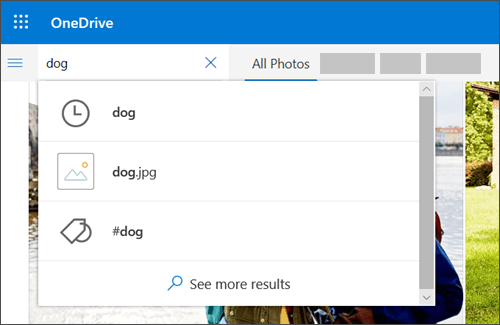
You can use the Search photos command to not only scan photo tags and metadata, but also extract and search text shown in photos. It now can also recognize objects in a photo, as another way to find the picture you want. To do this:
From the OneDrive on the web, select Photos.
Type in the search box such as - a name, a place, or a date you want to search
and OneDrive will give you the photo search result


OneDrive automatically create tags for the things it recognizes. But sometimes it makes mistakes, so you may want to correct it. You can remove or edit the tags for photos. To do this:
Select the photo
Select Edit tags
Type a new tag or click on the x next to tag to remove it.
OneDrive also groups together all the photos taken within a single date.You can see them from All Photos view. And all these photos have location tags, which you can make use to quickly view all photos from the same location. To do this:
Select the list of location tags next to a date.
Select your preferred location from the list.

Next let us check about Albums.
OneDrive can automatically create an album from any pictures or videos you take that day or weekend, and notify you when it's ready. Automatic albums are sent only with you, but contain a sharing link so anyone you send the email to will also have access to that album.
You can stop OneDrive automatically creating albums by turning off Create albums automatically when I upload photos setting from the Photos settings page in OneDrive web.

 You can also create Albums yourself. From the OneDrive web, select photos > Albums > New Album and type a name for it. Then you can select photos you want to add to the album and then click Add album. This can be done on mobile device too.
So these were some of the tips that will help you to organize and find your photos.
 (source)


Saturday, February 09, 2019

Improve RAW image format support with Raw codec package from Microsoft

For those who like taking photos in Raw image formats and wants Raw files from your camera were natively supported by Windows, here’s a Raw codec package from Microsoft.
Microsoft has been working on a new store-delivered Raw codec package which dramatically improves native raw file format support in Windows.

By downloading this and installing this new Raw Image Extension Beta package from the Store, one can view image thumbnails, previews and camera metadata of previously unsupported raw files right in File Explorer. You can also view your raw images – at full resolution – in apps such as Photos or any other Windows app that uses Windows Imaging Component framework to decode raw images.
Open the following link to install the current beta package:
Please note you will require Window 10 Build 18323 19H1 or later to install this package.

Thursday, December 22, 2011

Lytro - a revolution in Photography !!

Recently Lytro unveiled, the first Lytro consumer light field camera which is going to change the way Photography was defined till date.

The Lytro light field camera captures all the rays of light in a scene, providing new capabilities never before possible, such as the ability to focus a picture after it’s taken. The pocket-sized camera, which offers a powerful 8x optical zoom and f/2 lens in an iconic design, creates interactive ―living pictures that can be endlessly refocused.

Lytro cameras feature a light field sensor that collects the color, intensity, and the direction of every light ray flowing into the camera, capturing a scene in four dimensions. To process this additional information, Lytro cameras contain a light field engine that allows camera owners to refocus pictures directly on the camera.

ProductPage_Hero_Red

The Lytro camera is available in two models: 8GB ($399, 350 pictures, in Electric Blue or Graphite) and 16GB ($499, 750 pictures, in Red Hot). It is now available to order at Lytro.com and will ship in early 2012. The Lytro desktop application will be available initially for the Mac operating system;a Windows version will be available in 2012. 

Lifestyle_ElectricBlue_ThreeModels

The above video shows a Hands-on a Lytro (Courtesy CNet )

For more details please check https://www.lytro.com/

For the science Inside - https://www.lytro.com/science_inside

You can Pre-order the Camera here - https://www.lytro.com/camera

Thursday, July 29, 2010

The largest photo on Earth–70 billion pixels Budapest

Check this  – the largest Photo on Earth – 70 Billion Pixels. (70 gigapixels) !!

http://www.70-billion-pixels-budapest.com/index_en.html


largestphoto


Go to the above given link to view the photo, click at the bottom thumbnails to zoom into that particular image. Click on ‘Home’ at left side above slider to get back to see the entire image. Try the Aero-plane thumbnail and others to zoom in.


Some Amazing facts -

“The World Record starts with a high definition camera and and a telephoto lens with an extremely narrow field of view. Sony’s A900 25MP camera seemed an obvious choice, and Sony was pleasantly eager to provide us one. Fitted with a 400mm Minolta lens and 1,4X teleconverter, it provided a 2,4 degree horizontal FOW per frame. Our estimate was that a 60 gigapixel image (with the necessary overlaps) would require 5040 individual photographs — 24 rows with 210 frames in each, taken with a 360 degree horizontal and a 60 degree vertical FOV. Counting with 4 seconds per frame (during which the robotic head re-adjusts for the next shot), it was quite clear that the task would take a minimum of 6 hours to complete…”


“Should the final image be printed, the finished 300 DPI picture would make a poster 156 meters long and 31 meters tall. The amount of paper it would take would also cover two 10-story apartment blocks.”


“Post-processing was done on a Dell Precision T7500 Workstation with twin 4-core Xenon processors, 24GB memory and 6TB hard disk, courtesy of Microsoft Hungary. For the initial compilation we used Autopano Giga, the most complete software solution for processing high-resolution images. The task took two days to complete and resulted in a single 200 GB Autopano KRO file.”


Web display

imagepyramide_t

To display it on the web, we compiled a picture consisting of 21 individual layers, each compiled of a series of 254x254 JPGs in a so-called image pyramid. The full pyramid consists of 1.476.098 frames, of which over 1 million is situated in the deepest layer. We used the Microsoft Silverlight plugin which, with its ever-so-slight color washing, provides the best results among current technologies. More importantly, it allows users with mid-spec machines and average internet connections to experience the World Recorder panorama in its full glory.

Data storage

windows_azure_tDue to the level of projected interest and the resulting bandwidth demand, we needed a safe and stable storage solution. Windows Azure offers both in a platform based on „cloud computing”, which provides equal chance of access to all and every users from anywhere in the world. Computing and storage capacities are dynamically scalable to bandwidth demand.

Windows Azure also supports a large number of popular technologies and protocols including SOAP, REST, XML and PHP.


Also check the making of video and other interesting information in detail from that site.

Amazing !! Try to explore and zoom in to discover ! http://www.70-billion-pixels-budapest.com/


Friday, July 23, 2010

Bing homepage Visual Search Gallery

Couple of days back I came across a tweet from Michael Schechter, Senior Program Manager of Bing. That was very interesting, he had provided a link for Bing Homepage images searched via Bing’s Visual Search as Bing introduces its Bing homepage Visual Search gallery

http://www.bing.com/visualsearch?g=binghp


Click on the above link to get Results. Else go to  http://www.bing.com/visualsearch  and enter ‘bing homepage images’ in Search box , click on Search. And then Click on ‘Visual Search’ tab.

Bing Community has also Blogged about it.


As you know Visual Search from Bing is still in beta, it provides the search results arranged beautifully in the form of images. Already many categories of Visual Search are available. And this, Bing Home page images provides all the Bing Home Page images displayed daily on Bing.  At present it only includes images of the year 2010.


BingHPimagesz

The best thing is the kind of filters it provides. You can get to see the images filtered according to  -

Countries ,  Regional groups , Categories, Sub categories, Colors, Seasons

You can sort them by date (Oldest to newest or vice versa, or by name

Editor’s Picks and many many more.  Try it to experience it.

And you can double click on any image to get more info and also you can get Zoom in option to get a bigger image, though not the size of image we get to see daily.


BingHPimages1z


So if you have missed any image (you get to see a weeks collection on the Home Page) just do a Visual Search . Now you can go back through previous homepage images to see what you’ve missed or revisit old favorites

http://www.bing.com/visualsearch?g=binghp

If you are not getting the results, please change the location to US from the top of the Bing Home page.


Thursday, May 13, 2010

Working with pictures in Office 2010 with the new Photo tools

A key feature with Office 2010 is the time you save by staying in the program. The best example are the new photo tools in found in Word, PowerPoint, and Excel. Here's a quick overview of the features:

Get Microsoft Silverlight


How the New Photo Tools Work in Office 2010


Check out this index of articles on the photo tools at Office 2010

Save the original version of an edited picture

ArticleWhen you change a Graphics Interchange Format (.gif) , JPEG File Interchange Format (.jpg) , or Portable Network Graphics (.png) image, you can save...

Add or change an effect for a picture

ArticleYou can enhance your picture by adding effects, such as shadows, glows, reflections, soft edges, bevels, and three-dimensional (3-D) rotations to it. You...

Change the color, transparency, or recolor a picture

ArticleYou can adjust the color intensity (saturation) and color tone (temperature) of a picture, recolor it, or change the transparency of one of its colors...

Remove a picture background

ArticleYou can remove a background from a picture to accent or highlight the subject of the picture or to remove distracting detail. Original picture Same picture...

Apply an artistic effect to a picture

ArticleYou can apply artistic effects to a picture or a picture fill to make the picture look more like a sketch, drawing, or painting. A picture fill is a shape...

Crop a picture

ArticleYou can use the enhanced cropping tools to trim and efficiently remove unwanted portions of pictures to get just the look that you want and make your...

Reduce the file size of a picture

Article

Assign an action to a built-in button or picture

ArticleAction buttons are built-in button shapes (located in the Shapes gallery) t hat you can add to your presentation , and then assign an action to occur...

Add alternative text to a shape, picture, chart, table, SmartArt graphic, or other object

ArticleYou can create alternative text (alt text or Alt Text) for shapes, pictures, charts, tables, SmartArt graphics, or other objects in your Office document...

Turn off picture compression

ArticleTo keep the maximum picture quality, you can turn off compression for all pictures in a file. However, turning off compression can cause very large file...

Insert a screenshot or screen clipping

ArticleYou can quickly and easily add a screenshot to your Office file to enhance the readability or capture information without leaving the program that you are...

Insert a picture or clip art

ArticleYou can insert or copy pictures and clip art into an Excel worksheet or a PowerPoint presentation from many different sources, including downloading from...

Apply PowerPoint animation effects with one click

Video

Add transitions to a PowerPoint presentation

Video

Change the action settings of a button, picture, or clip art

ArticleIf you have a picture, clip art, or button shape in your presentation that has an action assigned to it (such as move to next slide, move to previous...

(Source: http://office2010.microsoft.com/en-us/powerpoint-help/CH010371772.aspx)


Wednesday, April 28, 2010

Share your Photosynths on Facebook

The Photosynth team has announced a new and often requested feature : sharing your synths on facebook. So the Photosynth has joined the social Web. Now every synth viewing page has a "share to Facebook" button.

photosynthfacebook


photosynthfacebook1


For more details please check - Strut your synths on Facebook


Thursday, March 11, 2010

New Image Composite Editor (ICE) from Microsoft Research does amazing things

For the TechFest 2010, Microsoft Research  is releasing a new version of ICE (please note it links to the MSR ICE site , which at present is having the older ver. of ICE) . The new ver is not yet made public, but soon it will be.

EDIT (190310) :The new ver of ICE is now available, Please check - http://research.microsoft.com/en-us/um/redmond/groups/ivm/ice/

Also check - ICE Is Now Synthy

Pl.note some features described in this post are because of plug-ins which may not be yet available.

ICEStructuredPanos 


newice1

“Image Composite Editor (ICE) with Multi-Image Fusion.  In the current version of ICE, it provides advanced features for panoramic stitching such as choosing the stitch’s orientation, custom projection, and selecting a 360 stitch’s mid-point, and this tool also integrates nicely as a plug-in into Windows Live Photo Gallery. Here we’ll show you some of the upcoming new features in ICE such as:

  • Structured Panoramas
  • Stitching Panoramas from Video
  • Sharp Panoramas from Blurry Videos
  • Creating Photographs from Videos
  • Multi-Image Denoising and Sharpening using Lucky Imaging ”

In the demo as we see the new ver. of Image Composite Editor (ICE) does amazing things. You’ll have to see the demo video to understand.

Thursday, March 04, 2010

Microsoft OneAlbum - Find your photos in other Social Networks

abouttechfest2010 Microsoft Research, Israel working on OneAlbum Project is another technology being demoed at TechFest2010. Its a new face-recognition algorithm which allows you to find photos you want across other Social networks.

The Project says :

Today, my album refers to a collection of photos I have taken. But many photos relevant to me—such as photos of me or my children—are in my friends' albums. OneAlbum automatically finds relevant photos in my friends' albums on social networks or in shared albums, brings them to my album, and shows them side-by-side with the photos I've taken. For example, if I was at a party, I'll see all photos from that party—those I've taken and those my friends took. The technology behind OneAlbum is a novel, unsupervised face-recognition algorithm. It analyzes the photos in my album to find automatically the faces of people I most care about, based on frequency of their appearance; no tagging is required. Then, using the social-network graph and other information, OneAlbum crawls my friend's albums looking for photos of people that interest me. The algorithm was tested on real large-scale albums including tens of thousands of photos and achieved accuracy rates as high as 90 percent.

Watch the demo video of OneAlbum -


Friday, October 02, 2009

Creating Time-Lapse Videos with Windows Live Movie Maker

Do you want to make a time-lapse video that will show an event happening in a long time and you will time-lapse to show it in a short duration. For example the following video shows Jade building an airplane from Lego’s which will take long time but you want to time-lapse and show the complete process in a jiffy.


http://www.youtube.com/watch?v=mIzEKFjtwIg

Another example of such time-lapse video is posted here. There are lots of instances you can think of, for Time-Lapsing an event.

Now let us make such a video with Windows Live Movie Maker. First, fix the camera on a tripod. Making use of tripod will give you better uniform level photos of the event. Now keep on taking snaps after some interval of the event you want to time-lapse manually or with software that came with your camera. Take lots and lots of picture to get a better time-lapse effect. Here, a small tip- Try taking photos using laptop Web-Cam instead of regular camera and take pictures after regular interval automatically using some software like AvaCam or Microsoft Powertoy for XP- Webcam Timershot (this may work only with Windows XP). Such apps will help you to take photos automatically after a certain interval of time and save them.

Now after getting lots and lots of pictures, load them into Windows Live Movie Maker. After loading them select all pictures (by right clicking > Select All) and set the Duration to a low value such as 0.3 sec.

WLMMtimelapsez

That’s all and save them and run the movie to see the time-lapse effect.

Thanks to Windows Live Team Blog post for this tip -The “grown up” side of Windows Live Movie Maker where you can also read some more Movie maker related tips.

If you are not having Windows Live Movie Maker, you can get it from here . And its FREE !

Friday, August 28, 2009

Microsoft Answers- now for Windows Live

MSans1 If you have any queries related to Windows Live and needs help or just want to help others by solving Windows Live related queries, you now have recently launched Microsoft Answers for Windows Live  Here you can ask your doubts and also get involved in the community answering others queries. 

At present its having following categories -

Family Safety

Photo Gallery, Movie Maker, & FrameIt

Sync & Devices

Events & Toolbar

This forum is launched initially in English and later it will expand into other languages and also more Windows Live categories. Microsoft Answers will expand further in the days to come. http://answers.microsoft.com/en-us/windowslive/default.aspx


MSans2


It is a great place for Windows Live Essentials users to offer tips and advice, get their queries answered, collaborate together to improve the experience of Windows Live and be a part of the community. Here you will get your queries answered from other community members , MVPs and from Experts from Microsoft.


MSans3

BTW have you tried the Cool new Windows Live Movie Maker? If not check it out how easy it is to make your own Movies with all the transition effects, titles etc , Get Windows Live Essentials from here : http://download.live.com/

Monday, August 24, 2009

Tip: Using png format images in Windows Live Writer

This is a small tip related to use of transparent .png format images with Windows Live Writer. As PNG support transparency, a transparent PNG is background-independent. Suppose you have a transparent PNG image and want to put it on your blog using Windows Live Writer and you insert it and it looks as shown below. This has a black background with it.

WLWriter_logo

This black background is due to the ‘Borders’ option in Windows Live Writer which by default is ‘Drop Shadow’. So just choose any other option like ‘None’ (Select the picture >Picture tab in Taskpane > Borders > None) Or any other option other than ‘Drop Shadow’ . And see what you get as shown below.  The same image with transparent background which looks much better.

WLWriter_logo

Tuesday, August 18, 2009

Bing Homepage image Tips

Bing apart from providing smart search results neatly arranged in categories, also brings a stunning image daily as homepage. And this image is different for different countries. At present a sets of countries shows different images. After reading this post Welcome home on Bing community, I also thought of making a related blog post. Let us see some of the tips related to Bing Homepage:

* Save the image in Easy Way and Desktop background -  The Bing Homepage images are so nice that you want to save them. Earlier, it was difficult to save them and people applied various methods to save them. Like doing a “view source” and from there finding a particular URL.

Then Gordon from Germany wrote a little program for saving the daily changing image,  and has been saving them at http://gordon-breuer.de/page/Live-Search-Backgrounds.aspx  with his image grabber service.

Then there’s another Bing Downloader at CodePlex.

But now all these are not required. Just open bing in IE Browser. Right click and get the “Save Background As..” option.

bingHP1z

In IE, you also get ‘Set as Background’ option which lets you set it as your Windows desktop background.

In Firefox when you right click, you get ‘View Background Image’ from there you get Save Image option. An extra step is required in Firefox compared to IE.

bingHP1FFz


* Discover Image information with Hotspots-  If you want to know more information about the image, just move your mouse over the image to find 4 hotspots which provides a link for more interesting information. Its a nice way to daily learn and discover something new.

bingHP2Bing Homepage with one of the Hotspots which provides some interesting info about the image when clicked on link. This  Hotspot feature has not been enabled for all countries.


* Quick facts and photographer’s name – Recently bing added a copyright symbol © at bottom-right corner of image which provides quick facts about the image along with photographer’s name and agency.

bingHP3z


* Past 7 days images – In case you missed previous days image or you wanted to check it again then there’s an option to scroll through images of past 7 days using the arrows at lower-right corner. You need to have Silverlight installed to view the archive. You can see the Arrows as shown in above image, just on the left of © symbol.

* Search related and Other Features – On the main homepage you can see the Bing search box and on left Explore which has various categories of search as Images, Videos, Shopping, News , maps, travel. And on bottom, image related interesting links with popular current topic links. And on Top left you can get a tour of Bing with - Tour Bing . And on top right you can find Extras which has Preferences, Cashback, blogs, Webmaster centre related links and more. And near to that it shows the country which you can change by clicking on it. At present only United States has Bing with full featured sets. All other countries are still in beta.

bingHP41


* Turn the images ON or OFF – If you want the Bing Homepage with plain background then just run click this link http://www.bing.com/?rb=0 and you will not get the image.

If you again want the images back then http://www.bing.com/?rb=1 


* Bing Archives - If you are interested in getting all Bing images since it started and also want the daily images from different markets then there are some excellent Bing Archives provided by some enthusiasts. One of them is Long Zheng whose archive can be found at http://www.istartedsomething.com/bingimages/  The images can be selected according to month, country etc.

BingLZ


And other one I found interesting is http://www.bing-wallpaper.com/ which also provides Bing images sorted on date or by country.

BingWPtour

So get these spectacular images for your desktop wallpaper.


* Live updating Bing Wallpaper Windows 7 theme (Source:On10.net ) -

As you know Windows 7 supports RSS-powered themes, we can get the image feeds from bing archives and use them as wallpaper on Windows 7. This will be Live updated automatically. Long Zheng provided his Bing Image Archive’s RSS feed when asked by Mahendra Palsule of Makeuseof.com. Now you just have to create a theme file and activate it. Let us see how to do it -

1. Copy this text into Notepad:

[[Theme]
DisplayName=Bing

[Slideshow]
Interval=1800000
Shuffle=1
RssFeed=
http://feeds.feedburner.com/bingimages

[Control Panel\Desktop]
TileWallpaper=0
WallpaperStyle=0
Pattern=

[Control Panel\Cursors]
AppStarting=%SystemRoot%\cursors\aero_working.ani
Arrow=%SystemRoot%\cursors\aero_arrow.cur
Crosshair=
Hand=%SystemRoot%\cursors\aero_link.cur
Help=%SystemRoot%\cursors\aero_helpsel.cur
IBeam=
No=%SystemRoot%\cursors\aero_unavail.cur
NWPen=%SystemRoot%\cursors\aero_pen.cur
SizeAll=%SystemRoot%\cursors\aero_move.cur
SizeNESW=%SystemRoot%\cursors\aero_nesw.cur
SizeNS=%SystemRoot%\cursors\aero_ns.cur
SizeNWSE=%SystemRoot%\cursors\aero_nwse.cur
SizeWE=%SystemRoot%\cursors\aero_ew.cur
UpArrow=%SystemRoot%\cursors\aero_up.cur
Wait=%SystemRoot%\cursors\aero_busy.ani
DefaultValue=Windows Aero
Link=

[VisualStyles]
Path=%SystemRoot%\resources\themes\Aero\Aero.msstyles
ColorStyle=NormalColor
Size=NormalSize
ColorizationColor=0X6B74B8FC
Transparency=1

[MasterThemeSelector]
MTSM=DABJDKT

2. Save the file as “Bing.theme”

3. Activate the theme. Double-click on the Bing.theme file to launch it. In the Subscribe to RSS Feed? prompt, click Download Attachments.

After following the three above steps, you’ll now see the Bing theme appear on your screen. It will also be stored in the “My Themes” section of your personalization options. If you have any trouble, check this blogpost

Hope you like all these tips related to Bing Homepage images. Also look for some Bing images related to Special Occasions, like the recent one on India’s Independence. So enjoy bing-ing along with these tips.

Saturday, August 15, 2009

Bing joins in India’s Independence Day Celebrations

Today, 15th Aug. is India’s Independence Day. India became free from British Rule on 15th Aug. 1947. Whole country is in Celebration mood and to add to the joy, Bing has added colors in the celebration by providing this Home Page today: http://www.bing.com/?mkt=en-GB  (Now for India region also http://www.bing.com/ , check ‘EDIT’ at bottom)

Bing150809UK (Click on the Image for Enlarged view )

The image is of Maharaja's Palace, Mysore, India. Photograph provided by ©Vladpans/eStock Photo

It also provides the Hotspots with lots of relevant information, here I’m providing the links to those 4 Hotspots-

Can you name the leader of the Indian nationalist movement?Martin Luther King, Jr., considered him a role model »


The city of Mysore, India, lights up this palace for all 10 days of the Dasara festival each year.What else happens during Dasara? »


Today is Indian Independence Day, the 62nd anniversary of the end of British rule in India.Learn more about it »


The Maharaja's Palace was once the official residence of the royal family of Mysore.See an aerial map of the palace »

At the bottom of page another interesting fact and link-
It takes 97,000 bulbs to light up this palace Let's hope they're energy-efficient

But this homepage Image is provided for Australia, France and United Kingdom regions. For other regions including India some other Homepage Image is provided today. I would request Bing to have provided this for India region also on this day.

EDIT (3:00PM IST) : Thanks to Bing, now this Home page showing the image of Maharaja's Palace, Mysore, India in celebration of India’s Independence is being shown in many other regions including India. But Bing’s Homepage Hotspots for regions like India is not shown as its still in Beta and features are still being rolled out. So check out the related Hotspot links as given above. Thanks Bing for the quick action !

Monday, July 27, 2009

Background Removal – Image editing tool in Word2010

There are many new features provided in Microsoft Office 2010, one of them in Word 2010 is an image editing tool-its the Background removal tool for photos. As the name suggests it removes the background from the photo. I can say, it does the job so easily and accurately. Such a tool is not provided even in many photo editing apps. This tool has been created in conjunction with Microsoft research. Let us see how its done-

Insert a picture from Insert > Picture, keeping the picture selected, choose the ‘Background Removal’ tool

O2010Inspic1az

As you choose this tool, it highlights in purple color, all the elements which are background. You can adjust the handles to include more of foreground elements you want.

O2010Inspic1cz

Also you can fine mark it to include or exclude portions you want. And that’s all, once done close the tool and the background is removed like magic ! See the results for yourself!

O2010Inspic1dz

And after this you can apply any artistic effects available and it will be applied only to the Foreground picture. Also one crop the portion wanted using crop tool.

Here’s one more example-

IMG_1085

And after applying Background Removal tool -

Of2010Akh2z(Thanks to Akhilesh- my cousin, for this photo)

Its a wonderful photo editing tool indeed which does its job so easily. I would suggest Microsoft to provide this tool in Windows Live Photo Gallery also. One more thing, how about providing an option where the background  portion in purple highlighted can be reversed with foreground. So in one click, we can just reverse the selection. Or an option to save the removed background portion. Sometimes that is also useful.

Will post about some other fabulous tools provided in Microsoft Office 2010 in my blog posts.

Tuesday, January 20, 2009

Silverlight and Photosynth at inauguration swearing-in ceremony of Barack Obama

The Presidential Inaugural Committee (PIC) has selected the Microsoft Silverlight technology to enable live and on-demand video streaming of the official inauguration swearing-in ceremony on the PIC Web site at http://www.pic2009.org.

obamapic

You can find how Silverlight will be used by PIC here.


CNN photosynth


The Moment:

Photosynth is partnering with CNN to gather thousands of photographs to create an immersive experience of the moment when President Obama takes the Oath of Office.

Well placed CNN photographers will capture lots of detailed shots for this synth, and if

you’re there you can help make this an even more amazing experience by adding your perspective with your digital camera or camera phone.

Check out CNN’s page dedicated to this collaboration: http://cnn.com/themoment.

How it Will Work

“We’ll take your photos from every angle, combine them with CNN’s professional shots, and produce what we hope will be an amazing experience that will be shown live on CNN…..”

How to Participate

When you make a Photosynth on your own, you shoot tens or hundreds of photos from different positions. Since we hope to have thousands of people participating, we’re asking to just capture the view from one position.

If you have a…

Camera Phone. Take one photo of the moment when the President Elect raises his hand to take the Oath, and email it as soon as you can  to cnnmoment@live.com. Don’t worry if he’s too small to see clearly in your photo. As long as you get the Capitol building in your shot it will synth in and help reconstruct the environment.

Digital Camera. Take three photos (wide-angle, mid-zoom, full-zoom) of the President Elect while he is being sworn in. As soon as you can get to an Internet connection, email them to us at cnnmoment@live.com. Make sure your email message is less than 10MB in size. Break it into a couple of messages if your three photos combine to more than 10MB.

We’d love to give you credit in the synth, so include your name in the email if you’d like it to appear in the list of contributors.

obamamoment


UPDATE from Photosynth Blog:

If you’ll be somewhere around the capitol, capture a Photosynth of where you are and upload it to Photosynth.com. When viewing your synth page, click the icon to Geotag your synth (Mark it on the map). We’ll be watching for inauguration synths and will be collecting the best on a special inauguration map. (Letting me know you created an inauguration synth will help us find all the good ones for the map: darius.monsef@microsoft.com)

If you’ll be anywhere else in the world, capture a synth of where you are and include your television when the oath is on the TV… there is a chance the television could become a portal directly into the main inauguration synth we’re creating. This portal idea is something we’ve talked about before and some of our users have even experimented with: Synth in Synth: Germany – Sydney. Some updates in the future to the Photosynth site will make it easier for these kinds of portals to be shared and explored. Create your synth and upload it to Photosynth.com. When viewing your synth page, click the icon to Geotag your synth (Mark it on the map).

Geotagging Your Synths

In order for us to locate your synth on our special inauguration map, or on any of our Live Search Maps we need you to geotag your synths.  You can do this when viewing your synth pages.  There is a globe icon below your synth title on the right side of the page.  Click that icon and place your synth on the map by finding your location and then clicking where you want the synth geotagged.  There is a save button at the bottom of that map popup.

P.S. This is a great resource for shooting good synths: Photosynth Photography Guide: Tips and Tricks

(Source:Capturing Inauguration Celebrations: D.C. Area & Worldwide)

For more details check Photosynth Blog.

Capturing Inauguration Celebrations: D.C. Area & Worldwide

Tracking the Pre-Inauguration Photosynth Buzz

Photosynthing the Inauguration of the 44th President of the United States

CNN.com’s The Moment

Friday, December 26, 2008

Instant photo border option in Windows Live Writer

An ‘Instant photo’ border option has been added in the recent version of Windows Live Writer. The 2009 RC ver. (Build 14.0.8050.1202) of Writer has been released with Windows Live Essentials beta.

Along with many new features, one of the new feature is ‘Instant photo’ border option.

WLWinstphoto

With the advent of Digital Cameras, the use of Polaroid films has been reducing and many of you might be aware that Polaroid will soon stop manufacturing these Instant Photo films. In earlier years these Polaroid films were a big part of the family photo and were very popular. To give the photo the appearance of a Polaroid picture we now have an option in Windows Live Writer.  So let us see how to make use of it.

Insert a picture in Windows Live Writer using Insert option, Now select the picture and from taskpane Picture tab > Borders, select Instant photo. Now you can see an Instant photo like Border has been provided to your picture. But some of you might be wondering, why the picture has been cropped. The picture has been cropped because that aspect ratio is what "instant photos" in real life look like. But you wanted to show some different portion of the picture in the Instant photo border.

For that, keeping the Instant borderd picture selected go to ‘Advanced’ tab and select ‘Crop…’ option and select/highlight  the portion which you want to be bordered in ‘Instant photo’ . You can also use the ‘Tilt…’ option to give your picture a tilt effect. Now you can see the portion you wanted with the Instant photo border.

Following is an example, let us put an ‘Instant photo’ border to it.

IMG_0269

Now the same photo with Instant photo border and showing the required portion using ‘Crop…’ option.

IMG_0269

Now you can get the same Instant photo effect for any photos with this option and not only for family photos :)

Enjoy !!

Sunday, December 14, 2008

Browse giga-pixel images smoothly on your iPhone with Seadragon mobile

logo_color_seadragon_90 Seadragon Mobile brings the same smooth image browsing you get on the PC to the mobile platform. Browse a giga-pixel image on your iphone or hundreds of images at full resolution, that too smoothly. Seadragon from Microsoft Live Labs is designed to provide next-generation visual experiences, regardless of the size of the screen, size of the file or speed of your network.

Create your own content with the Deep Zoom Composer or PhotoZoom and view it on your phone.  Or just look at the sample content. You can also browse Photosynth collections (yours or anybody else's) with just a flick and a pinch.

Get it FREE from iPhone App Store.

iphone_dl

FEATURES:
- View thousands of images over the air
- Quickly view massive gigapixel images
- Explore Photosynth collections in 2D, including your own
- Add your own PhotoZoom / Deep Zoom Composer content
- Subscribe to Deep Zoom RSS feeds
Released as a tech preview, Seadragon Mobile is designed to show off the 'what if?' of mobile user experiences. Expect more cool stuff from Live Labs in the future at http://livelabs.com.

seamob1

Check for more details and demo video at http://livelabs.com/blog/seadragon-goes-mobile/

Seadragon Mobile - Microsoft beating Apple at its own game

EDIT: Also check this video First Look: Seadragon Mobile  from Channel10, where Ben Vanik,creator of this project demos it.

Saturday, December 13, 2008

Experience Photosynth on Macs and Older PCs with Photosynth’s Silverlight viewer

photosynthlogo Photosynth viewing experience uses a technology called Direct 3D, and makes sophisticated use of the graphics hardware.If you have a recent Windows PC with up to date graphics drivers you’ll have a great experience, and you’ll be able to view synths with buttery smoothness.But lots of people have older machines, and many people have Macs, and none of these folks could view synths before now. A new Experimental Cross-Platform Viewer has been developed and updated now for experiencing Photosynths.

Try It: Explore Synths in Silverlight

More information about Experimental Silverlight Viewer is here.

If you want to Create your own Synths or want to explore what other people are synthing,  go to http://photosynth.net/

Please read the about page for more information on the Silverlight viewer. There’s also a high performance viewer (Windows only). To view another synth, right-click a synth thumbnail on the site, copy the url and paste it into the given box , or just hit the Photosynth button to view a featured synth.

One of the example

photosynthSLviewer

So enjoy Photosynths now, even if you have a Mac or if you have an Older System.