Showing posts with label OneDrive. Show all posts

Friday, May 15, 2020

OneDrive multi-page scanning now free for everyone

In today's difficult times of Covid, many are working from home. And in these times, it is not easy for everyone to have access to office equipment like printers and scanners. Scanning documents from home, or outside the office, should be easy. OneDrive has long offered a free scanning feature from the OneDrive mobile app which lets you scan and digitize single documents, receipts etc.

Up until now, scanning multiple pages and saving them as single document was a premium feature that required a Microsoft 365 subscription. From today, Microsoft is making multi-page scanning available for everyone for free using a OneDrive personal account.

With the OneDrive mobile app you can scan physical documents, business cards and whiteboards simply by opening the app and touching the camera icon. Once scanned, OneDrive digitizes the image into a PDF file, which you can then save, share or mark-up with text, pictures, or freehand drawing and writing. Once you scan items into OneDrive, you’ll be able to access them anywhere from any device.

Multi-page scan feature is rolling out:
Multi-page scan is rolling out now and will be available to everyone, everywhere OneDrive is available, by the end of the week. You'll need a OneDrive account and the latest version of the OneDrive app on Android (6.5 or higher), or iOS (11.31.5 or higher). The maximum number of pages or images that you can multi-page scan is 10.
Check the demo video of the multi-page scan here.

(source)

Friday, April 03, 2020

How to organize and find your photos in OneDrive

OneDrive users store tons of photos on OneDrive. So how to make most of it using it efficiently to organize and find your photos? OneDrive helps with features like photo search, tags and albums. Let us see some more details about it and some tips on how to use this:

When it is arranged by date, the date appears over the scroll bar as you scroll up and down your photos helping to find your photos.


Searching Photos:
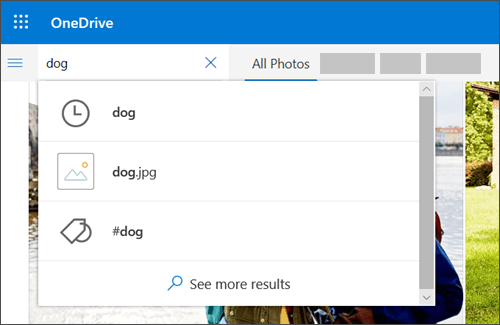
You can use the Search photos command to not only scan photo tags and metadata, but also extract and search text shown in photos. It now can also recognize objects in a photo, as another way to find the picture you want. To do this:
From the OneDrive on the web, select Photos.
Type in the search box such as - a name, a place, or a date you want to search
and OneDrive will give you the photo search result


OneDrive automatically create tags for the things it recognizes. But sometimes it makes mistakes, so you may want to correct it. You can remove or edit the tags for photos. To do this:
Select the photo
Select Edit tags
Type a new tag or click on the x next to tag to remove it.
OneDrive also groups together all the photos taken within a single date.You can see them from All Photos view. And all these photos have location tags, which you can make use to quickly view all photos from the same location. To do this:
Select the list of location tags next to a date.
Select your preferred location from the list.

Next let us check about Albums.
OneDrive can automatically create an album from any pictures or videos you take that day or weekend, and notify you when it's ready. Automatic albums are sent only with you, but contain a sharing link so anyone you send the email to will also have access to that album.
You can stop OneDrive automatically creating albums by turning off Create albums automatically when I upload photos setting from the Photos settings page in OneDrive web.

 You can also create Albums yourself. From the OneDrive web, select photos > Albums > New Album and type a name for it. Then you can select photos you want to add to the album and then click Add album. This can be done on mobile device too.
So these were some of the tips that will help you to organize and find your photos.
 (source)


Thursday, May 11, 2017

OneDrive for business now supports over 250 different file formats

OneDrive for Business and SharePoint team have been investing heavily in web viewing technology. Microsoft recently announced support for many new formats in OneDrive for Business.

As known, OneDrive not only supports viewing Office files but also supports editing, coauthoring across web, desktop and mobile. One can also view and edit source code. Apart from that Visio (VSD, VSDX) viewing has been integrated. If someone is in healthcare field, the team has added support for DICOM images with more support coming up later which will let one view x-rays, MRIs, CT scans, and more through OneDrive and SharePoint, which is fully HIPAA compliant.

Now support for 3D formats too added (3MF, FBX, OBJ, PLY, STL). As being cross-platform, Mac and Linux users get seamless 3D support in OneDrive and SharePoint, without any browser plug-ins.

Here’s the full list of file types that is now supported for viewing online in OneDrive for Business and SharePoint.

Documents:

csv, doc, docm, docx, dotx, eml, msg, odp, ods, odt, pdf, pot, potm, potx, pps, ppsx, ppt, pptm, pptx, rtf, vsd, vsdx, xls, xlsb, xlsm, xlsx

Images:

ai, arw, bmp, cr2, eps, erf, gif, ico, icon, jpeg, jpg, mrw, nef, orf, pict, png, psd, tif, tiff

Video:

3gp, m4v, mov, mp4, wmv

3D:

3mf, fbx, obj, ply, stl

Medical:

dcm, dcm30, dic, dicm, dicom

Text and code:

abap, ada, adp, ahk, as, as3, asc, ascx, asm, asp, awk, bash, bash_login, bash_logout, bash_profile, bashrc, bat, bib, bsh, build, builder, c, c++, capfile, cc, cfc, cfm, cfml, cl, clj, cls, cmake, cmd, coffee, cpp, cpt, cpy, cs, cshtml, cson, csproj, css, ctp, cxx, d, ddl, di, dif, diff, disco, dml, dtd, dtml, el, emakefile, erb, erl, f, f90, f95, fs, fsi, fsscript, fsx, gemfile, gemspec, gitconfig, go, groovy, gvy, h, h++, haml, handlebars, hbs, hcp, hh, hpp, hrl, hs, htc, hxx, idl, iim, inc, inf, ini, inl, ipp, irbrc, jade, jav, java, js, jsp, jsx, l, less, lhs, lisp, log, lst, ltx, lua, m, make, markdn, markdown, md, mdown, mkdn, ml, mli, mll, mly, mm, mud, nfo, opml, osascript, out, p, pas, patch, php, php2, php3, php4, php5, phtml, pl, plist, pm, pod, pp, profile, properties, ps1, pt, py, pyw, r, rake, rb, rbx, rc, re, readme, reg, rest, resw, resx, rhtml, rjs, rprofile, rpy, rss, rst, rxml, s, sass, scala, scm, sconscript, sconstruct, script, scss, sgml, sh, shtml, sml, sql, sty, tcl, tex, text, textile, tld, tli, tmpl, tpl, txt, vb, vi, vim, wsdl, xhtml, xml, xoml, xsd, xsl, xslt, yaml, yaws, yml, zsh

(Source: Announcing New File Viewers Available for OneDrive For Business)

Monday, January 09, 2017

[Tip]: Embed OneDrive files directly into your website

Sometimes you may need to embed some photos, some files or Office documents in to your blog or website from your OneDrive. Its very easy to do so. Let us see how to do this:

  • Sign-in to your OneDrive account.
  • Select the file you want to embed by ticking the check box on top right corner of that file.

OneDriveEmbed01

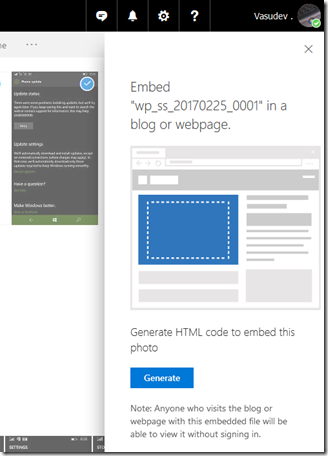
  • Click on the Embed option and then click on Generate.

OneDriveEmbed02

  • This will generate the code to be pasted into your blog or website. Paste it in your blog and the file, pic will be embedded in your blog. It will also provide option to include HTML tags, option for image size, if its a pic.

Once embedded, anyone who visits the blog or website will be able to view without signing in.

Thursday, November 05, 2015

[tip] Get notified when your shared file on OneDrive is updated

As you know one can share files on OneDrive for your friends to view,edit. But if you have shared a file like an Excel sheet or a Word doc and your friend later edited and made some changes,so how do you know that your shared files has been edited. Here’s a small tip to get notified for the same.

  • Open OneDrive.com , Click on Tools (Gear icon) on top right > Options

OneDriveToolSOption

  • Select ‘Notifications’ OneDriveToolSOption1
  • And ensure Send me email when – ‘Someone makes changes to file I shared’ is checked . That’s all OneDriveToolSOption2

So whenever your friend makes changes to your shared file, you’ll get notified via email.

Sunday, April 19, 2015

OneDrive now supports Apple Watch

OneDrive is the free online storage from Microsoft ,  its for storing all your files and you can get to them from your iOS device, computer (PC or Mac) and any other devices you use.

And now with the latest update of OneDrive app for iOS, it supports Apple Watch too. It says:

‘If you have a new Apple Watch, you can enjoy your OneDrive photos right from your wrist!’

OneDriveAppleWatch

So Microsoft is ensuring that OneDrive will be there from the day Apple Watch will be seen on wrists of its user.

Seems the feature that would be available on Apple Watch will be to browse all the photos on OneDrive right from your wrist.

Anyway, one should appreciate Microsoft for providing the OneDrive update for Apple Watch right from the day one its made available.

You can get the OneDrive for iOS from iTunes . Can also check some more improvements in the new Version 5.3

Sunday, September 07, 2014

[TIP] Secure OneDrive with PIN on your Android Phone

Many OneDrive users had suggested that they want some kind of password protection for their OneDrive on Smartphones. These users wanted to prevent other people who might also be using their device to have access to the files on OneDrive who may accidentally delete or change file on OneDrive.

Now with the latest OneDrive update, this security feature has been provided. Now OneDrive users can set up a 4 digit code which has to be entered when OneDrive app is opened on phones. This setting up a PIN is a good feature addition.

But as of now this Security PIN feature has been provided only for OneDrive Android app. OneDrive team has hinted that this feature will be made available on Windows Phone and iOS platform too.

How to set up security PIN on Android:

  • After updating your OneDrive app. Open OneDrive app .
  • Go to Settings on the app bar by tapping on those 3 dots at bottom right,
  • tap on Settings to open Settings page
  • Switch ON ‘Required code to use app’
  • Enter 4 digit code , so this PIN code will be required whenever you open OneDrive app.

OneDriveAndroidPIN

So if you are an OneDrive Android user, secure OneDrive by enabling this feature.

UPDATE: As it was mentioned above, OneDrive team has now added this security feature to iOS too. Hoping it to soon see on Windows Phone too.

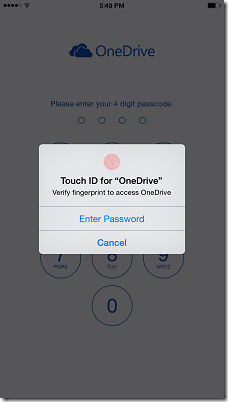
The latest OneDrive update, provides PIN code , Touch ID and sorting features for OneDrive for iOS app. Using fingerprint to sign-in feature has been added after including the brand new Touch ID API in iOS 8. So these features only available on iPhones, iPods  having iOS 8.

PINiOSOneDrive

Now waiting for OneDrive team to provided this PIN code feature on Windows Phone..

Thursday, July 24, 2014

[FIX] OneDrive is starting up… OneDrive systray icon’s wrong status in Windows 8.1

In June one of the Windows optional update ‘Update for Windows 8.1 for x64-based Systems (KB2962409)’ contained long list of fixes as seen in its details. And among the list was KB2965174 titled “OneDrive improvement update for Windows RT 8.1 and Windows 8.1: June 2014” .

optionalupdt1z

This update just mentions that it includes improvements for Microsoft OneDrive in Windows RT 8.1 and Windows 8.1 without elaborating what the improvements are. When you install it, adds various OneDive options as we can see in the OneDrive icon in the Systray – providing option to Pause Sync, troubleshooting, settings and other options.

optionalupdt2

But this update had an issue of showing the systray blue Sync icon which continues to say ‘OneDrive is starting up…’, even though OneDrive status is Up to date as can be seen here. There was no issue in actual syncing but the icon and status shown were wrong.

optionalupdt4z

Lots of OneDrive users had posted about it and Microsoft too was aware of it and was working on it and had mentioned that “Microsoft is aware of this issue and our product group is working on it. As soon as we have a fix, it will be rolled through Windows Updates….”

And with latest Windows Update released on 22nd seems to correct this issue. The update is "Update for Windows 8.1 for x64-based Systems (KB2980654) " received via Windows Update.

When you check for details about the update, its http://support.microsoft.com/kb/2980654 and it says "OneDrive reliability update for Windows 8.1 and Windows RT 8.1" . So check for this reliability update and see if its already installed or can check it from the link given above. While the update for Windows RT 8.1 can be obtained only via Windows Update.

So installing this update corrects the wrong status icon shown in systray. Please note that this update corrects only this icon issue, if you are having actual syncing issue,this update may not resolve and you might have to try the troubleshooting or some other option.

After installing this update users have reported that it has solved their Wrong status icon issue. For me too it has resolved the issue. This is the version after installing the update.

OneDrivver

Saturday, June 21, 2014

[TIP] How to Pause and trigger Sync in OneDrive for Windows 8.1

Here’s a small but useful tip for OneDrive users. OneDrive has been getting new features regularly. One of the most requested feature was more control over syncing OneDrive files in Windows 8.1. Suppose you wanted to make full use of your bandwidth but the OneDrive Syncing process was going on, so you can now pause this Sync process and provide full bandwidth to your required download and later resume the Sync.

And the latest updates to OneDrive provides this feature. This update allows you to trigger a sync or pause an in-progress sync right from the system tray. Knowledge Base article KB2965174 titled “OneDrive improvement update for Windows RT 8.1 and Windows 8.1: June 2014” gives details.

After installing the latest updates, Just click on the OneDrive Systray icon and there you have the option -

  • Sync
  • Pause Syncing

It also shows your OneDrive Status whether its uptodate or  not, and when was it updated. So if you haven’t yet noticed it, please check them and if not updated, get the latest update.

Tuesday, May 06, 2014

OneDrive app for Windows Phone 8.1 updated

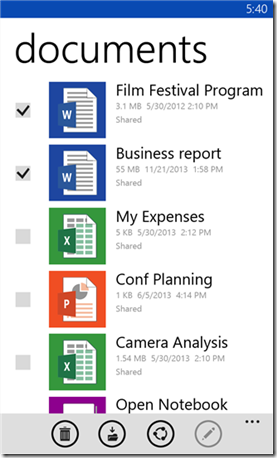
OneDrive (formerly SkyDrive) app for Windows Phone 8.1 just got updated to version 4.1.2.0 . No new features added but bug fixes and performance improvements.

New in version 4.1.2:
• Bug fixes and performance improvements

Works with:
Windows Phone 8.1
Windows Phone 8
Windows Phone 7.5

wp81OneDrive

wp81OneDrive1

Update your app from Windows Phone Store or check more details here.

Tuesday, April 29, 2014

1 TB for OneDrive for Business users

We had seen earlier about increase of SharePoint OneDrive for Business quota. More details about the exciting announcement for OneDrive for Business users :

  • OneDrive for Business storage increased from 25GB to 1TB per user.
  • All Office 365 ProPlus customers will get 1TB of OneDrive for Business storage per user as part of their Office 365 ProPlus subscription.
  • Microsoft will help organizations migrate data from their existing solutions to OneDrive for Business

onedrive

OneDrive for Business is now available also as a standalone service . If you don’t currently subscribe to OneDrive for Business or have it as part of your Office 365 subscription you can take advantage of attractive promotional pricing to get started, at a fraction of the cost of alternatives.

For more information visit OneDrive for Business.

Friday, March 21, 2014

Now up to 1TB of storage on OneDrive for Business

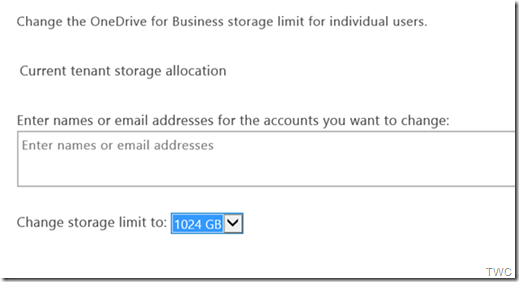
Good news for SharePoint users : You can now increase your SharePoint OneDrive for Business quota to 1TB from the default 25GB and previous limit of 100GB.

SharePointOneDrive

The way it works is you can specify which specific users you want to assign new upper quotas of 50GB, 100GB, 250GB, 500GB or 1TB quota. The catch to this is once you exceed the default quota of 25GB for a user you will be pulling storage out of your overall pooled tenant storage allocation (10GB + 500MB x total number of users) in your tenant.

The SharePoint site collection limit has also been upped from 100GB to 1TB max and the 25TB max SharePoint Online limit in a single tenant has been removed which means you can purchase as much pooled storage as needed in your tenant.

More on how to configure OneDrive for Business and site collection quotas here and here.

(Source)