Showing posts with label Windows 10 Technical Preview. Show all posts

Tuesday, October 13, 2015

Windows 10 Insider Preview Build 10565 released–new features, things fixed, known issues

Today Microsoft has released Windows 10 Insider Preview Build 10565 for PC in the fast ring. Previous build 10525 was released almost a month back on 18th Sep. It has quite a few new things. Let us check What’s new, known issues and issues fixed in this build.

What’s new in Build 10565:

  • Skype messaging, calling and video integrated:  In this build one can preview the integrated capabilities of Skype messaging, calling and video.
  • Edge browser improvements:
    • Tab preview: Just hover mouse over the tab to see the preview.

Edge tab preview

    • Syncing feature: You can now sync your favorites and Reading list items. This feature still is getting refined so one may face some issues.
  • Cortana improvements:
    • Now Cortana can understand your inked notes - Setting reminders based on locations, times and numbers that she can understand from your digital annotations

cortana-ink-reminders2

    • Cortana can keep track of your leisure time, like movie and event reminders through your email confirmations

      • “Two hours prior to the event start time, you’ll get helpful information to be sure you know where to go and get there on time, including an option to book and track an Uber ride directly from Cortana.”
  • Vibrant Title bars: As the Windows Insiders wanted, with this build the title bars appear darker with full color intensity matching the rest of the theme. Enable ‘Show color on Start, Taskbar, Action Center, and Title bars’ from Settings > Personalization > Colors
    ColorsTitleBars

Also it has been noticed that in this build the feature which was present in previous build 10547 where the modern app icons in taskbar used to adapt to accent color, this feature has been removed in this build.

  • Improved Start context menus: Start context menus improved including new icons for tile size adjustment.StartContextMenu
  • New set of icons: This build adds another batch of new icons for devices. Registry Editor too gets a new icon.regediticon10565
  • Device activation improved, accepts earlier OS Product keys: This is an important change. After getting lots of feedback from Insiders, Microsoft has made it easier to activate Windows 10 on devices that were upgraded from Genuine Windows 7, 8, 8.1.

“If you install this build of the Windows 10 Insider Preview on a PC and it doesn’t automatically activate, you can enter the product key from Windows 7, Windows 8 or Windows 8.1 used to activate the prior Windows version on the same device to activate Windows 10 by going to Settings > Update & security > Activation and selecting Change Product Key.

If you do a clean install of Windows 10 by booting off the media, you can also enter the product key from prior Windows versions on qualifying devices during setup.“

  • Last printer is default printer: A new mode introduced in this build will make your last printer as default printer. This change helps ensure the best printer is preselected in inbox print dialogs. Settings > Devices > Printer & Scanners to change this to the previous way Windows handled default printers defPrinter

The ability to set a default printer by network location has been removed.

Issues fixed in Build 10565:

  • No warning messages now in the Settings app > Update & Security > Windows Update regarding changed ring settings for preview builds unless you actually change your ring settings.
  • When apps like Groove minimized,background audio playback works.
  • Clicking on system icons in notification area used to result in Windows Shell blocking the launch of fly-outs like audio, networking is fixed.
  • Many of the context menus adjusted making them smaller to be used with mouse.
  • Can pin Contacts to Start menu from people app.
  • Some apps won’t appear twice when pinned to taskbar.
  • Hiding desktop icons via context menu on desktop now works. (refer this for the issue)
  • Automatic updating of Windows Store apps now works.

Know issue in Build 10565:

  • If in your locale Cortana is not supported then Search will not work. Microsoft to provide a workaround soon.
  • The Xbox app for Windows 10 will consume gigabytes of memory on your PC if you have any Win32 games (non -Windows Store games) installed on your PC that have been identified as games or added by you in the Xbox app. Closing the Xbox app will release your PC’s memory.
  • WebM and VP9 have been temporarily removed from the flight builds. VP9 to return in future builds.
  • Small form-factor devices, like the Dell Venue 8 Pro, that boot with rotation or virtual mode screen size set larger than the physical screen size will experience a bluescreen on upgrade and will roll back to the previous build.


UPDATE 19/10/2015 :

  • Microsoft has rolled out this build also to Slow Ring.
  • Microsoft has also published ISOs for build 10565 for Windows Insiders. So Insiders who would like to move to latest build through a clean install or like to validate using the new activation experience during setup can also try. (A bit about new activation posted above). Insiders can get the ISOs from here.

Tuesday, June 30, 2015

How to reinstall Insider Hub app in Windows 10 Build 10158

Microsoft has released Windows 10 Insider Preview Build 10158 for PCs today. If you are Insider and have upgraded to build 10158 then you’ll find that the Insider Hub is no longer available. This is because the Insider Hub is no longer pre-installed starting with this build. If you want to re-install it, please follow the following steps:

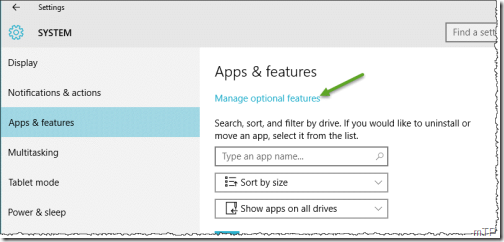
Go to Settings > System > Apps & Features ,

Click on Manage optional features (as shown in the pic) and then Add a feature

InsiderHubInstall

You’ll get a list which is in Alphabetical order, select the Insider Hub entry and click Install.

InsiderHubInstall1

And the app will be installed.

But when I installed it, it was no where got listed either in All apps as New or the Insider Hub app tile shown on Start. So I clicked on ‘Search the web and Windows’ (besides Start Window flag) and just entered Insider Hub and it was listed as Trusted Windows Store app. So I right clicked and pin to taskbar as well as Pinned to Start. And its now working. InsiderHubTile

Wednesday, June 24, 2015

Backup Project Spartan favorites before upgrading to next Windows 10 build

The latest build of Windows 10 for PC is 10130. And the next build which will be released to Windows Insiders, the Project Spartan will officially change to Microsoft Edge. So it means Microsoft Edge app has a new app ID. Because of this any favorites, cookies, Reading List, history saved in Project Spartan app will be lost after upgrading to the new build having Microsoft Edge from the previous Windows 10 Insider Preview build.

So you will have to backup all of your favorites so that they can be imported once Microsoft Edge arrives in the next build.

How to save your favorites?

  • Copy your favorites from

Copy your favorites from %localappdata%/Packages/Microsoft.Windows.Spartan_cw5n1h2txyewy/AC/Spartan/User/Default/Favorites

  • Save them to %userprofile%/Favorites
  • Now after you upgrade to next build with Microsoft Edge, Open Microsoft Edge > Settings and there you’ll see the option to import favorites from other browser. Choose Internet Explorer to import the favorites you saved in %userprofile% directory into Microsoft Edge.

So do it now, as new Insider Preview build is arriving soon.

Tuesday, June 09, 2015

Fix: Windows 10 build 10130 notifications and other flyouts not responding

Some users of Windows 10 Build 10130 for PCs were having issues of unresponsive flyouts from taskbar including Start. Actually when this build 10130 was released, Microsoft had listed this issue under known issues:

In some cases, flyouts from the Taskbar (including Start, Cortana, Network, Battery, and Action Center) fail to fly out. This is a transient issue, and after retrying a few times it will succeed. We are also working to service this issue with an update.

And Microsoft had mentioned that its working on a fix. And today users of Build 10130 received an update to fix this issue via Windows Update.

The KB3070365 is the fix received via WU:

Symptoms: When you click icons on the taskbar (including Start, Cortana, Network, Battery, and Action Center) in Build 10130 of Windows 10 Insider Preview, the expected flyout might not open.

This update is available from Windows Update. You must restart the computer after you apply this update.

Wednesday, May 27, 2015

Free e-Book: Introducing Windows 10 for IT Professionals, Preview edition

Introducing Windows 10 for IT Professionals, Preview edition is available as a free ebook download in various formats. Author is the well known journalist and Windows expert Ed Bott. The book is published by Microsoft Press.
As you know Windows 10 is still a work in progress, so the book is. The book offers a snapshot of the Windows 10 Technical Preview as of April 2015.

You can download the book in different formats from here:

(Source)

Sunday, April 05, 2015

Windows 10 TP build 10049 install issue : “Updates are available, but we temporarily need 0.00 MB-0.00 MB of space…”

This post is about issue faced when upgrading Windows 10 TP from Build 10041 to 10049. Within 2 weeks of availability of Windows 10 TP Build 10041, next build 10049 was made available on fast ring. I was running Build 10041 and since I’m on fast ring, build 10049 was offered as WU. So started downloading…

10049updt

But was stuck with this message : ‘Updates are available, but we temporarily need 0.00 MB – 0.00 MB of space to download…’

10049updt1

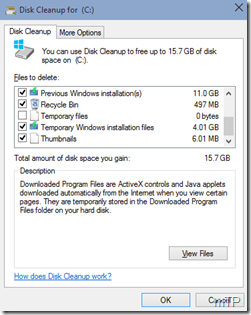
Though the message seemed to have bug as it didn’t mention the correct space required..I thought of recovering some space. There was Windows.old folder having previous Windows installation files and some other folders having temporary installation files. So instead of manually deleting them, I ran the built-in Disk cleanup tool. You can search for and run it. And do not forget to choose ‘Clean up System files’ to clean Windows.old and other temp installation files.

10049updt2

It cleaned and I had nearly 18 GB of free space now..but I was still getting the same message of ‘Updates are available, but we temporarily need 0.00 MB – 0.00 MB of space to download…’

Even the restart didn’t help. So it was not re-initializing the WU process…...I did these following steps:

Start > Run > net stop wuauserv and press enter.

So I just stopped the Windows update service.

Next I renamed the Windows > SoftwareDistribution folder then restarted the system and this time the Windows update was offered again. And the downloading started.

So the download was done and did a manual restart to start the upgrade process. It took ~3.5 hrs for me to complete the upgrade to 10049. At many points there were long pauses as it seemed like it has stuck at some % progress. So just keep an eye on Hard disk activity LED to ensure activity is going on.

I also checked the Microsoft Community and saw that many were facing this issue. and had also done similar things. And some had even deleted the SoftwareDistribution folder.

Official Microsoft solution:

And even Microsoft had posted the solution, this is what it said analyzing the problem:

There are two issues being hit here:

  1. The UX has a bug displaying space. It should be showing how much free space is needed, but is reporting 0.00.
  2. The rescan logic has a bug that requires the service to be retriggered, else it will not see newly freed space.

The solution for this problem is:

  1. Free at least 10GB to allow the download and setup process to have sufficient space to operate.
  2. From an elevated command prompt run ‘’usoclient startscan”, which will reinitiate the scan.

So just issue the above command from the elevated command prompt if you get this error.

Later Microsoft also noted that Builds 10041 and 10049 seem to be taking up much more disk space than previous builds and also taking much more time.

And provided this solution:

We have a bug, which in some cases is causing setup to download all available language packs during the installation of Builds 10041 and 10049.  We believe this is the cause of both of these issues.  It may also result in a few unexpected folders appearing on your desktop or in File Explorer.

If you’re blocked from installing the latest build because you don’t have enough disk space, you’ll want to free up 2.5 GB of space to resolve the issue.

If you want to reclaim the extra disk space from the language packs after installing the latest build:

  1. Open a command prompt as an administrator
  2. Bring up the interface for uninstalling language packs by typing the following command and press Enter:

Lpksetup /u

     3. Select the language packs you want to uninstall.

So if you are facing similar issues in installing Build 10049, just follow the solutions provided by Microsoft.

Saturday, October 11, 2014

Media Center and Windows 10 Technical Preview

If you are one of those who have joined the Windows Insider program and installed trying out Windows 10 Technical Preview (TP), then you should not add Media Center product key. If you add then System Properties will show it as “Windows 8.1 Pro with Media Center” and will say  Windows is not activated.

And not only this, using a purchased product key will also prevent you from getting updates and future builds for Windows 10 Technical Preview.

Microsoft in the Answers Community forum had replied in one of the queries:

We apologize for not catching this before we launched Tech Preview; we did not intend for you to be able to use a purchased product key on a preview build.

We do not recommend adding Media Center to Windows 10 Technical Preview as using a purchased product key will also prevent you from getting updates and future builds for Windows 10 Technical Preview.

To make sure you get updates for Tech Preview, we recommend that you download the ISO file and perform an in-place upgrade to re-install Windows 10 Technical Preview.