Showing posts with label Microsoft Edge. Show all posts

Tuesday, November 17, 2020

Collections in Microsoft Edge - Must try feature!

Collections feature in Microsoft Edge has been designed based on what the user does on the web. If you’re a shopper, it will help you collect and compare items. If you’re an event or trip organizer, Collections will help pull together all your trip or event information as well as ideas to make your event or trip a success. If you’re a teacher or student, it will help you organize your web research and create your lesson plans or reports. Whatever you are doing on the web, Collections can help.Collections is a must try feature. Once you give it a try and you'll be using it regularly.
 
In general, Collections in Microsoft Edge helps you keep track of your ideas on the web. Collections syncs across your signed-in devices, so if you use Microsoft Edge on multiple devices, your collections will always be up to date on all of them. Let us check how to use Collections and what it can be used for: 
 
Start a new collection:  
Select Collections Collections icon at the upper-right corner of Microsoft Edge and then Start new collection.
 To change the title of the collection, select it at the top of the Collections pane.
Once you are ready, you can start adding contents to your Collections in several ways:
    Select Add current page to save an entire webpage to the collection.
    Select and drag an image into the collection.
    Select and drag a link or highlighted text into the collection.
When you add content to your collection, a card will appear. This card shows useful info at a glance and contains a link to the item you saved, so you can always get back to what you were working on.
  
Collections let you pick up where you left off :
 
 To open all the items in a collection as tabs in a new window, select Sharing and more Sharing and more icon > Open all.
Or if you are in Collections main page showing many collections, then right click on that Collection and you'll get the 'Open' option with choice.
To open an individual item in a new tab, right-click it and select Open in new tab or Open in new window.

One can reorder cards in a Collection by just selecting a card and drag it up or down in the list to move it.
 
Adding Notes to a Collection: 
To add a note to a collection, select Add note Add note icon at the upper-right corner of the Collections pane, or right-click in the pane and select Add note.
You can change the font, add bullets, or add headers using the toolbar at the top of the note. When you're ready to save the note, select SaveSave icon.
To reorder content in a collection, including notes, just select it and drag it up or down in the Collections pane.
 Please note that you can't add notes to collections on iOS or Android devices, but any notes you add on a computer will sync to your collections on a mobile device.
 
Share a collection: 
You can easily share a collection or individual items in a collection with others. 
  • To share a collection, select Sharing and more Sharing and more icon > Copy all. This copies all the cards in the collection, which you can paste into an email to share with others. 
  • To share a single item in a collection, right-click it and then select Copy to copy the card for the saved item or Copy link to copy the URL.
 Export a collection:

You can export an entire collection or individual items to a Word document or an Excel worksheet.  

To export an entire collection, select Sharing and more Sharing and more icon and then select Send to Excel or Send to Word. 

To export one or multiple items within a collection, select the check box at the upper-right corner of the item. Next, select Share Share icon and then select Send to Excel or Send to Word.

Similarly these features are also available on iOS and Android. Check for details for these features in iOS , Android device,here.

Check this video : This video will show how easy it is to use Collections and how useful it is.

Sunday, September 20, 2020

Open untrusted websites in Microsoft Defender Application Guard

Designed for Windows 10 and Microsoft Edge, Application Guard helps to isolate enterprise-defined untrusted sites, protecting your company while your employees browse the Internet. 

If an employee goes to an untrusted site through either Microsoft Edge or Internet Explorer, Microsoft Edge opens the site in an isolated Hyper-V-enabled container, which is separate from the host operating system. This container isolation means that if the untrusted site turns out to be malicious, the host PC is protected, and the attacker can't get to your enterprise data. For example, this approach makes the isolated container anonymous, so an attacker can't get to your employee's enterprise credentials.


Prerequisites: This feature is available on Windows 10 Enterprise edition builds 20175.1001 or later. You will also need Internet Explorer 11 and the new Microsoft Edge , and you will need to have Application Guard enabled.  

To install Microsoft Defender Application Guard

  • Open the Control Panel, select Programmes, and then select Turn Windows features on or off. 
  • Select the tick box next to Hyper-V and Microsoft Defender Application Guard and then click OK. 
  • Restart your device.
  • Open Edge. In the upper-right select ... and then select New Application Guard Window. Once a Microsoft Edge Application Guard window opens—the first time takes several minutes—Application Guard setup is complete. 

 To set up the Network Isolation settings in Group Policy

  • In the search box, type Group Policy, and then select Edit Group Policy. 
  • Go to the Administrative Templates > Network > Network Isolation > Enterprise resource domains hosted in the cloud setting. 
  • Select Enabled.
  • For the purposes of this scenario, type .microsoft.com into the Enterprise cloud resources box. 
  • Go to the Administrative Templates > Network > Network Isolation > Domains categorised as both work and personal setting.
  • For the purposes of this scenario, type bing.com into the Neutral resources box. 

 To turn on Application Guard in Managed Mode

  • Go to the Computer Configuration > Administrative Templates > Windows Components > Microsoft Defender Application Guard > Turn on Microsoft Defender Application Guard in Managed Mode setting. 
  • Click Enabled, choose Option 1, and select OK.
     
    For more details on System requirements for Microsoft Defender Application Guard and other details , please check this. (Source: FeedbackHub Quests)

Friday, April 19, 2019

Chromium open-source project based Microsoft Edge builds released

As announced by Microsoft in December last year that it’ll become a significant contributor to the Chromium project, by making Microsoft Edge Chromium based. Recently Microsoft shipped the first Dev and Canary channel builds of the next version of Microsoft Edge, based on the Chromium open-source project.
Since few years, Microsoft has significantly increased its participation in the open source software (OSS) community, becoming one of the world’s largest supporters of OSS projects. And release of Chromium based Microsoft Edge on the desktop to create better web compatibility for customers and less fragmentation of the web for all web developers is one more big step.
Microsoft announced its First Canary and Developer builds are ready for download on Windows 10 PCs. Canary builds are preview builds that will be updated daily, while Developer builds are preview builds that will be updated weekly. Beta builds will come online in the future. Support for Mac and all supported versions of Windows will also come over time.
get these builds from the Microsoft Edge Insider site.

Microsoft Edge Insider builds refers to both Microsoft Edge Canary and Microsoft Edge Dev.
If you are interested in these builds and have downloaded, also refer to this for any errors you might get. 
Microsoft Edge Insider builds: Troubleshoot install and updates

Saturday, March 30, 2019

[Tip]: Grammar tools in Microsoft Edge

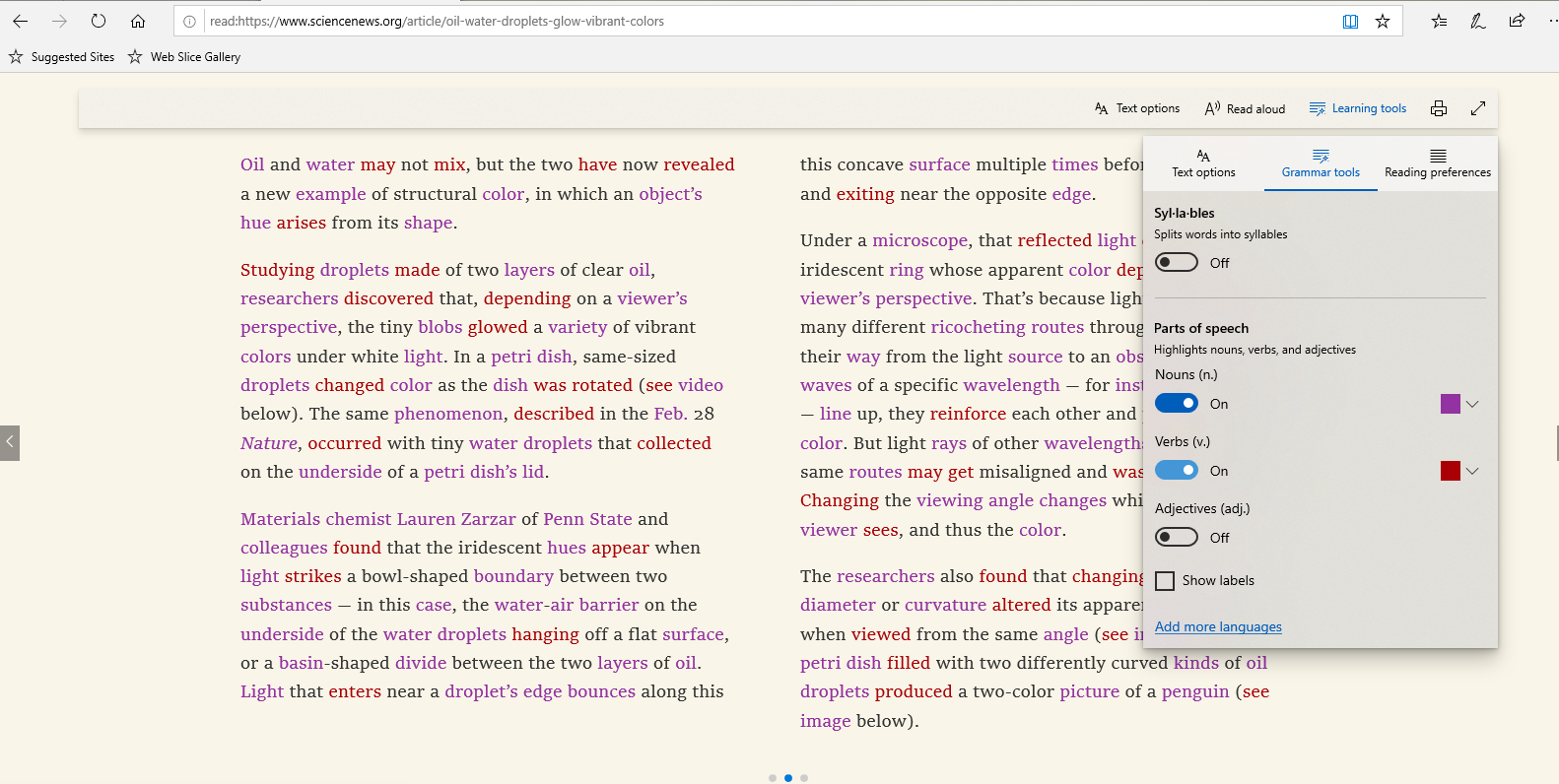
Microsoft Edge is the only browser that comes with Microsoft Learning Tools built-in that helps in to to improve reading and focus. Grammar tool is part of that Learning tool. With Grammar tool, you can identify parts of speech with different colors.
Grammar tools can separate words into syllables and highlight parts of speech, such as nouns, verbs and adjectives. Along with highlighting parts of speech, you can now also change the color as well as turn on an indicator right over what you’ve highlighted, making it much easier to identify the part of speech.
How to enable & use Grammar tools?
Microsoft Edge comes with a Reader mode which strips out unnecessary elements from the opened web page and turns it into cleaner looking page without any ads or scripts, which makes it easier to read and focus on the content.
  • Open the desired web page in Microsoft Edge.
  • Click on the Reading View icon or Ctrl+Shift+R is the keyboard shortcut.
  • This will enable the Reading View feature in the Microsoft Edge. (The opened page should support the Reading view feature. If the Reading View button is not available & is grayed out, it means that the current web page does not support reading view.)
  • Now to get Reading View’s options toolbar, click on the empty area of the page or press Ctrl+Shift+O. Now you can see a toolbar.
  • Click on Learning Tools. Then Click on Grammar tools. The Grammar tools is not installed by default. So if you are using it for 1st time, you’ll see Get button else if its already downloaded & installed , you’ll not see the Get button.
  • Clicking on installed Grammar tools, you’ll see various options.
  • You can enable or disable the grammar tools syllables and highlight parts of speech, such as nouns, verbs and adjectives according to your preferences.One can show the labels too.
As said earlier, Grammar tools separates words into syllables and highlight parts of speech, such as nouns, verbs and adjectives. Check it out in action:


Sunday, April 22, 2018

Windows 10 Tip: Annotate your e-books in Microsoft Edge

In Microsoft Edge, one can not only read e-books but can also annotate them. One can easily personalize e-books by adding highlights in four color options, underline, add notes.

To do this, simply highlight the word or sentence or a para and you’ll get the menu with various options.

EdgeHighlight4

or can get the same option after highlighting and right click.

EdgeHighlight2

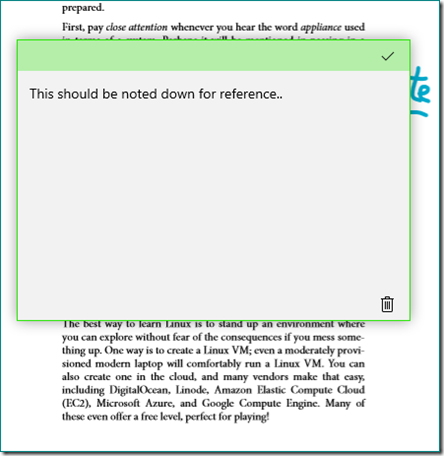
One can write small notes with Notes option. And Save the notes for retaining it for future reference. It can be deleted anytime.

EdgeHighlight3

One can also write directly on the book. This can also be saved & erased at any time.

EdgeHighlight1

One can also select the Cortana icon from the same menu to find more information about the content you are reading without leaving the reading experience.

Why not try these option by opening an e-book in Microsoft Edge. Ensure you are having Windows 10 Fall Creators Update or higher.

Tuesday, July 21, 2015

[tip] How to add a link to the Favorites bar in Microsoft Edge

It is a small tip, but since it was asked by users as Microsoft Edge is recently released. This shows how to add a page URL/link to the favorites bar in Microsoft Edge. So frequently visited links can be easily accessed by putting them on Favorites bar.

1. First one has to enable/show the favorites bar. For this click on the 3 dots (more action) at top right of the Edge browser > Settings > Show the favorites bar to ON

FavBar0

2. With favorites bar showing, now open the page whose link you want to add to favorites bar. Click on the Star > Create in >Select 'Favorites Bar' drop down

FavBar1

And click on ‘Add’ . That’s all . And the Link will be added to the Favorites Bar. Here in the pic a link has been shown added.

FavBar2

Wednesday, June 24, 2015

Backup Project Spartan favorites before upgrading to next Windows 10 build

The latest build of Windows 10 for PC is 10130. And the next build which will be released to Windows Insiders, the Project Spartan will officially change to Microsoft Edge. So it means Microsoft Edge app has a new app ID. Because of this any favorites, cookies, Reading List, history saved in Project Spartan app will be lost after upgrading to the new build having Microsoft Edge from the previous Windows 10 Insider Preview build.

So you will have to backup all of your favorites so that they can be imported once Microsoft Edge arrives in the next build.

How to save your favorites?

  • Copy your favorites from

Copy your favorites from %localappdata%/Packages/Microsoft.Windows.Spartan_cw5n1h2txyewy/AC/Spartan/User/Default/Favorites

  • Save them to %userprofile%/Favorites
  • Now after you upgrade to next build with Microsoft Edge, Open Microsoft Edge > Settings and there you’ll see the option to import favorites from other browser. Choose Internet Explorer to import the favorites you saved in %userprofile% directory into Microsoft Edge.

So do it now, as new Insider Preview build is arriving soon.