Showing posts with label Windows Insiders. Show all posts

Saturday, December 12, 2020

Windows Insiders gets the option to receive builds from the RS_PRERELEASE branch

In the earlier post about the Windows 10 Insider Preview Build 20246 release, we had seen starting with this build 20246, the name of the branch from which builds are released was changed to FE_RELEASE. Windows Insiders in Dev channel were getting builds from this branch.

And now Microsoft has released Windows 10 Insider Preview Build 20277 (FE_RELEASE) to Windows Insiders in the Dev Channel. Starting from this release, Windows Insiders in the Dev channel will also be getting the option to receive builds from the RS_PRERELEASE branch. These builds will be offered as an optional update in Windows Update. Insiders will have to go and choose to install the currently offered RS_PRERELEASE build. Once they do, they will continue to receive RS_PRERELEASE builds going forward.

So with the build 20277(FE_RELEASE), Microsoft  has also released Windows 10 Insider Preview Build 21277 (RS_PRERELEASE) to Windows Insiders in the Dev Channel. As said, it is offered as an optional update.

This optional experience for receiving RS_PRERELEASE builds is just temporary. Microsoft is planning to move all Insiders in the Dev Channel back to receiving builds from RS_PRERELEASE sometime after the holidays. Insiders who choose to stay put will continue to automatically get builds from the FE_RELEASE till all Insiders in the Dev channel will be moved to RS_PRERELEASE as said after the Holidays.

Please note that once an Insider chooses to install a RS_PRERELEASE build, they cannot move back to receiving FE_RELEASE builds as their device will be on a higher build number. Insiders will still have the option to roll back to a previous version for up to 10 days or until you take another build. 

(source)

Wednesday, October 07, 2020

[Workaround] Not able to login to their user profile - Build 20226

Some of the Windows Insiders had reported that in the recently released Windows 10 Insider Preview Build 20226 in Dev channel were not able to log into their User's profile. Here's a workaround released by Microsoft for the same. 

EDIT: This scenario could impact users in the Dev Channel (only) on builds 19593 through 20226.  The same workaround applies to any user in this build range in the Dev Channel who experiences this scenario.

The following message was seen by the affected users:


Workaround:  

The workaround applies only to builds 19593 through 20226 on the Dev channel.  It does not apply to Retail users, or users in the Beta or Release Preview Channels..

*If your account is an Administrator account on the affected device, follow these steps to bypass this issue:

  1. When you see the “We can’t sign into your account” dialogue, click the Close button.
  2. Open an elevated Command Prompt window.
  3. Enter and submit the following commands one line at a time:
    • cd c:\users\%username%
    • takeown /F ntuser.dat*
    • icacls ntuser.dat* /reset
    • icacls ntuser.dat* /setowner "SYSTEM"
  4. Sign out.
  5. You will stop seeing the above dialog on your next sign-in.

Please note that the steps assumes your Windows installation is defaulted to the C: drive.  If you have installed Windows on a different drive letter, please replace c: with the proper drive letter for your installation.

*If your account is NOT an Administrator account on the affected device, follow these steps to bypass this issue:

  1. When you see the “We can’t sign into your account” dialogue, click the Close button.
  2. Open a standard Command Prompt window.
  3. Enter the following command:
    • Echo %username%
    • (Make note of the returned username, you will use it in step 6)
  4. Close the standard Command Prompt window.
  5. Open an elevated Command Prompt window.
  6. Enter and submit the following commands one line at a time:
    • cd c:\users\username
    • takeown /F ntuser.dat*
    • icacls ntuser.dat* /reset
    • icacls ntuser.dat* /setowner "SYSTEM"
  7. Sign out
  8. You will stop seeing the above dialog on your next sign-in

 If the above steps doesn't resolve the issue, then you will have to rollback to previous build to bypass. Then you will have to reinstall build 20226 and you will not encounter this issue the second time.

Microsoft Windows Insider Team has identified the cause of the bug and a fix is under development.

(source: Microsoft Answers Forum)

Saturday, January 26, 2019

How to enable Reserved Storage?

With the release of the latest Windows Insider Build 18298, Microsoft has made some changes to how Windows 10 manages disk space. And this new feature is being called Reserved Storage. Through reserved storage, some disk space will be set aside to be used by updates, apps, temporary files, and system caches. The aim is to improve the day-to-day function of your PC by ensuring critical OS functions always have access to disk space. Without reserved storage, if a user almost fills up her or his storage, several Windows and application scenarios become unreliable. Windows and application scenarios may not work as expected if they need free space to function. With reserved storage, updates, apps, temporary files, and caches are less likely to take away from valuable free space and should continue to operate as expected.
Reserved storage will be introduced automatically on devices that come with version 1903 pre-installed or those where 1903 was clean installed. You don’t need to set anything up—this process will automatically run in the background.

How Reserved Storage works?

When apps and system processes create temporary files, these files will automatically be placed into reserved storage. These temporary files won’t consume free user space when they are created and will be less likely to do so as temporary files increase in number, provided that the reserve isn’t full. Since disk space has been set aside for this purpose, your device will function more reliably. Storage sense will automatically remove unneeded temporary files, but if for some reason your reserve area fills up Windows will continue to operate as expected while temporarily consuming some disk space outside of the reserve if it is temporarily full.
During an update, the temporary OS files which are not needed in the reserved storage will be deleted and so the update will use the full reserve area. This will enable most PCs to download and install an update without having to free up any of your disk space, even when you have minimal free disk space. If the update requires more space than reserved, it will automatically use other available free space. And even that is not enough then Windows will prompt you through steps to temporarily extend your hard disk with external storage, such as with a USB stick or will prompt the user how to free up disk space.

How much Storage space will be reserved?

Its being anticipated that with the next major Windows release (19H1), the Reserved Storage will start from 7GB, though amount of reserved space will vary over time based on how you use your device. Microsoft may adjust the size of reserved storage in the future based on diagnostic data or feedback.The reserved storage cannot be removed from the OS, but you may be able to reduce the amount of space reserved by removing unused optional features and languages.
How to reduce the Reserved Storage space?
Following two factors influence how reserved storage changes size on your device:
Optional features: When an optional feature is installed, Windows will increase the amount of reserved storage to ensure there is space to maintain this feature on your device when updates are installed. You can reduce the amount of space required for reserved storage on your device by uninstalling optional features you are not using.
Installed languages: When additional languages are installed, Windows will increase the amount of reserved storage to ensure there is space to maintain these languages. You can reduce the amount of space required for reserved storage on your device by uninstalling languages you aren’t using.
As said earlier, Reserved Storage will be introduced automatically on devices that come with version 1903 pre-installed or those where 1903 was clean installed.
To check the reserved storage size or to see if its there,
Click the Start Windows icon > Settings > System > Storage .
Click Show more categories > System & reserved.
Look at the Reserved storage size; the value should be non-zero.

If you are not seeing/using the Reserved Storage then follow these steps: (For Windows Insiders)
  • Open Registry Editor.
  • Select HKEY_LOCAL_MACHINE\SOFTWARE\Microsoft\Windows\CurrentVersion\ReserveManager
  • Right click ShippedWithReserves to modify and update the value to “1”
  • After you upgrade the device to the next available build, you will be using reserved storage!
(Source and Feedback Quest)


Saturday, March 17, 2018

How to get High Efficiency Image File Format (HEIF) support natively in Windows 10

Microsoft is bringing High Efficiency Image File Format (HEIF) support in Windows 10 natively. The Photos app will support this. High Efficiency Image File Format (HEIF) is a file format for individual images and image sequences developed by Moving Picture Experts Group (MPEG). HEIF images can store twice as much information as compared to JPEG of the same size and in better quality. Even Apple has announced, its replacing JPEG files and supporting HEIF standard with release of iOS11. They are calling it HEIC.

With the latest Windows Insider Build 17123, Microsoft is adding this support. With the upcoming Redstone 4 Creators update to be released soon for the public, this will be supported natively. As said earlier, Photos app will support this feature. Announcing this feature, Microsoft in its blog post explains -

“HEIF is an image container that leverages modern codecs like HEVC to improve quality, compression, and capabilities compared to earlier formats like JPEG, GIF, and PNG. In addition to traditional single images, HEIF supports encoding image sequences, image collections, auxiliary images like alpha or depth maps, live images & video, audio, and HDR for greater contrast.”

How to get the HEIF support in Windows 10?

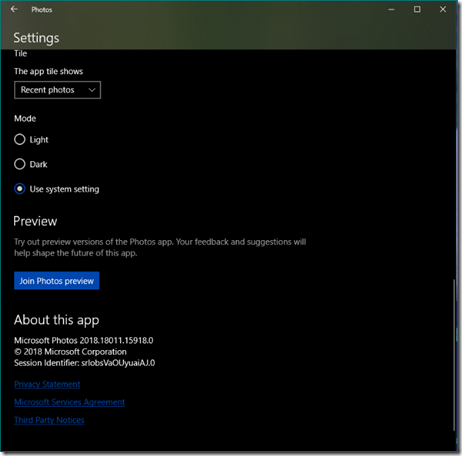
For Windows Insiders to try this, first you need to join the Windows App Preview Program for the Photos app and make sure you are running the March release of the  Photos app (Version 2018.18022.13740.0 or newer).

PhotosPrev

This version of the Photos app has been updated for RS4 to support viewing the primary image inside a HEIF file and to guide the install of dependencies like the HEIF and HEVC media extensions from the Microsoft Store. Once installed, these media extensions enable HEIF viewing in Photos as well as thumbnails and metadata in File Explorer.

PhotosPrev1

Double clicking any .heic file, (if you are not having any .heic file, you can get these images from net), Photos prompts to download codec from store. After downloading, .heic files will start showing thumbnails in File Explorer. You might need rebooting.

Friday, February 09, 2018

Delete Windows Diagnostic Data that Microsoft has collected from your device

Microsoft introduced new privacy tools ahead of Data Privacy Day (28th Jan).This included the Diagnostic Data Viewer which the Windows Insiders can have in build 17083 onwards. With Microsoft’s commitment to transparency and control, users can now delete the Windows Diagnostic Data that Microsoft has collected from your device.

To do this, Go to Settings > Privacy > Diagnostics & feedback, you will find a delete button that deletes the Windows diagnostic data associated with your device

deleteDiagData

Note: The backend cloud system is currently under development and will be available to complete the Delete requests prior to public release of RS4. 

(source)

Wednesday, April 05, 2017

Coming soon : New Windows Insiders builds from Development branch

Microsoft is getting ready to release new builds from Development branch. As we know Creators Update will soon be rolling out to general public, while Windows Insiders who already are on Creators Update can decide what to do.

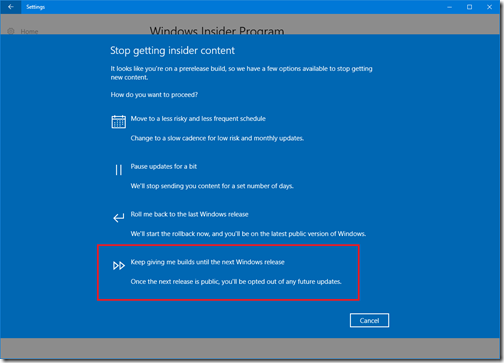
Those Insiders who wants to remain on the Windows 10 Creators Update and wants to opt out of future updates can go to

Settings  > Update & Security > Windows Insider Program and then press the “Stop Insider Preview builds” button

stopIsiderPreview

Then you have to choose “ Keep giving me builds until the next Windows release” . So when the next release is public, you’ll be opted out of any future updates.

stopIsiderPreview02

And those who want to continue should also note that they won’t see many big noticeable changes or new features in new builds which are coming very soon. That’s because

“…right now, we’re focused on making some refinements to OneCore and doing some code refactoring and other engineering work that is necessary to make sure OneCore is optimally structured for teams to start checking in code…”

Also these new builds from development branch might include more bugs, might have some issues and if it makes one uncomfortable, they can switch to Slow or Release Preview rings.

So exciting times ahead!!

(Source)

Friday, December 30, 2016

Windows Scoop Fans program for Windows Insiders in India

Microsoft is launching a new exclusive program for Windows Insiders in India. Its called the “Windows Scoop Fans” program.

WIP

This program is designed for most enthusiastic Windows fans and compliments the Windows Insider Program.

What Windows Scoop Fans will get?

Those selected to join will get access to a private Facebook page loaded with exclusive updates on Windows, including news on the latest apps and devices. Member will also get valuable tips and tricks, invitations to Windows fan events and more.

How to join this program?

In the mail sent to Windows Insiders, Microsoft has detailed how to join this program.

Send us an email answering this one question — ‘Why I’m the biggest fan of Windows’. Tell us about a favourite feature, a Windows app you’ve created or how Windows helps you do great things. We’re open to a wide range of responses. And feel free to add photos, videos, etc.

Last date for submission is 5th Jan 2017 and selection by 15th Jan. Interested Insiders should hurry up and get selected.