Friday, August 28, 2009

Microsoft Answers- now for Windows Live

MSans1 If you have any queries related to Windows Live and needs help or just want to help others by solving Windows Live related queries, you now have recently launched Microsoft Answers for Windows Live  Here you can ask your doubts and also get involved in the community answering others queries. 

At present its having following categories -

Family Safety

Photo Gallery, Movie Maker, & FrameIt

Sync & Devices

Events & Toolbar

This forum is launched initially in English and later it will expand into other languages and also more Windows Live categories. Microsoft Answers will expand further in the days to come. http://answers.microsoft.com/en-us/windowslive/default.aspx


MSans2


It is a great place for Windows Live Essentials users to offer tips and advice, get their queries answered, collaborate together to improve the experience of Windows Live and be a part of the community. Here you will get your queries answered from other community members , MVPs and from Experts from Microsoft.


MSans3

BTW have you tried the Cool new Windows Live Movie Maker? If not check it out how easy it is to make your own Movies with all the transition effects, titles etc , Get Windows Live Essentials from here : http://download.live.com/

Monday, August 24, 2009

Tip: Using png format images in Windows Live Writer

This is a small tip related to use of transparent .png format images with Windows Live Writer. As PNG support transparency, a transparent PNG is background-independent. Suppose you have a transparent PNG image and want to put it on your blog using Windows Live Writer and you insert it and it looks as shown below. This has a black background with it.

WLWriter_logo

This black background is due to the ‘Borders’ option in Windows Live Writer which by default is ‘Drop Shadow’. So just choose any other option like ‘None’ (Select the picture >Picture tab in Taskpane > Borders > None) Or any other option other than ‘Drop Shadow’ . And see what you get as shown below.  The same image with transparent background which looks much better.

WLWriter_logo

Windows Live Mail Updates

WLMail_logo Recently a new ver of Windows Live Movie Maker was released and was out of beta.  And along with it updates to Windows Live Essentials thus updating all Windows Live Essentials Apps which also includes Windows Live Mail were released. Let us see what are the issues in Windows Live Mail that have been updated.

-- I had this problem in Windows Live Mail where one closes the app will appear to close but keeps on running in background and we could check it in Windows Task Manager (wlmail.exe keep running). And if we wanted to start it again , WL Mail will not start and another instance of it starts to show up in Task Manager. So as I knew this problem, I used to kill the running process from Task manager and then it used to Open again. A feedback about it was provided as many others were also facing this.

Now in this new update this issue has been corrected. Thanks To WL Mail Team ! Now ‘Recover Disk Space’ should also work properly.

Other updates are-


-- Windows Live Mail can now properly import Outlook Express mail account settings that were transferred from a Windows XP to a new Vista or Windows 7 system using the Windows Easy Transfer wizard.


-- On Vista and Windows 7, Windows Live Mail wouldn’t connect properly to POP email servers using SSL. In particular, this affected some users of Yahoo! Mail.

The update is version 2009 (Build 14.0.8089.0726), You can check it from Help > About Windows Live Mail

WLmail

So if you want to update all your Windows Live Essentials Apps and also get the new Windows Live Movie Maker (which has got very good response from its users) just go to  http://download.live.com 

(Source:Windows Live Mail Update Details)

Windows Live Tags: clubhouse, Mail, updates, Essentials

Wednesday, August 19, 2009

Windows 7 Silverlight based Countdown timer

Few days back I had posted about the third party Windows 7 Countdown Gadget which can posted on ones blog or site. And I also had put it on my blog. But it could not be put on Windows Live Spaces based blog as it rejects scripts. Now our MVP colleague Vikram Pendse has created a Windows 7 General Availability (GA) Countdown timer based on Silverlight. And the good thing is , it can also be put on Windows Live Spaces based blog. The below image shows as put in my Windows Live based blog LiveViews.

Win7GA2

To display this on your blog/spaces/site, just embed the following code-


<iframe scrolling="no" frameborder="0" style="width:158px; height:200px" src="http://silverlight.services.live.com/invoke/75985/NewWin/iframe.html"></iframe>


For users of Windows Live Spaces, add a ‘Custom HTML ’ module.  Sign-in to your Spaces and Customize >Add modules >Custom HTML >Add and type the above code and save.

As you know, Windows 7 General availability is on 22nd Oct. So its that date when it will be available in the Stores. So Count it down along with this nice timer. Thanks Vikram !

(Source: The South Asia MVP Blog)

Tuesday, August 18, 2009

Bing Homepage image Tips

Bing apart from providing smart search results neatly arranged in categories, also brings a stunning image daily as homepage. And this image is different for different countries. At present a sets of countries shows different images. After reading this post Welcome home on Bing community, I also thought of making a related blog post. Let us see some of the tips related to Bing Homepage:

* Save the image in Easy Way and Desktop background -  The Bing Homepage images are so nice that you want to save them. Earlier, it was difficult to save them and people applied various methods to save them. Like doing a “view source” and from there finding a particular URL.

Then Gordon from Germany wrote a little program for saving the daily changing image,  and has been saving them at http://gordon-breuer.de/page/Live-Search-Backgrounds.aspx  with his image grabber service.

Then there’s another Bing Downloader at CodePlex.

But now all these are not required. Just open bing in IE Browser. Right click and get the “Save Background As..” option.

bingHP1z

In IE, you also get ‘Set as Background’ option which lets you set it as your Windows desktop background.

In Firefox when you right click, you get ‘View Background Image’ from there you get Save Image option. An extra step is required in Firefox compared to IE.

bingHP1FFz


* Discover Image information with Hotspots-  If you want to know more information about the image, just move your mouse over the image to find 4 hotspots which provides a link for more interesting information. Its a nice way to daily learn and discover something new.

bingHP2Bing Homepage with one of the Hotspots which provides some interesting info about the image when clicked on link. This  Hotspot feature has not been enabled for all countries.


* Quick facts and photographer’s name – Recently bing added a copyright symbol © at bottom-right corner of image which provides quick facts about the image along with photographer’s name and agency.

bingHP3z


* Past 7 days images – In case you missed previous days image or you wanted to check it again then there’s an option to scroll through images of past 7 days using the arrows at lower-right corner. You need to have Silverlight installed to view the archive. You can see the Arrows as shown in above image, just on the left of © symbol.

* Search related and Other Features – On the main homepage you can see the Bing search box and on left Explore which has various categories of search as Images, Videos, Shopping, News , maps, travel. And on bottom, image related interesting links with popular current topic links. And on Top left you can get a tour of Bing with - Tour Bing . And on top right you can find Extras which has Preferences, Cashback, blogs, Webmaster centre related links and more. And near to that it shows the country which you can change by clicking on it. At present only United States has Bing with full featured sets. All other countries are still in beta.

bingHP41


* Turn the images ON or OFF – If you want the Bing Homepage with plain background then just run click this link http://www.bing.com/?rb=0 and you will not get the image.

If you again want the images back then http://www.bing.com/?rb=1 


* Bing Archives - If you are interested in getting all Bing images since it started and also want the daily images from different markets then there are some excellent Bing Archives provided by some enthusiasts. One of them is Long Zheng whose archive can be found at http://www.istartedsomething.com/bingimages/  The images can be selected according to month, country etc.

BingLZ


And other one I found interesting is http://www.bing-wallpaper.com/ which also provides Bing images sorted on date or by country.

BingWPtour

So get these spectacular images for your desktop wallpaper.


* Live updating Bing Wallpaper Windows 7 theme (Source:On10.net ) -

As you know Windows 7 supports RSS-powered themes, we can get the image feeds from bing archives and use them as wallpaper on Windows 7. This will be Live updated automatically. Long Zheng provided his Bing Image Archive’s RSS feed when asked by Mahendra Palsule of Makeuseof.com. Now you just have to create a theme file and activate it. Let us see how to do it -

1. Copy this text into Notepad:

[[Theme]
DisplayName=Bing

[Slideshow]
Interval=1800000
Shuffle=1
RssFeed=
http://feeds.feedburner.com/bingimages

[Control Panel\Desktop]
TileWallpaper=0
WallpaperStyle=0
Pattern=

[Control Panel\Cursors]
AppStarting=%SystemRoot%\cursors\aero_working.ani
Arrow=%SystemRoot%\cursors\aero_arrow.cur
Crosshair=
Hand=%SystemRoot%\cursors\aero_link.cur
Help=%SystemRoot%\cursors\aero_helpsel.cur
IBeam=
No=%SystemRoot%\cursors\aero_unavail.cur
NWPen=%SystemRoot%\cursors\aero_pen.cur
SizeAll=%SystemRoot%\cursors\aero_move.cur
SizeNESW=%SystemRoot%\cursors\aero_nesw.cur
SizeNS=%SystemRoot%\cursors\aero_ns.cur
SizeNWSE=%SystemRoot%\cursors\aero_nwse.cur
SizeWE=%SystemRoot%\cursors\aero_ew.cur
UpArrow=%SystemRoot%\cursors\aero_up.cur
Wait=%SystemRoot%\cursors\aero_busy.ani
DefaultValue=Windows Aero
Link=

[VisualStyles]
Path=%SystemRoot%\resources\themes\Aero\Aero.msstyles
ColorStyle=NormalColor
Size=NormalSize
ColorizationColor=0X6B74B8FC
Transparency=1

[MasterThemeSelector]
MTSM=DABJDKT

2. Save the file as “Bing.theme”

3. Activate the theme. Double-click on the Bing.theme file to launch it. In the Subscribe to RSS Feed? prompt, click Download Attachments.

After following the three above steps, you’ll now see the Bing theme appear on your screen. It will also be stored in the “My Themes” section of your personalization options. If you have any trouble, check this blogpost

Hope you like all these tips related to Bing Homepage images. Also look for some Bing images related to Special Occasions, like the recent one on India’s Independence. So enjoy bing-ing along with these tips.

Saturday, August 15, 2009

Why you should use IE8?

Just now, while I was on twitter, I received a tweet saying “Now, This is serious.. online banking fraud! http://bit.ly/W8WD4 ‘, So out of curiosity I followed that link to the blog post. It was, as it said, was about a phishing site. The post was Now this is serious!!!  by Arnab Mitra on his blog Intelligent Marketing . In the post the author Arnab Mitra described his experience about Online Bank fraud. He first receives a mail (gmail filters failing )

bank (Image Courtesy- Intelligent Marketing - Now this is serious!!!  by Arnab Mitra)

This mailer did look exactly like an alert from his bank, which needed an urgent attention. So he clicks on the link provided in the mail  ( link: https://infinity.icicibank.co.in/BANKAWAY?Action.RetUser.Init.001=Y&AppSignonBankId=ICI&AppType=corporate&abrdPrf=N   

This link actually shown is the correct bank link but actually it links to http://www.french-eng.co.uk/tmp/cache/indexx.html )

And if you click this link in FireFox, it allows it and looked exactly like the real banks page-

bank_lp (Image Courtesy- Intelligent Marketing - Now this is serious!!!  by Arnab Mitra)

So curiously I also tried it in Firefox which took me to this and when clicked on Personal Button opened the site as shown above, So Firefox failed to detect this phishing site.

IEFFphishz

Now I tried in my default Browser- My Internet Explorer 8, Yes IE8 !! And when I clicked on the link it took me to this -

IEphishsite (Click on the image to enlarge)

IE8 blocked the site and it clearly warned ‘This Website has been reported as unsafe’ and recommended not to continue to this web site. This is one example of Security feature in IE8.

Any common person who might have received this kind of fraud mail is most likely to fall in this trap. The author Arnab Mitra was attentive enough to have noticed this, though Firefox allowed it. I have heard and had seen screenshots of such sites earlier also, in that case ICICI only but after reading the blog post by Arnab, I also decided to try it. Thanks to Arnab, I’m also carrying his blog post forward and alerting people of such Phishing sites. I request to make use of IE8 which is one of the Safest browser. I always use IE8 for Online Transactions without fail. So this is why one should use IE8 . You can get IE8 from here , and its Free !

Recently I also had come across a post from IE8 team : Real-World Protection With IE8’s SmartScreen Filter™ which said -

“………However, phishing remains a prevalent and important threat to users as well.  We’re continuously making improvements to our data sources and intelligence systems that deliver phishing protection.  This continuous investment keeps IE in the market-leading position it established with the release of the Phishing Filter in IE7. Since then, Internet Explorer 7 and 8 have blocked over 125 million phishing attacks.

The newest NSS study included a test pass for phishing blocks. NSS Labs reported the following block rate for major browsers:

ericlaw_smartscreenprotection_2

You can view the full NSS study at http://nsslabs.com/browser-security.

And this was a real world example where one can be easily cheated if he is not using IE8 or is not attentive enough.This is one of the reasons, why one should use IE8. Thanks IE8 !

Bing joins in India’s Independence Day Celebrations

Today, 15th Aug. is India’s Independence Day. India became free from British Rule on 15th Aug. 1947. Whole country is in Celebration mood and to add to the joy, Bing has added colors in the celebration by providing this Home Page today: http://www.bing.com/?mkt=en-GB  (Now for India region also http://www.bing.com/ , check ‘EDIT’ at bottom)

Bing150809UK (Click on the Image for Enlarged view )

The image is of Maharaja's Palace, Mysore, India. Photograph provided by ©Vladpans/eStock Photo

It also provides the Hotspots with lots of relevant information, here I’m providing the links to those 4 Hotspots-

Can you name the leader of the Indian nationalist movement?Martin Luther King, Jr., considered him a role model »


The city of Mysore, India, lights up this palace for all 10 days of the Dasara festival each year.What else happens during Dasara? »


Today is Indian Independence Day, the 62nd anniversary of the end of British rule in India.Learn more about it »


The Maharaja's Palace was once the official residence of the royal family of Mysore.See an aerial map of the palace »

At the bottom of page another interesting fact and link-
It takes 97,000 bulbs to light up this palace Let's hope they're energy-efficient

But this homepage Image is provided for Australia, France and United Kingdom regions. For other regions including India some other Homepage Image is provided today. I would request Bing to have provided this for India region also on this day.

EDIT (3:00PM IST) : Thanks to Bing, now this Home page showing the image of Maharaja's Palace, Mysore, India in celebration of India’s Independence is being shown in many other regions including India. But Bing’s Homepage Hotspots for regions like India is not shown as its still in Beta and features are still being rolled out. So check out the related Hotspot links as given above. Thanks Bing for the quick action !

Friday, August 14, 2009

Microsoft Virtual TechDays

Get ready for Online Technical Trainings which you can attend from your cozy confines of your work-desks and deep dive into latest Microsoft Technologies and products. This is the 6th Ed. of Microsoft’s Virtual TechDays - India’s premier online event. This will be held from Aug. 19-21, 2009. (10:00AM- 7:00PM IST )(GMT+5:30)

Register Now http://www.virtualtechdays.com/  Because There’s always more to learn.

Watch out for separate technology tracks for Developers and IT professionals with learning sessions on latest technologies - Windows 7, Silverlight 3.

More details at  http://www.virtualtechdays.com/

VTDzDon’t miss the Opportunity, Please Note- This is an Online Event and its FREE. To attend this , you are required to install Microsoft Live Meeting and Silverlight3.

Tuesday, August 11, 2009

Microsoft Clubhouse Choice Award Results Announced !!

clubhouseawards Earlier I had posted about the Nominations for the Microsoft Clubhouse Choice Award and had requested all of you to vote for me as I was also nominated in one of the categories. And now its the Results Time !! Marcus- Windows Community Manger on the Community Clubhouse Spaces has posted the Winners list - Announcing the Clubhouse Choice Award Winners

I’m happy to say that I have won in my Category. Thanks to all ! Its nice to know that many of you like my blog posts and voted for me. Thanks Microsoft ! Congrats to all the Winners and all the Nominees! Here are the results-

Best Technical Direction:  Andre
Best Story:  Michael
Best Tip or Trick:  Vasudev
Outstanding Art Direction:  Technogran
Early Adopter:  Richard H.
Rising Star: Ali
Clubhouse All-Star:  Jamie

Thanks once again !!

Add Windows 7 Countdown gadget to your blog, desktop

As you know Windows 7 has already RTM’d and is also available to MSDN/TechNet Subscribers since Aug 6th but Windows 7 will be in retail stores and shipping on new PCs starting October 22nd. So how about a Countdown Widget of Windows 7 for it Public Launch? I had to search for a nice third party widget as official widget which can be put on blog/site was not there. Although one can find gadgets on Windows Live Gallery which can be used to put on Sidebars of Vista/Windows7 desktop. Recently I came across a widget which I liked very much and configured it to display it on my blog as shown. win7widg1

This widget is available at yourminis , one can configure it by clicking on edit me> edit event and filling out the date (22nd Oct), time, event name and link URL. One can also customize the appearance of the widget by clicking on the color picker icon to change the background color, text color, shape and size. Also one can add a skin image URL to provide a skin image. And it provides a Live preview, so whatever you change can be seen there. You can also change the size just by dragging the bottom right part of widget.

if you want to put the same widget as I have, then just click on the ‘copy me’ button (which appears as you mouse over on the top of widget) in my blog, which will provide lots of embed code options to be put on blogger, facebook, bebo, you can mail it also, Vista sidebar, mac dashboard, Yahoo widget and many more. (This code only be put only on blog which supports it and may not be accepted by blogs like Spaces.)

This is the best Countdown widget I have come across and if you also like it , copy the code or configure yourself and put a Windows 7 Countdown Gadget on your Blog, site or Vista sidebar. Get it now !

Thursday, August 06, 2009

Windows 7 Upgrade Chart

Here’s a chart which provides at a glance view of which current version of Windows can be upgraded to which version of Windows 7. This chart was provided by Microsoft when asked by Walt Mossberg. Thanks Microsoft , thanks Walt !

Please note that, only the green box saying ‘In-place Upgrade’ will upgrade keeping all your files,settings, programs as it is been in the current Windows version.

windows7-upgrade-chart (click on the chart to get a bigger view for more details)

While the blue box of ‘Custom Install’ (clean Install) gives you the option to either completely replace your current OS or install Windows 7 on specific drive or partition you select. You can also do a custom install if you do not have any OS or if you want to do a dual/multiboot on your system.

Windows Easy Transfer and Windows 7 Upgrade advisor are useful tools that can assist the upgrade. For more details about these tools, one can check http://windows.microsoft.com/upgrade

Users of Windows XP can also check this- Step-By-Step: How To "Upgrade" from Windows XP to Windows 7 by Scott Hanselman. Where Windows XP users can migrate using these steps to Windows 7.

Windows Live SkyDrive Team Blog is moving

WLSD Yes, the SkyDrive team blog is moving and it’s the correct move. Like we are now having all Windows related official blog at one place http://windowsteamblog.com/blogs/ , hope to see similar move for all Windows Live related products. And now Windows Live SkyDrive Team blog which earlier had a separate blog at http://skydriveteam.spaces.live.com/  will be integrated with Window Live Team blog http://windowslivewire.spaces.live.com/default.aspx . So from now on look for all SkyDrive related posts here only. Its nice, one doesn’t have to keep track of different blogs.

And they have started with new post : a post celebrating one billion photos uploaded to Windows Live Photos. Great !

Microsoft is streamlining its Windows Live services, like recently it announced that Windows Live Events will be closing and one can use the Calendar service to do what Events did. 

(Source:Our blog is moving!)

Wednesday, August 05, 2009

Installing Windows 7 on Asus Eee PC Netbook 900 using Pendrive

I have been using Asus Eee PC Netbook 900 since couple of months now. It came preinstalled with Microsoft Windows XP Home. It has 2 SSDs, 4GB and 8GB with 1GB RAM.I used it for few days as it came , then decided to install Windows 7. XP Home was installed on 4GB SSD and some apps were installed on 8GB SSD. So installing Windows 7 was bit tricky as the Netbook does not comes with any Optical drive. Either I have to get an external DVD drive and connect to USB port and install it as usual or to use a Pendrive (FlashDrive). I decided to try with Pendrive. Here are the steps required for doing so. Actually I started this post soon after I installed Windows 7 about a month back, but completing and posting it now.

Get a pendrive with minimum of 4GB capacity. I am using a 4GB Kingston Pendrive.

IMG_1065z 

To make the pendrive bootable, follow these steps which is to be carried from either Windows Vista or Windows 7.

Attach your Pendrive to USB port of your Windows Vista or Windows 7 machine.

Click on Start and type cmd in the Search window, which will show the cmd as the result. Right click on cmd and Run as Administrator, which will open a cmd window.  Now at the command prompt type Diskpart and press enter to get a Diskpart prompt where we will enter further commands.

diskpartz

Now at the Diskpart prompt , DISKPART> type these commands- (commands shown in Bold and Italics)

List Disk -which will list the disks including your Pendrive, as can be seen here its listed as Disk 1 with 3820 MB size.

Select Disk 1  -(here its 1 for me, replace 1 with the number which is shown against your pendrive) , which will show ‘Disk 1 is now the Selected disk’.

Clean   –This will clean the pendrive disk

Create partition primary

active

format fs=fat32 quick

assign  –A drive letter will be assigned to the Pendrive. And its Bootable.

4GBstepsz

If you get any error along the way, just remove the drive and repeat the process from start.

For those who are uncomfortable with issuing these commands, can try an utility which automates this process. A Bootable USB utility to create bootable USB drives for Win 7 and Server 2008

Note that this also requires to be run on Windows 7 or Vista, Server 2008. I haven’t tried this utility.

Insert your Windows 7 Install DVD and copy all the contents from it to the pendrive .This can be done from Within Windows. So just do a copy –and paste into PenDrive . Now you have a Bootable Windows 7 pendrive which will be used to install on your Netbook.

I have followed the above steps from the Installing Win7 using a USB Stick by Dennis Chung. And these steps are General.

Let us start the installation process on Asus Eee PC 900 Netbook-

And from now on I’ll be talking of Asus Eee PC 900 Netbook , so some of the screenshots may not be applicable to other Netbooks. Insert Bootable Windows 7 USB Pendrive into your Netbook USB port.

IMG_1091z

Start your Netbook and as you see Asus Logo Screen,
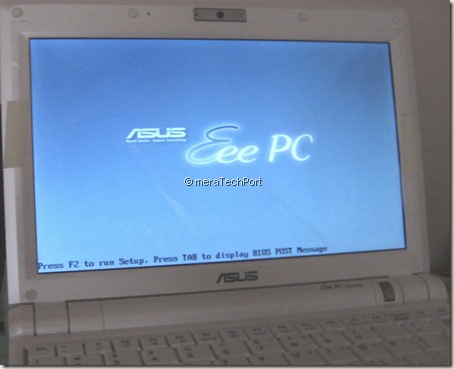
IMG_1133z

Press F2 to enter into BIOS and set the Boot Sequence Priority to ‘Removable Device’.

IMG_1153z1

Also OS Installation option to ‘Start’

IMG_1151z

And Now Save and Exit. And Netbook restarts and see if it boots from your Pendrive. If it does then continue installing . Else restart and when you see the Asus Logo Screen press ‘Esc’ key to go to the Boot Device Selection Screen-

IMG_1071z

IMG_1071z

As you can see in the above pic, I have selected USB:Kingston DataTraveler which is the pendrive I’m using. Press Enter and continue booting from the USB Pendrive and now it starts Windows 7 installation process. Follow the screen Instructions you get.

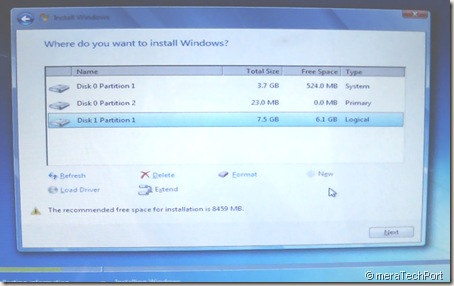
IMG_1077z

IMG_1085z

As your Asus Eee PC900 comes preinstalled with XP on 4GBSSD and various Apps on 8GB SSD, now you have to install Windows 7 on 8GB SSD thus wiping out all apps. First I installed Windows 7 on 8GB SSD, dual booting with XP. I used dual booting for few days keeping both Windows XP and Windows 7, later I removed XP from 4GB SSD also.

It took me about an hour to install it on the Eee PC900 Netbook. It installs almost all drivers, you can install others from the DVD provided with the Eee  PC 900. You have to copy the contents from the DVD to Pendrive to do it.

You may have to get newer ACPI drivers from Asus support site to install thus making all the Fn keys on Windows 7 Netbook working. Get the Version V4.00.0010 ACPI drivers from Asus Support site, its under ATK category selecting OS as XP.

After the installation, restart and go into BIOS and set OS installation option in BIOS to ‘Finished’ which we had set to ‘Start’ for the OS installation. Don’t forget to do this else you may face some error or performance issue.
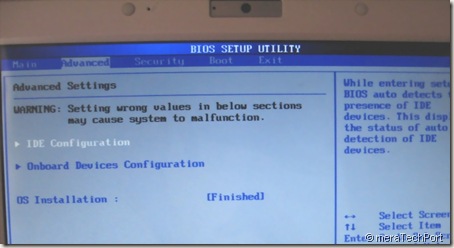
IMG_1124z

On a 8GB SSD , after the install nearly 1.2 GB was free out of 8GB. As I do not need Hibernate option, I switched off Hibernation which further freed me nearly a GB. Issue the command from cmd prompt as ‘powercfg –h Off’  (without quotes)  to switch off Hibernate. Thus I have nearly 2GB of free Space on 8GB SSD where the OS is installed and as I removed XP I have nearly 4GB on another SSD. Here I’ll install all other Apps.

IMG_1155z


As it also provides a SD/MMC slot, I have put a 16GB SDHC card, thus providing ample storage space.

IMG_1160z 

I am running various apps and software including MS Office 2010 TP and it runs quite fast on it.

Windows 7 RC runs quite smoothly on such a lower end system (Its Intel mobile 353 processor with 1GB RAM). So if you have a Netbook , give it a try, you’ll like it. When Windows 7 comes into market , I’m sure there will be many Netbooks coming out pre-installed with Windows 7.